

MMGuardian Review: Quick Expert Summary
MMGuardian is a good parental control app that can monitor Android and iOS devices and keep your child safe both online and offline. It’s easy to set up, intuitive to use, and gives you an incredible amount of control compared to many other parental control apps. You can try MMGuardian for free using its 14-day free trial.
MMGuardian comes with all the industry-standard parental control features you’d expect, including web and app filtering, scheduling, time limits, location tracking, and activity reports. I also really like that it monitors calls and SMS messages, as well as many major social media platforms such as WhatsApp, Instagram, and Facebook Messenger.
However, there are some areas where MMGuardian is notably lacking. It doesn’t have a geofencing feature (Norton’s is excellent), and it can’t set daily device usage limits like most of our top parental control apps — instead, it only allows you to set limits for individual app groups (such as Games).
MMGuardian is also a little pricey, especially considering it only allows you to monitor 1 device on its Single Phone plan or 5 on its Family plan. Plus, I don’t like its money-back guarantee. You can get a refund within 72 hours of downloading the app but only if you can show there’s a defect in the software — it won’t apply if you decline technical assistance. Other top parental controls offer longer refund windows (up to 30 days) and don’t require you to jump through annoying hoops (like using technical assistance). Instead, I recommend taking advantage of the 14-day free trial to ensure it’s the right parental control app for you.
MMGuardian Full Review — Lots of Web & App Filtering Control (+ Monitor Calls & Messages)
MMGuardian isn’t my favorite app for monitoring Android or iOS devices. That being said, it has some unique strengths, such as the incredible amount of control it provides with its web and app filters, which can make it quite appealing to certain parents.
MMGuardian includes all the features essential for a good parental control app. On top of that, it offers the ability to monitor calls and read and monitor your child’s SMS and social media messages.
While MMGuardian is slightly expensive, it’s still a great value for parents who want an easy-to-use app with a specific set of capabilities. To see if MMGuardian will be a good fit for you and your family, you can use its 14-day free trial. No credit card information is required to activate the free trial, so it’s totally risk-free.
MMGuardian Plans & Pricing — A Bit Expensive + iOS Has Fewer Features
MMGuardian offers 2 ways to protect your child’s device — a parental control app and a preconfigured Android smartphone.
The app has two types of plans:
- Single Phone plans (for 1 device)
- Family plans (for up to 5 devices)
Each plan is further divided by device type: Android Phone or iPhone/iPad, and they are available as monthly or annual subscriptions. Note that MMGuardian’s Android tablet app and subscription are no longer available, despite the fact that it’s still referenced on its pricing page.
While MMGuardian doesn’t have separate basic or premium tiers, its iOS version lacks many key features found on Android, despite being priced the same. Compared to Qustodio, which offers more features and 5 devices for $4.37 / month (on the 1-year plan), MMGuardian feels overpriced — especially since it lacks a free version and a money-back guarantee. That said, it does offer a 14-day free trial.
Here’s an overview of MMGuardian’s plans:
MMGuardian Single Phone — Simple Plans for 1 Device
The 1-year Single Phone plan costs $4.16 / month for Android phones or iOS devices. It includes all of MMGuardian’s monitoring tools, like app blocking, web filtering, location tracking, and inappropriate image detection. However, iOS users miss out on key features like time limits, call/SMS blocking, and usage reports. If you only need to monitor 1 device, this plan is a straightforward but somewhat pricey option.
MMGuardian Family — Family Plans for 5 Devices
The 1-year Family plan costs $8.33 / month for Android phones or iOS devices, covering up to 5 devices. It includes the same features as the Single Phone plan, and supports a mix of Android and iOS devices.
MMGuardian Phone — Preconfigured Android Smartphone
MMGuardian also has 2 versions of its own brand of Android smartphone, which starts at $229.00. It has all the features of MMGuardian and is preconfigured with the kids’ app for easy set-up. The phone doesn’t include an MMGuardian subscription (an additional $10.00 / month), unlike the Bark phone, which includes a Bark subscription.
MMGuardian Features — All the Basics, Plus Some Unique Extras
MMGuardian includes the following essential parental control app features:
- Web and app filtering — Choose which apps your kids can use, in addition to which websites your kids can access (and when they can access them).
- Time limits — You can specify how much time your kids can spend on certain apps each day. Note that, unlike most parental control apps, MMGuardian can’t set time limits on how long your child is able to use their device each day.
- Location tracking — Find out where your kids are at any time and track where they’ve been. However, MMGuardian doesn’t have geofencing, so you won’t get a notification if your child enters or leaves a certain area.
- Scheduling — Decide when your kids’ devices are usable and when they’re locked.
- Activity reports — Summarizes your child’s recent device usage including metrics on the messages they’ve sent and received, the apps they’ve used, the calls they’ve made and received, the websites they’ve visited, and more.
MMGuardian also includes other useful features like the ability to monitor your child’s calls, SMS messages, and social media activity.
App Supervision — Flawless App Blocks & Limits
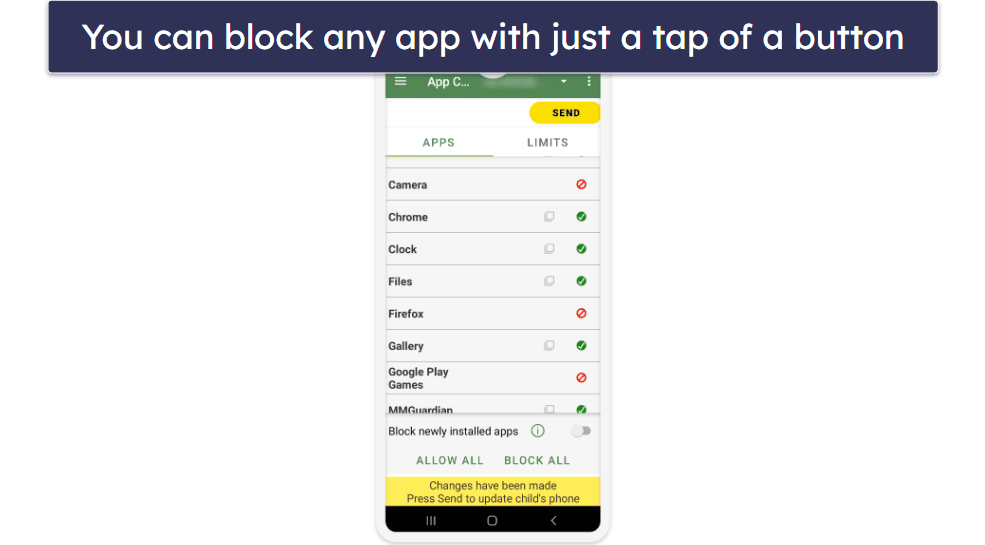
MMGuardian allows you to choose which apps your child can use on their Android or iOS device and for how long. All apps installed on your child’s device are displayed in a list in the App Control tab, and you can block any with just a tap of a button. I really like how blocks take effect immediately, not in 10–15 minutes like with some parental control apps.
I also like how MMGuardian notifies you whenever a new app is installed and includes a setting to automatically block newly installed apps, so you can review new apps before you give your child access to them. This will help prevent any inappropriate apps from making it past your filters.
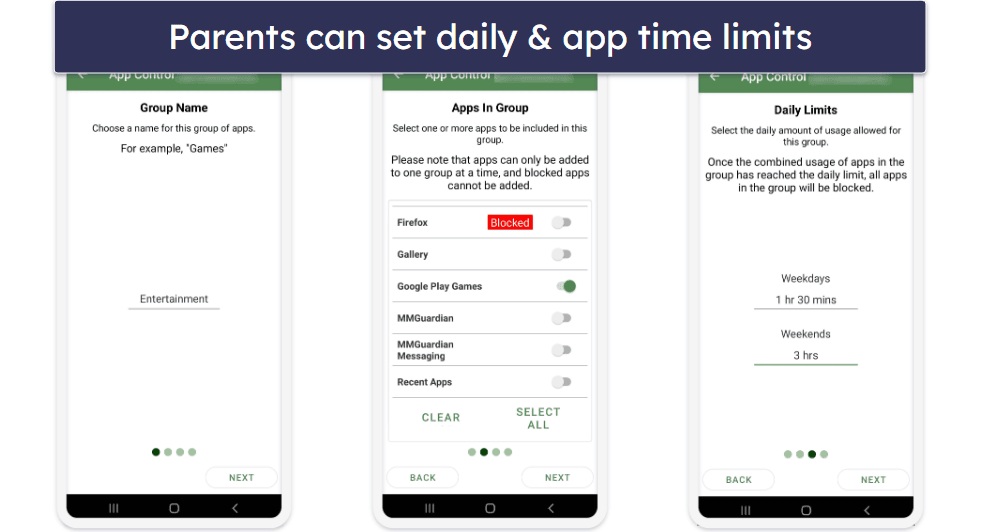
I really like that MMGuardian allows you to create your own app groups and set time limits and usage restrictions on the apps within it. You can, for example, put a bunch of game apps into a group labeled “Entertainment” and limit your child’s combined usage time for those apps to a certain number of minutes each day (adjustable in 5-minute increments, which are smaller increments than those of most parental control apps) — you can even have different rules for weekdays and weekends.
This feature also allows you to dictate periods in the day in which the apps within a group will be blocked (for example, Apps in the “Entertainment” group during school hours).
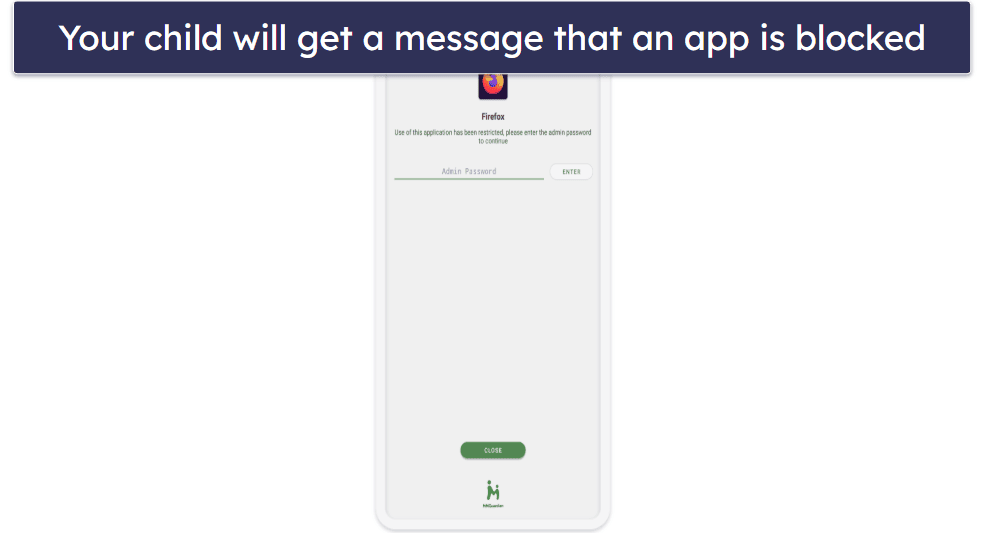
I wish that MMGuardian would notify your child when they’re about to hit the time limit on their usage of an app or an app group. It would also be more helpful if the screen that pops up when your child tries to use a blocked app was a more informative — if the app is being blocked because a child has run out of time to spend on apps in a particular category, your kid should get a message explaining why it was blocked.
Overall, MMGuardian’s app supervision feature is excellent. During my tests, it performed flawlessly by detecting and blocking every app I attempted to use it with. I like that new blocks take effect immediately, not in 10–15 minutes like with some parental control apps. Its app groups also provide parents with more advanced functionality than is available on most top parental control apps.
Web Filtering — Lots of Control, but the Blocking Process Is Annoying
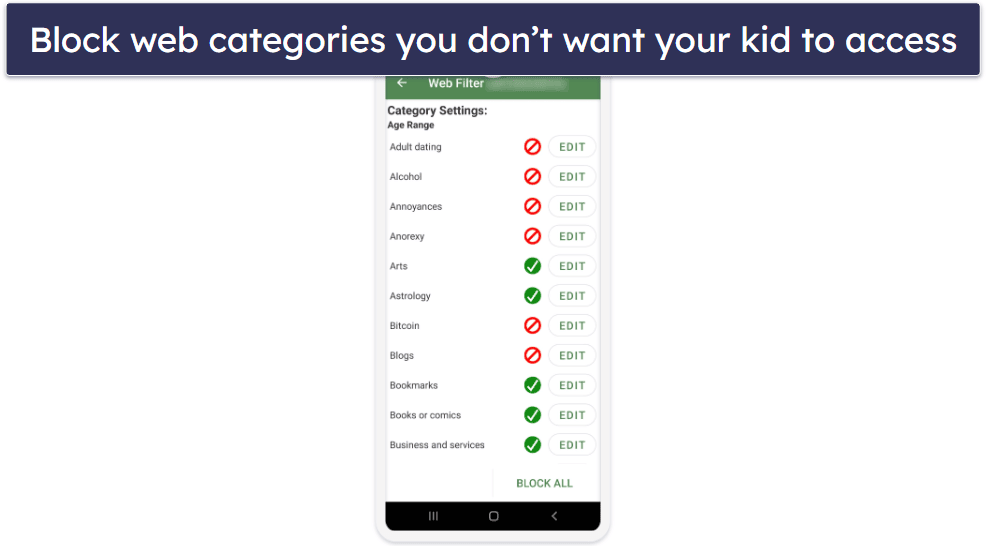
MMGuardian lets you filter out inappropriate web content with a ton of granularity. You can manually select categories of content you want to be filtered out — with 145+ categories to choose from — or you can use the predefined filters, which are based on age range. I like how each category includes a little explanation for the kinds of content that are included in it as well.
However, some categories seem like blunt-force instruments, like Business and services, Blogs, Education, General, and Knowledge. They could end up blocking most of the internet for young kids unless you carefully go through the whole list, which could take a while.
I also wonder if some of the other categories are strictly necessary or if they’re just irrelevant bloat that makes the list harder to look at and scroll through. For example, MMGuardian’s list includes categories like Vehicles, Vacation and travel, and Weather, which are probably fairly safe topics for even the strictest parents out there. That said, MMGuardian includes really useful categories not found in other parental control apps like “School cheats,” which filters out websites that offer essay writing services and the like.
On Android, MMGuardian’s web filtering works on popular browsers, including Chrome, Firefox, and Opera. On iOS devices, however, web filtering only functions when your kid uses MMGuardian’s own browser (Safe Browser), which can be accessed through the kids app. You also need to manually block the Safari app using the Apple Screen Time function to stop your kid from getting around your restrictions. On the plus side, the web filters work even if your child is browsing in incognito mode.
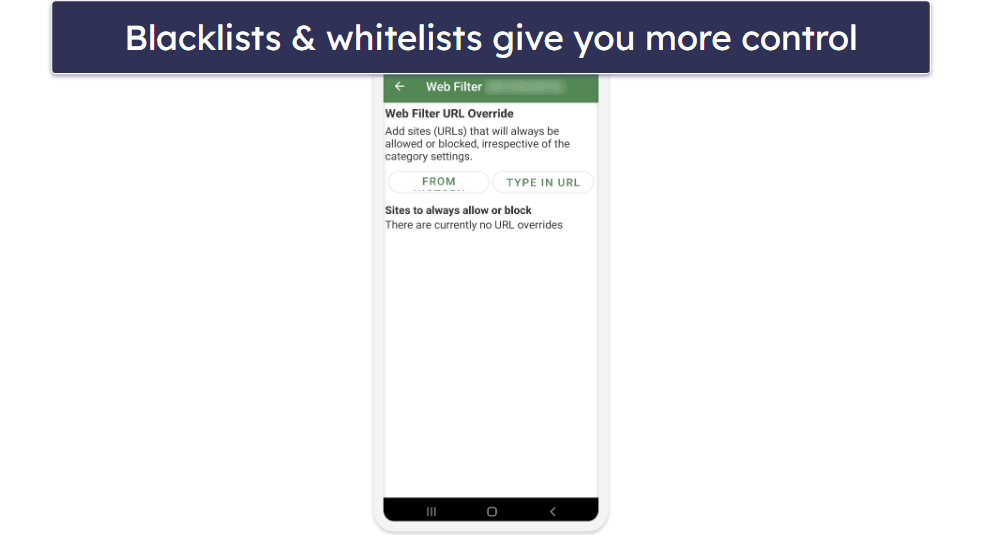
In addition to filtering websites using broad categories, you can also create blacklists and whitelists for websites that should always be blocked or always be allowed (this supersedes the category filters). However, I did find that some of the whitelisted websites I tested became glitchy after I added their URLs to the list.
I don’t like how MMGuardian’s web filters just close your window without warning and kick you back to your home screen when it blocks a website. This can lead to very confused and frustrated kids and cause them to think that their phone is broken or infected by some kind of virus. Most other parental control apps will at least redirect your kids to a page telling them the content they were trying to access is blocked. Norton Family will even tell them the restricted category the website falls under. Both Net Nanny and Norton Family also allow the kids to request access to a blocked website directly within the app if they think the filters made a mistake (no filter is perfect, after all).
Overall, MMGuardian’s web filter gives you a crazy amount of control compared to other top parental control apps, but the number of categories could probably be trimmed down to a more manageable number without sacrificing much utility, and the way it blocks content is very annoying.
Call, Text & Social Media Monitoring — Great on Android, Limited on iOS
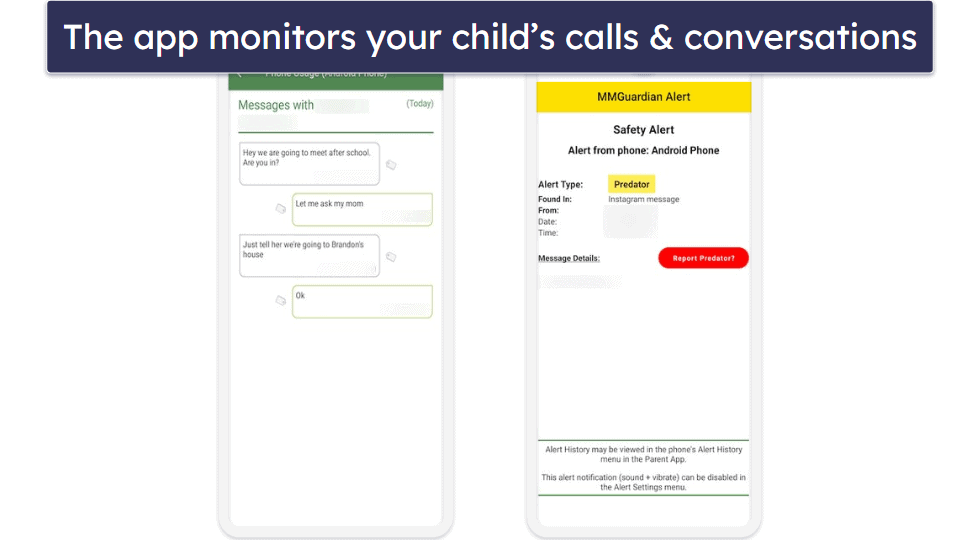
MMGuardian allows you to monitor your child’s calls, text messages, and social media. In your Phone Usage tab, you’ll be able to see who your child has called (or received calls from), when, and for how long. You can also see who they’ve messaged or received messages from on SMS or any of the following apps and read the contents of those conversations. It would make more sense if text message details could be found under the Text Monitor tab rather than the Phone Usage tab.
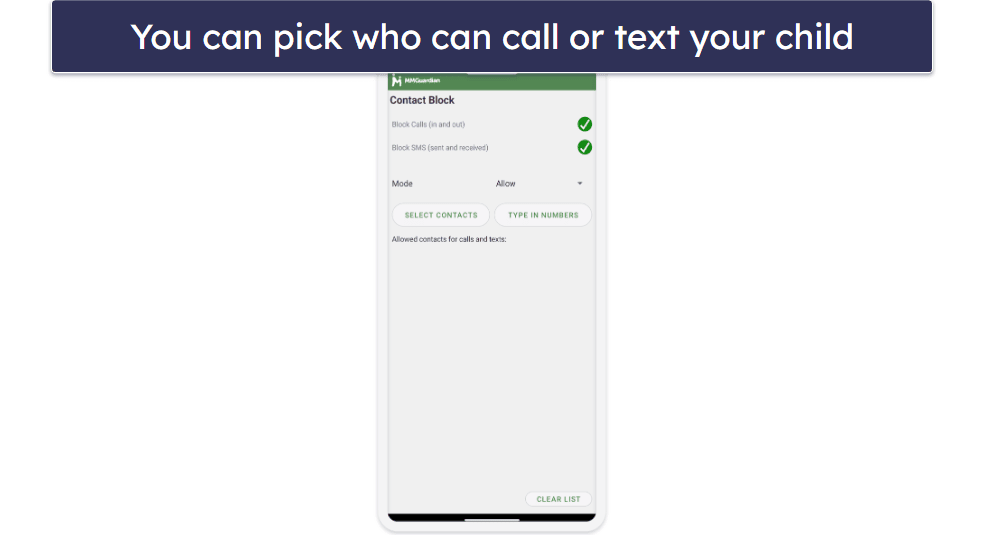
For both calls and SMS, MMGuardian gives you the ability to create blacklists or whitelists, but not both at the same time — you must select either the Allow mode or Block mode under the Contact Block tab.
You must also set MMGuardian as the default phone redirection app and use the MMGuardian messaging app for all SMS messages for this to work. This does allow you to shut down communication to and from dangerous or toxic individuals. On the other hand, the Allow mode allows only specific contacts to call or message your child, which you might find convenient if you have younger children.
Setting up SMS and call monitoring on iPhones is even more complicated — it involves a lot of steps and downloading several third-party apps. I think MMGuardian could make SMS and call monitoring simpler for both Android and iOS users.
Finally, MMGuardian protects your children by scanning sent and received messages on SMS and a wide range of social messaging apps for anything that falls under several high-risk categories, including Bullying, Depression, Drugs, Predator, Sex Talk, Suicide, and Violence. If it finds any matches, you’ll get a text alert immediately.
MMGuardian’s Text Monitor feature lets you create custom words or phrases that will trigger an alert, which is handy if the content categories provided don’t meet all of your needs.
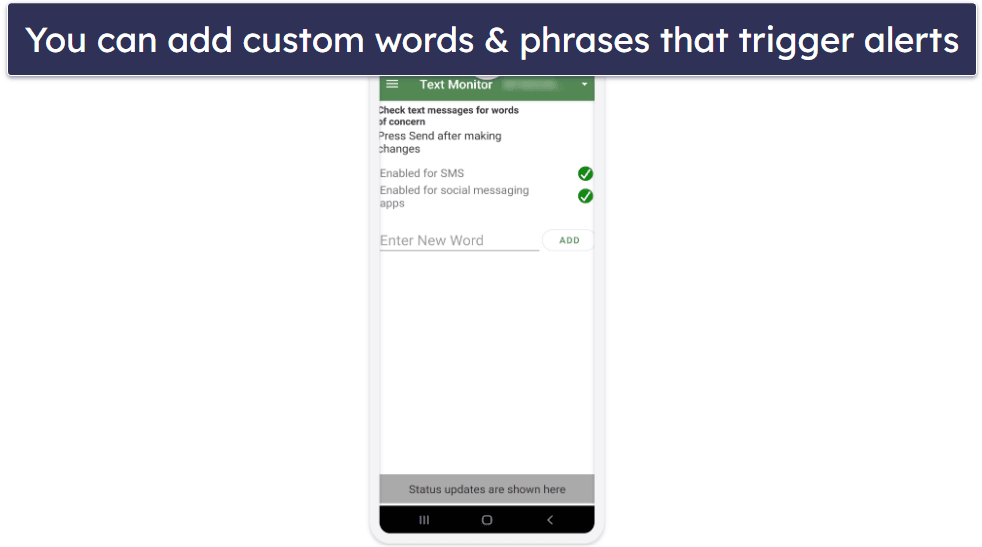
Overall, MMGuardian’s call, text, and social media monitoring features are very good on Android but more limited on iOS devices. Most parental control apps can’t show you the exact content of your child’s conversations on SMS or social media like MMGuardian can. Qustodio only lets you read SMS messages, and Bark won’t show you the exact content of your child’s conversations unless it detects concerning or inappropriate content that may require your intervention.
Scheduling & Time Limits — Does the Job, but There’s No Daily Time Limit Option
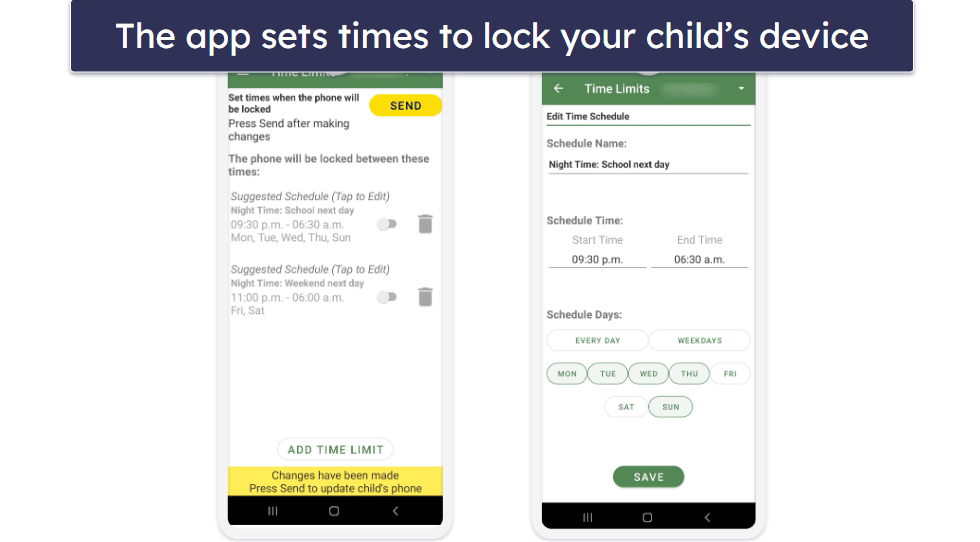
MMGuardian’s Time Limits feature allows you to schedule when your child’s device will be locked. You can select one or both preset schedules:
- Night Time: School next day
- Night Time: Weekend next day
You can also add any number of your own personalized schedules, with blocked times set in 1-minute increments. This gives you more time-scheduling flexibility than most parental control apps.
Your child will still be able to send a text to or call admin phones using the Contact Admin button on the lock screen, but they won’t be able to do anything else. Compared to Qustodio’s scheduling features, MMGuardian gives you a lot more control — Qustodio only lets you restrict times in hour-long chunks. Kaspersky Safe Kids is one of the few top parental control apps that will give you as much flexibility as MMGuardian does.
You can apply different app filtering rules to different times of the day using the App Control feature. Still, MMGuardian’s scheduling feature lacks the ability to apply different web filtering rules to different times of the day, like Norton Family can. In addition, to schedule times for individual apps, you have to create a group for that one app, which is a bit inconvenient. That said, Norton Family’s school time feature is unable to detect or block apps.
MMGuardian doesn’t allow you to set a limit on how much total time your child can spend on their device daily — which is disappointing. You can with most top parental control apps. Its ability to set time limits on specific apps or groups of apps covers this function to some extent, but it’s not quite as comprehensive.
Overall, MMGuardian’s scheduling feature is comparable to that of other top parental control apps, but I wish it would let you apply different web filtering rules at different times of the day and set daily time limits on device usage.
Location Tracking — Accurate, but No Geofencing Feature
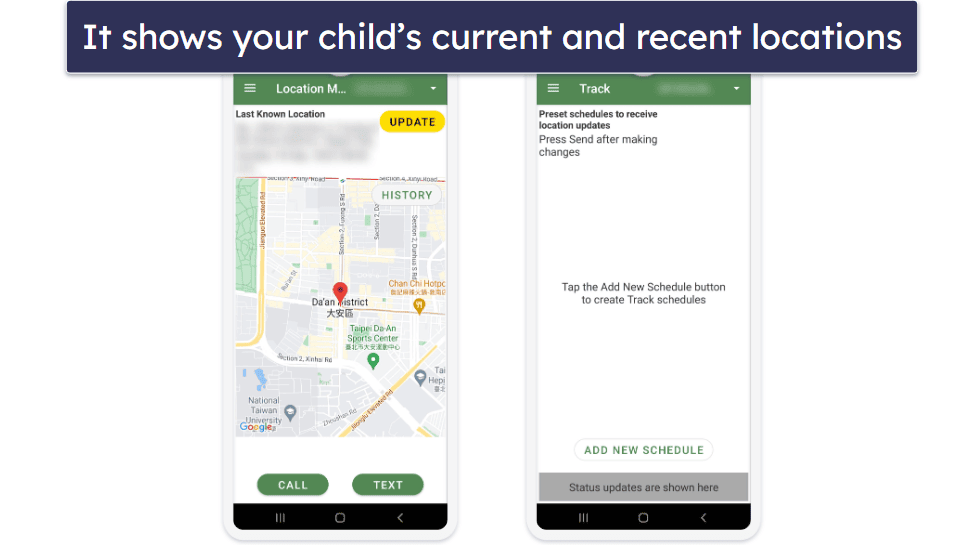
MMGuardian’s location tracking feature can accurately locate your child’s device and track their location history. I really like how there’s a button that you can press to manually and instantly update the tracker. You can also set it up so that MMGuardian sends you an alert and updates you on your child’s location every 5, 10, 15, 30, 60, or 120 minutes. One of the only other top parental control apps that offers similar functionality is Norton Family.
I really like how you can set up different tracking periods, so you can decide which times in the day and which days of the week you want these updates. This makes it easier to see where your kid has been on weekends with their friends, or in afternoons after school, for example, rather than scrolling through a long list of all their visited locations.
One big downside of MMGuardian is that it doesn’t include a geofencing feature. Geofences alert you when your child enters or exits a predefined area, such as your home, their school, or a friend’s house, and is an essential safety feature that is available on almost all top parental control apps.
Overall, I like MMGuardian’s location tracking, but it just doesn’t stand up to its competition without a geofencing feature. If you’re looking for a parental control app with great location tracking, I suggest checking out Norton Family instead. It has almost all of the same features plus geofencing and offers a less invasive form of location tracking where your children can use the kid’s app to perform a check-in (which shares their location with you by email).
Activity Reports — Accurate, Detailed & Clear
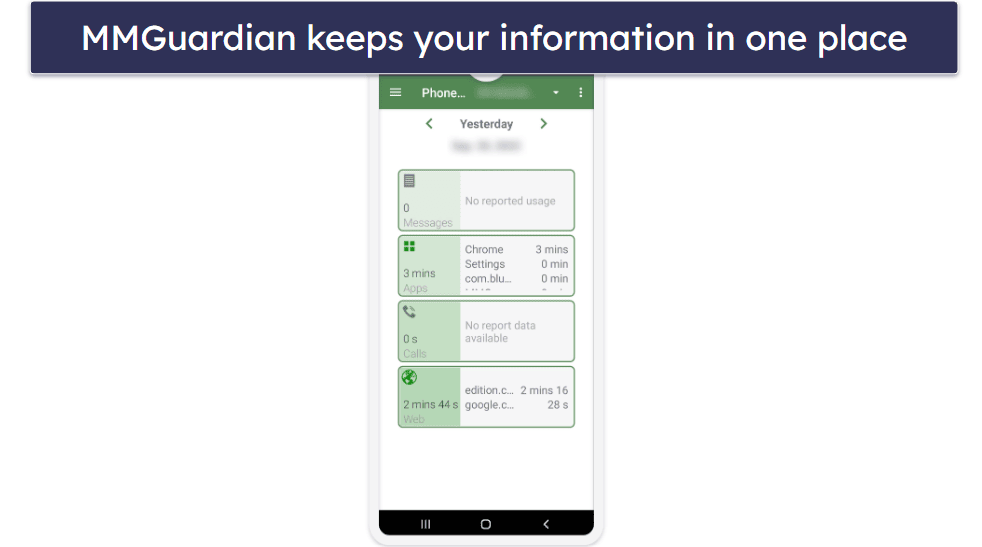
MMGuardian’s Phone Usage tab shows you activity reports in 7-day blocks. Just know that by default, the activity information is updated only once a day (overnight). However, you can update the information anytime by tapping the Get Latest button. The Phone Usage tab displays the following metrics:
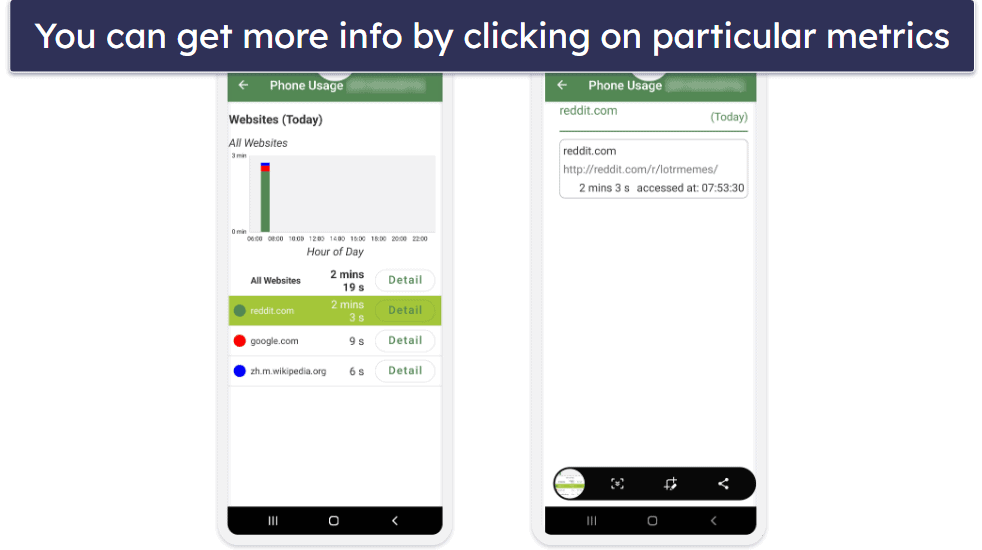
The Reports tab provides a lot of useful information as well. It shows you alerts for blocked calls, prohibited SMS topics, attempts to access blocked sites, app installations, revoked permissions, and concerning messages. It also allows you to see your child’s browsing history, location history, and text history. You can turn any of these alerts on or off in the Alert Settings tab to make MMGuardian work exactly the way you want it to.
The biggest downside of MMGuardian’s activity reports is that there’s no way to see your child’s activities summarized weekly, bi-weekly, and monthly as you can on Qustodio. Instead, you see a long list of every login, alert, and location change since you started tracking, which makes for a lot of scrolling if you don’t look at the reports daily.
In addition, it’s not very intuitive where some of the report information is located. For example, it would make more sense if all activity reports were grouped under the Reports tab instead of being split between there and the Phone Usage tab. Moreover, alerts should have their own tab so that received alerts and alert settings appear together instead of being split between Reports and Alert Settings.
Overall, I like MMGuardian’s activity reports. It gives you accurate and in-depth information in a very clean and clear way, but its inability to provide long-term stats can be a bit limiting.
Additional Features — Some Useful Extra Tools
MMGuardian also comes with the following additional features:
- Uninstall Protection — Prevents your child from removing MMGuardian from their device without your admin password.
- Lock Unlock — You can lock a device manually “for the rest of the day” or for a specified amount of time ranging from 15 minutes to 8 hours. Alternatively, you can unlock a device manually for the same duration, overriding any schedules you may have set using the Time Limits feature.
- Lock Setting — Lets you designate specific phone numbers your child can call or text when the phone is locked by MMGuardian. You can also set up the panic button on this tab.
- Find Phone Siren — You can send an alarm to your child’s phone, which makes a sound even if their phone is on mute. The alarm lasts for 15 seconds.
- YouTube Monitoring — Monitors what videos kids have watched on the YouTube app (Android only)
MMGuardian Installation & Setup — Very Simple for Parents & Kids
MMGuardian has parent and kids apps for Android and iOS devices, including iPads. It also has a web app for parents.
All apps are simple to set up — the in-app installation instructions guide you through the entire process. The kids app requires you to give MMGuardian a bunch of permissions for all of its functions to work, though, so it might take slightly longer to do. Regardless, it took me less than 10 minutes to get MMGuardian up and running on my Android phone.
MMGuardian Parental Apps (Installation & Setup)
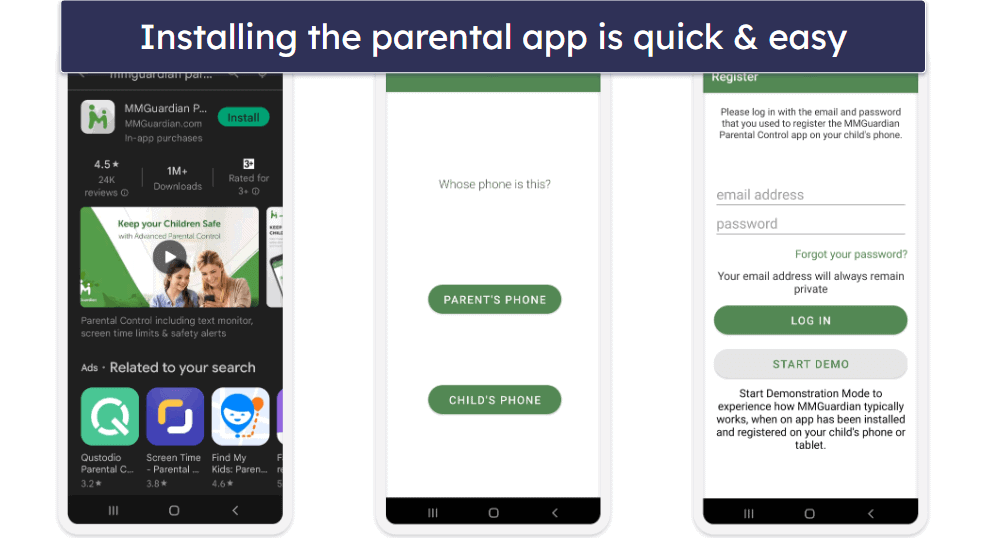
Getting the parental app working couldn’t be simpler. All you have to do is go to your device’s app store and download the MMGuardian Parental Control app. After that, confirm that the phone you’re using is the parent’s phone, accept the terms of service and privacy policy, and log into your MMGuardian account (if you don’t have one, the app will take you through the process of account creation).
MMGuardian Kids Apps (Installation & Setup)
The first time you log into your parent app, you’ll be asked to add your child’s device. You can do this by sending your child’s phone a link to the correct app or by finding and installing the app on your child’s phone yourself.
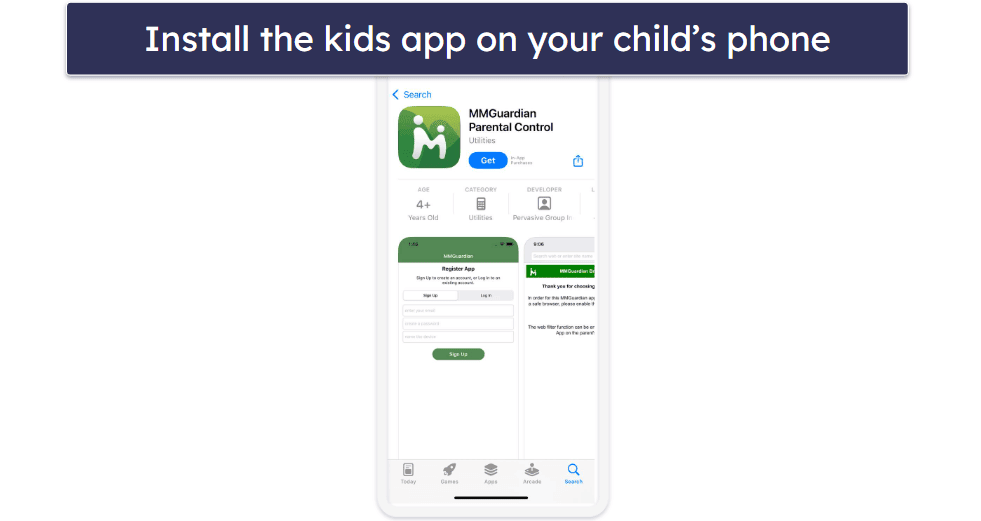
Once you’ve installed the kids app, open it up, and link it to your parent account. Next, you’ll be asked to grant MMGuardian a series of permissions that are required for all of its features to work properly and to make a series of configuration changes on your phone for the same reason. Don’t worry, the app makes the whole process very straightforward by taking you directly to the settings that you need to change with a single tap.
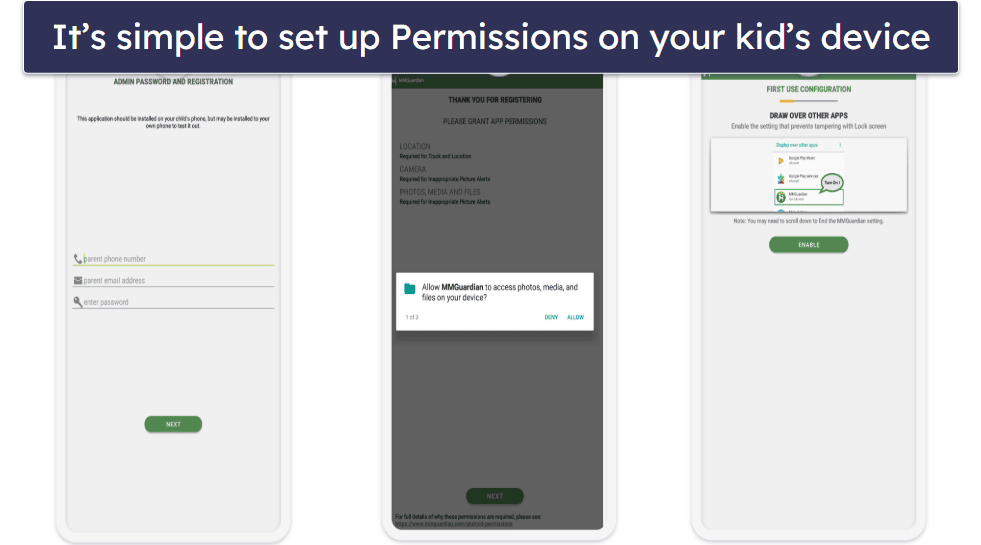
And that’s it — you can now keep tabs on this device using the parental app!
MMGuardian Ease of Use — Intuitive & Easy to Navigate
MMGuardian’s mobile and web apps for parents are very intuitive to use. Even first-time parental control app users should have no problem navigating it. Everything is clearly labeled and short explanations are included where necessary.
Its kids app has few features. All your child can do on it is contact you (by call or text) to request that you unlock their device in case of an emergency. In comparison, Qustodio‘s kid’s app shows them how much of their daily time limit they’ve spent (and on which apps), how much daily screen time they have remaining, gives them a heads up about upcoming times when device usage is restricted, and a panic button, which will immediately send an alert to trusted contacts via a text message or email and share their device’s location.
Mobile & Tablets — High Functional but iOS App Lacks Key Features
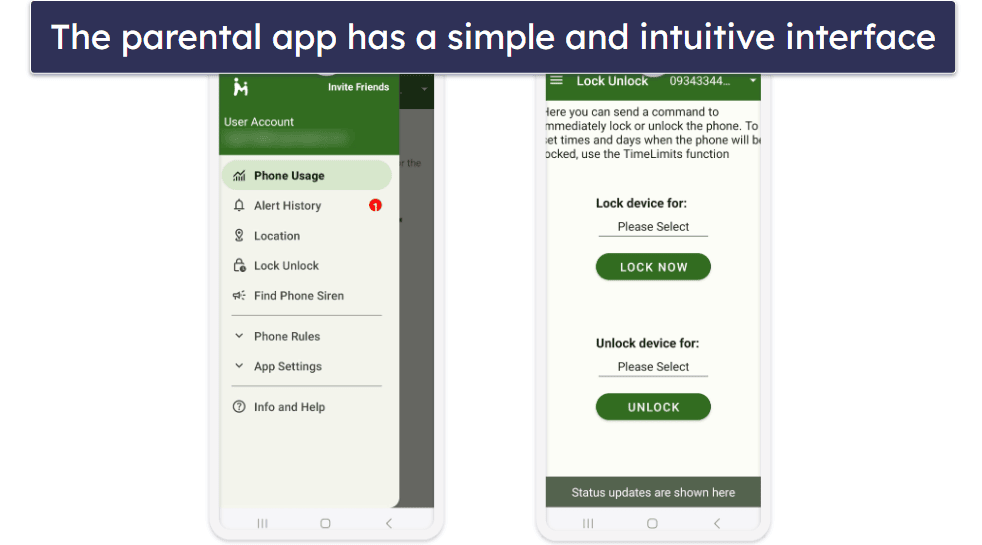
Both MMGuardian’s Android and iOS apps are easy to navigate. I had no trouble finding or changing any settings, and I never encountered any bugs while using the app.
Its Android and iOS apps also share a similar design, so switching between them is very straightforward. However, you should be aware that MMGuardian’s iOS app lacks many important features, such as location history, time limits, and usage reports. While MMGuardian’s apps are highly functional, the user interface looks ugly and outdated.
Overall, MMGuardian’s Android app is really good (albeit not pleasing to the eyes), but its iOS app is missing key features.
Web App — Fully-Featured + No Setup Required
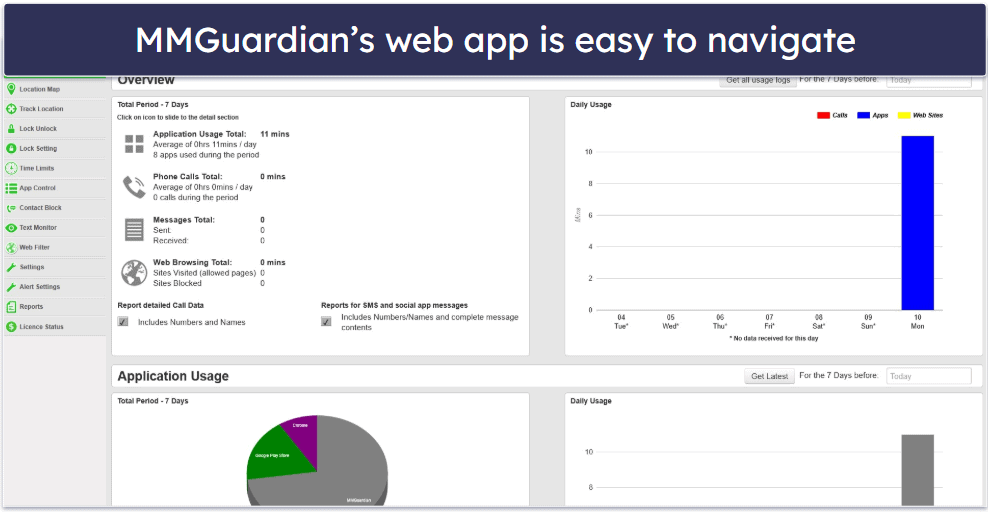
MMGuardian’s web app is a really good alternative to its mobile apps. It has all of the same features as its mobile apps, and it’s equally easy to navigate and use. To access it, visit MMGuardian’s website and log into your account.
I personally prefer using the web app over its mobile apps because of the bigger screen and the fact that it lets you use a mouse and keyboard. Unfortunately, the web app is just as ugly, if not worse than its mobile apps.
Overall, MMGuardian’s web app is a great way for parents to manage and monitor their kids — it’s feature-rich, convenient, and very intuitive.
MMGuardian Customer Support — Functional (But Nothing Special)
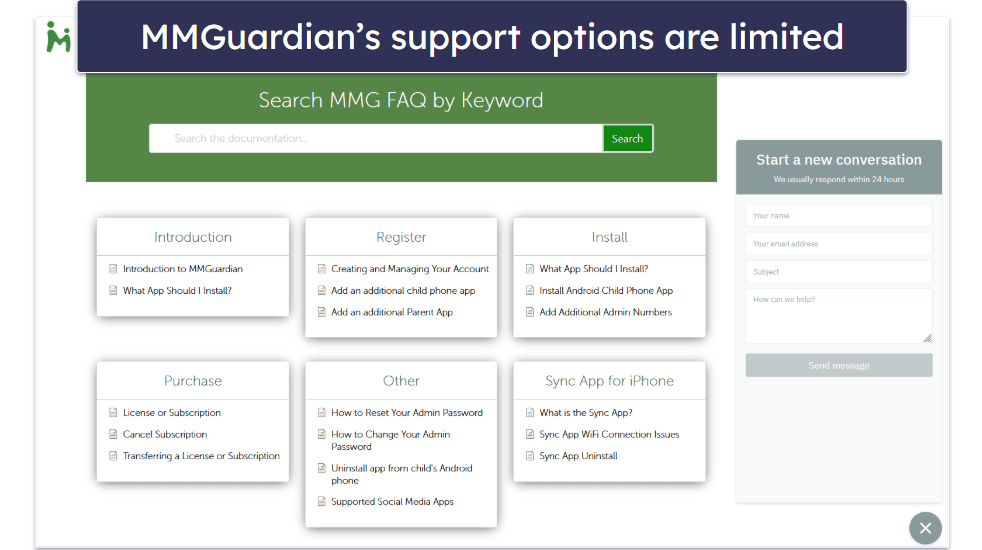
MMGuardian’s customer support is basic. Its support articles are limited in quantity and there’s not a lot of visual aids, which may be challenging if you prefer visual learning.
MMGuardian provides helpful installation videos for Android and iOS devices, but it’s unclear why the iOS installation video is not linked on the FAQ page when the Android installation video is. Unfortunately, you’ll have to search for it on a separate page, which is annoying.
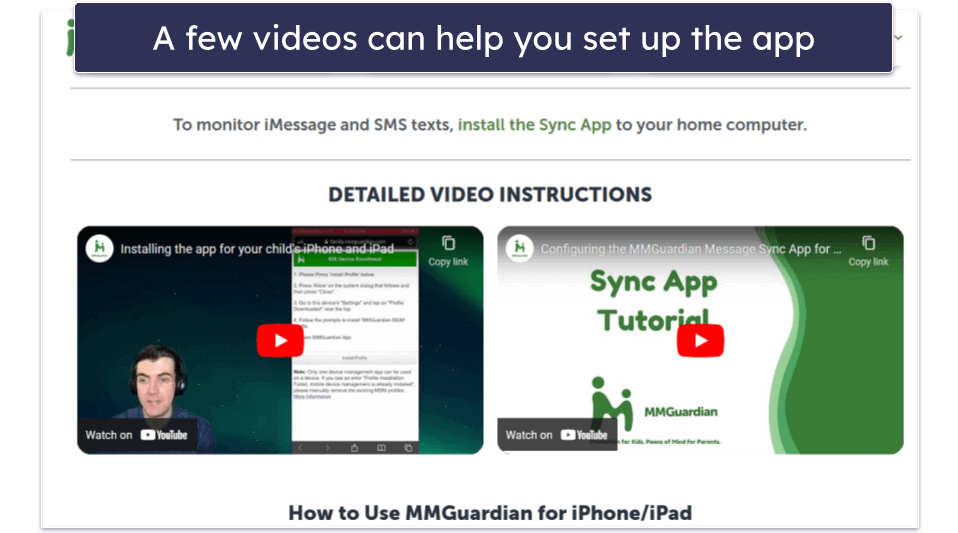
While MMGuardian lacks 24/7 live chat support, it’s rare for parental control apps to offer this platform. However, MMGuardian does respond to email queries and questions posted on its Need a hand? chatbox promptly — I got my answers within a day.
Overall, I found MMGuardian’s customer support to be functional but unimpressive.
What MMGuardian Can Do Better — Add Geofencing & Daily Limits
MMGuardian is a strong parental control app overall, but there are a few issues it should address:
- Lack of a geofencing feature: Geofencing allows you to set virtual boundaries around specific locations and receive notifications when your child enters or leaves those areas. Qustodio and Norton Family, in comparison, seamlessly integrate geofencing into their location tracking features.
- Absence of daily device usage limits: MMGuardian has a great screen time scheduling feature that gives you granular control over when your child can use their device. Its main drawback, however, is that it doesn’t let you set overall daily time limits for your kid being on their screens — unlike most top parental control apps.
- Need for streamlined web filtering: MMGuardian has strong web filtering capabilities, but it should reduce the number of categories (145+) to a more manageable level by eliminating some very general and innocuous categories like Knowledge, Science, and Weather.
- Inadequate refund policy: Although MMGuardian offers a 14-day free trial to test a fully functional version of its parental control app, its refund policy is lousy. It gives you only 72 hours to request a refund after purchase, and the refund is conditional on finding something wrong with the software and customer support can’t fix it. I’d like MMGuardian to offer a more customer-centric refund policy.
Is MMGuardian a Good Parental Control App for Keeping Your Kids Safe In 2026?
MMGuardian is a good parental control app. In addition to industry-standard parental control features, it has several extras like call and SMS monitoring and social media monitoring. It also gives you a lot more granular control than most other parental control apps. Last but not least, it’s super easy to set up and has a very beginner-friendly interface.
However, MMGuardian has some flaws. For example, it’s unable to set daily time limits (only app usage limits), and it doesn’t have a geofencing feature. Compared to Bark, one of the best parental control apps for monitoring social media, it also covers a lot fewer platforms (Bark can monitor 30+ social media platforms while MMGuardian only covers 5+).
MMGuardian is a worthy choice as a parental control app. It offers excellent web filtering with a broad range of content categories (145+), a useful app grouping function, and a dynamic scheduling feature. While it doesn’t offer a money-back guarantee, you can test its features with the 14-day free trial.
Frequently Asked Questions
Is MMGuardian Safe?
Yes, MMGuardian has a lot of great features to help keep your child safe both online and offline. These include powerful web filters (with 175+ categories to choose from), the ability to read your child’s SMS and social media messages, and a great location tracker.
MMGuardian’s privacy policy also states that your information is never sold, rented, or otherwise provided to third parties for marketing purposes without your permission. The only time when your personal information may be shared with a third party is when MMGuardian is required to do so by law enforcement agencies. Finally, all information in MMGuardian’s possession is secured using secure sockets layer (SSL) encryption, which renders your data unreadable by anyone but them.
Can my child uninstall MMGuardian?
No, MMGuardian has a built-in uninstall protection which will prevent this from happening. It’s also turned on by default, so as long as you don’t change that setting, your child won’t be able to uninstall MMGuardian without first acquiring your admin password.
Can MMGuardian see incognito mode?
Yes. MMGuardian is able to monitor the Chrome browser in incognito mode and give you the same activity reports as with the regular browser.
Can MMGuardian see WhatsApp messages?
Yes. MMGuardian allows you to read your child’s SMS and social media messages on WhatsApp, Instagram, and Facebook Messenger. MMGuardian will also scan conversations from a number of social media apps like Snapchat, Discord, and TikTok for content that falls under categories such as Suicide, Abortion and pregnancy, Violence, Bullying, and Drugs. It can monitor fewer social media apps on iOS, however.
If you need to monitor more social media platforms, Bark is a great alternative. It can monitor 30+ social media platforms compared to MMGuardian’s 5+. However, unlike MMGuardian, Bark only allows you to read your child’s messages when they contain concerning or inappropriate content that might require your intervention.
Can MMGuardian see emails?
No, but very few parental control apps can. Consider checking out mSpy if you want this feature. MMGuardian does allow you to monitor your child’s SMS and social media messages on WhatsApp, Instagram, and Facebook Messenger.
Can MMGuardian record phone calls?
No, very few parental control apps offer this feature, but MMGuardian does allow you to monitor your child’s SMS and social media messages on WhatsApp, Instagram, and Facebook Messenger.
Does MMGuardian see deleted messages?
Yes. MMGuardian stores your child’s messages as soon as they’re sent or received on your child’s device, so even if your child deletes the message from their phone, MMGuardian will still have a record of it.