Published on: July 28, 2023 Updated 5 times since publishing
- 🥇 RoboForm : Great password manager that stores the encrypted vault locally on your device. Once your devices have synced and cached your vault, you can use and edit your passwords without internet. If offers robust AES 256-bit encryption and intuitive apps, plus handy bookmark storage.
You can’t afford to have your password manager go dark just because of a spotty Wi-Fi connection. That’s why I dug into options that keep working even when you’re offline. Some tools save an encrypted copy of your vault on your device so you can still view, edit, and generate passwords without internet, like 1Password and Dashlane.
Some password managers let you choose between cloud syncing or local-only storage for flexible control over your data, like RoboForm, Bitwarden, and Sticky Password. Alternatively, fully local options, like Enpass and mSecure, store your passwords solely on your device, maximizing privacy without cloud involvement.
- Temporary offline access (via caching). Stores an encrypted copy of your vault on your device so you can view, edit, and use passwords without the internet. When you reconnect, changes sync automatically.
- Full local storage. Your vault stays on your device or local network, avoiding the cloud entirely. Syncing is manual (e.g., file copy) or via local Wi-Fi/LAN, prioritizing privacy over convenience.
The best password managers ensure offline access without locking you out or limiting functionality. They cache your vault locally, allowing you to view, edit, and generate passwords offline, then sync changes automatically once you reconnect. Some even offer extras like hiding sensitive data during travel. For the top options we tested, and those we stress-tested on unreliable hotel Wi-Fi, read our guide for a detailed breakdown.

Quick Summary of the Best Offline Password Managers


🥇1. RoboForm — Budget-Friendly With Impressive Form Filling


RoboForm is one of the most affordable password managers and supports both temporary offline access and full local storage. In offline mode, you can view, edit, and add logins without an internet connection, and then sync changes later. It’s also highly secure, easy to use, and has the best form filler on the market. During my tests, I was able to use RoboForm offline, access my vault, and even make changes to my logins without any issues.
- Offline mode with edit access
- Fully local storage option
- Excellent form-filling templates
- Password sharing to users only
- Manual syncing with local only
To use RoboForm in local-only mode, you have to turn off the automatic sync feature. This means that the only way to sync between devices is with the backup and restore feature, which is a bit more work.
RoboForm also comes with additional online features to keep your passwords and online details safe:
- Automatic form-filling.
- Secure bookmark storage.
- Secure password sharing.
- Data breach monitoring.
I’m a big fan of RoboForm’s automatic form-filling — it offers 7 different templates (personal, address, business, passport, bank account, credit card, and car) plus the ability to create your own. This level of customization is really impressive and goes beyond what most top password managers offer.

It also supports two separate login features. One-click login signs you into a site with one click. This includes 2FA if enabled and you’re using RoboForm as your authenticator. And Batch Login launches a chosen set of saved sites from your vault and signs you into each in its own browser window. RoboForm’s password sharing is pretty impressive, too — I was able to share passwords, bookmarks, notes, and personal details. However, it’s worth noting that you can only share passwords with other RoboForm users, whereas 1Password allows sharing even with non-1Password users.
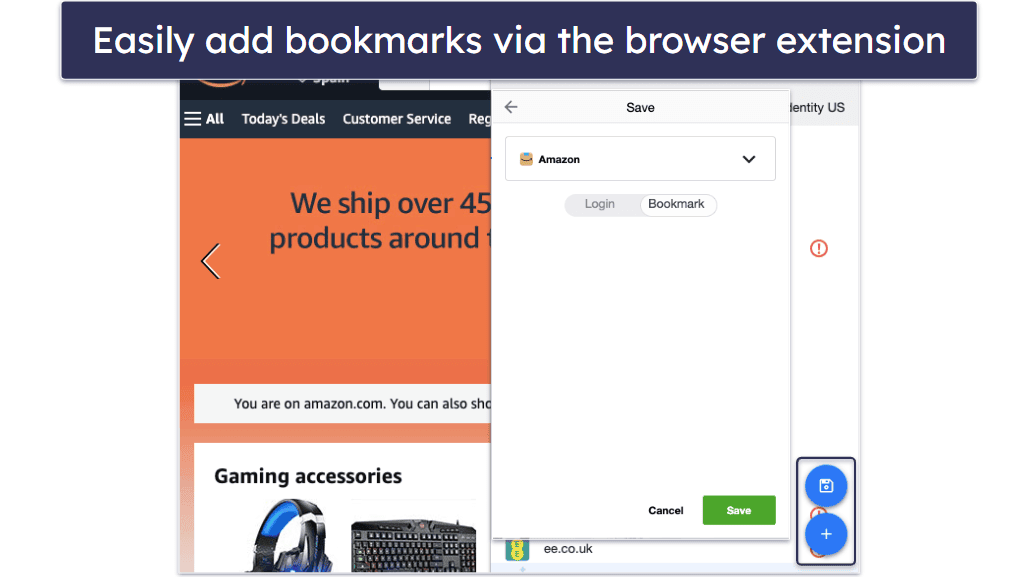
I also like RoboForm’s bookmark storage feature. It’s like your web browser’s bookmark storage feature, but it saves bookmarks on any device that has RoboForm installed. This feature proved to be a real time saver in my tests, as I was able to easily share important links between my phone and computer.
RoboForm’s breach monitoring is pretty good as well. During my tests, the Security Center flagged compromised, weak, or duplicate passwords. Its data breach monitoring also tracks your email addresses against Have I Been Pwned, and sends alerts showing which breaches exposed them and what data types were involved.
It also offers a free plan, which includes unlimited passwords on one device and the Security Center. The free plan doesn’t include breach monitoring, but that’s expected at this tier.
The RoboForm Premium costs $0.99 / month and offers features like unlimited logins, multi-platform support, secure sharing, and priority 24/7 support. The Family plan, priced at $1.60 / month, extends the benefits to up to 5 users.
Bottom Line:
RoboForm is a cost-effective password manager with superior form-filling capabilities. Its offline mode, bookmark storage, and password sharing are really good. All RoboForm purchases come with a 30-day money-back guarantee.
🥈2. 1Password — Feature-Rich With Intuitive Offline Mode

1Password is another great option with temporary offline access. While it doesn’t let you store data locally, you can still access data secured in its cloud servers offline by accessing a local cached version of your data. And unlike some competitors like Bitwarden, 1Password lets you view and edit entries without the internet. Once you reconnect, all changes are synced automatically to the cloud servers.
1Password’s servers have top-notch security, have never been breached, and have a strict no-logs policy — so they’re pretty reliable if you’re worried about online security. 1Password is SOC 2 Type 2 certified, meaning an independent audit has confirmed it fully protects customer data.
- View & edit in offline mode
- Excellent password generator
- Multiple vaults
- Easy sharing with anyone
- Masked email needs the internet
1Password also offers several options to generate a password that suits your needs. You can use it to create secure passwords that contain a mix of numbers, letters, and symbols or even passphrases composed of real words.
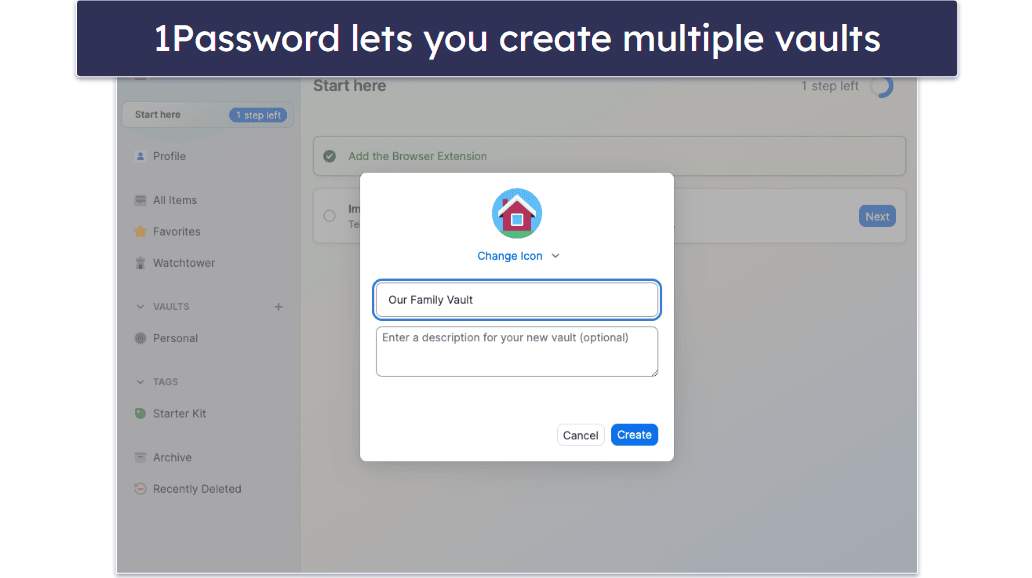
I found the ability to create multiple vaults in 1Password really impressive, too — I could keep work, personal, and shared logins separate, and even set up a family vault with custom permissions. 1Password also has Travel Mode, which temporarily hides selected vaults. As a frequent traveller, I think this is a valuable feature, should you be forced to open your phone or password manager.
1Password offers additional features, though most only work with an internet connection:
- Multi-device sync.
- Watchtower.
- Password sharing.
- Passkey authentication.
- Privacy cards (US clients).
- Masked email (via Fastmail).
1Password’s Watchtower feature is great — it scans the dark web, checks if your data has been exposed in a breach, and notifies you if a match is found. It also continuously checks for weak, reused, and vulnerable passwords and alerts you to expiring credit cards. It even lets you know when a site you use has adopted passkeys.
One of 1Password’s coolest features is its password sharing tool, Psst! I was able to share logins, documents, and files with anyone, even my friends who aren’t 1Password users. It allows you to generate a sharing link that expires after a week by default. However, you can change this time period to your liking. This is a great feature, especially if you need to share specific login credentials temporarily.
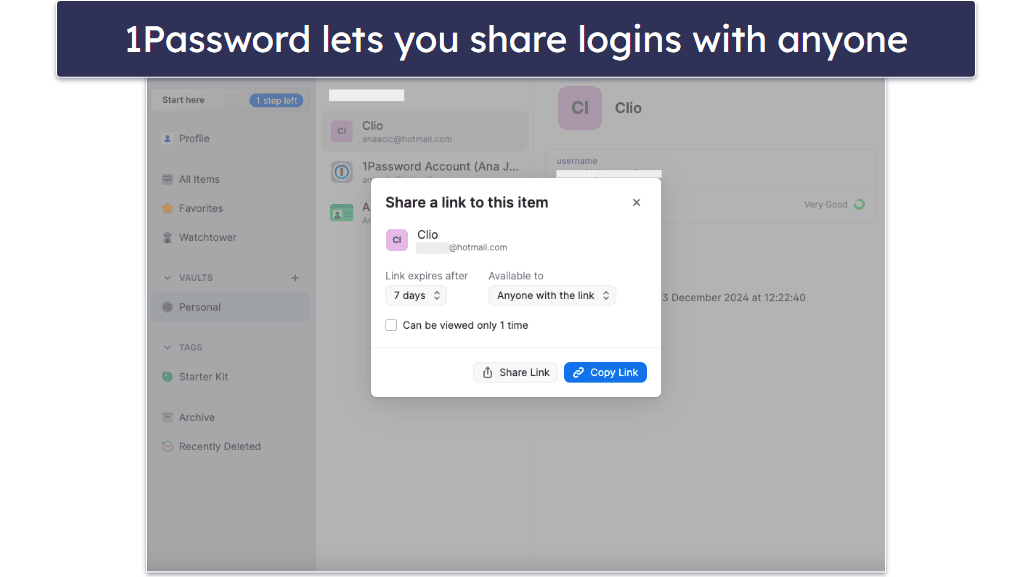
1Password is affordable and offers several plans to fit different needs and budgets. The Individual plan starts at $2.99 / month, providing access to all of 1Password’s features for a single user. For families, there’s the 1Password Families plan priced at $4.49 / month, covering up to 5 users with the option to add more for an additional fee.
Bottom Line:
1Password is a feature-rich password manager that offers reliable offline editing, powerful security features, and a user-friendly interface. Its support for passkeys, multiple vaults, and a customizable password generator sets it apart from the competition. You can try 1Password with its 14-day free trial to see if it’s for you.
Read the full 1Password review
🥉3. Dashlane — Excellent Password Manager With Many Security Features

Dashlane offers strong security alongside temporary offline access via local caching. And although it stores data in the cloud, it has never been breached. Even if it were, it follows a strict zero-knowledge protocol, meaning your data is encrypted and useless to anyone without your master password. Additionally, it has been audited and ISO 27001 certified.
- Offline access & editing
- Live breach monitoring database
- Built-in VPN for secure browsing
- Easy multi-device cloud syncing
- More expensive than competitors
- Password generator is less advanced
The offline user experience is beginner-friendly, and the web app works right from your browser, both online and offline. As long as your account isn’t set up to require 2FA with every login, you can access Dashlane on any device you’ve previously used without an internet connection. Any changes you make to your personal information are automatically synced the next time you’re connected, which is a pretty intuitive process. This makes it a great pick for travel or anywhere with unreliable internet.
Dashlane has a pretty good password generator — it generates passwords between 4 and 40 characters that include a mix of letters, numbers, and symbols. It can also generate passphrases between 4 and 8 words. Plus, its password strength auditing helps you quickly identify weak, reused, or compromised logins and replace them. That said, I wish it could generate smart passwords like 1Password which automatically detects password requirements (like length limits, allowed symbols, or capitalization rules) on websites and apps.

Once online, Dashlane steps up its game with great additional security features, including:
- Live dark web monitoring.
- Virtual private network (VPN).
- Identity theft protection (US only).
- Anti-phishing protection.
Dashlane comes with a high-quality VPN powered by Hotspot Shield. My tests provided a secure, fast connection and ensured that my online activities were private and untraceable — which is great if you’re concerned about being spied on. Even though it isn’t quite as good as the top standalone VPNs in 2026, it’s an excellent addition to a password manager.
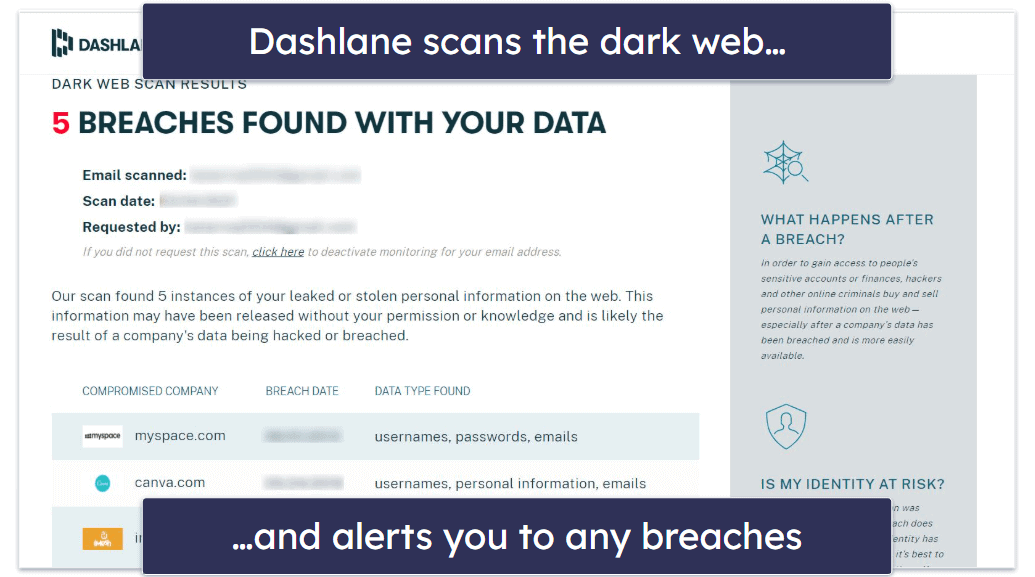
One of my favorite things about Dashlane is its live dark web monitoring — it provides real-time surveillance, monitoring your email addresses 24/7 for any data breaches. Unlike many competitors that rely on third-party databases like Have I Been Pwned?, Dashlane uses its own database, providing instant alerts when your data is compromised.
The Premium plan, priced at $5.42 / month, offers syncing across unlimited devices and the unlimited-data VPN. For larger families, Dashlane’s Friends & Family plan, priced at $8.13 / month, includes up to 10 licenses, the VPN for 1 user, and a family management dashboard.
Bottom Line:
Dashlane is an impressive password manager that goes beyond basic password management. It works when you’re offline and has advanced features like a VPN and live dark web monitoring, providing a comprehensive security solution. Plus, all paid plans come with a risk-free 30-day money-back guarantee.
4. Proton Pass — Privacy-First With Reliable Offline Access


Proton Pass is one of the most secure password managers you can use offline. It combines zero-knowledge encryption with local cache storage, allowing you to access your vault at all times, even without an internet connection. I tested Proton Pass in airplane mode and was still able to unlock and view my entries. This reliability makes it an excellent pick if you often travel or work in areas with poor connectivity.
- Encrypted storage (up to 50 GB)
- Passkey support
- Emergency access
- Offline access is read-only
- Offline mode premium-only
Other impressive Proton Pass features include:
- 10 GB of secure cloud storage (50 GB for families).
- Email aliases with custom domains.
- Unlimited devices.
- Passkey support.
- Emergency access.
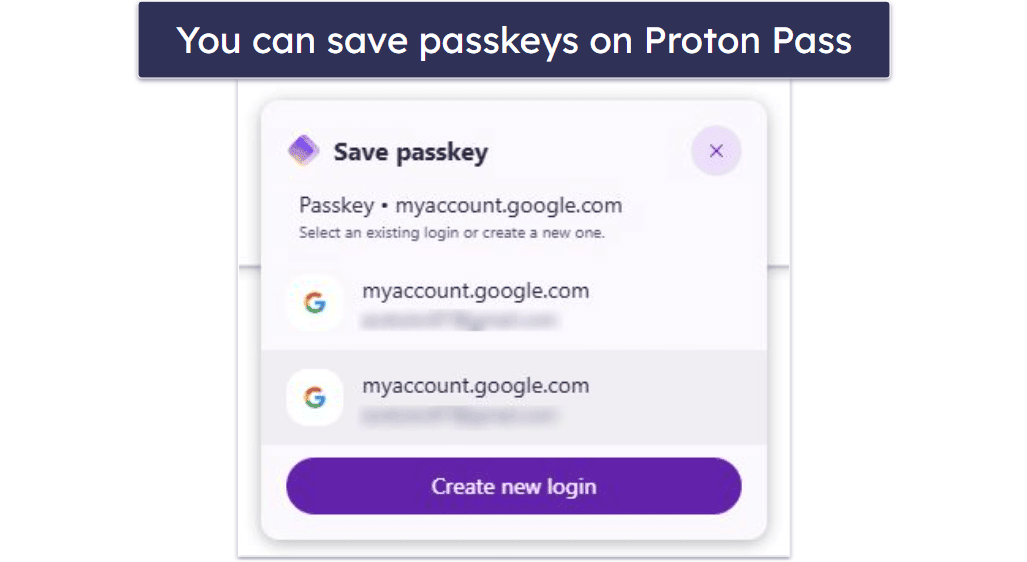
Proton Pass is also one of the few managers here that supports passkeys — a passwordless login method built on FIDO2. I was able to use passkeys for services that support them, and it felt both faster and more secure than traditional passwords. Plus, Proton Pass makes passkeys easy to manage within the same vault.
Another thing I like about Proton Pass is its integrated authenticator. Instead of juggling a separate app like Google Authenticator, Proton Pass lets you store and generate 2FA codes right inside your vault. During my tests, logging into accounts with TOTP codes was straightforward — and since it also works offline, I could still sign into apps while on a plane without any issues.
Proton Pass also includes thoughtful extras, such as emergency access, which allows you to grant trusted contacts access to your vault if something happens to you. Few password managers outside 1Password and Dashlane include this, so it’s a welcome addition.
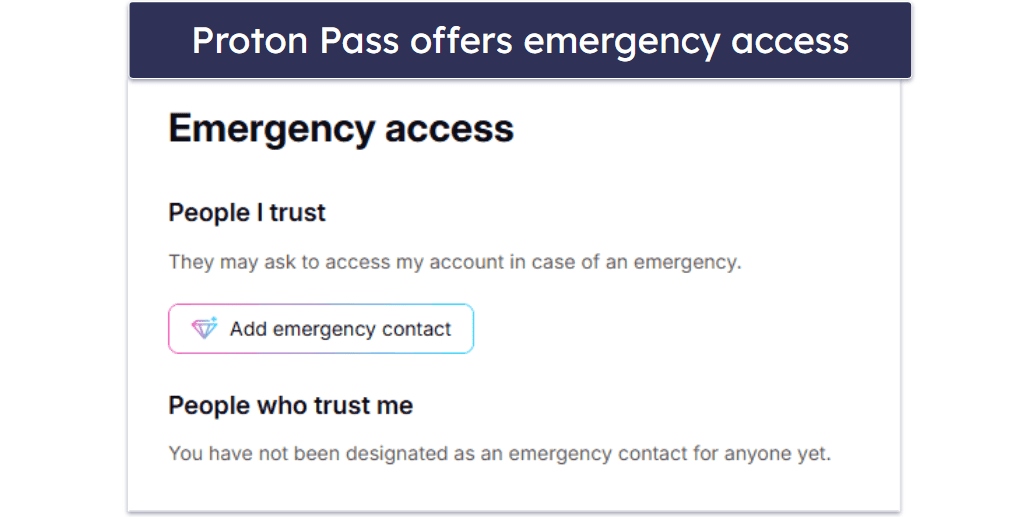
I also like Proton Pass’ commitment to keeping your offline data safe. Even when your vault is cached locally, every password, note, identity, and card remains protected with end-to-end encryption. Your master password and vault keys never leave your device, so not even Proton can see your stored logins. The app uses Argon2 hashing to defend against brute-force attacks and open-source, independently audited code for transparency. Since offline mode only unlocks a securely encrypted cache on your device, your passwords remain just as safe without internet as they are when fully synced online.
Proton Pass offers a generous free plan that includes unlimited logins and devices, along with password health alerts. However, to access your passwords offline, you have to upgrade to a paid plan. The Plus plan costs $2.49 / month, adding advanced features like file attachments, 10 GB encrypted storage, dark web monitoring, up to 50 vaults, and Proton Sentinel. Families can opt for the Family plan at $4.99 / month, which covers up to 6 users with individual vaults and 50 GB encrypted storage. All paid plans come with a 30-day money-back guarantee.
Bottom Line:
Proton Pass is a privacy-first password manager that works reliably offline and incorporates modern features, including passkeys and an integrated authenticator. If you already use Proton Mail or Proton VPN, it integrates seamlessly into the ecosystem — but even on its own, it’s one of the best offline-ready managers in 2026.
Read the full Proton Pass review >
5. Bitwarden — Very Secure With Local Storage Option

Bitwarden is a highly secure, open-source password manager that supports both temporary offline mode and full local storage when self-hosted. Self-hosting gives you complete control over your data, keeping your data on your devices and syncing only on your own infrastructure. It’s not entirely offline, but it’s great if you’re concerned about privacy. However, setting it up can be quite technical and better suited for advanced users. Luckily, Bitwarden’s standard cloud hosting is secure and available for all users.
- Self-hosted hosted option
- Customizable password generator
- Very affordable
- Read-only offline in standard mode
- Self-hosting needs technical skill
In temporary offline mode, you can view your vault without an internet connection, but you cannot add or edit items. That said, if you self-host Bitwarden on a local or air-gapped network, clients can still add, edit, and sync as long as they are connected to that local server. When the app is completely offline, it remains read-only.
Some of Bitwarden’s features include:
- End-to-end encryption.
- Two-factor authentication (2FA).
- Highly customizable password generator.
- Secure password sharing.
- Option to self-host your vault.

Bitwarden’s password generator is highly customizable and one of my favorite features. You can generate passwords up to 128 characters long, with options to include or exclude uppercase letters, lowercase letters, numbers, and symbols — you can also create easy-to-remember passphrases, and Bitwarden can even help you create usernames.
Bitwarden Send is a secure and temporary way to transmit encrypted text or files to anyone — even those without a Bitwarden account. You can share text up to 1,000 characters or files up to 500 MB (or 100 MB on mobile). Each Send generates a randomly created link that you can share via email, text, or any communication channel. I particularly liked that I could share a file with my friend who doesn’t use Bitwarden — as mentioned above, 1Password is the only other password manager on this list that lets you share passwords and files with anyone.
Bitwarden is audited annually by third-party security firms, adding transparency to its already strong open-source code. It supports advanced MFA options like YubiKey, FIDO2, and Duo, as well as biometric logins and a built-in authenticator.
Bitwarden offers a generous free plan that includes unlimited passwords on unlimited devices, 2FA, and basic password sharing. For more advanced features, the Premium plan costs $1.00 / month, making it one of the most affordable premium password managers available. The Family plan, at $3.33 / month, includes all premium features for up to 6 users.
Bottom Line:
Bitwarden is perfect for privacy-focused users who want open-source transparency and the option to go fully local. That said, it requires more setup and isn’t the most beginner-friendly if you want complete offline control. You can try Bitwarden with its free plan or opt for a 30-day free trial of the premium features.
Read the full Bitwarden review
6. Sticky Password — Beginner-Friendly With Several Data Sync Options

Sticky Password is a beginner-friendly option that supports fully offline local storage. You can keep your vault entirely on your device or sync it between devices over your own Wi-Fi network without any internet or third-party servers involved.
- Fully offline with Wi-Fi sync
- Portable USB vault for any PC
- Contactless Connect feature
- Complex sync setup
- Dated interface
- Dark web scan is slow
Like RoboForm and Bitwarden, Sticky Password allows you to add new web and app accounts and check your security dashboard while offline. Sticky Password also comes with a secure password generator. You can create passwords up to 99 characters long, including special characters, numbers, and symbols.
I really like the portable USB password manager included with Sticky Password — it was really quick and easy to set up. I found this feature really useful, as it eliminated the need to download and install Sticky Password on my work PC to access my stored data. This makes it ideal for secure occasional use on work or public computers, as everything runs from the USB drive and your encrypted data stays on it without leaving traces behind.
Its unique Contactless Connect feature displays a QR code in the browser that you scan with the Sticky Password mobile app to log in on that device without typing your master password. It’s great for convenience, but if you go fully offline and skip internet-based sync, you’ll also be skipping Contactless Connect’s benefits.

However, I wasn’t as impressed with Sticky Password’s dark web monitoring as with its other features. The dark web scanner was slow compared to other competitors, and it didn’t email me when it detected a breach.
Sticky Password doesn’t offer as many extras as the other top competitors. That said, it does offer several sync options, including cloud sync and Wi-Fi-only sync. This option allows you to sync your data across devices using your own Wi-Fi connection — ensuring that your data is never stored by anyone other than you. In my tests, it took some time to set up, but it worked well once I got it going.
Sticky Password Free includes the portable USB version, unlimited passwords on 1 device, 2FA, and secure note storage. The Sticky Password Premium plan, priced at $29.99 / month, includes syncing across unlimited devices, dark web monitoring, password sharing, and cloud or local Wi-Fi sync. It even comes with a Lifetime plan for $79.99.
Bottom Line:
Sticky Password has all the basic password management features and adds some unique extras, like local Wi-Fi sync and a portable version of the program. Sticky Password also offers a 30-day money-back guarantee on all plans.
Read the full Sticky Password review
7. Enpass — Fully Offline Password Manager With Customizable Vaults

Enpass lets users handle the entire password management process offline. You can also use your home Wi-Fi network or a third-party service to sync your data, but this is purely optional. It isn’t particularly easy to use, but if you want a 100% offline option, it’s worth considering. Plus, you can manually copy or back up your vault as an encrypted file (.enpassdb), giving you full control over your data.
- Backups and restore system
- Optional Wi-Fi and LAN sync
- Flexible tagging and templates
- Interface can confuse beginners
- Wi-Fi sync requires manual setup
- Keyfile protection adds extra steps
I was able to save, edit, and access my stored passwords while offline without any issues. The Enpass app will only connect to the internet to make sure your license is valid and to check for the latest security breaches when auditing your passwords. To sync multiple devices without the cloud, Enpass saves your data to a folder on a storage server you have and updates the other devices over your home connection (Wi-Fi or LAN). You can also optionally sync through third-party cloud services like Google Drive or Dropbox.

I appreciate how easy it is to keep your vault organized. The customizable tagging system allows you to group logins or other types of stored information by category. On top of that, the app has dozens of preloaded templates covering a wide array of forms. Despite all these, though, it’s not as customizable as RoboForm.
Though it’s easy to keep organized, other aspects of Enpass are very tricky. Protecting folders with a Keyfile adds security, but creating and using these can be more than a little cumbersome. The app also suffers from a lack of explanatory text. Many security settings and fields left me scratching my head. It just can’t compete with top providers like 1Password when it comes to user experience.
Still, if you’re up for the challenge, Enpass has a free plan that works well for desktop users. If you want full mobile coverage and features like breach monitoring, you’ll need the Individual plan ($0.79 / month). There’s also a family plan and even the option to get a lifetime subscription. All plans are backed by a 30-day money-back guarantee.
Bottom Line:
Enpass is a secure password manager designed to be used offline. This makes synchronization across devices trickier and means features like password auditing aren’t always available, but fundamentally, Enpass delivers as an offline password manager.
Bonus. mSecure — Basic Option With Multiple Ways to Sync

mSecure offers fully offline, encrypted password management with the option to sync your vault between devices over a Wi-Fi network. I was able to access and edit my vault, manage security settings, and more, all while my router was turned off.
- Apple Watch credential access
- Flexible cloud sync options
- Good encryption and security
- Weak master passwords allowed
- Browser extension unreliable
- Lacks breach monitoring features
Security-wise, mSecure is fairly strong. It’s backed by unbeatable encryption and requires users to enter a unique key whenever logging in on a new device. Still, it isn’t perfect in this area. I found I was able to make my master password ‘1234’. Unlike with 1Password, there’s no requirement to protect your account with a decent password.
Unfortunately, I found mSecure’s browser extension to be completely non-functional. This means there’s no way to have it auto-save new accounts you create or auto-fill your info on sites already stored in your vault. I couldn’t get this feature to work on my Android, either.

On the plus side, I like that mSecure lets you store your data locally while also providing cloud-based options. You can use mSecure’s servers, Dropbox, or even allow all devices connected to your network to access your vault. Apple customers can also use iCloud. If you opt for one of these options, you can seamlessly use mSecure on multiple devices. Plus, the Apple Watch support lets you quickly view selected credentials without pulling out your phone.
mSecure offers plans for individuals, families, and businesses. The cheapest plan is Essentials at $1.66 / month, but that version lacks vital features like 2FA. mSecure offers a limited free plan with a 30-day free trial of Premium included and a 60-day money-back guarantee on all plans.
Bottom Line:
mSecure works well offline, but it’s frankly a bit lacking when it comes to features. I couldn’t get auto-fill to work on any of my devices, and users don’t benefit from data breach monitoring or other advanced features. Still, I like the flexibility you get when it comes to local storage and the various synchronization options.
Quick Comparison Table
Testing Methodology: Comparison & Ranking Criteria
I used our comprehensive testing methodology to evaluate the top offline password managers in 2026. I focused on core aspects such as offline functionality, security, and ease of use to identify the most reliable options. Here’s how I tested each one:
- I verified that offline functionality worked as expected. Each password manager allowed users to, at the very least, view their stored passwords without an internet connection. The best allow you to edit your credentials while offline, too.

- I ensured each product used advanced security features. This included checking for 256-bit AES encryption and zero-knowledge protocols to protect sensitive data. Both 1Password and RoboForm performed well in this area.
- I tested essential password management features. This covered password generation, secure storage, and auto-fill across devices. I found 1Password and Dashlane particularly strong in these areas.
- I checked for useful additional features. These included dark web monitoring, encrypted storage, and multi-factor authentication. 1Password’s Travel Mode was a standout feature for its practical benefits.
- I made sure the user interface was intuitive and user-friendly. Each password manager that made it onto this list needed to be easy to navigate for both tech-savvy users and beginners, and all met this criterion.
- I tested customer support responsiveness and availability. I contacted support teams and reviewed their resources, noting that the best password managers offered multiple channels like email, live chat, and comprehensive knowledge bases.

- I compared pricing to the value offered. I looked for a good balance between cost and features, with most managers offering free trials or money-back guarantees for users to test the service.
Pros & Cons of Offline Password Management
Most password managers rely on internet connectivity, but some work offline to varying degrees, offering unique benefits and challenges. So here are the key benefits and drawbacks of offline password management.
Pros
- More control over your data. Your password database stays on devices or storage you manage, letting you control backups and access (e.g., Enpass, mSecure).
- Lower exposure to breaches. By storing all your personal information on your own device (as you can do with Bitwarden), there’s no risk that a shady employee or hackers targeting a password manager developer will get into your account.
- Access without the internet. You can unlock and use your passwords during outages, on flights, or on air-gapped networks without an active internet connection.
- Local syncing. You can sync your devices over your home network or copy an encrypted vault file between devices, so nothing has to touch public clouds.
Cons
- Higher risk if you don’t back up. Fully offline managers (e.g., mSecure) risk losing data if the device is lost without backups. The best online password managers get around this by offering secure recovery options if you lose your device and forget your master password.
- Fewer live security features. Dark web monitoring and breach alerts need an internet connection, so you won’t get new leak check reports or notifications while staying offline.
- Multi-device use requires your own link. You need to set up a LAN or Wi-Fi sync storage server or move the encrypted file yourself to sync across different devices. This process can be complicated for beginners.
- Risk from physical access. If someone gets hold of your device, data can be stolen when the vault is unlocked. Online password managers like 1Password get around this issue by using two-factor authentication for every new session and building their products around zero-knowledge architecture. This means that even though data is stored on servers, no one at the company can see what’s in your vault. Though 1Password doesn’t offer local storage, it’s still safe and works offline.
Ultimately, the best password managers leverage the benefits of an internet connection with ironclad security that allows users to trust that their private info stays private. They also allow you to access your vault while offline, so you can view (and edit) your data should the need ever arise.
Top Brands That Didn’t Make the Cut
- NordPass. NordPass is a user-friendly password manager with a good set of features, but it falls short when it comes to offline functionality. Its offline mode is read-only, and it doesn’t offer any local storage option.
- KeePass. KeePass is a free, open-source password manager that’s very secure. However, it’s not the most user-friendly option out there, especially for those who aren’t tech-savvy. I found its interface was quite outdated and lacked an intuitive design.
- LastPass. My team and I can no longer recommend LastPass due to recent security breaches, which have compromised user trust. Plus, it only offers read-only offline access and has no local storage options.
Frequently Asked Questions
Do password managers work offline?
Yes, many password managers work offline. These password managers store a temporary (cached) encrypted copy of your password vault on your device, allowing you to access your passwords even when you’re not connected to the internet. However, it’s important to note that while you can access and use your passwords offline, any changes or additions you make to your password vault will only sync across your devices when you’re back online.
Should I use a free password manager?
If your needs are basic, there are a few legitimate free options that still offer solid security. RoboForm has a free plan with unlimited logins and offline access on one device, making it a good pick for budget-conscious users. It won’t match the advanced features of paid plans, but it’s secure, reliable, and easy to use.
Are online password managers safe to use?
Yes, online password managers are safe to use. They employ advanced encryption methods, like 256-bit AES encryption, which is the industry standard for protecting sensitive data. Many also use zero-knowledge architecture, meaning the service can’t access your unencrypted information. So, while keeping your data offline might feel safer, online password managers are designed with security as a top priority.
Along with encryption, they offer multi-factor authentication, biometric logins, and automatic security alerts if your data is at risk. I’ve tested every password manager on this list to ensure they have all these features. That said, if you’re still cloud-averse or simply want an extra layer of control, offline managers can offer that peace of mind.
What security measures do online password managers take to protect my data?
Online password managers protect your data through several layers of security. Here are a few key protections:
- End-to-End Encryption. Your data is encrypted on your device before it ever reaches the server, and only you can decrypt it.
- Two-Factor Authentication (2FA). This adds an extra layer of security by requiring a second form of verification in addition to your master password.
- Secure Sharing. They allow you to share passwords securely with trusted individuals without ever exposing the actual passwords.
- Regular Security Audits. Many password managers like 1Password and Dashlane, undergo independent security audits to ensure their systems are secure from vulnerabilities.
Which offline password manager is the most secure?
There are several password managers that are widely trusted for their excellent security. All of the password managers on my list use strong encryption, have zero-knowledge policies (meaning no one can access your passwords except you), and offer two-factor authentication for added security. However, it’s always a good idea to do your own research and choose a password manager that best fits your specific needs and comfort level.
Can NordPass be used offline?
Yes, NordPass can be used offline. It stores an encrypted copy of your password vault on your device, so you can access your passwords without an internet connection. That said, it’s not possible to edit, delete or add entries in this offline mode like you can with the other options on this list, nor is it possible to use auto-fill. Any changes need to be made when you’re online, and these changes will then be available offline once they’ve synchronized across your devices.
Does Google have a free password manager?
Yes, Google offers a free password manager built into Chrome and synced with your Google account. It can save logins, generate strong passwords, and works seamlessly across devices. However, the main risk is that if someone gains access to your Google account, they automatically get access to all your saved passwords — a classic “all your eggs in one basket” scenario. For stronger protection, consider a dedicated password manager like 1Password, which encrypts your vault locally before syncing and keeps your master password private even from the service itself.
Can offline password managers work on multiple devices?
Yes, some offline managers can sync across devices using LAN/Wi-Fi or manual file transfers. However, these methods aren’t considered purely offline since they still rely on a local network. For maximum isolation and security, the safest approach is to keep your vault on a single device.