RoboForm Review: Quick Expert Summary
Based on my tests, RoboForm is by far the overall best password manager. It’s affordable, uses strong 256-bit AES encryption to keep your login credentials and data secure, and has a very user-friendly interface.
I really like RoboForm’s extensive form-filling capabilities. In my tests, it saved me a huge amount of time by allowing me to navigate and fill complex web forms with ease. Unlike many password managers, RoboForm also lets you store data locally, which is a nice touch.
RoboForm’s additional features are really well-made. It has its own built-in authenticator, supports passkeys, works on smartwatches, syncs easily with third-party 2FA apps like Google Authenticator, and supports advanced 2FA options like YubiKey.
RoboForm is also cheaper than most premium competitors, with affordable premium plans for both individuals and families. Plus, all RoboForm plans are backed by a 30-day money-back guarantee, so there’s no risk in trying it out.
September 2025 update: We’ve included RoboForm’s support for USB hardware keys like YubiKey and extended passkey support. Features were retested, and the review was updated to reflect our latest findings.
RoboForm Full Review — Secure & Budget-Friendly (With the Best Form-Filling on the Market)
RoboForm is one of the best password managers if you’re on a budget. It offers fewer features than some of its competitors, but its password auditing, two-factor authentication, data breach monitoring, and form-filling features all make it a premium-quality password manager.
RoboForm also undergoes regular security audits and penetration tests. The consistent results confirm its zero-knowledge architecture.

RoboForm Plans & Pricing (For Personal Use + Families) — Budget-Friendly & Feature-Rich
RoboForm has 3 different annual plans — a free version, a premium individual version, and a family version. The paid versions are available for Windows, macOS, Android, iOS, ChromeOS, and Linux. They’re an excellent price compared to premium competitors like Dashlane and 1Password.
Here’s a quick overview of RoboForm’s plans:
RoboForm Free — Good Features and Unlimited Passwords
RoboForm Free is pretty darn good for a free product. It lets you store unlimited passwords on a single device and comes with some useful features, including:
- Auto-saving and auto-filling.
- Two-factor authentication (2FA).
- Password auditing.
- Form filling.
- Bookmark saving.
- Cloud backup (1 device only).
All in all, RoboForm Free is one of the best free password managers, the paid plans offer better value. If you need to cover multiple devices, you can try RoboForm Premium for free for 30 days. The free trial automatically starts when you create an account, and you don’t need to provide any payment details to get started.
RoboForm Premium — Best Plan at a Great Price
Priced at just $0.99 / month (billed annually), RoboForm Premium provides great features for a better price than many competitors, including unlimited password storage across unlimited devices. In addition to everything provided in the Free plan, RoboForm Premium also includes:
- Multi-device sync.
- Data breach monitoring (5 emails).
- Password sharing (individual items and folders).
- Emergency access.
- Cloud backup (unlimited devices).
- Local storage option.
- Priority 24/7 customer support.
- Smartwatch compatibility.
RoboForm Premium is a great value and cheaper than most competitors. Plus, it offers a 30-day money-back guarantee, so you can try it out risk-free.
RoboForm Family — Premium Plan With 5 Accounts
RoboForm Family costs $1.60 / month (billed annually). It includes all the features of RoboForm Premium, plus unlimited password storage on unlimited devices for up to 5 separate accounts. It’s one of the most affordable and feature-rich family plans available.
1Password also offers a solid family plan with the option to add unlimited users for a small extra fee, but it costs more than RoboForm. RoboForm also comes with a 30-day money-back guarantee, so your family can try it risk-free and decide if it’s the right fit.
RoboForm Plans & Pricing (For Business Use) — Full-Featured Services for Professional Users
You’ll find 2 different plans for businesses — Business and Enterprise. RoboForm’s plans for businesses include all the features of the personal plans, plus centralized management and additional benefits.
Here’s a quick overview of what you’ll get with RoboForm’s business plans:
RoboForm Business — Dedicated Account Management
RoboForm Business comes with all features from the Free, Premium, and Family plans, and it costs $2.23 / month. It also comes with:
- Separate password vaults for every employee.
- Centralized account management.
- Password sharing.
- SSO integration.
- SCIM provisioning.
- Role-based access control.
- A dedicated account manager.
- Priority 24/7 support.
- …and more.
It’s a good plan for businesses that don’t need dedicated onboarding support, personalized training, or customized, volume-based pricing. If your organization is large and you need any of those things, you’re better off opting for RoboForm’s Enterprise plan instead.
RoboForm Enterprise — Great for Customized, Volume-Based Pricing
Enterprise offers the same features as Business plus:
- Customized, volume-based pricing.
- Dedicated onboarding and support engineers.
- Personalized onboarding and training.
- Extended trials with more users for large implementations.
- Custom Service Level Agreement (SLA).
- Self-hosting model (available for 1,000+ user environments).
If you need dedicated onboarding support from the engineering team, personalized training, and customized, volume-based pricing, your organization will be well-served by RoboForm Enterprise.
That said, it’s missing some useful features for enterprise users. For instance, it doesn’t offer custom groups and integrations, secure document storage, advanced security reports, and security information and event management (SIEM) integration — all of which are available with some of the top password managers for businesses like 1Password.
RoboForm Security Features — Everything You Need to Keep Your Logins Safe
RoboForm uses military-grade encryption and zero-knowledge architecture to protect your personal information. You can even store all your data locally on your computer, but doing so will make it so you can’t synchronize your data across multiple devices. That said, I appreciate that this option exists — it’s ideal for users who prefer not to store passwords in the cloud or, due to company policy, are prohibited from using cloud services for password storage.
When you store your passwords and personal info on RoboForm’s servers, you can access them from any device. It’s all kept secure thanks to local decryption. RoboForm only holds your data in an unreadable format — it never sees your actual information.
Your master password is the key, and the decryption happens on your device. RoboForm doesn’t store your master password anywhere, so even if the servers get hacked, your data stays safe.
RoboForm also lets you backup your data manually. If you do store your data locally, making a backup or two ensures you have a range of data recovery options. Backups are automatically updated periodically, and you can even choose how often this occurs.
RoboForm offers most features I expect in a quality password manager, including:
- Password vault.
- Two-factor authentication (2FA).
- Password generator.
- Passkey support.
- Password auditing.
- Data breach monitoring.
- Built-in authenticator.
- Emergency access.
- And more…
Overall, RoboForm has all the features you need to keep your passwords safe. Its detailed form fields save lots of time if you regularly fill out forms online, and it makes it super easy to change compromised or weak passwords. However, I’d love to see RoboForm add encrypted storage.
Password Vault — Easy-to-Organize Folders & Subfolders (Plus Heaps of Customization Options)
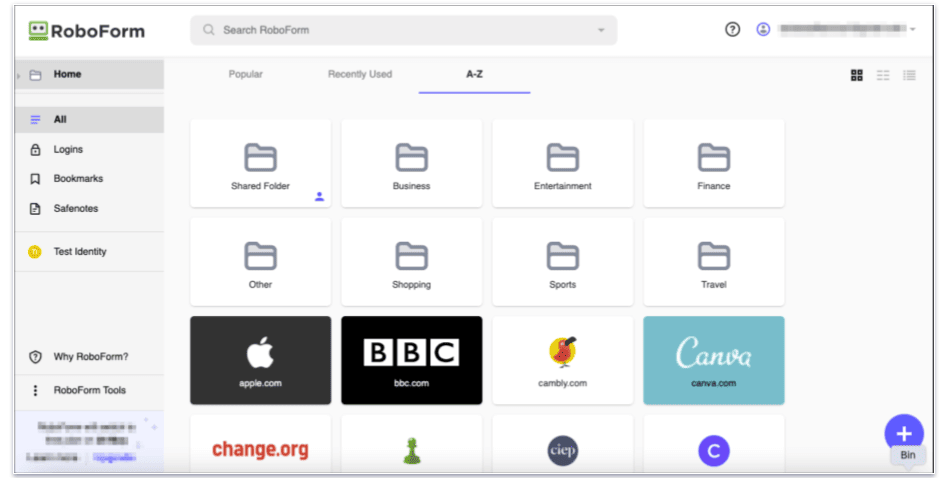
You can access RoboForm’s password vault via its desktop editor, web app, browser extension, and mobile apps. In RoboForm’s vault, you can store logins and passwords, website bookmarks, secure notes, identities, and contacts.

Organizing your vault is also very easy. You can organize everything into folders and subfolders, and you can create as many as you like. RoboForm also allows you to “clone” entries, so you can easily save the same login in multiple folders (including shared folders). If one entry is updated, RoboForm will automatically offer to update any identical entries elsewhere in your vault.
My only minor complaint about RoboForm’s vault is that you can’t create new login entries directly in the desktop editor. When you try to add a login by clicking the ‘+’ sign, a pop-up instructs you to open the website in a browser to capture the credentials via the extension or to use the web dashboard instead. While you can import logins or add identities, contacts, and safenotes in the desktop app, this limitation is a little inconvenient.

The addition of an activity log is a nice touch. You can view a list of all devices that have accessed your vault, including their IP addresses and other details. It also shows you whenever an incorrect password is used and lets you remotely log out of other devices; however, this feature is only accessible from the web app. It would have been nice if RoboForm included some of the extras included with Keeper (being able to send messages, store photos, and other files). Still, RoboForm’s vault makes securing your personal information simple.
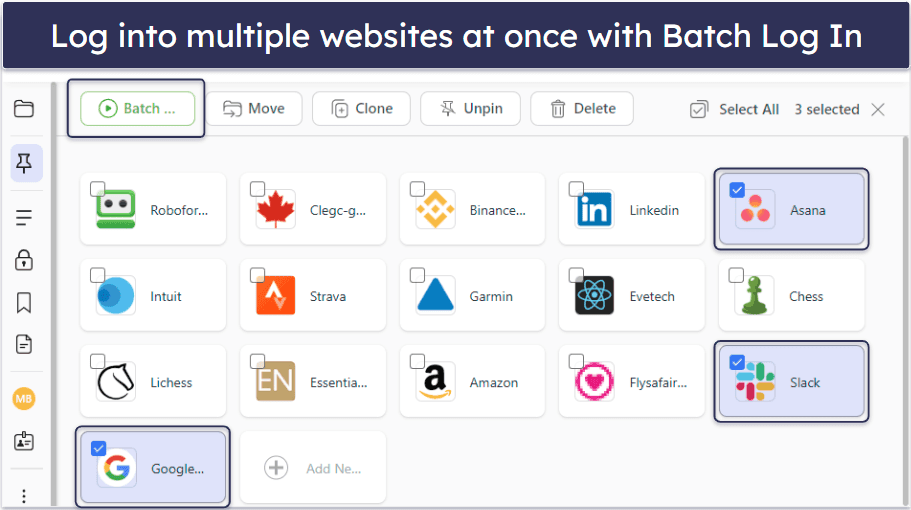
One of my favorite RoboForm features is Batch Log In, which allows you to select multiple vault logins from the web app and access them all simultaneously with a single click. I find this tool extremely handy for my workday — it instantly opens all the websites I need in separate tabs. I don’t know of any other password manager that offers this unique functionality.
Overall, RoboForm’s vault is one of the best around. It’s intuitive and works well, saving time and enhancing your security.
Two-Factor Authentication (2FA) — Secure & Convenient Methods to Protect Your Accounts
2FA enhances security by requiring you to provide a second form of verification along with your master password before you can access your vault. I like that 2FA is enabled by default, ensuring that whenever you log in or access your vault on a new device, an additional verification step is required.
By default, RoboForm sends a code to your email, but you can also opt for SMS, a third-party 2FA app (like Google Authenticator, Microsoft Authenticator, or Authy), or one of the newly added 2025 options: another trusted device (typically an iOS or Android smartphone), 2FA via passkeys, or hardware security keys like YubiKey (Security Key C NFC) or Google Titan. These expanded options, available in both Free and Premium plans, make RoboForm’s 2FA highly versatile and align it with competitors like 1Password and Keeper, which also support hardware keys.
RoboForm’s authentication is remarkably customizable, too. You can configure exactly what’s required to access your vault, from needing both your master password and 2FA every time to trusting a device for a period before re-authentication. There’s also passkey integration, allowing you to use passkeys as a second factor for 2FA or to unlock RoboForm without entering your master password.
Another good feature is passwordless unlock for standalone browser extensions (Chrome, Edge, Firefox, and their variants). Previously, you needed the Windows or Mac desktop apps, but now you can use passwordless unlock directly in the browser.
Also, syncing RoboForm with Google Authenticator is easy — scanning the QR code allowed me to log in using one-time passwords generated by the app. The new trusted device and hardware key options provide great flexibility, letting you choose the method that best fits your workflow.

RoboForm also offers biometric logins, including fingerprint ID on mobile devices (iOS users can also use voice recognition), as well as Windows Hello and Touch ID on macOS. These serve as handy alternatives to entering a master password. The Log In & Security Hub organizes all security features into a unified interface, split into two clear categories: Passwordless Unlock and Two-Factor Authentication, making it easier to manage your security settings.
Finally, RoboForm’s built-in 2FA authenticator is a great feature — generating one-time passcodes for sites that support 2FA. I tested this with my PayPal account, and logging in with a single click was impressively easy. RoboForm can also send passwords or 2FA codes to compatible smartwatches. This auto-fill capability for 2FA codes, available even to free users, makes logging into 2FA-enabled sites super straightforward.
Overall, RoboForm’s 2FA is highly secure and very convenient. I think it’s great that it provides users with lots of choices when it comes to authenticating their accounts. On top of that, RoboForm provides a built-in authenticator — even for non-paying users.
Passkey Support — Straightforward Management of Your Passkeys
RoboForm’s passkey support makes it easy to use this modern, secure alternative to passwords. Passkeys are tied to your device and unlocked with biometrics (fingerprint or face) or a PIN, offering strong protection against phishing since there’s no password for scammers to steal. The 2025 updates allow passkeys to log you into supported websites and unlock RoboForm itself (passwordless unlock) — serving as a second factor for 2FA.
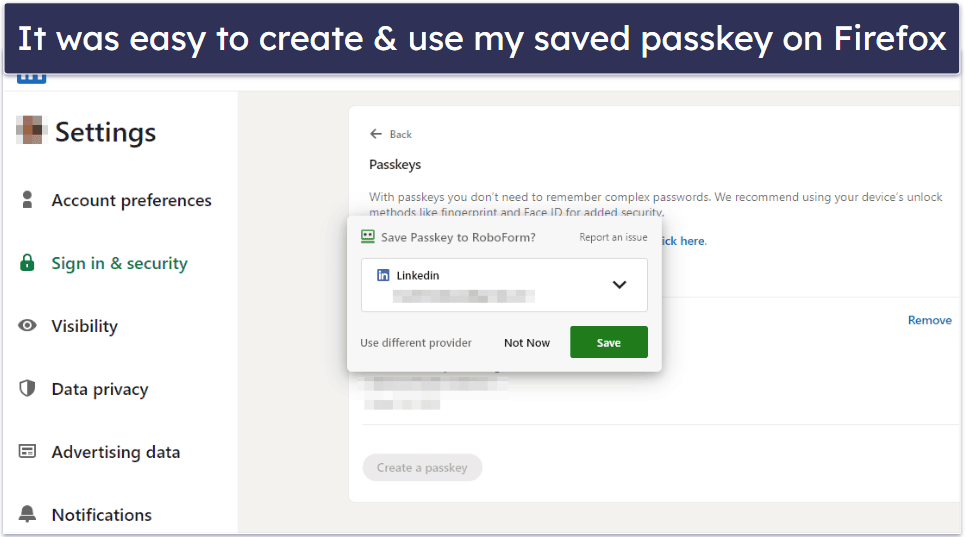
In my tests, storing and using passkeys for websites was easy. With the “Autosave” option enabled in RoboForm’s settings, the app automatically prompts you to save a passkey when visiting a compatible site. For example, when I created a passkey for my Google account, RoboForm integrated it alongside my existing login. On subsequent logins, RoboForm used the saved passkey to log me in quickly. However, passkeys aren’t distinguished from traditional logins in the vault, which can make them harder to identify (NordPass, for instance, has a dedicated passkey tab).

Recent updates resolve a previous pain point: passkey compatibility with Firefox. Unlike my earlier experience, where Firefox displayed a pop-up indicating passkeys weren’t supported, RoboForm now works smoothly across Chrome, Edge, Firefox, and their variants, including for passwordless unlock in standalone browser extensions. This eliminates the need to install desktop apps for passwordless access, making the experience more streamlined.
Passkey management is user-friendly, with straightforward syncing across all devices — browser extensions, and mobile apps (requiring iOS 17 or Android 14 or higher). This ensures you don’t need multiple passkeys per device. The new ability to use passkeys for unlocking RoboForm or as a 2FA method adds helpful versatility, too. For instance, you can now log into RoboForm without a master password by using a passkey, which is both secure and convenient, especially on trusted devices.
Overall, RoboForm’s passkey support is robust and easy to use, with updates making it a more powerful tool for both external site logins and securing access to RoboForm itself. While I’d love to see a dedicated passkey tab in the vault for better organization, the expanded compatibility and functionality make RoboForm a strong contender in passkey management.
Password Generator — Create Super-Long Passwords & Passphrases
RoboForm’s password generator helps users create strong, unique passwords. Whether you’re using the mobile app or the browser extension, RoboForm automatically opens the secure password generator when you create or change a password.
By default, RoboForm generates passwords that are 22 characters long, exclude similar characters, and contain a mix of uppercase and lowercase letters, numbers, and symbols. Users also have the option to exclude any type of characters and make their password up to 512 characters long.
RoboForm lets you generate memorable passwords built around real words known as passphrases, but you can only do this from the iOS, Android, and web apps. Unfortunately, there’s no way to generate passwords from the desktop editor for Windows or macOS (1Password lets you do this across all versions). However, the workaround is to open the extension or web generator and then save the result back into RoboForm.
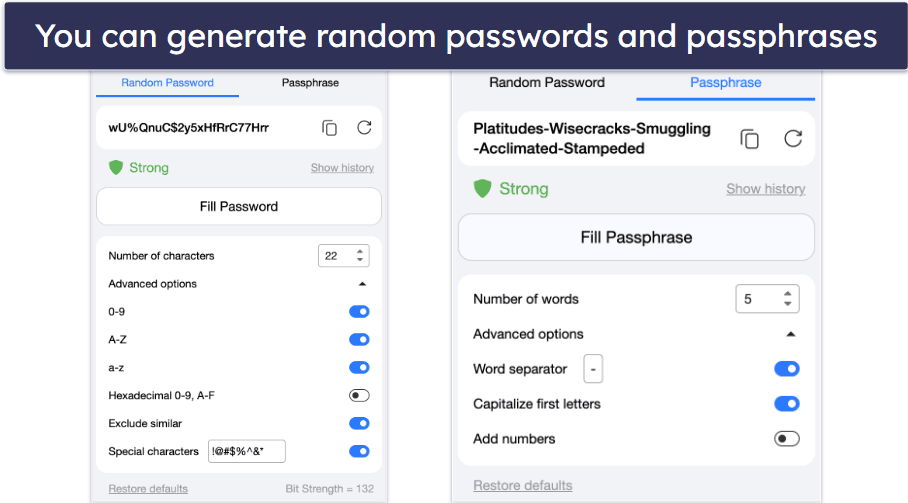
Overall, RoboForm’s password generator is user-friendly and rivals top password managers like 1Password in functionality.
Password Auditing — Useful Security Checks On-Par With Top Password Managers
Password auditing is offered through RoboForm’s Security Center — and is available in the web and mobile apps. It analyzes every password in your vault and gives an overall security score based on the:
- Number of compromised passwords.
- Number of reused passwords.
- Strength of each password.

The Security Center uses an open-source algorithm to evaluate the strength of your passwords. This algorithm, called “zxcvbn”, has been proven to be more accurate than most password strength tools when it comes to analyzing how likely it is that a certain password can be hacked — it found 4 weak passwords in my tests and they were really easy to fix.
RoboForm uses the free Have I Been Pwned database to check whether any of your passwords have been involved in data breaches. Have I Been Pwned has millions of entries and is regularly updated to reflect the latest incidents. RoboForm also shows a fair amount of detail on the breach, including the site involved and which details were exposed.

I’m really glad RoboForm also checks email addresses for data breaches. It lets you see if any of your emails have been compromised, and in my case, it discovered one of my main addresses had been involved in a breach and explained what happened. You can monitor up to 5 emails, with alerts for critical or non-critical breaches. That’s pretty standard for password managers. NordPass is the only password manager that also tracks credit cards.
Overall, RoboForm’s Security Center is a valuable feature that effectively alerts you to potential issues with your password security or compromised emails.
Emergency Access — Easily Assign Access to a Trusted Contact
I like that RoboForm lets you assign a trusted contact who can access your password vault in case of an emergency. This ensures your online accounts can still be accessed if you’re incapacitated and serves as a means of account recovery should you forget your master password. You can also get your account back if you have biometrics enabled on your mobile device.
Unfortunately, this feature is only available for users on a paid plan, but then again, other top password managers like Keeper and Bitwarden don’t offer emergency access on their free plans either. Your chosen trusted contact must also have a RoboForm account before you can add them as your emergency contact, but the Free plan is sufficient for recipients — so while you can’t add an emergency contact on the Free plan, you can still be an emergency contact for someone else.

Setting up Emergency Access is very easy: simply enter your trusted contact’s email address and select a waiting period (up to 30 days). Your emergency contact won’t be able to open your password vault until the waiting period is over, and you have the opportunity to refuse access during that time. Alternatively, you can also select Immediately.
You can also revoke Emergency Access at any time, even when your emergency contact already has full access to your RoboForm data.
RoboForm’s Emergency Access works really well, and it’s a great way to ensure that your data is accessible in an emergency situation. Plus, it makes it easy to recover logins if you forget your master password. Most password managers now offer this feature, and they usually work in much the same way as RoboForm’s. However, Password Boss allows you to choose a specific selection of items to share with your emergency contacts, rather than your entire vault, and I’d love to see RoboForm also offer this option.
But overall, RoboForm’s Emergency Access is a great feature that works well and is easy to set up and manage.
Application Passwords — Save Your App Logins on PC & Mobile
RoboForm’s auto-save and auto-fill functions work for both apps and websites. When I logged into my Zoom account on my desktop, RoboForm automatically displayed a dialogue box, offering to save my password. The next time I accessed the app, RoboForm displayed my account details, allowing me to log in with a single click.

Admittedly, this functionality didn’t work perfectly. I tested it by logging into several apps, and RoboForm failed to automatically suggest saving my details for a couple of programs. If you have this issue, you can also manually add account details for desktop apps. When I did, auto-fill came up whenever I opened the app. Though it could be improved, I love that RoboForm’s auto-save and auto-fill features work outside of browsers.
Secure Sharing — Share Folders With Family & Teams
RoboForm allows you to share passwords, secure notes, bookmarks, and identity details with anybody else who uses RoboForm. This is a great tool for families and teams.
I like that you can share individual logins or create folders shared between up to 5 RoboForm users. Unfortunately, you can only have up to 2 shared folders at a time, unless you’re a Business plan user.
On the plus side, RoboForm lets you choose between 3 different permission settings when inviting a recipient to your shared folder:
- Log in only. The recipient can use the logins, but can’t view, edit, or share any of the passwords or other data.
- Read and write. The recipient can both view and edit the items in the shared folder, and changes will be synced to all recipients and the original sender.
- Full control. The recipient can view and edit items, as well as change permission levels, and add or remove other recipients (including the original sender).

The permission settings are ideal for offices or families where different users need different levels of access, as you can apply different permissions for each recipient within the same folder.
You can also share individual items, but this isn’t quite as good as the shared folders, mainly because it doesn’t allow any permission options. When sending an individual item, the recipient will always be able to view the password and other details, but they won’t be able to edit or share the item themselves. Other password managers, including Dashlane, allow you to choose the permission level for every password you send.
RoboForm has 2 options for sharing an individual item: Sharing and Send. With Sharing, any changes you make to the shared login details are automatically synced with the recipient, while Send allows you to send a password once without any future changes being synced.
Overall, RoboForm’s password sharing works well and is highly secure. Plus, it’s really easy to share passwords between users. However, I’d like to see more permission options for sharing individual passwords.
Automatic Form Filling — Various Templates With Excellent Customization & Functionality
RoboForm started as a form-filling software before expanding into password management, making its web form-filling capabilities some of the best available. You can create multiple identities, each supported by 8 templates for entering details like addresses or payment information. Additionally, you can design custom templates with user-defined fields. The available templates for each identity include:
- Person.
- Business.
- Passport.
- Address.
- Credit Card.
- Bank Account.
- Car.
- App Upload (Windows only — for saving information for licensing software).
- Custom.
When creating an identity, you are first prompted to choose your country — the forms are then automatically adjusted to match the type and format of documents and details of that country. This is an excellent level of customization, and way beyond that of other top password managers such as Dashlane.

RoboForm also allows users to save multiple templates in a single identity. For example, I made 2 different identities for myself — one with my business address, credit card, and checking account, and another one for all of my personal needs. These identities have a ton of room for different details; I was able to include information like contact numbers, email addresses, and my Skype ID. Once I created my identity in RoboForm, I could auto-fill that information into web forms by selecting the correct template in the browser extension.

RoboForm filled out some extremely complex web forms with almost zero errors. I simply selected the template in the browser extension, clicked auto-fill, and watched as all the fields for my address, credit card, and contact information filled in automatically.
Overall, RoboForm has the best form-filler of any password manager. I would love to see competing brands take some notes on RoboForm’s form-filling features.
Bookmark Storage — Store Your Favorite Sites Across Devices & Browsers
RoboForm’s Bookmarks feature is similar to a web browser bookmark, but it saves bookmarks to any device that has RoboForm installed. Bookmarks can be added via the browser extension directly from the webpage you want to bookmark, or from within the RoboForm web app and mobile apps.

Bookmark sharing is really convenient when you want to quickly access your favorite sites across different devices and browsers. Because I use Safari on my iPhone and Chrome on my PC, RoboForm’s bookmark sharing is a real time saver — it’s made it easy for me to share my research and important links between my phone and computer while I’m either out of the house or working at home.
RoboForm is one of the only major password managers to offer this feature, and it’s one of my favorite things about it.
RoboForm Ease of Use & Setup — Super Simple & Intuitive
How to Install RoboForm (Just 3 Simple Steps):
- Sign up for RoboForm. Visit the RoboForm website and choose a plan that suits your needs. Register for an account by providing your email address and creating a strong master password.
- Download and install the RoboForm app. Once your account is created, download RoboForm on all of your devices. RoboForm will automatically take you to the page where you can add the extension to your browser. It also has mobile apps and desktop clients for Windows and Linux.
- Launch RoboForm. Open the RoboForm app on your desktop or use the browser extension. Log in with your master password. You can now start adding, managing, and securely storing all your passwords, as well as other sensitive information like notes and credit card details.
Setting up RoboForm is super easy. There’s a Windows desktop editor, mobile apps, and extensions for all major browsers. RoboForm’s website automatically directed me to install the browser extensions for my compatible browsers, which took a matter of seconds. Installing the desktop editor also took less than 2 minutes.
After installing RoboForm, I was prompted to create a RoboForm account and a master password. I’m not a fan of how weak RoboForm’s master password requirements are — the minimum is 12 characters, and 4 of them have to be non-numerical. This means you could use something really weak like password1234. As long as you’re aware of this, it’s no big deal since you can just create a stronger password.

RoboForm can import existing password vaults from most major password managers as well as from web browsers like Chrome, Firefox, Opera, Microsoft Edge, and Safari on iOS.

While RoboForm can import directly from browsers, you’ll need to download a CSV file for importing from other password managers — but by clicking on the relevant link, you’re provided with detailed instructions on how to do this. However, few password managers support direct imports from other password managers without a CSV file, with Keeper being a notable exception.
That said, I had no issues importing passwords, and I like that all of my bookmarks were automatically added to my vault when I imported data from Chrome.
RoboForm’s interface is straightforward and intuitive, with the browser extension, web app, and mobile apps providing seamless access to its features. The Start Page, as RoboForm refers to its web app, is the primary hub for managing logins, bookmarks, Safenotes, and web form templates, offering a modern and user-friendly design.
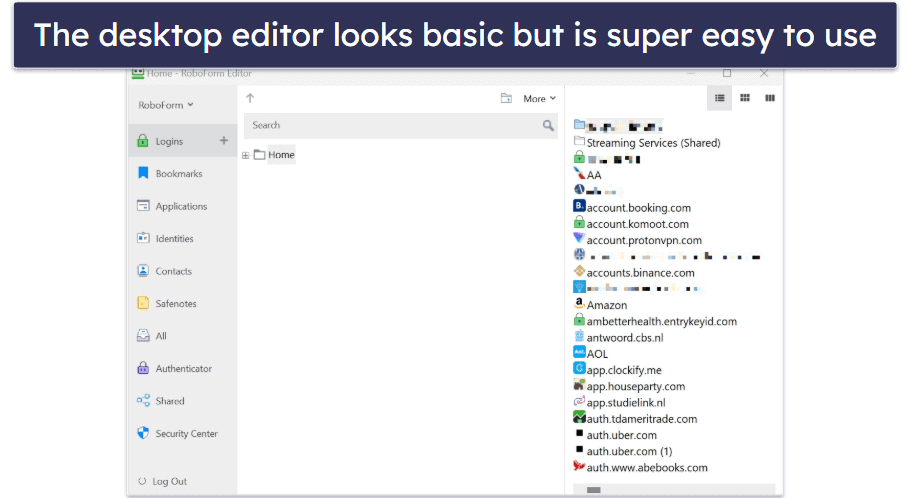
RoboForm also retains a legacy desktop editor for Windows and Mac, which is no longer updated. However, I still find it convenient for password management, especially for organizing contacts and identities, as well as for offline access. Unlike Dashlane, which focuses solely on web and mobile apps, RoboForm’s desktop editor provides an additional, albeit outdated-looking, option for data management.
RoboForm’s browser extension is also well-designed. Every time I logged into a new site, the browser extension popped up and offered to save the new login to my password vault. Once my login for that site was saved, I was able to click the Logins tab in the browser extension and select the site I wanted, and RoboForm automatically opened the website in a new tab and signed me in.
RoboForm did a great job of auto-filling passwords on saved sites. A convenient little RoboForm icon appears in the corner of login fields, and just clicking once on the icon automatically fills in the email and password.
RoboForm’s auto-filling and auto-saving are among the best on the market — I experienced almost no errors or missed login fields in my testing, much better than a lot of other password managers. All in all, I found RoboForm extremely easy to use and navigate.
RoboForm Mobile App — Excellent & Feature-Rich on Android & iOS
RoboForm’s mobile password manager is available on iOS and Android. I downloaded the app for my iPhone from the App Store, signed in with my master password, and immediately had access to all of the saved login information from my RoboForm desktop application.

If you’re new to RoboForm, you can create a new account through the mobile app, which will take you through the same setup procedure as the desktop software.
I only had to type in my master password once — after that, I chose to set up a fingerprint ID login, but you can also use a PIN, Face ID, or voice recognition through Siri (the last 2 options are only available on the iOS version).
RoboForm’s mobile apps are excellent. They’re easy to use, intuitive, and provide access to almost all of RoboForm’s features.
In RoboForm’s mobile app, you can:
- View, add, and edit all the data in your vault.
- Generate passwords.
- Save and auto-fill passwords.
- Share passwords and manage your shared items.
- Check your password health.
- Fill out forms.
- Manage your emergency access.
All of the features worked just as promised, including the auto-fill and auto-save functions. I had to enable RoboForm to perform auto-fill in my phone’s settings, and once done, it worked seamlessly every time: whenever I needed to enter login details, I was given the option to select RoboForm and choose the correct login from my vault.
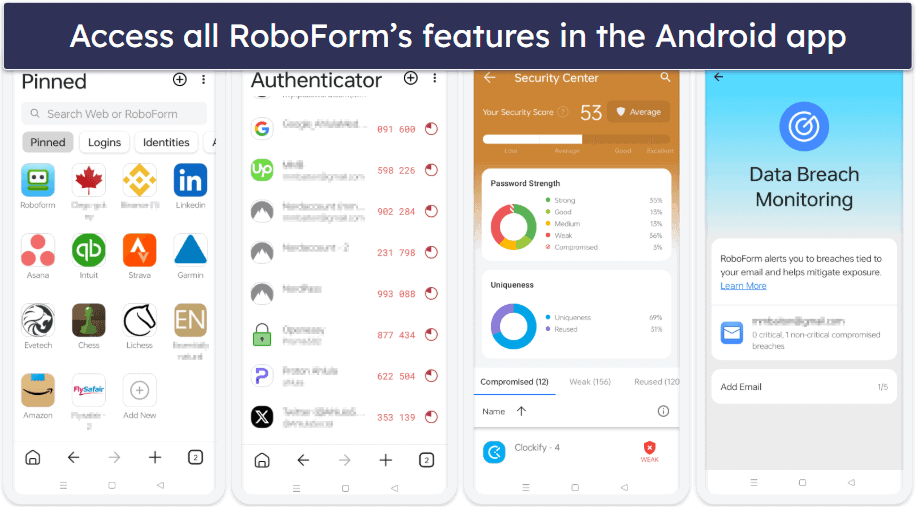
There is very little that you can’t do on RoboForm’s iOS app, and the Android app gives you access to all features. The Log In & Security Hub organizes authentication settings into a unified interface, making it easier to manage passwordless unlock and 2FA options on mobile. I particularly appreciate that Emergency Access, a feature often restricted to desktop by other password managers, is fully manageable on both iOS and Android apps.
Overall, I was very impressed with RoboForm’s mobile app — it provides seamless password management for both iOS and Android devices.
RoboForm Customer Support — Super Efficient Email & Live Chat, Plus a Handy Help Center
RoboForm’s customer support is excellent. Free users get access to RoboForm’s responsive email support team, which is available 24/7. The company’s representatives typically respond very quickly — I sent a number of emails, many outside of US business hours, and they were all answered within just 20 minutes. That’s by far the best response I’ve ever received from a password manager’s customer support team!
The live chat feature can be accessed from 9am to 5pm EST from Monday to Friday, and telephone assistance can be reached during these hours too, if needed.
When I tested the live chat, they responded to my query in under a minute, and it was a friendly and helpful response.

Phone support was adequate, but not exceptional — after requesting a callback, there was a considerable wait before a representative addressed my concerns. However, given that many password managers lack phone support, the opportunity to speak over the phone was appreciated.
In addition to email support, RoboForm also offers several other support channels, including an online Help Center and a RoboForm Manual. Both the Help Center and manual are extremely clear, with step-by-step instructions and helpful screenshots — everything’s easy to understand. But navigating the manual is a pain, as it’s tough to find specific sections quickly. Adding navigation tabs or a search function would save a lot of time.
Overall, RoboForm’s customer support team is great. They offer detailed and helpful guidance for a wide variety of technical issues, with good availability and quick response times.
What RoboForm Can Do Better — Missing Extras and Limited Password History
RoboForm is a great password manager, but there are a few areas where it could be improved. For example, I miss the ability to add attachments to my entries, whether it’s my logins or saved identities. NordPass allows you to save documents or images as attachments to your entries, as well as separately. Additionally, you can add a reminder if an item, such as your driver’s license, has an expiry date. It’s also missing neat extras like 1Password’s Travel Mode or payment card masking.
Something else that I miss in RoboForm is the detail you get from Dashlane’s password history feature. While RoboForm shows you the passwords that you’ve saved or copied, Dashlane also shows you when they were created and for which site, which I found to be way more helpful. I also don’t like that the password history is cleared when you log out. I think this is something RoboForm could make optional.
Nevertheless, RoboForm is the best password manager I’ve tried. By incorporating a feature for document and attachment storage, and including a more comprehensive password history feature, it could perfect its functionality.
Is RoboForm One of the Best Password Managers in 2026?
Yes, RoboForm is a completely secure and highly effective password manager with some standout features. Its 256-bit AES encryption, 2FA compatibility, local decryption, and vault auditing tools ensure that your passwords remain safe. RoboForm’s form-filling capabilities are among the best on the market, making it easy to auto-fill even the most complex web forms.
Customer support is also excellent, with phone and live chat available during US business hours, plus 24/7 email support with some of the fastest response times I’ve experienced from any password manager. Additionally, RoboForm is affordable, comes with a 30-day money-back guarantee, and provides strong cross-platform support through its web and mobile apps.
While RoboForm lacks some premium extras like payment card masking or a built-in VPN, its core functionality covers all essential password management needs securely and efficiently. The desktop editor may be less visually polished, but it remains fully functional, and the web and mobile apps deliver an excellent, user-friendly experience, making up for any minor UI shortcomings.
Overall, RoboForm is my top choice, especially for users on a budget, combining high-quality security and ease of use at a competitive price.

Frequently Asked Questions
Is RoboForm safe?
Yes. RoboForm is very safe. And in fact, it actually increases user security in a variety of ways. RoboForm protects user data on its servers using 256-bit AES encryption to ensure that nobody — not even RoboForm’s developers — can access user logins. It supports 2FA using biometric scanning as well as one-time password authenticators like Google Authenticator and USB security keys.
RoboForm also increases user security in a few different ways, such as:
- Generating complex passwords. RoboForm’s password generator can generate completely random passwords up to 512 characters long, which means each password can stand up to most forms of brute-force attack.
- Auto-filling. Auto-filling passwords keeps them from being tracked by keyloggers and screen loggers that can record anything you type or enter on your screen.
- Password auditing. RoboForm’s Security Center feature analyzes every password in your vault, flagging weak and repeated passwords.
- Data breach monitoring. It monitors up to 5 emails and will notify you in the event of a breach.
RoboForm has also completed a comprehensive security audit and penetration test conducted by Secfault Security. The assessment encompassed all aspects of RoboForm, and while it found vulnerabilities, they were quickly addressed — adding to RoboForm’s safety and security.
In short, RoboForm is a 100% secure password manager — not only will it keep your information safe, it upgrades security for users who don’t already have a password manager.
Does RoboForm have a free version?
Yes. RoboForm Free is one of my favorite free password managers. It offers unlimited password storage on a single device, as well as form-filling capabilities, 2FA, and password auditing. It’s pretty good, but like any free password manager, it has some limitations.
Because it only offers coverage for a single device, that means you won’t be able to share passwords between your phone and computer, which is a deal-breaker for most password manager users. However, if you only have one internet-connected device, this is no problem. Alternatively, you can upgrade to RoboForm Premium for just $0.99 / month and benefit from unlimited device syncing as well as all of RoboForm’s additional premium features.
Where does RoboForm store passwords?
RoboForm stores user passwords in secure cloud servers, using 256-bit AES encryption. Storing passwords in the cloud enables users to sync their passwords between devices, and it also allows the RoboForm browser extensions to auto-fill and auto-save passwords.
RoboForm also offers the option for local data storage. Advanced users with their own secure servers can make use of this feature, which potentially offers even greater security — but it can be dangerous if you don’t have the security expertise to keep your network secure.
Can I use RoboForm on all my devices?
Yes, but only on the premium plans. RoboForm offers a free plan that allows you to use all its essential features, including unlimited passwords, auto-saving, and two-factor authentication, but only on a single device. This makes it a great entry-level option, especially since signing up for RoboForm Free automatically gives you a 30-day free trial of the premium version.
If you’re looking for multi-device sync, you’ll need to upgrade to RoboForm Premium. The Premium plan enables you to use RoboForm across multiple Windows, Mac, iOS, and Android devices. It also offers browser extensions for popular browsers like Chrome, Firefox, and Safari.
Has RoboForm undergone an independent security audit?
Yes, RoboForm has been subjected to a comprehensive security audit and penetration test by Secfault Security, an industry-recognized firm. This audit included a thorough examination of all platform components, such as desktop clients for Windows and Mac, mobile apps for iOS and Android, web portals, and browser extensions. All identified vulnerabilities were addressed and the corresponding fixes were validated by Secfault Security.
Does RoboForm work with Chrome or Firefox?
Yes, RoboForm’s browser extension is compatible with a variety of browsers — I personally tested RoboForm with Safari, Chrome, Firefox, Edge, and Opera, and I found that it synced easily between all of them. Important functions like auto-fill, auto-save, and password generation were all totally effortless.
Is RoboForm a good option for businesses?
Yes, RoboForm is a great option for businesses, offering easy-to-use features for automated onboarding, centralized management, secure sharing, and more. It can help enhance your workforce’s productivity, ensure strong password health, and facilitate compliance with strict security regulations. Even better, RoboForm’s business plans all come with a 14-day free trial, so you can try it out risk-free.
How reliable is RoboForm?
RoboForm is a really reliable password manager. It performed really well throughout my tests across the desktop editor, web, and mobile apps. The auto-fill and form-filling worked pretty much flawlessly, and all other features functioned exactly as they’re supposed to as well. One small thing that RoboForm could improve is its master password requirements, but there’s nothing to stop you from using a super strong master password, so this isn’t a deal breaker.
What’s better than RoboForm?
That depends on what you’re after. RoboForm is among the best password managers out there, and if you’re on a budget, you can’t do much better. RoboForm’s form-filling capabilities are also better than any similar feature offered by other password managers.
That said, if you want lots of advanced features from your password manager, you might be better off paying a little more for a premium product like 1Password, which offers virtual payment cards and a Travel Mode.