Qustodio Review: Quick Expert Summary
Qustodio is the best parental control app for keeping your kids safe online and offline. It has very user-friendly apps for kids and parents, its security features are second to none, it provides the best-value parental control plan on the market, and it’s backed by a risk-free 30-day money-back guarantee.
Qustodio has industry-standard parental control features like web and app filtering, time limits, location tracking, scheduling, and activity reports. I even tested top VPNs, and they couldn’t bypass its web filtering. I also really like how Qustodio can detect and block a whopping 25,000+ iOS apps (some parental control apps can’t fully restrict iOS apps).
In addition, Qustodio comes with:
- Social Monitoring — Checks and alerts you if it detects any potentially concerning messages on Instagram, WhatsApp, and Line chats.
- YouTube Monitoring — Lets you monitor your kid’s YouTube searches and what videos they watch.
- Location Tracking — Follow where your kid goes and set up geofenced zones.
- Calls & Messages — Lets you monitor your child’s phone calls and text messages on iOS and Android.
- Panic Button — Allows your kids to send distress signals to trusted contacts on Android.
- And more …
Qustodio has kids’ apps for all popular devices (iOS, Android, Windows, macOS, Chromebook, and Kindle) and parental apps for iOS, Android, and web browsers — they’re simple to set up, so it’s very easy to get used to them even if you and your kids have never used parental control apps before.
That said, there are some areas that I think Qustodio could improve — I wish kids had an in-app option to request extra screen time or ask for a restricted site to be unblocked. Also, I’d like to see a live chat option added to the customer support platforms.
Qustodio has a decent free plan and 2 paid yearly plans. The paid plans allow the monitoring of 5 or unlimited devices. Also, Qustodio backs each purchase with a 30-day money-back guarantee.
August 2025 update: We updated this review with new testing information, updated its free trial length (from 3 to 30 days), updated many images for the updated user interface, and fully fact-checked the entire article.
Qustodio Full Review — The Best on the Market (Includes Call & Text Monitoring)
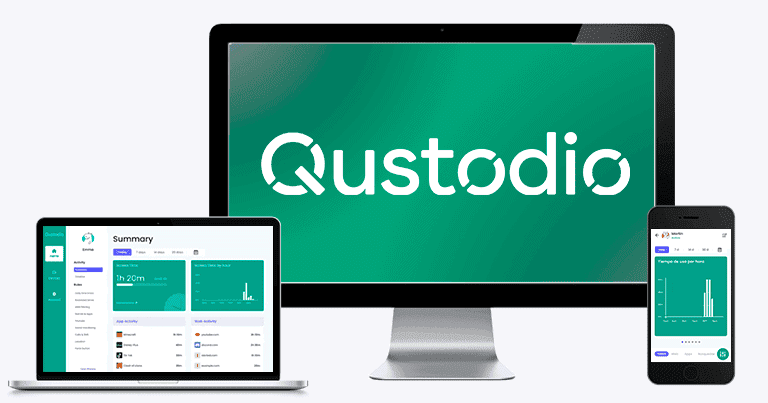
I spent the past few weeks testing and researching Qustodio and talking with its support reps, and I can safely say that it’s the best parental control app on the market.
Qustodio has essential features to monitor your child’s web activity to make sure they have an enjoyable and safe internet experience. You also get access to social media, call, and text message monitoring, which allows you to make sure your kid isn’t bullied or exposed to inappropriate messages.
Qustodio is a little pricey, but it provides excellent value — plus, there’s a 30-day free trial, a free plan, and a 30-day money-back guarantee, which gives you plenty of time to test it and see if it’s the best fit for your family.

Qustodio Plans & Pricing — Excellent Value for Both Small & Large Families
Qustodio has a free plan and 2 paid 1-year plans: Basic and Complete. The free plan is limited to monitoring just 1 device, while the Basic and Complete plans monitor 5 or unlimited devices, respectively.
Qustodio also offers a 30-day free trial that lets you try most premium features on up to 5 devices, and there’s a 30-day money-back guarantee that applies to both premium plans.
While Qustodio’s plans cost a little more than its competitors, they provide superior value for small and large families. That said, I understand that not everyone is ready to commit to a yearly plan right from the start — if you’d like more flexible options, I recommend checking out Bark, as it has pretty affordable monthly plans.
Qustodio accepts several payment methods, including credit/debit cards, PayPal, Google Pay, Apple Pay, and wire transfers.
Here’s a quick overview of Qustodio’s plans:
Qustodio Free — Good Free Plan
When you sign up, Qustodio gives you a 30-day free trial of its Complete plan (no credit card details are needed) that you can use to monitor up to 5 devices.
When your free trial expires, you’re downgraded to Qustodio’s free plan, which gives you screen time monitoring, web filtering, daily time limits, and the ability to pause the internet.
The free plan has other limits — you can monitor only 1 device, you get only daily and weekly activity reports, and you don’t get access to the customer support ticketing system.
Qustodio Basic — Best-Value Plan
Upgrading to Qustodio’s 1-year Basic plan costs $4.37 / month. It adds the ability to monitor up to 5 devices, as well as some additional features like app filtering, location tracking, games and app blocking, device blocking routines, the Panic Button, and access to the email support system.
Qustodio Complete — Premium Plan With Advanced Features
Qustodio Complete is also only available as an annual subscription, and it’s priced at $8.04 / month. It lets you monitor unlimited devices, so it’s an excellent choice for large families.
It comes with all of the features discussed in this review, and it’s the only plan to include key features like YouTube Monitoring, Social Monitoring, Calls & Messages Monitoring, My Places alerts (geofencing), AI-powered alerts, and time limits for games and apps.
Qustodio Features — Great Filtering, Scheduling & Reports (Plus YouTube Monitoring)
Qustodio has the following essential parental control features:
- Web and app filtering — Lets you choose which sites and apps your kids are allowed to use.
- Time limits — Lets you specify how much screen time your kids are allowed.
- Location tracking — Shows you where your kids are and which places they’ve been to.
- Scheduling — Allows you to choose specific times of the day or week when a device or app can or can’t be used.
- Activity reports — Displays information about your child’s device use, including screen time, accessed sites, used apps, and more.
Qustodio also comes with many other useful features, including YouTube monitoring, social monitoring, call and text monitoring, and geofencing.
Web Filtering — Works Really Well (Can’t Be Bypassed With a VPN)

Qustodio’s web filtering lets you choose which sites your kids are allowed to access — you can set filtering rules for specific websites, but Qustodio also has 25+ predefined website categories (including Games, Profanity, Gambling, Mature Content, Pornography, and more). Remember that the rules you set for specific websites take precedence over the rules for categories. This means you can block an entire category while still permitting specific websites within that category.
Qustodio allows you to choose from 3 options when setting filtering rules for categories. You can choose to block the entire category, allow it, or allow it but receive alerts whenever your kid visits them. And for sites that you manually add, there’s an option to configure Qustodio to ignore the site, so it won’t show up in any reports in the Qustodio app.

Qustodio’s web filtering is really good — I couldn’t access any sites and site categories I blocked from the parents’ device, and it accurately alerted me when I visited sites marked for alerts. Qustodio’s web filtering worked in incognito/private modes, too.
However, I wish Qustodio would provide kids with an in-app option to request access to a blocked website (like Norton Family has) — that way, if Qustodio or a parent accidentally blocks a safe site, the child could quickly request access to it without having to phone or message their parents.
I’m happy VPNs can’t circumvent Qustodio’s web filtering. Kids often use these tools to try and bypass parental apps. First, I wasn’t able to download any VPN on my desktop, as Qustodio automatically blocks this web category to stop your kid from getting ahead of you.
Even after I allowed the category and tested the app with top VPNs like ExpressVPN and Private Internet Access, Qustodio still prevented me from visiting any website that fell under the blocked categories.
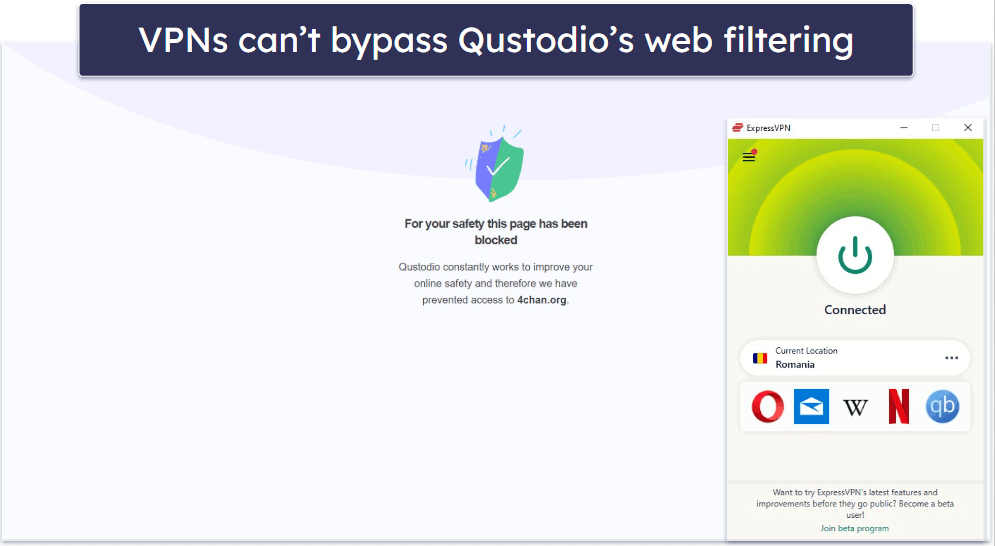
Qustodio’s web filtering only works on supported browsers, including Google Chrome, Firefox, Microsoft Edge, Safari, and Amazon Silk Browser.
Fortunately, Qustodio automatically blocks unsupported browsers, so kids can’t browse in Brave or Opera to bypass website restrictions. Qustodio immediately kicked me out of my Brave and Opera browsers on my Windows PC once installed, and I couldn’t open DuckDuckGo on my smartphone. Unfortunately, I could still browse in Tor, even though the app was blocked. But, since you can block the App Store on your child’s device, you can prevent them from downloading unsupported browsers.
What’s more, Qustodio has options that:
- Block unknown websites. These are sites that are not included in Qustodio’s website categories.
- Enforce safe search. When your kid opens Google, Bing, or YouTube, safe search is automatically enabled to protect them from potentially harmful content.
- Send alerts if your child tries to access blocked websites. You’ll get alerts to your email address when it happens, and Qustodio will notify you regardless of whether this site was blocked manually or via one of the categories.
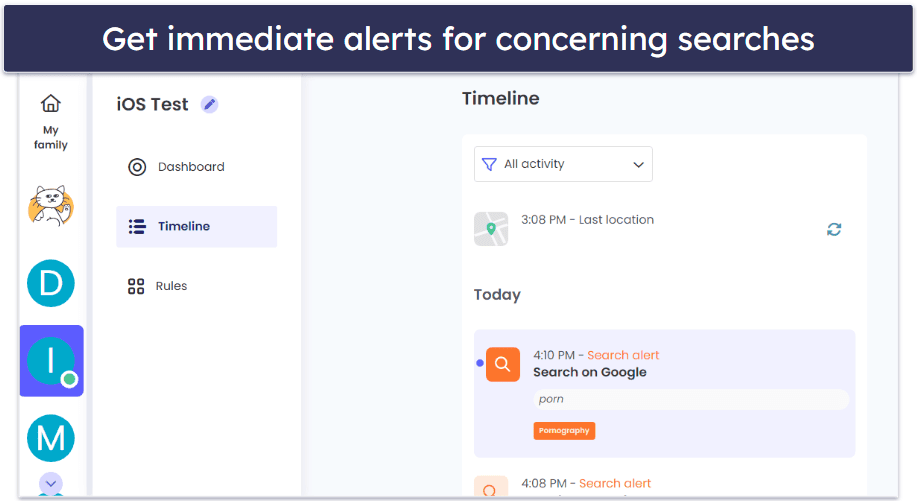
- Send alerts if your child searches for concerning content. It immediately sends an alert when your child performs a search related to sensitive or inappropriate topics.
Daily Time Limits — Easy Screen Time Management on All Devices
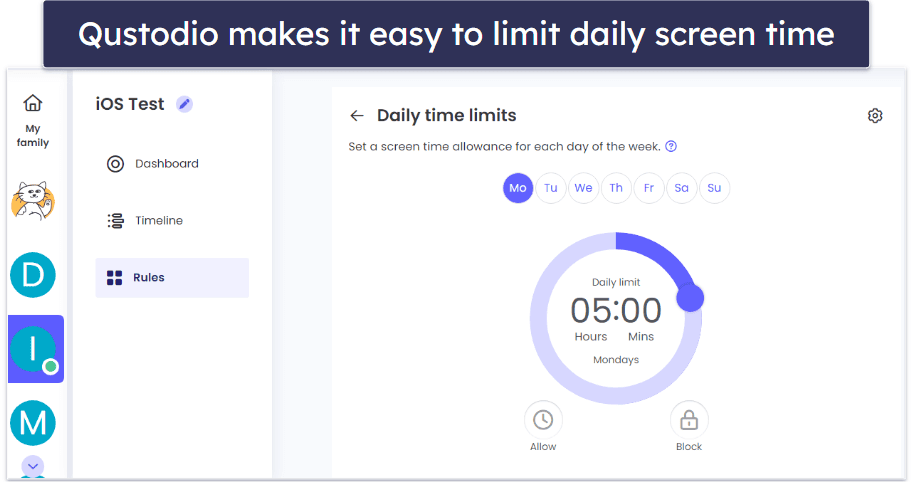
Qustodio lets you set up a daily screen time allowance in increments of 15 minutes for each day of the week. You can also block access to your kid’s device, while still allowing them to make emergency calls or use the Panic Button. Qustodio allows you to set time limits on iOS, Android, Windows, macOS, Chromebook, and Kindle.
The Daily Time Limits feature is intuitive and works well. On my Android device, it took just 5 seconds to set limits, and access was blocked in under 3 seconds when time was up. The Allow and Block buttons in the parent app are also convenient — pressing Allow lifts all restrictions for the selected day(s), while Block prevents any screen time that day.

In addition, Qustodio lets you choose what happens when the screen time is up:
- Lock navigation:
- Android, Chromebook, and Kindle — Blocks all apps except basic apps like the calendar and the calculator.
- iOS — Blocks internet access on the device.
- Windows and macOS — Blocks internet access on all web browsers.
- Lock device:
- Chromebook and Kindle — Blocks access to the whole device.
- Android — Blocks access to the whole device and only allows emergency calls and the use of the Panic Button feature.
- iOS — Hides any app that is rated age 4+ by the app store. When the restriction is removed, all apps will appear in alphabetical order, which makes it a hassle to keep them organized. If that’s an issue, Qustodio recommends using the Lock navigation option instead.
- Windows and macOS — Logs out your kid, preventing online and offline use.
You can select both Lock device and Lock navigation or just one. By default, Qustodio enables the Lock navigation feature.
It’s also possible to simply pause the internet access on your child’s device with a click of a button on the parental app’s main dashboard. This is really handy if you don’t want to change permissions for a one-off event like a family meeting and have to remember to restore the permissions later (you can adjust the paused time by 1-minute increments).
Plus, you can add extra time for each day in increments of 1 minute. You can also use this feature to add more time for special occasions, extended learning sessions, or as a reward for good behavior in just 2–3 clicks.
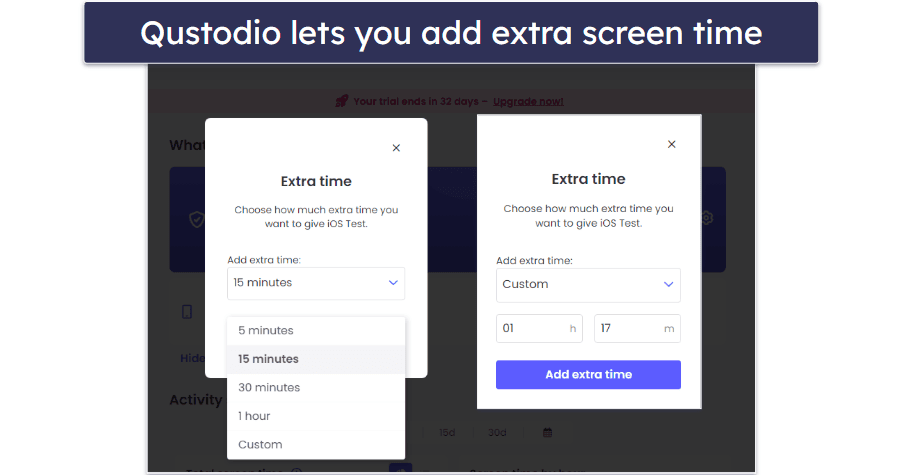
But I’d like to see an in-app option for kids to request extra screen time, like Norton Family includes — it’d be much more convenient than kids having to make an emergency call just to let you know they need an extra hour of screen time when they’re out with their friends.
The daily time limit set for the given day is displayed in the kid’s app, so your kid will always know how much screen time they have left. It also shows how much time your kid has spent on each app they’ve used.

Overall, Qustodio’s time limits are great. They’re very easy to use, work really well, and they’re available across all popular platforms.
Routines — Create Schedules for Your Child (Lots of Flexibility)
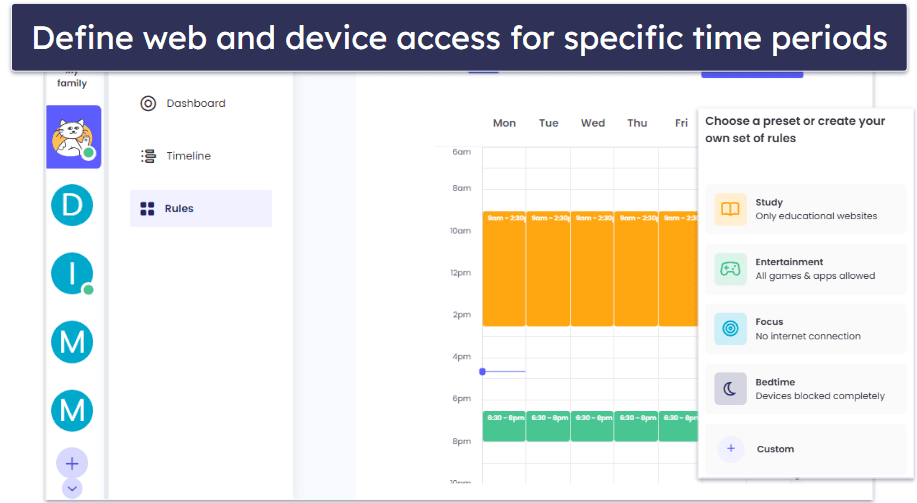
Qustodio’s Routines feature lets you set specific access rules for web, apps, and the entire device during defined time periods each week, which you can set in 15-minute increments. I also like how it includes 4 predefined actions: Bedtime (blocks device access), Entertainment (allows access to apps and games), Focus (blocks internet), and Study (limits access to only educational websites).
Even better, you can create your own custom schedules, with a unique icon and color so they’re easy to identify and manage. For instance, you can block your kid’s access to social media apps during their soccer practice, but at the same time give them access to their device, so they can call you if they need a ride home. You can customize access by allowing all apps with exceptions you define, customize blocks by cutting off internet access or blocking the device altogether, or decide whether you want the daily time limits to affect the Routines.

The parental app makes setting schedules really simple and intuitive. You can view the schedule as a weekly calendar or as a list of all the blocks and permissions you’ve defined. And your kid can see on the kids’ app exactly how much time they have left for any particular block or allowed time, so they can better plan how they use their screen time. I just wish that the kids’ app allowed them to request more time through the app rather than needing to contact you separately.
Overall, Qustodio’s Routines feature makes it super easy to schedule your kid’s screen time, and it gives you lots of granular control over how they use it.
Games & Apps — Detect + Block or Limit Specific Apps
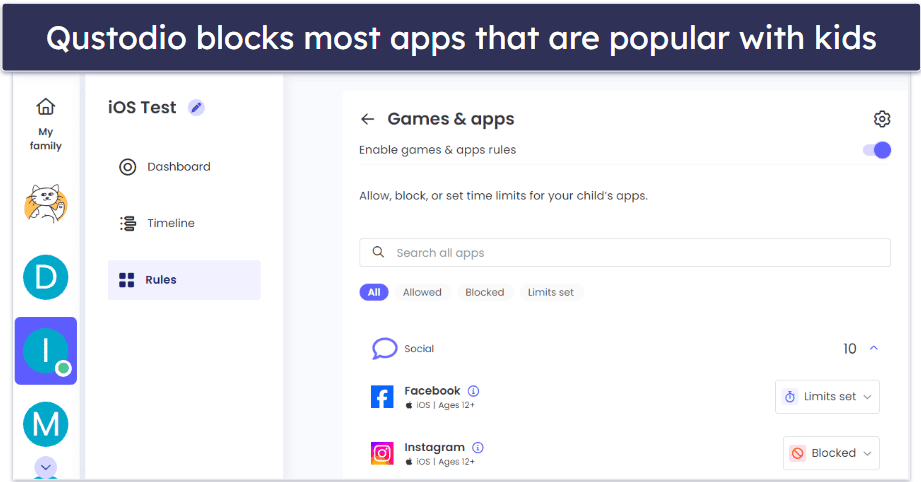
Qustodio lets you set time limits for specific apps or disable access to them. This feature works on Android, Windows, macOS, Kindle, Chromebook, and even iOS — Qustodio claims it can detect, monitor, and restrict 25,000+ compatible iOS apps, which is pretty impressive since some parental control apps (such as Webwatcher) can’t block iOS apps.
Qustodio separates apps into 5 categories: Social, Entertainment, Gaming, Education, and Other (like browsers), so you don’t have to scroll through a long list of apps to find what you’re looking for. You can even configure Qustodio to alert you when your child uses a new app.
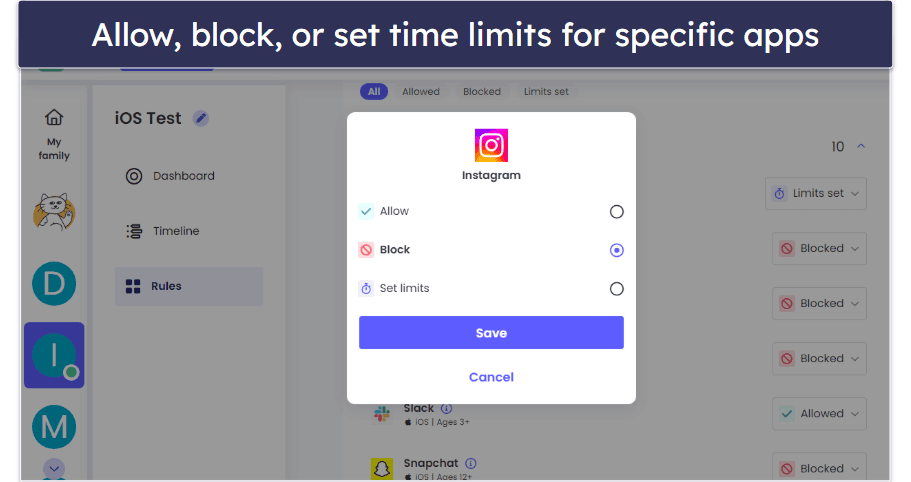
From here, you can either block access to an app or set a daily time limit. I tested this, too, and Qustodio instantly blocked the apps I restricted.
There’s a search function that helps you find specific apps to set rules or block them. Qustodio also has separate tabs for all apps, blocked apps, allowed apps, and apps that have time limits applied to them, so it’s very easy to find what you’re looking for.
Overall, Qustodio provides a really good app blocking feature — it’s very convenient to use and it’s able to detect and block apps that are popular with kids and teens (even on iOS), but it can’t monitor chats and posts on social media apps.
YouTube Monitoring — Track & Limit What Your Kid’s Watching
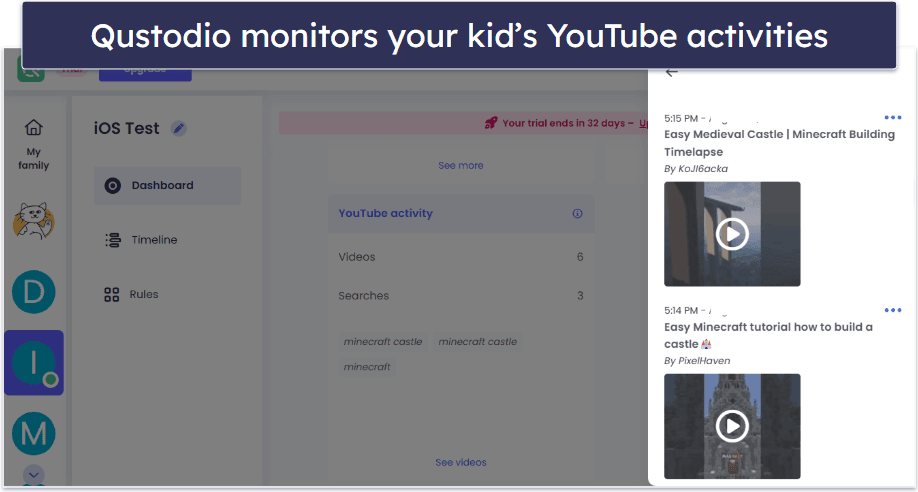
Qustodio has a dedicated YouTube Monitoring feature, which allows you to see your kid’s YouTube searches and the videos they watch on the YouTube app and site (accessible in the activity reports).
YouTube Monitoring also allows you to block both the YouTube site and app or set time limits for the YouTube app. Some parental apps (like McAfee Safe Family) don’t have a dedicated YouTube monitoring feature.
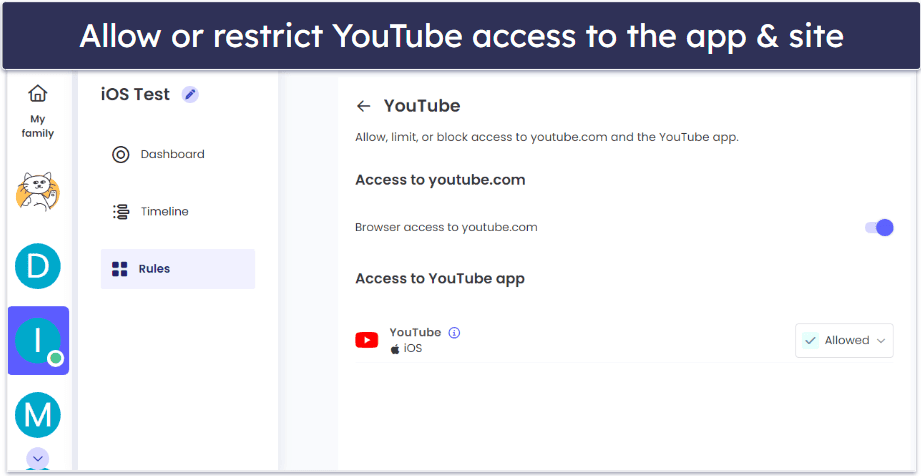
YouTube Monitoring is available on most platforms (except Chromebook and Kindle), but it works differently on each one:
Also, you can enforce safe search on YouTube in the Web Filtering feature. This way, your child doesn’t risk accidentally coming across harmful YouTube videos.

In my tests, the feature worked well. I was able to see every video I watched on YouTube on my test device and every search I performed. Qustodio instantly updated my YouTube activity in both the mobile and web apps.
Overall, Qustodio’s YouTube Monitoring feature is really helpful and an excellent way to keep your kids safe on YouTube — you can block YouTube’s site and app and track your child’s activity on both of them.
Location Tracking — Accurate Tracking & Geofencing Alerts
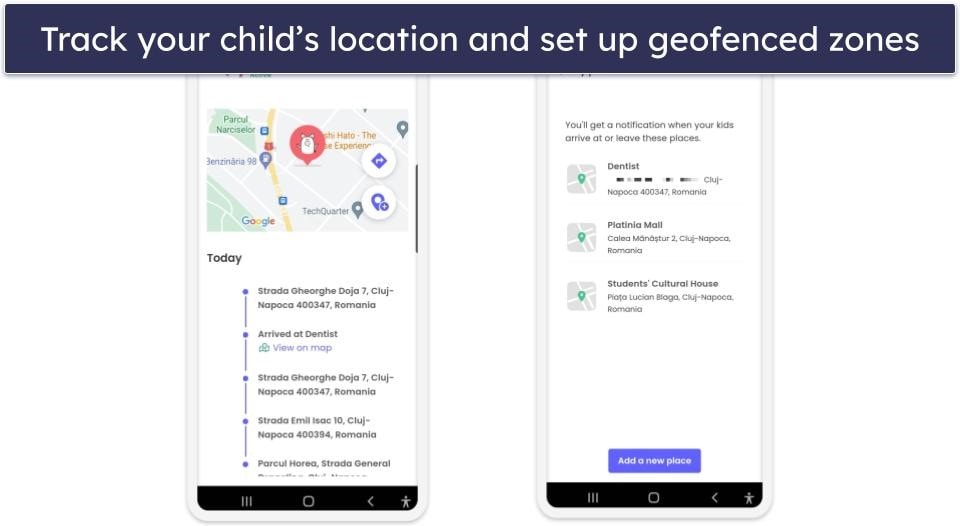
Qustodio shows you where your child is and where they’ve been. You can see the current location of your kid’s device on a map, and there’s an option to get directions to them via the Maps app on your device (Android & iOS).
In my tests, the Location Tracking feature worked well. It accurately tracked my test device’s locations on my walk to the park and back home. When I was on the move, I received frequent location updates every 5–10 minutes. There’s an option to instantly update your kid’s location — it worked as advertised.
Just note that you can’t see any location tracking information in the web app — it’s only available on the mobile parent apps. The web app does let you enable and disable location tracking, though.
Qustodio also displays a location timeline, which is a list of your child’s previous locations. I’m happy to see this feature, as some top parental control apps don’t offer this. While this kind of location tracking can feel invasive, it’s also helpful if your child loses their phone or if they get lost.
I liked the My Places alerts, too, which use geofencing to track your child’s locations. You set up zones (like school) and get notified when your child arrives or leaves. However, during testing, notifications were delayed by 10–15 minutes, so I’d like to see Qustodio improve the responsiveness of this feature.
Qustodio lets you create geofences that cover distances from .06 miles or 100 meters, up to 0.12 miles or 200 meters, which isn’t bad. That said, Norton Family provides much better coverage, as its geofencing feature supports distances up to 2 miles or 3,200 meters.
Overall, Qustodio’s location tracking feature provides the best way to track your children’s location. A geofencing feature is also available, although its notifications are sometimes too delayed.
Social Media Monitoring — AI Alerts for Risky Chats on WhatsApp, Instagram & LINE
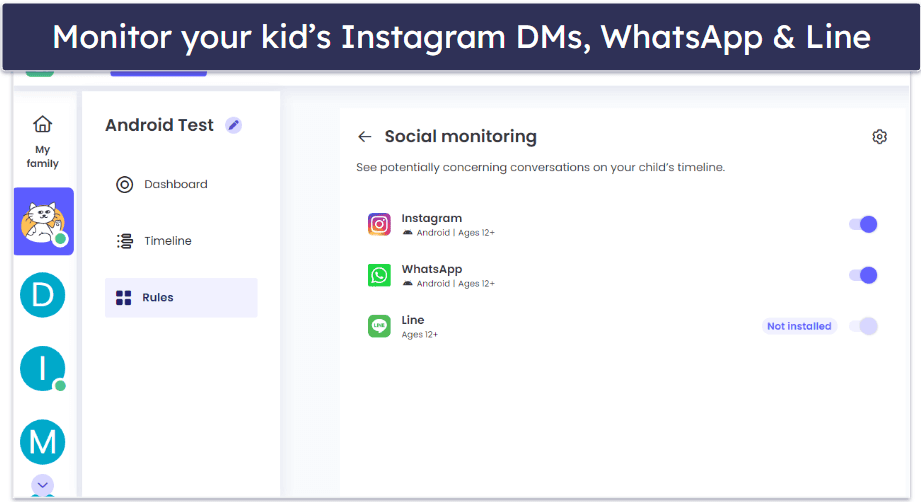
Qustodio tracks your kid’s conversations on WhatsApp, Instagram DMs, and LINE to help you stay on top of potentially troublesome conversations your child might be having. It uses AI to scan your kid’s chats for topics like bullying, self-harm, school avoidance, and health concerns — and alerts you if anything concerning pops up.
If Qustodio detects a risky conversation, you’ll receive a push notification, an email, and a warning directly on your child’s dashboard. You’ll also get a snippet of the chat and see who your child was talking to.
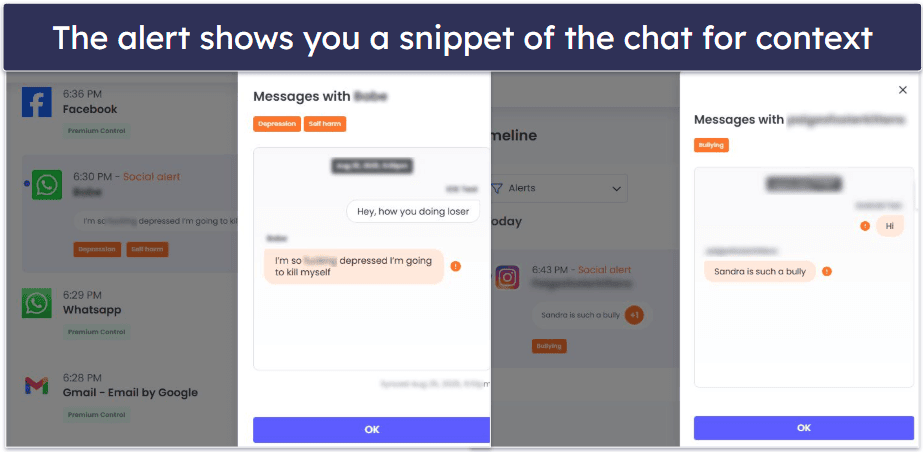
The feature works on both Android and iOS, but it monitors Instagram on Android only. Setting up Social Monitoring on iOS also takes a few extra steps — you’ll need to connect your child’s iPhone to a computer using the Qustodio app for desktop.
When I tested it, the tool immediately alerted me about potentially concerning content on Instagram on Android, and flagged my test conversation on WhatsApp on iOS, but only after syncing the device with my computer again. However, the feature is pretty basic when compared to Bark’s social media monitoring, which alerts you on 30+ apps. Also, Qustodio’s Social Monitoring lacks any level of customizability — it doesn’t list the topics it scans for (except for a few it casually mentions on the website), and you can’t decide to only monitor for certain topics, like with Bark.
Overall, Qustodio’s Social Monitoring is a smart tool for keeping an eye on risky conversations without spying — and it does a great job surfacing real issues when they come up. However, it’s pretty basic, and I don’t like how it lacks customization options.
Calls & Messages — Block or Whitelist Calls & Contacts
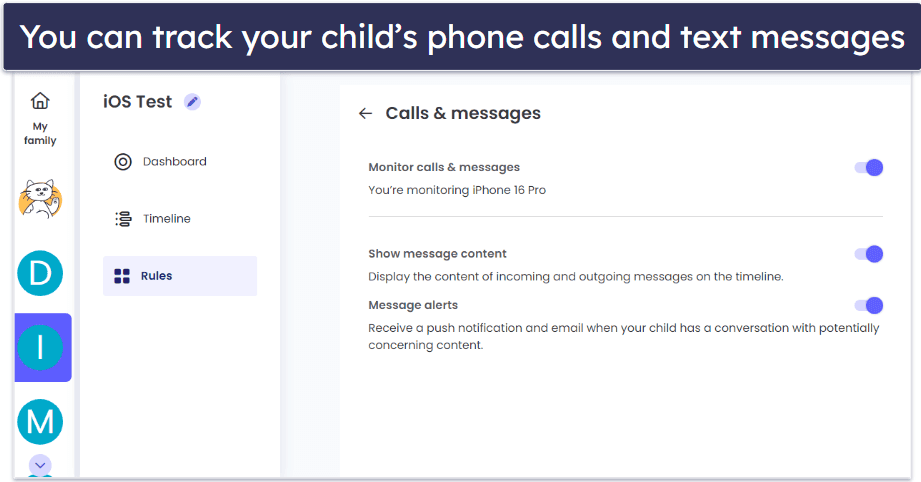
This feature monitors your child’s calls and messages and lets you decide who can contact your child. I tested it on Android and iOS, and here’s what I could monitor and do:
- The phone numbers or contacts I called or received calls from on Android and iOS, along with FaceTime and WhatsApp call details on iOS. I could see how long the conversation lasted and the date and time.
- The full SMS and iMessages exchanges, including the sender, receiver, date, and time.
- Message alerts about concerning content in SMS and iMessages — this is convenient, as you won’t have to go through every text message to find a potential issue. The software uses AI to monitor for 20 types of threats, such as bullying, school absence, and self-harm.
- Block all incoming and outgoing calls or specific numbers, which is useful if, for example, a bully is sending offensive messages. However, you can only do this for Android devices.
Qustodio’s Calls & Messages feature worked well. I could see all incoming and outgoing calls and text messages, including on iMessages, and it always alerted me when it detected inappropriate language. The blocking option also worked as advertised — it stopped all numbers I blocked in the parent app from calling me and vice versa.
Please remember — setting up the Calls & Messages feature on Android devices requires you to manually download and install the full version of the Qustodio kids app from the Qustodio website and not from third-party app stores. For iPhones, you’ll need to connect a Mac or Windows device.
Panic Button (Android Only) — A Simple Way for Your Child to Send You an SOS
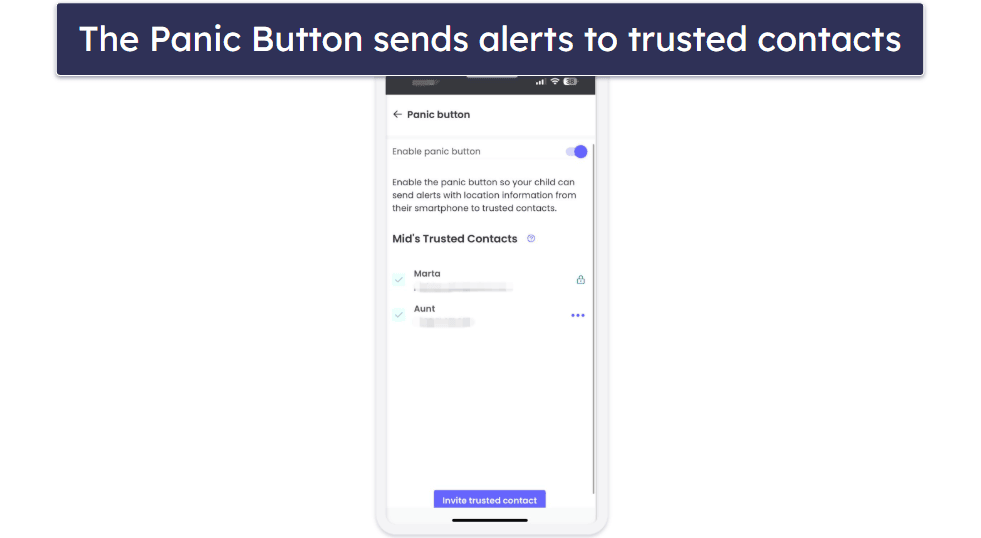
The Panic Button feature allows your child to send a direct alert to trusted contacts via text messages or email messages. This is an excellent feature your kids can use to stay safe while walking home from school or when they’re out with their friends. Many parental control apps (like Bark) don’t provide access to an SOS feature.
Setting up this feature is easy — you just need to enable it in the parental app, add trusted contacts (Qustodio lets you add an email address or phone number for each contact), wait for them to confirm, and then enable the feature on your kid’s device. Overall, it took me 4 minutes to set up the Panic Button on my Android smartphone.
On the child’s end, using the Panic Button is very straightforward, too — your kid only needs to tap the SOS button at the bottom of the app, and then tap on another SOS button and confirm the activation. The location updates every minute and a half in case your child is on the move and needs you to find them. To turn off the feature, the child just needs to tap the SOS button again and confirm their choice. You’ll then receive an email notifying you that your child has turned off Panic Mode, with a link to their location.
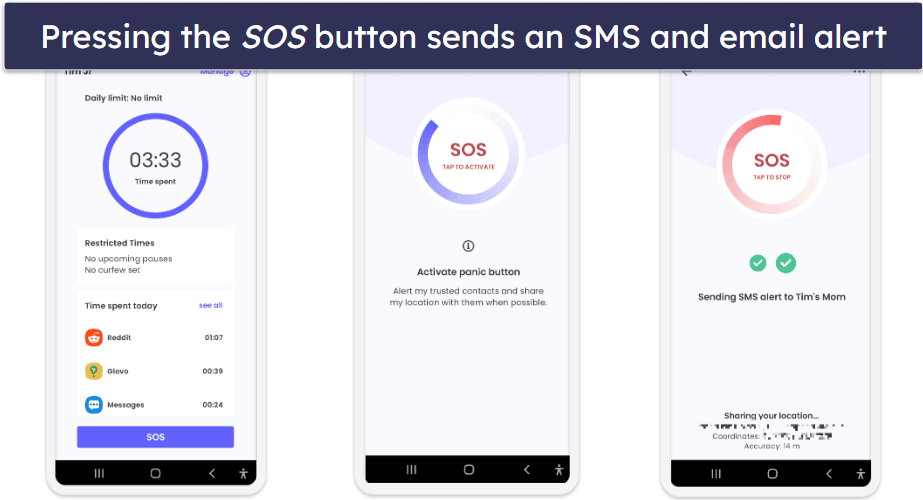
I tested the Panic Button when I was walking outside and it worked very well — the feature instantly sent me an SMS and email alert containing a link with my Android device’s location. The link included the street address, coordinates, time, date, and some helpful tips on what to do next.

Overall, the Panic Button is an excellent Android feature that lets your child send distress signals to trusted contacts if they’re in trouble. I hope Qustodio adds support for it on iOS, too.
Note that the Panic Button is not a replacement for emergency services. Qustodio won’t contact the police, fire department, ambulance, or any other local authorities on your behalf. If you strongly believe your child is in danger when they trigger the Panic Button, you should contact emergency services as soon as possible.
Activity Reports — Regular & Detailed Activity Breakdowns
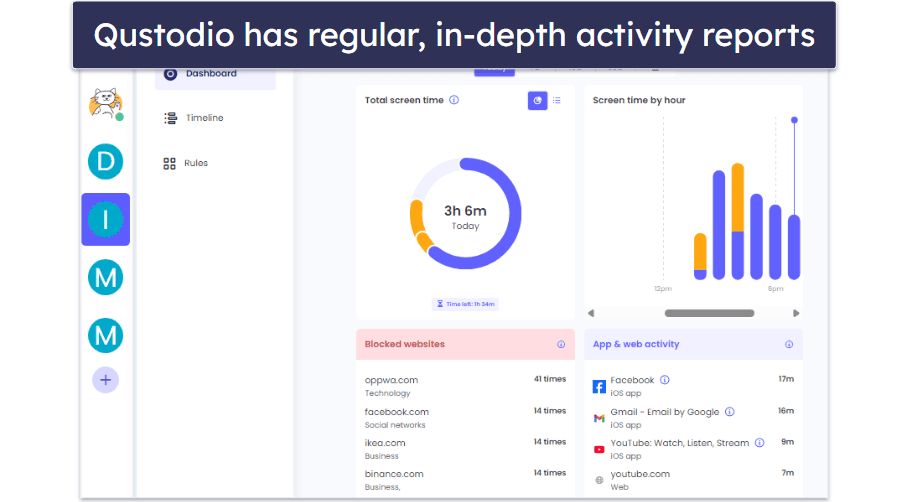
Qustodio provides daily, weekly, bi-weekly, and monthly activity reports in the Dashboard tab. You can also get an hourly breakdown of activity for the current and the last 2 days. The activity reports show you the following metrics:
In addition, Qustodio shows you whether or not they reached the time limit you imposed, their daily average for the time period you’ve selected, and a breakdown of the different rules that applied to their screen time.
You can also get more in-depth information on your child’s online activities. To do that, access the Timeline tab that’s under the Dashboard tab on the left-side menu.
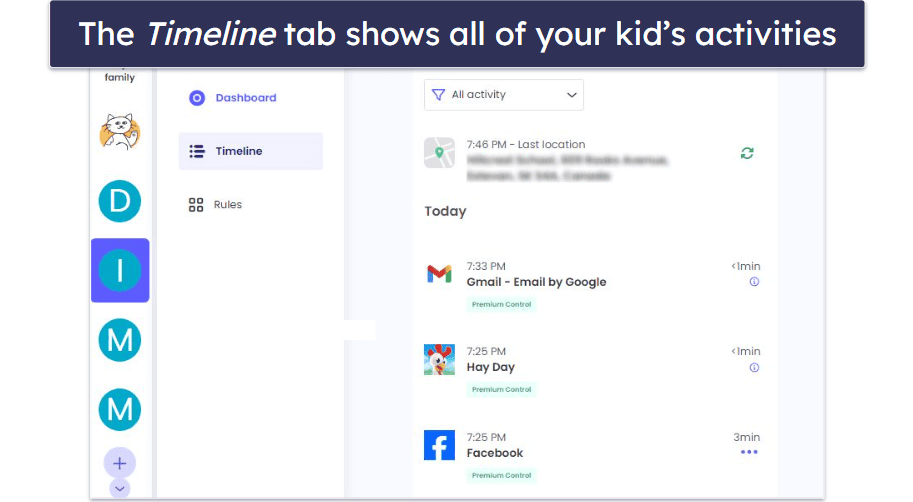
The Timeline tab provides you with access to the following metrics:
Additional Features — A Few Useful Extras, Including Uninstall Protection
Qustodio also comes with the following additional features:
- Uninstall Protection — Qustodio requires you to type in your parental app username and password when you want to uninstall its kids’ apps (this is something competing brands like mSpy lack). This way, your child can’t secretly uninstall the apps to prevent tracking. This feature is available on all platforms. You can also set it up to require your Qustodio password for changing phone settings on Android.
- Hide Qustodio — This feature lets you “hide” Qustodio on Windows and macOS devices. Your kid won’t be able to see Qustodio’s icon in the tray and notification bar, they’ll be redirected to Google’s search page when the app blocks a site (instead of seeing a Qustodio notification), and they’ll just get logged out if you choose to lock their device when the screen time limit is up. That said, your children will still likely be able to find Qustodio’s app on their devices.
- Auto-logout — This security feature automatically logs you out of your account after a period of inactivity when you’re logged into the parent’s account on the web browser. It makes sure your child won’t change or remove any restrictions in case you forget to log off your computer.
Qustodio Installation & Setup — Easy on Both Kids’ and Parents’ Devices
Qustodio has apps for parents and kids. It has parental control apps for iOS, Android, and web browsers (Chrome, Safari, Firefox, and Edge), and apps for kids on iOS, Android, Windows, macOS, Chromebook, and Kindle.
Both apps are simple to set up, but installing Qustodio on your kids’ devices will take longer because you also need to give the app different permissions. That said, it took only 5 minutes to install the parental and kids apps on my Android smartphone and the kids app on my Windows PC.
Qustodio Parental Apps (Installation & Setup)
If you use the web app, no setup is necessary — Qustodio redirects you to the web app’s login page after you create an account.

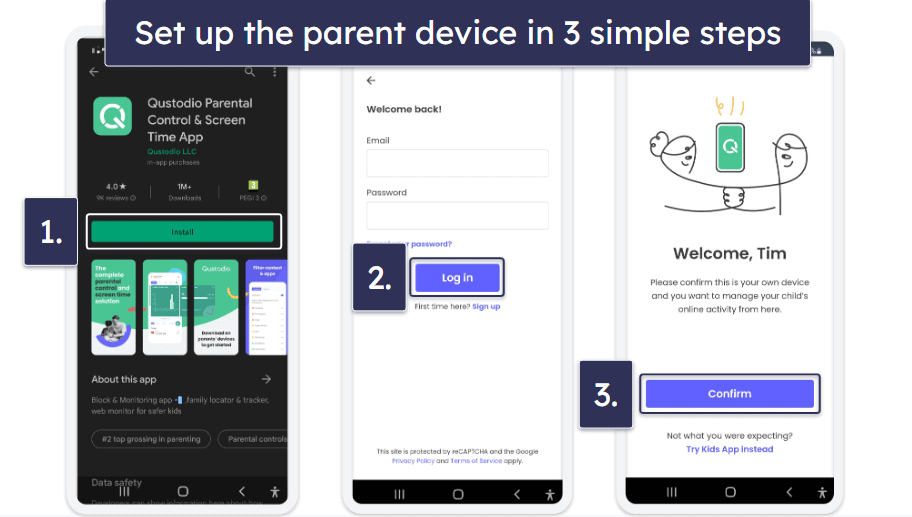
On mobile, you only have to download and install the apps from the app store. Then, just log into your Qustodio account and confirm that this is your own device (not your kid’s device).
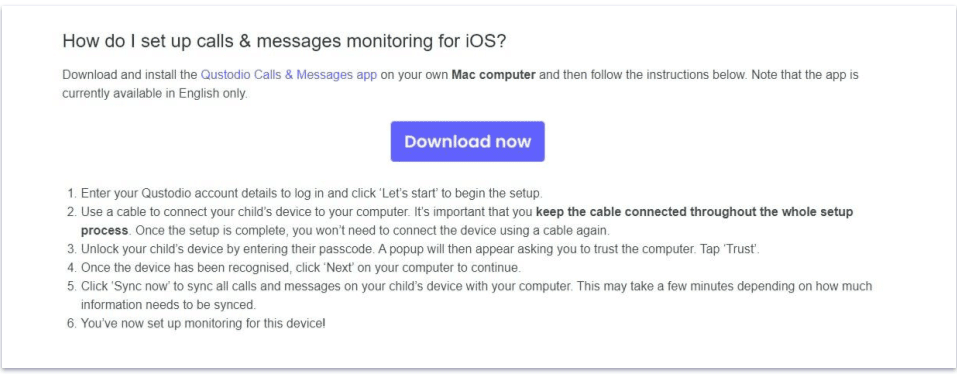
Important note on using the Calls & Messages feature and the Social Monitoring feature on iOS — you’ll also need to download and set up Qustodio’s Call & Messages app on your Windows or macOS device. After that, you’ll need to use a cable to sync your child’s iOS device (which needs to have Qustodio’s kids app installed on it) with your PC or macOS device. When you’re done, you can use the parental apps to monitor your child’s messages and calls.

Qustodio Kids Apps (Installation & Setup)
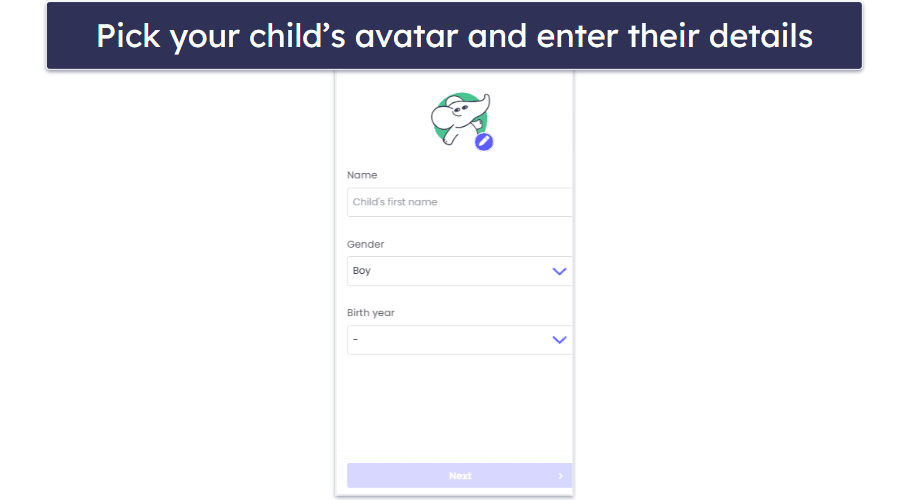
To start, you’ll need to log into Qustodio’s parental app and add a profile for your child — you’ll need to pick an avatar for them, add their first name, choose their gender (you can opt not to reveal it), and add their birth year.
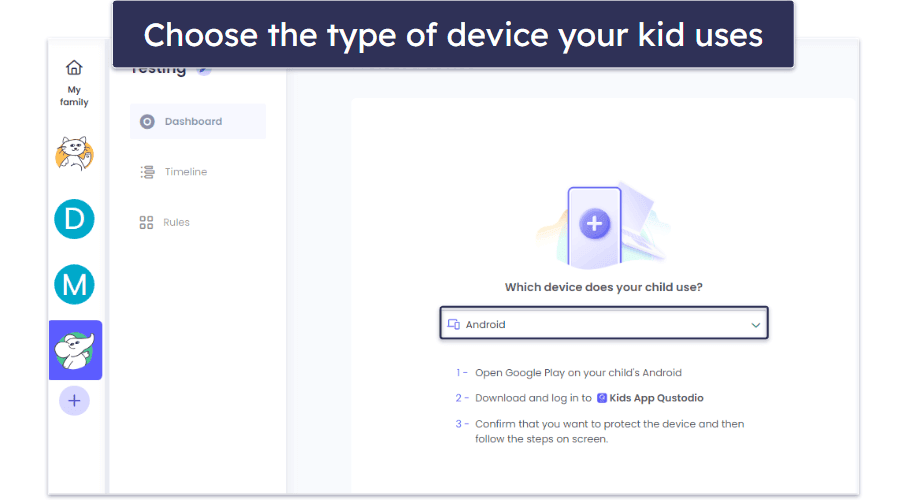
Next, you have to use a dropdown list to select what kind of device your child has. For this tutorial, I used my Android smartphone — but Qustodio provides step-by-step instructions for each type of device on this page.
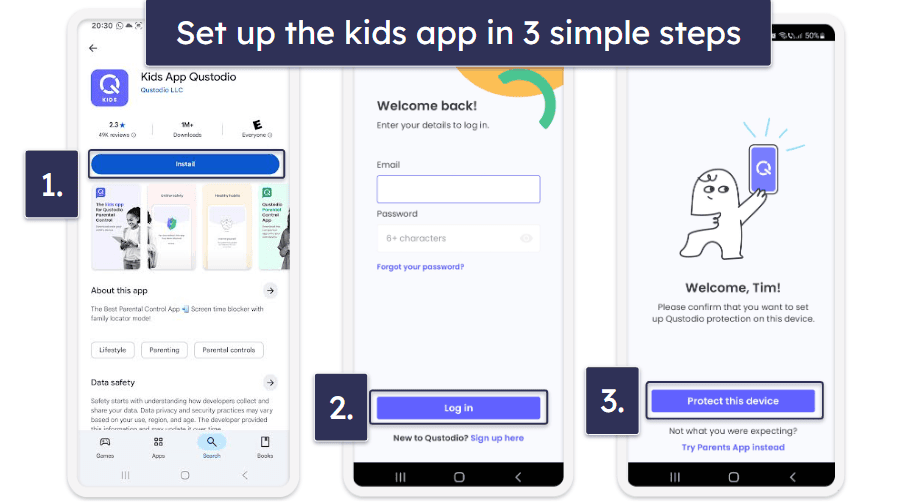
You now have to download and install Qustodio’s kids’ apps from the app store. When you’re done, log into your account and confirm that this is your child’s device.
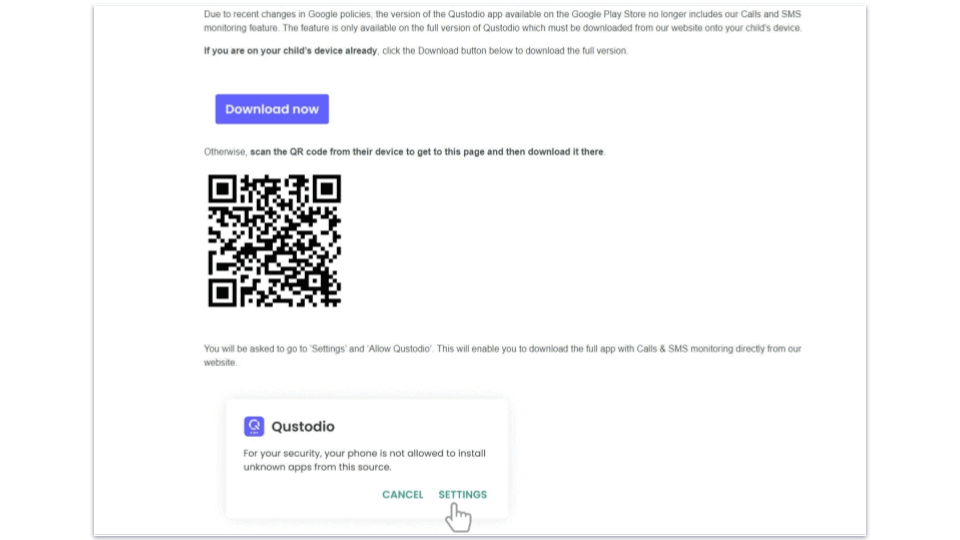
Important note on using the Call & Messages feature on Android — you’ll need to download Qustodio’s full Android app from the Qustodio website because the Google Play version doesn’t support the Calls & Messages feature. Qustodio has a download link and a QR code you can scan to download the app and install it on your device. Once you download the app, install it, and proceed with the setup instructions mentioned above and below.
After that, add a name for the device and choose the profile of the child who will use the device.

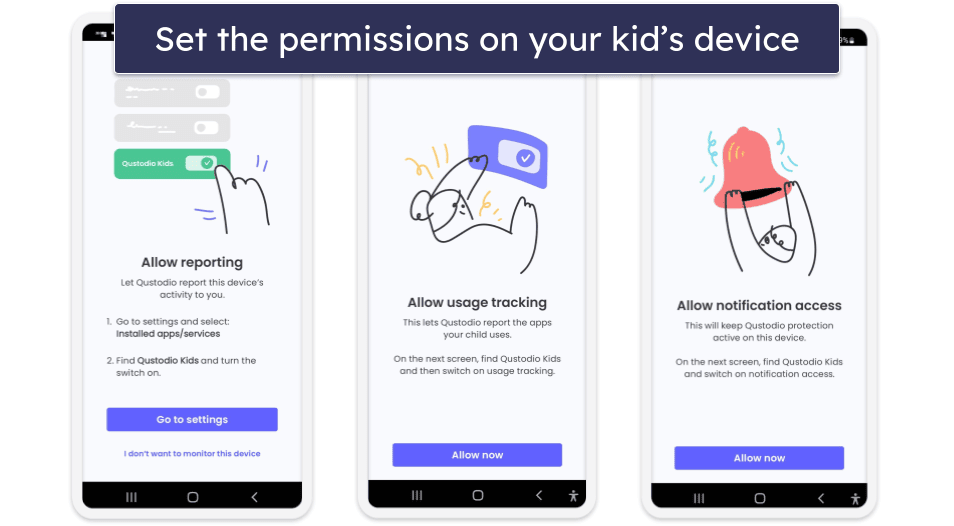
Now, you need to give Qustodio’s app several permissions so that it can track and control your child’s device. First, you’ll need to allow reporting, usage tracking, and notification access.
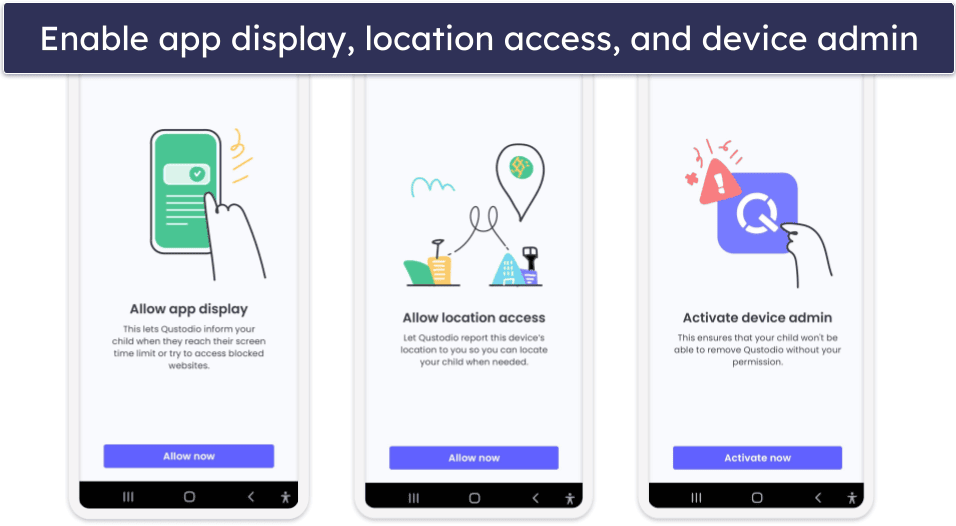
Then, you’ll have to enable app display, location access, and activate device admin (to make sure your child can’t uninstall Qustodio without your permission).
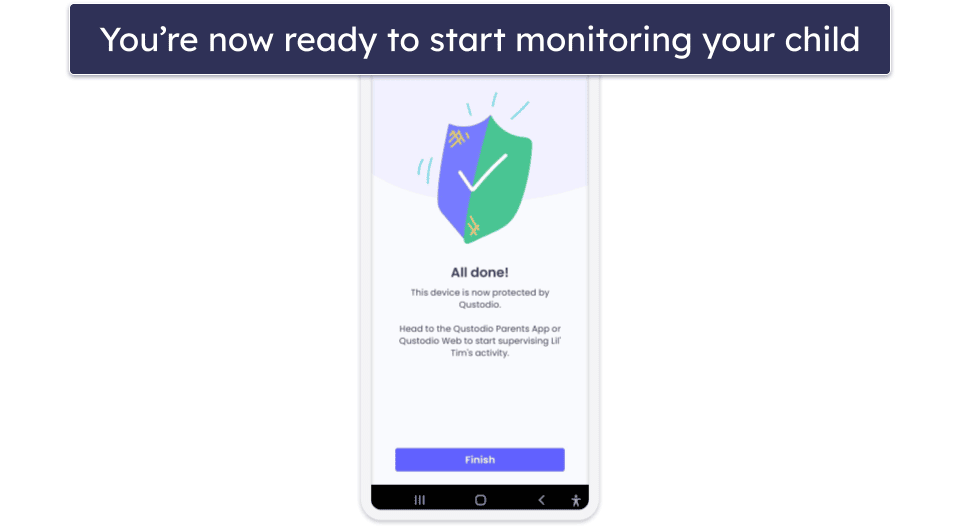
And that’s it — you can now use the parental apps to keep tabs on your kids’ online activities.
Qustodio Ease of Use — Very User-Friendly (Even if You’re Not Tech-Savvy)
Qustodio’s web and mobile parental apps are really easy to use — the interface is very user-friendly (even for parents who are not tech-savvy) and pretty much all settings and features come with short, helpful explanations.
Also, Qustodio’s mobile kids apps are minimalistic and very simple to navigate (so your kids won’t have any trouble getting used to them), and its desktop apps are hidden in the background, so they won’t bother your children.
Mobile & Tablets — Simple & Intuitive Apps
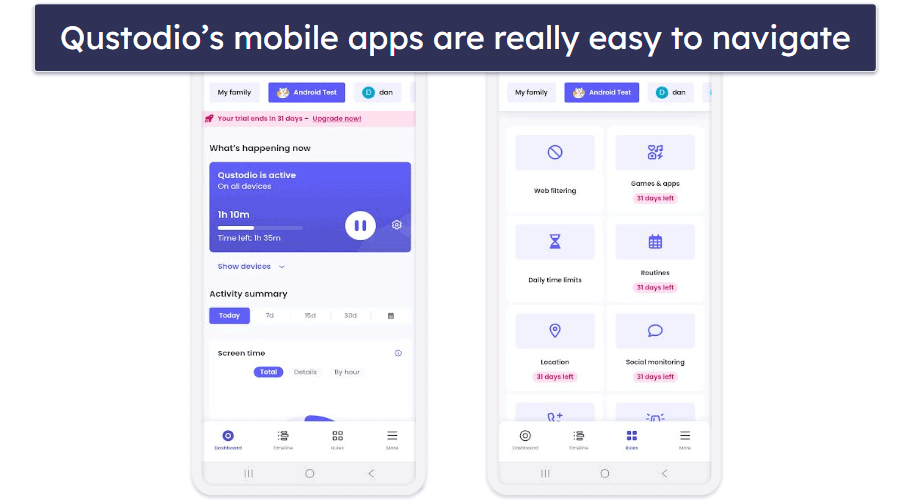
Both of Qustodio’s Android and iOS apps are very simple to navigate, their features work really well, and I never experienced any bugs when using them. Also, I like that both apps share a similar design, so it’s easy to switch from Android to iOS and vice versa.
The main dashboard has a Quick Actions box that’s super convenient — it lets you instantly pause the internet on your child’s device, add extra time, edit daily time limits, and switch between routines.
The activity summary on the main dashboard shows you all of your kid’s activity for the current day (including by hour), the last 7 days, and with the premium plans, the last 15 and 30 days.
I like that all the dashboard’s settings are neatly divided, like on desktop. This makes it super easy to find what you’re looking for without spending too much time. And once you’re in, setting rules and restrictions is pretty easy. It took me 10 minutes to create rules for my test device.
Both mobile apps are very feature-rich — the only difference is that Qustodio’s iOS kids app is missing the Panic Button feature.
Overall, Qustodio’s Android and iOS apps are very good. They’re intuitive and come with many useful features (however, the iOS kids app is missing the Panic Button feature).
Web App — Easy to Navigate + Great Security
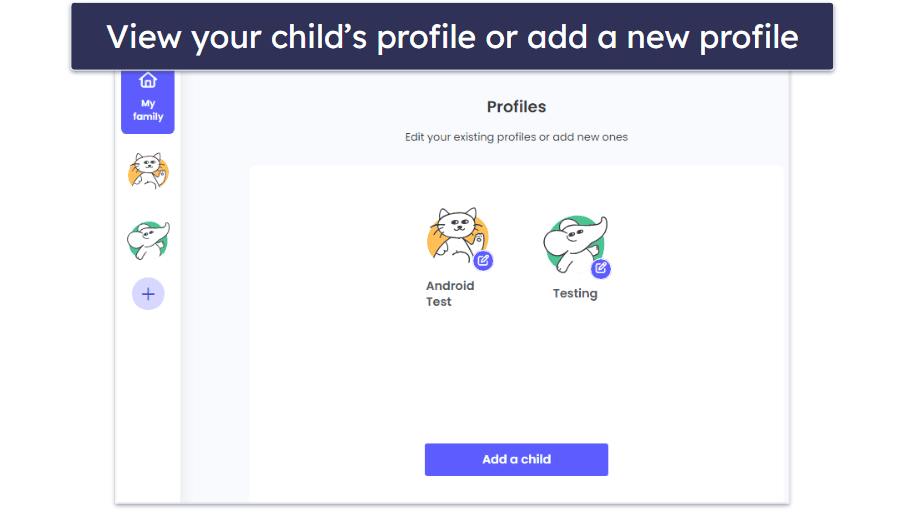
I’m really happy with Qustodio’s web app — the interface is really simple to navigate, so you never feel lost using it. From the main window, you can pick which child to monitor, add a new child profile, or add new devices with just a few clicks.
And when you check a child’s profile, all information is presented in a very easy-to-understand way. It’s really simple to check and scroll through the activity reports, and you can set up new app and site restrictions in seconds — for example, it took me 10 seconds to add and block a new website. And I especially like the small question mark icons, which provide you with detailed, helpful explanations for certain features and settings.
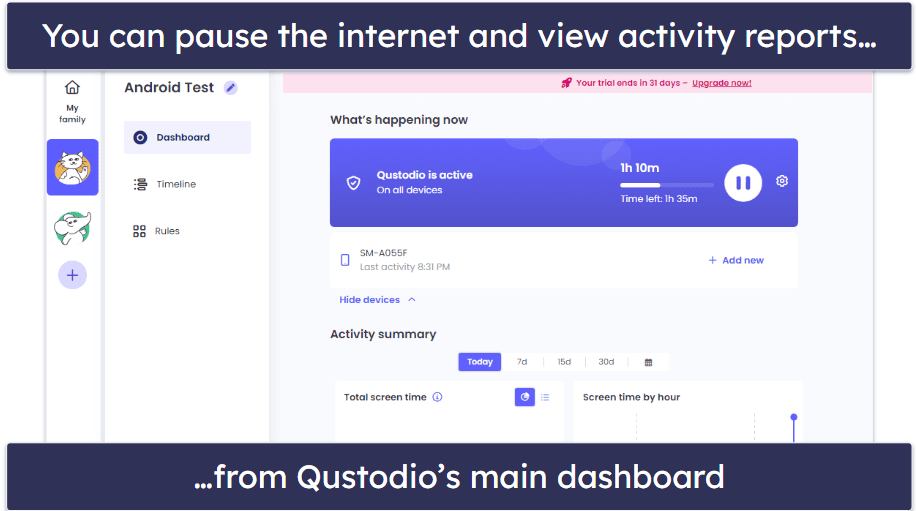
I also like that the web app provides great security, as it automatically logs you out of your account after a few minutes of inactivity — so your kids can’t increase screen time or lift restrictions while you’re away from your device.
Qustodio’s web app comes with almost all features. The only thing that’s sort of missing is the Location Tracking feature — the feature is there, but the only thing you can do is enable and disable it. To see your kid’s location on a map, you’ll need Qustodio’s mobile apps. However, you can still use the web app to track your child’s location from the dashboard’s Timeline tab (there are location updates every 5–10 minutes).
Overall, Qustodio’s web app is really good. It’s beginner-friendly, feature-rich, and full of helpful hints and explanations.
Qustodio Customer Support — Great Email Support & Articles
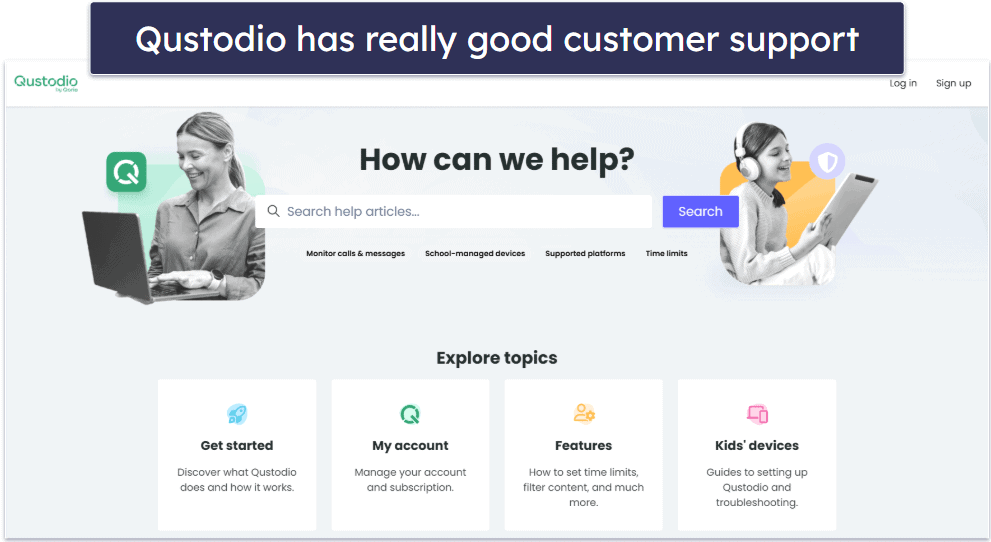
Qustodio’s customer service is quite impressive. It has a support library with comprehensive FAQs, instructional guides, and tips for resolving issues.
Qustodio’s support section includes a lot of helpful articles. From FAQs to setup guides with screenshots — I rarely needed to contact the support team because most answers were right there.
Qustodio doesn’t have live chat, but many parental control apps don’t have this feature (FamiSafe and Norton Family are some of the only parental apps that provide access to live chat).
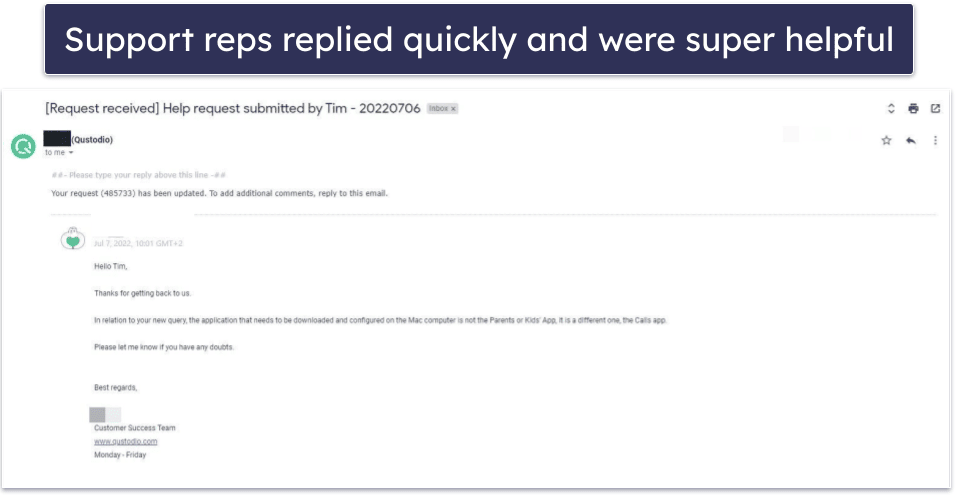
But that’s not an issue, as there’s a ticketing system that provides very responsive and helpful email support — I submitted multiple support tickets at random times of the day over the course of a week, and I always received a reply in about 24 hours, which is pretty fast. The replies always answered all my questions, and the support reps also replied to all of my follow-up questions.
There’s also Qustodio’s Care Plus service, but it’s only available in the US as part of the Complete plan. Care Plus provides priority phone support in English and Spanish, ongoing check-ins, and personalized help. I asked a colleague in the US to test the Care Plus service, and he was very happy with it — he scheduled a call and was contacted by a support rep over the phone on time, and they were able to provide him with helpful and detailed answers to all of his questions.
Qustodio has excellent customer support overall. While it lacks live chat, it makes up for it with a comprehensive support library, responsive ticketing, expert representatives, and premium phone support with Care Plus.
What Qustodio Can Do Better — Let Kids Request Access to Sites
Qustodio is the best parental control app in 2026, but there are some things it can improve.
I’d like to see Qustodio add a feature where kids can request access to blocked sites through the app, similar to what Norton Family offers. This feature is super useful if the app (or you) accidentally blocks a safe website, as your kid won’t have to call you to ask for permission to access the site. That said, it’s convenient how Qustodio provides you with 3 options for setting filtering rules for categories, such as allowing your kid to access sites from a specific category and only receiving alerts when your kid visits them — Norton Family lacks this customization.
It would be nice to see Qustodio expand the size of its geofencing zones, too — 0.12 miles doesn’t cover much distance, especially if you want your kid to stay away from a certain part of town.
Similarly, it’d be great if Qustodio introduced a screen time request feature to let your kid ask for more screen time. It’s more convenient than having your kid call you to extend their allowed time. That said, I still prefer how Qustodio lets you set up a daily screen time limit in increments of 15 minutes for every day of the week and add extra time in 1-minute increments, whereas Norton Family only lets you set a screen time allowance in increments of 30 minutes.
Finally, Qustodio could improve its social media monitoring. For now, Qustodio only monitors your kid’s chats on Instagram (Android only), WhatsApp, and Line. For comparison, Bark monitors your kid’s interactions on 30+ social media sites. On the flip side, Qustodio allows you to monitor your kid’s phone calls on both Android and iOS, which you can’t do with Bark.
Is Qustodio Really the Best Parental Control App in 2026?
I think Qustodio is an excellent parental control app since it comes with tons of useful parental control features and is also extremely easy to set up and use.
Qustodio has all essential parental control features, like web and app filtering, time limits, location tracking, scheduling, and activity reports. I especially like how not even top VPNs can get around Qustodio’s web filters, and that it detects and blocks 25,000+ iOS apps.
In addition, it provides access to other great features, including YouTube Monitoring, location tracking and geofencing, Calls & Messages that lets you monitor calls and text messages on Android and iOS, Social Monitor that alerts you about concerning content in WhatsApp, Line, and Instagram DMs, and a Panic Button that allows your child to send emergency signals to trusted contacts on Android.
Also, Qustodio’s apps are very user-friendly. However, I’d also like to see Qustodio make a few improvements — like adding in-app options for kids to request extra screen time or access to a blocked site and adding live chat support.
All in all, Qustodio is the best parental control app in 2026 — it provides excellent monitoring, filtering, and time limits, has tons of other helpful features, and is really user-friendly. It has a decent free plan and paid yearly plans that are backed with a 30-day money-back guarantee.
Frequently Asked Questions
Is Qustodio safe?
Yes. Qustodio provides tons of features that help you keep your kids safe online — it provides excellent web filtering to protect your kids from inappropriate sites (like drugs, pornography, alcohol, and violence), and it also lets you monitor your kids’ YouTube usage to make sure they’re not watching dangerous and disturbing videos. There’s also a Panic Button, which allows your child to send out distress signals to trusted contacts if they’re in danger. Plus, you can monitor your kids’ text messages to make sure they’re not being bullied.
Qustodio’s reps also told me that the data collected by Qustodio from monitored devices is stored securely and not associated with any identifiable information. Also, Qustodio doesn’t share your data with third parties.
Can my child delete Qustodio?
No, as Qustodio comes with uninstall protection — it requires you to type in your parental account username and password to make changes to its apps. So, make sure you store your login credentials outside of your child’s reach.
Can VPNs bypass Qustodio’s web filtering?
No — I actually tested popular VPN providers with Qustodio on both mobile and desktop and they weren’t able to bypass its web filtering. What’s more, once Qustodio detected the VPN apps on my devices, it even gave me the option to restrict them.
Does Qustodio block incognito/private modes?
No, Qustodio won’t prevent the opening of incognito/private browsers, but its web filtering will block access to sites you restrict, even in incognito/private mode. I tested this on Chrome and Firefox, and I wasn’t able to access restricted sites using incognito/private mode.
What browsers does Qustodio work on?
Qustodio can monitor and block sites on Chrome, Firefox, Edge, Safari, and the Amazon Silk Browser. It also automatically blocks unsupported browsers (like Opera and Brave), so that your child can’t use them to bypass parental controls on their device.
What apps does Qustodio block?
Qustodio can detect and block almost all apps that are popular with kids and teens — in my tests, it was able to block apps like YouTube, Discord, Netflix, Twitter, Instagram, TikTok, Facebook, WhatsApp, and more. A support rep told me that Qustodio can block all apps on Android, Windows, and macOS, and that it can block 25,000+ apps on iOS (some parental controls, like Webwatcher, can’t restrict iOS apps at all).
Can Qustodio block YouTube?
Yes, Qustodio has a dedicated YouTube-blocking feature that can detect and block both YouTube’s site and YouTube’s app on all major platforms. In addition, Qustodio also lets you set time limits for the YouTube app and see what your child searches for on YouTube and what videos they watch.
Does Qustodio let you monitor calls and text messages?
Yes, you can do that by using Qustodio’s Calls & Messages feature, which is available for iOS and Android devices.
However, to use this feature, you’ll need to perform manual setups. On Android, you’ll need to manually download and install Qustodio’s full Android app from the Qustodio official website. And, on iOS, you’ll need to download and install a separate Calls & Messages app on your macOS device and use a cable to sync your kids’ iOS devices with your macOS device. Fortunately, Qustodio has helpful tutorials that make the setup process very simple.
Does Qustodio have a Facebook monitoring feature?
No — Qustodio used to have such a feature, called Advanced Facebook Monitoring, but it dropped support for it due to changes in Facebook’s privacy policy. But the feature wasn’t very impressive, as it only showed your child’s Facebook posts (you can get the same information by just being friends with your child on Facebook).
That said, you can still use Qustodio to monitor and restrict access to Facebook — you’ll receive alerts whenever your child uses Facebook’s site and app. Also, you’ll be able to use Qustodio’s features to block Facebook’s site and restrict Facebook’s app, or set time limits for the Facebook app.
What devices does Qustodio work on?
Qustodio has apps for kids and parents on multiple devices:
- Apps for kids — iOS, Android, Windows, macOS, Chromebook, Kindle.
- Apps for parents — iOS, Android, web browsers (Chrome, Firefox, Safari, Edge).
Is Qustodio free to use?
Yes, Qustodio comes with a free plan, which you’re downgraded to after the 30-day free trial expires. I think the free plan is pretty good — it provides access to screen time monitoring, time limits, and web filtering (including the option to enforce safe search). However, the free plan limits you to daily and weekly activity reports and 1 device, and it doesn’t provide access to Qustodio’s customer support ticketing system.
Qustodio’s free plan could be enough for some people, but I’d mostly recommend using it to test the service. Then, if you’re happy with Qustodio, you should definitely upgrade to its paid plans — that way, you also get location tracking, app filtering, YouTube monitoring, support for 5 or unlimited devices (depending on which plan you choose), and more. Plus, Qustodio backs each purchase with a 30-day money-back guarantee.
Can I read messages that are sent and received on my kids’ devices?
Yes. Qustodio has a feature that allows you to monitor your child’s messages on iOS and Android — you need to perform a manual setup, but Qustodio provides very helpful tutorials, so the process doesn’t take long. In addition, Qustodio lets you monitor and block your kids’ calls.
Qustodio can also monitor your child’s messages on social media apps like Instagram, WhatsApp, and Line.
Does Qustodio work without Wi-Fi?
Qustodio doesn’t necessarily need Wi-Fi to work, but it does need an internet connection. Without an internet connection, you won’t be able to access the Qustodio parent app on mobile or the web. Your kid also won’t be able to see the main dashboard on their app, but they will be able to use the Panic button, even if they’re offline. If your kid’s device is offline, you’ll have to wait until they’re back online for Qustodio to start monitoring their device.