

Google Family Link Review: Quick Expert Summary
Google Family Link has most of the basic features you’d expect from a parental control app, including web and app filtering, usage and screen time limits, and location tracking. Uniquely, Google Family Link also lets you restrict what apps your kids can download from Google Play and approve or deny their Google Play purchases.
However, it’s missing some key features I look for in a parental control app — Google Family Link lacks granular web filtering and screen time limiting tools, it makes it very hard for parents to keep track of their kid’s device and online activities, and there’s no extras like text or social media monitoring. And once your child turns 13 (or the applicable age in your country), they’re able to turn off Google Family Link. Additionally, many of Google Family Link’s supervision features don’t work on Windows, macOS, iPhones, and iPads.
For all of these reasons, I can’t recommend Google Family Link as your primary parental control app. Rather, it’s more useful working alongside paid parental control apps like Qustodio or Norton Family, which will give you finer control and access to more advanced features with which to monitor your children’s online activities and shield them from inappropriate online content.
Google Family Link Full Review — Basic but Functional (Lacks More Advanced Features)
Google Family Link is a basic but functional parental control app. It allows you to filter websites and applications, set app and device usage limits, and track your child’s location. You can also filter the apps your kids can see on Google Play, manage their in-app purchases, and supervise their YouTube activities.
However, Google Family Link lacks features available on the best parental control apps. So, if you’re looking for a more versatile and powerful solution, you should consider using a premium app like Qustodio.
Google Family Link Features — Decent Monitoring Tools (But Kids Can Switch Them Off at Age 13)
Google Family Link comes with the following features:
- Web and app filtering — Choose which sites your kids can visit and what apps they can install.
- Time limits — Determine how long your kids are allowed to use their devices or specific apps.
- Location tracking — Shows you where your kids are.
- Scheduling — Choose specific times of the day or week when your child is or isn’t allowed to use their device.
- Activity reports — Shows you information about your child’s device use, including screen time, app installs, used apps, and more.
In addition, Google Family Link has some other useful features such as the ability to supervise your child’s YouTube usage, filter what your child can see on Google Play, block photo and video sharing, and manage in-app purchases. Your child also won’t be able to uninstall the app from their device without your access code.
Important: When your child turns 13 (or whatever the age requirements to have a Google account are for your country), they’ll be given the ability to manage their own Google account. This means that they can stop your supervision of their Google account at any time without needing your permission. That said, you’ll receive a notification if they do so, and their device will be locked for 24 hours, giving you an opportunity to talk it over with your child.
Web Filtering & Supervision — Works Fine on Chrome, but It’s Quite Limited
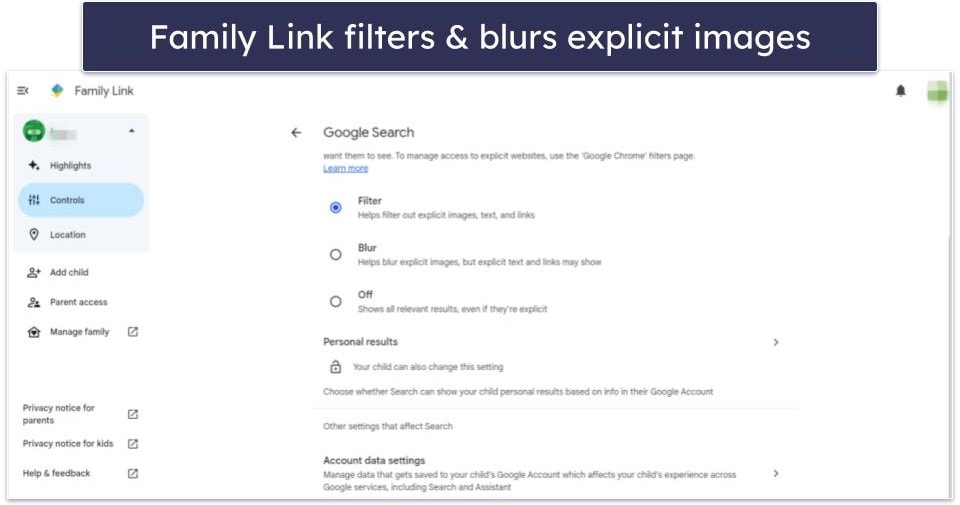
Google Family Link’s web filters include SafeSearch, which blocks explicit content from search results on the Chrome browser. I tested SafeSearch on my child’s device by entering search terms that would normally bring up results you may not want your child to see, and it successfully removed mature and explicit content (like violence and gore) from their Google search results. It even works for Google image search. It’s turned on by default, and only parents can turn it off.

Family Link lets you further customize SafeSearch by allowing you to choose from 2 options:
- Filter out explicit images, texts, and links or
- Blur explicit images and allow explicit texts and links.
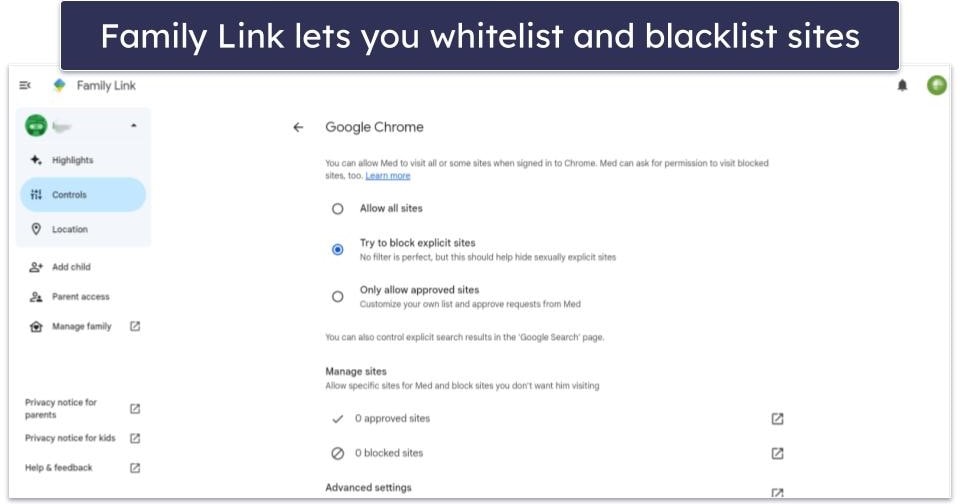
Google Family Link also lets you get more granular with web filters on Chrome. Under Content restrictions, just select Only allow approved sites, and you’ll be able to create a whitelist of websites your child is allowed to visit. All other websites will be blocked.
Another option is Try to block explicit sites, which only blocks sites that are inappropriate. In my tests, it worked pretty well and denied me access to explicit sites. However, there’s no guarantee that it won’t let some explicit content through.
If you need stricter control, you can also add approved sites that you want your kid to always be able to access and add sites you don’t want your kid to ever visit a blocked list.
Having said that, Qustodio and Norton Family give you more filtering options with content categories like Entertainment and Music, Mature Content, Shopping, Advertising, File Sharing, Social Networking, Alcohol, Gambling, and more.
I really like that Google Family allows your kid to ask for access to any blocked site, which is useful if Family Link mistakenly blocked a site that’s not inappropriate and they need it for homework.
When your kid tries to visit a site you’ve blocked (or if you’ve selected Only allow approved sites), Family Link will present them with 2 options: Ask in person or Ask in a message. If they choose Ask in person, the only way you’ll be able to approve or deny the request is from your kid’s device with your Google Account password. The Ask in a message option allows you to remotely review and approve or deny the request.

Google Family Link automatically turns off Incognito Mode on the Chrome browser where your child is signed into the account you’re monitoring.
If your child changes a setting, you’ll immediately get a notification. For example, when I turned off Personal results on my test device (a feature that gives Google the right to show you suggestions based on the info in your Google Account), Family Link immediately sent me an alert.
I think it’s great that Family Link allows you to manage what your kid is sharing on the apps they’re using. This includes on-device site data like cookies and other permissions, such as those that allow websites access to your child’s location and webcam or extensions.

Google Family Link uses Google’s built-in browsing history function to let you monitor what your children are doing online. To that end, it gives you the power to decide whether or not your child’s Google account saves their activity on Google sites and apps.
But there are a couple of major downsides to this feature. One, you actually have to log into your child’s account and go to their Google Account manager to see what they’ve been searching and which websites they’ve been visiting (the information is not accessible directly through the Google Family Link app). Plus, I deleted the Search history on Google Chrome on my test device, so your child can remove their search history before you see it.
If you want to monitor your child’s browsing history, I much prefer Qustodio or Norton Family. Each parental control app lets you check your child’s browsing history directly from its parental control app, allowing you to maintain records of your child’s online activities independently.
On top of that, you can disable photo and video sharing from the Google Photos app under Content restrictions. This is great for blocking your child from sending inappropriate photos of themselves or others to friends — though it’s not available for children over Google’s age requirement.
Google Family Link’s web supervision is pretty barren in terms of bonus features. For example, you can configure Qustodio to alert you if your kids try to access certain websites rather than block them outright.
Google Family Link’s search filtering relies on the in-built SafeSearch function of Google but doesn’t work if your child uses a different search engine (you can try to get around this by using the website blacklist, but it’s inconvenient and not a perfect solution). Its web filtering also only works on the Google Chrome browser, but thankfully, you can use Google Family Link’s app filtering function to block access to unsupported browsers.
All in all, Google Family Link’s web filtering works OK, but only on Google Chrome, its web supervision isn’t user-friendly, and it’s incredibly limited compared to other parental control apps.
Time Supervision — Pretty Good, but the Range of Settings Is Limited

Google Family Link lets you set up daily device usage limits and restricted times for your kids on Android and Chromebook. It allows you to adjust them in 5-minute increments or manually set them to your desired number of hours and minutes.
Family Link also lets you create weekly schedules, where you set different time limits for different days of the week. For example, you can set time limits for your kid to use their phone for a couple of hours during school days but allow more screen time on weekends.
Daily limits can be set individually for every day of the week. It also lets you adjust limits as needed with “Change for today”, which would be useful if your kid is home sick and can have more screen time than the normal daily limit allows, or you may turn off limits for a specific day entirely.

The Downtime tab allows you to select a time during which your child can’t use their device — so they don’t stay up all night playing on their phones or chatting with their friends. You can have different “Downtimes” for different days of the week, and it defaults to applying these settings Sunday to Thursday in case you want to be more lenient on Friday or Saturday nights, for example. It lets you set up a second schedule for weekend nights as well, or any combination of days you choose.
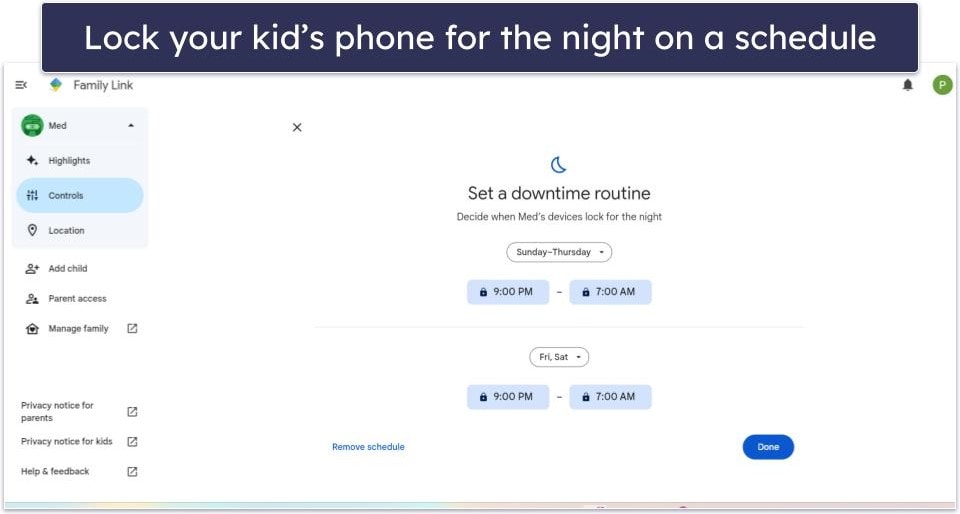
When the daily screen time limit is reached or it’s their bedtime, the device automatically locks and they’ll be unable to do anything on it except make calls, so they can reach out to you if needed. Alternatively, you’re able to give your kid access to apps they’re always allowed to use, like the Calculator or an education app for homework. You can also manually lock their device from your dashboard (either immediately or after a certain amount of time).
I found Google Family Link’s existing time supervision features intuitive, and they worked flawlessly during my testing. Compared to the time supervision features offered by other parental control apps though, it’s a bit lacking in functionality. You can’t, for example, set up multiple downtimes using Google Family Link as you can using Qustodio. It bothered me that I couldn’t set a “Downtime” and also restrict my kid’s device usage between 5pm to 7pm, when I wanted them to concentrate on doing homework.
I would also like to see a feature like Norton Family’s School Time, which allows parents to exclude device usage during school hours from being counted for the daily screen time limits, as well as set web filters specific to school hours (allowing you block websites like YouTube or TikTok that might distract your child from their studies).
Overall, Google Family Link’s time supervision features are pretty good, but the limited range of settings didn’t give me as much control over my kid’s device usage as I would’ve liked.
App Supervision — Easy to Use & Has Advanced Features
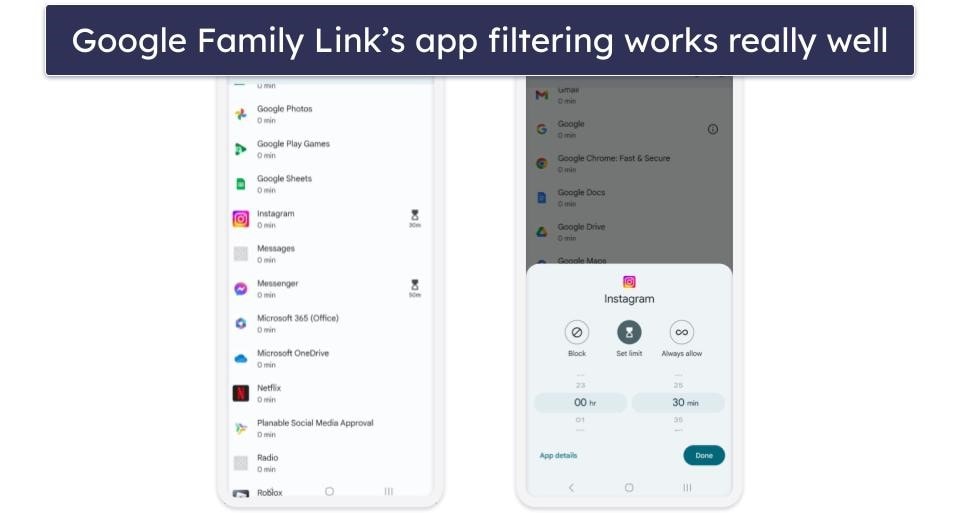
Google Family Link’s app supervision for Android and Chromebooks is excellent, offering parents very granular controls. It lists all of the apps installed on your child’s device and allows you to block or set time limit restrictions for each of them individually. You can even designate certain apps as “Always allow,” so the time spent using that app won’t be counted towards their daily screen time limit.
Plus, Family Link provides you with details about each app on your kid’s device. Once you click on App Details, you can see information about the app from the Google Play store, including a description, age rating, whether there are in-app purchases or ads, how many people have downloaded it, and how users have rated it.

The app manages what your child can browse, purchase, or download on Google Play under Content restrictions. I love how you can set filters on what they can see and install from Google Play without your permission based on the rating of the content.
You can also make it so that your approval is required for your child to make purchases or download any apps in the Google Play app. Family Links lets you choose if you want to be alerted about all paid content or in-app purchases only, and you can require your approval to block all purchases and downloads from Google Play. To help prevent your child from getting around these restrictions, you can disallow the installation of apps from sources other than Google Play.
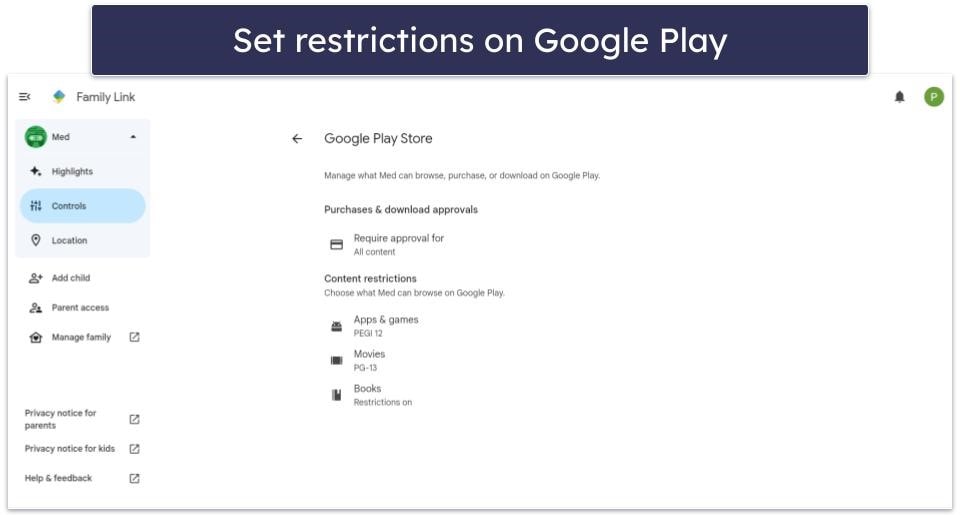
Other parental control apps don’t let you filter content on Google Play — they can only block or restrict apps that are already on your child’s phone. They also lack the ability to manage Google Play purchases. This is a good argument for using Google Family Link in tandem with other parental control apps.
Overall, I’m very happy with Google Family Link’s app supervision feature. It’s easy to use and has a lot of advanced features that are not available on other parental control apps. It’s a shame it can’t be used on iOS or non-Chromebook operating systems, though.
Location Supervision — Handy Tracking, but There’s No Location History
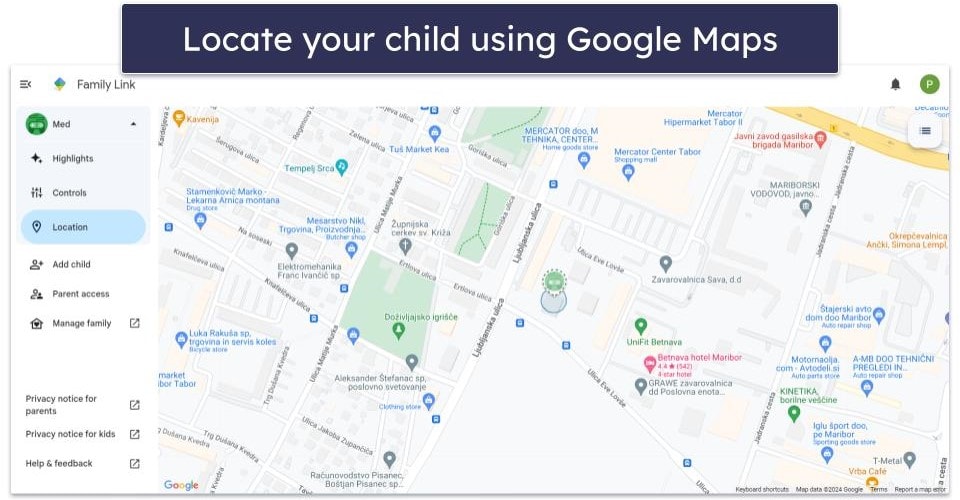
Google Family Link’s location supervision is not as robust as other apps. It lets you see where your child is (or their last known position) by indicating their position on Google Maps when they’re using an Android or Chromebook device. It also gives you the ability to play a sound from your child’s device (for 5 minutes at a time) to help you locate it — which can be handy if your child has lost it somewhere in the house, for example.
Google Family Link offers a geo-fencing feature, too. It lets you create areas ranging between 650 ft (around 200 meters) and 1,300 ft (around 400 meters) in radius and notifies you when your child arrives or leaves the area. If you need a larger area, Norton Family’s Favorite Locations tool lets you set up a zone of up to 2 miles or 3,200 meters.

In addition, Google Family Link doesn’t offer a location history feature, which would show you detailed information about where your child has been and when, like Qustodio. Norton Family allows you to set up an alert of your child’s location at scheduled times throughout the day, and it provides a less invasive alternative to real-time location tracking by letting your child share their location with you using their kids’ app instead.
I do like that Google Family Link shows you the battery percentage of your child’s device. This way, if they’re at a friend’s house and their battery is low, you can text them to remind them to charge their phone.
Overall, I think Google Family Link’s location supervision offers useful features like seeing your child’s current location and getting notifications when your child arrives at or leaves a specific address. I would feel better, however, if it included a location history feature and true geo-fencing.
YouTube Supervision — Limited & Overly Broad Filters

Google Family Link gives you filters for controlling the content your child sees on YouTube. For children 12 and under, you can limit their YouTube viewing to YouTube Kids, a simpler and safer video and music platform designed specifically for kids. When you set up your child’s YouTube Kids account, you’ll have 3 broad viewing options to limit the content your child sees based on their age: Preschool (4 and under), Younger (ages 5 to 8), and Older (ages 9 to 12). You can also select whether the account has search capabilities within YouTube Kids.

I’m a fan of how you can give them supervised access to the regular YouTube platform. This option lets you select from 3 broad, age-appropriate filters: Explore (for ages 9 and up), Explore More (for ages 13 and up), and Most of YouTube, which filters out only the most explicit content. Google includes the disclaimer that these filters are not perfect and that inappropriate content can still find its way to your kids.
Family Link lets you disable autopay for your kid, prevent YouTube from recommending content based on new search terms or new video views, as well as unblock videos, and remove access to YouTube Kids and the YouTube app in 1 click.
You can save their search and watch history on YouTube, but there are a few issues — it shares the same problems as Google Family Link’s web supervision. Firstly, information on what your child has searched and watched on YouTube is buried inconveniently deep in your child’s Google Account Manager (meaning you have to log into their account to see it) rather than being easily accessible through the parental control app. Secondly, it doesn’t prevent your child from simply deleting their YouTube search and watch history.
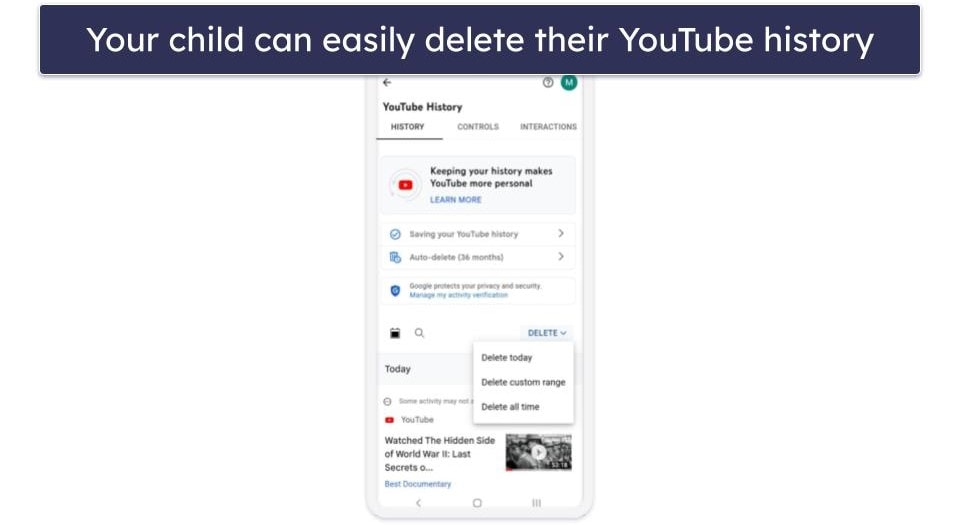
Overall, Google Family Link’s YouTube supervision feature is pretty limited. It lets you apply broad, age-based filters to YouTube videos (and no other video-streaming sites) but doesn’t provide any assurance that inappropriate content will still get through to your kids.
If you’re concerned about what your child is watching on YouTube, try using Qustodio instead. It filters inappropriate content on YouTube, keeps track of your child’s search and watch history independently on its app (so your child can’t just delete the search and watch history themselves), and is much easier to use.
Activity Reports — Surprisingly Difficult to Use

Google Family Link doesn’t offer an easy way to see your child’s activities in 1 place. While the information is available, you have to dig for it.
One screen displays how long your child has spent on their device or individual apps. Another screen located somewhere else will show you what apps they’ve installed recently. To see which websites they’ve visited and what YouTube videos they’ve watched, you’ll need to sign into their Google account and then navigate through several screens to reach their browsing/watch history.
In contrast, Qustodio organizes all of the information it acquires neatly and makes it available to you in a centralized location (in your dashboard), so it’s super easy to review.
Overall, I don’t like how difficult Google Family makes it to monitor a child’s activities. It’s a bizarre oversight considering this is one of the primary functions of a parental control app.
Google Family Link Installation & Setup — Fast & Easy
Google Family Link has parental control apps for many operating systems, including iOS, Android, and web browsers, as well as apps for kids on Android and Chromebook.
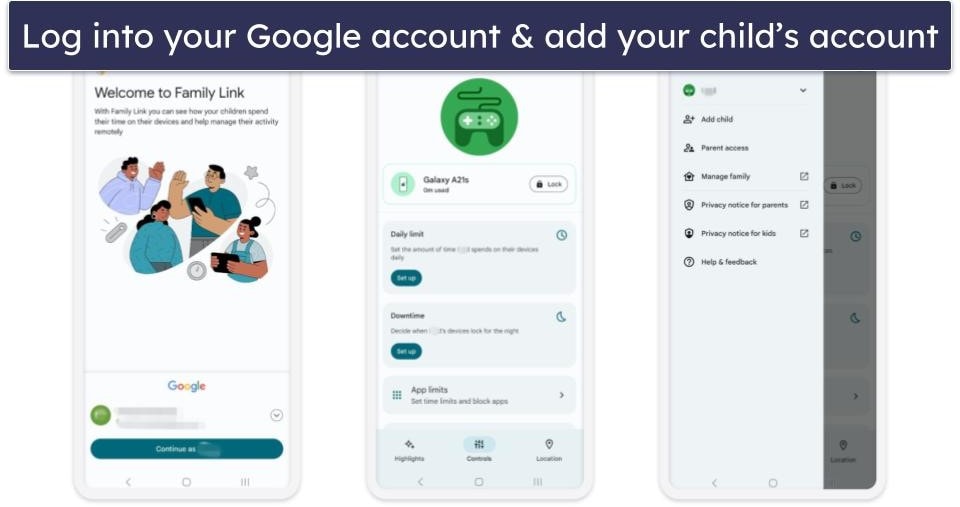
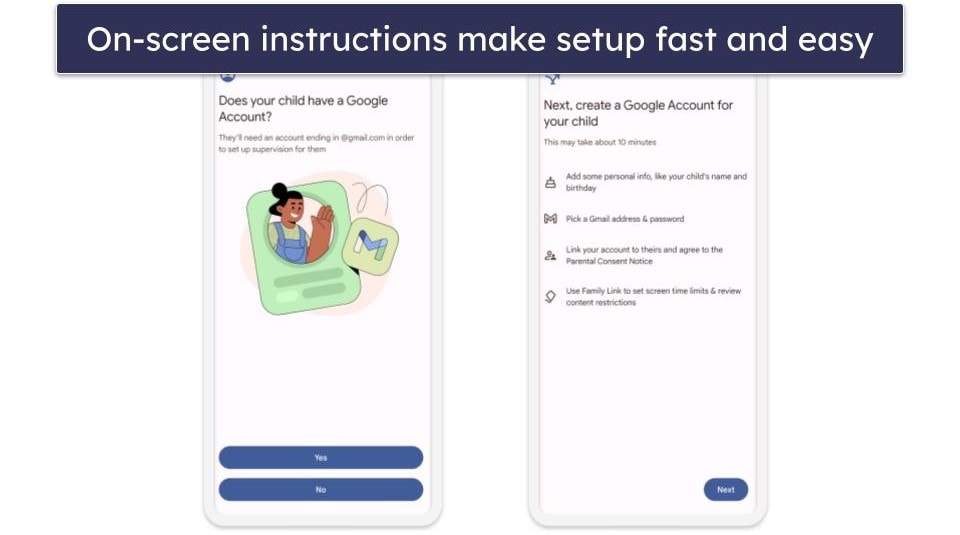
Downloading and installing the parents and kids apps is fast and easy with clear on-screen instructions to guide you through each step in the process. The whole thing should only take 10-15 minutes, which includes the time spent setting up the initial permissions for the child’s device.
Family Link Parental App Installation & Setup
To use Google Family Link, you’ll have to download and install the Google Family Link app onto your device from your device’s app store. Alternatively, you can set it up by logging into your account on the Family Link website.
Next, you’ll be asked if your child has a Google account already. If you select Yes, you’ll be prompted to get your child’s device and follow a set of simple on-screen instructions to set up parental controls. If you select No, the app will guide you through the process of creating a Google account for your child.
Family Link Kids App Installation & Setup
There’s no app that you need to download and install on your kid’s Android or Chromebook device for Family Link to work. Google will add the Parental Controls app automatically after you add your kid’s Gmail account to Family Link or your kid logs into their Google account on their device.
On your child’s phone, you’ll need to sign into their account or have them sign in. Note that Google won’t allow you to add your kid’s account to their phone if there are other accounts signed in. This is an important step as your child may use other accounts to bypass your supervision.

Then, you’ll have to log into your account to confirm that it’s you setting up the parental controls, agree to Google’s Privacy Policy and Terms of Service, and accept permissions to install parental controls on your kid’s device. Next, you’ll be asked to activate Family Link parental controls and allow supervision on the device.
If your child is already signed into their Google account on their phone, go to Settings > Google, and select Parental Controls. Then, follow the same steps to set them up.
I liked that it detects if there are multiple accounts on your child’s Android phone and gets you to remove accounts until there’s only one left. This is an important step as otherwise, your child may be able to bypass your supervision by signing in using a different account.
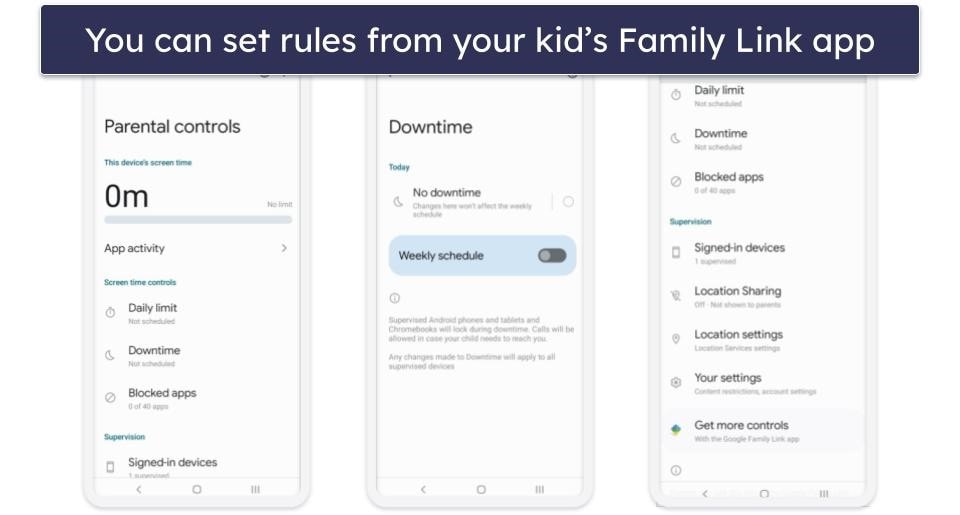
Once you’re done, you can modify the settings and permissions for your child’s device. This can be done directly from your child’s phone or the Family Link app and dashboard from your devices. If you’re setting rules from your kid’s phone, you’ll have to enter your password to make any changes.
Google Family Link Ease of Use — A Mixed Bag
Google Family Link’s parental apps are a mixed bag in terms of user-friendliness. Most of its basic functions are fairly intuitive (though the sparsity of advanced features is partly the cause). Every setting and feature is clearly labeled and includes short explanations to help you understand what they do. However, there are a few settings and features on Google Family Link that can be difficult to find or access.
On the other hand, all of Google Family Link’s kids apps are pretty straightforward. If your kids want to see how much screen time they have left or what they can and can’t do without approval, it’s all laid out very clearly. Do note, however, that Google Family Link doesn’t have a kids app for iOS.
Mobile & Tablets — Pretty Good, but the Layout Isn’t Completely Intuitive
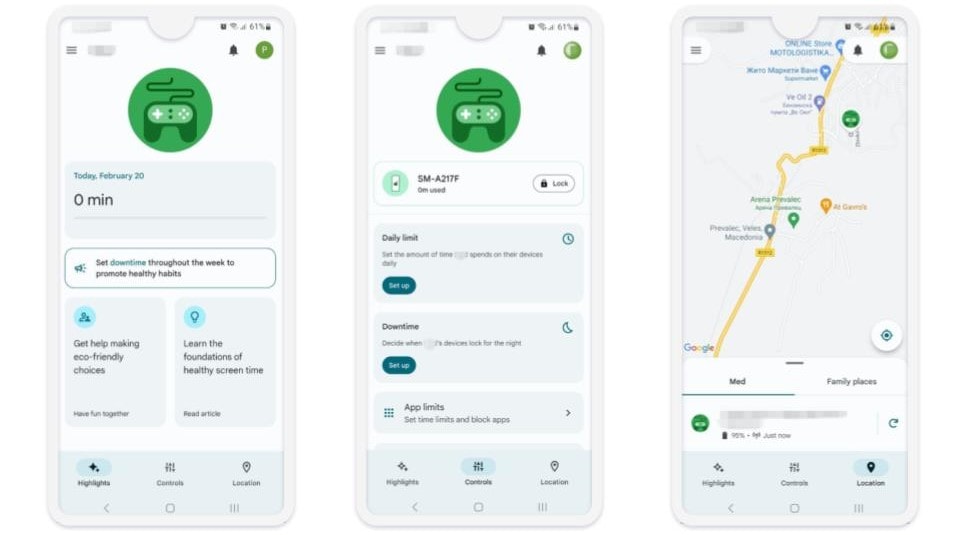
The Android and iOS parental apps are pretty good, but they have some issues. The interface is clean with 3 tabs for managing your child’s access: Highlights, for viewing their activity, Controls, for changing access settings; and Location, for seeing their device’s location. The Android and iOS apps are also virtually identical in terms of design and features, so you won’t have any problems switching from one to the other or be disadvantaged by using a particular operating system.
However, there’s no centralized location to check all of your child’s activities, and some advanced features are located illogically. For example, in order to change whether or not your child’s YouTube search and watch history will be saved, you must dig through the Google Search settings — and not the YouTube settings as you might expect. Similarly, the feature that lets you play a sound from your child’s device (to help you find it if they’ve lost it somewhere in the house, for example) isn’t directly under the Location tab for some reason.
Web App — Straightforward & Easy to Navigate
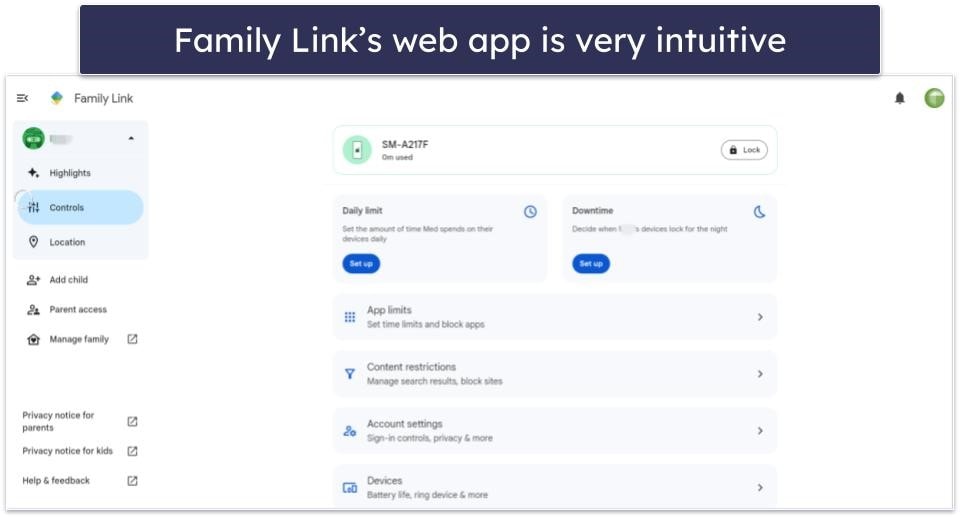
Google Family Link’s web app is similar to the mobile apps. The interface is pretty much the same as the Android and iOS app — there are 3 main tabs (Highlights, Controls, and Location) and you get all the same features and options that are available on the mobile apps, including adding other family members and children.
From there, you can set daily time limits, downtime, app limits, and content restrictions, and see your child’s current location, as well as how long they’ve been on their phone for the day. There’s also an option to lock your child’s phone with just 1 click.
Overall, I like Family Link’s web app. It’s very easy to navigate, it helps that the interface is very similar to the mobile apps, and you get access to all features available.
Google Family Link Customer Support — No Specialized Support, but There Are Useful Articles
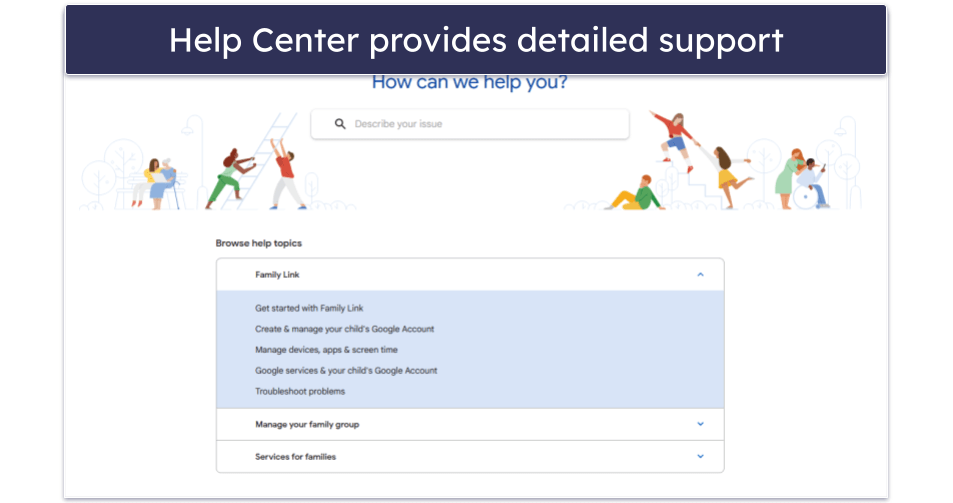
Google Family Link lacks a specialized support channel, so you’ll have to rely on its website’s help center and FAQ section. Fortunately, I found the articles there to be quite comprehensive and useful.
The help center offers a range of helpful guides that cover virtually every feature of Google Family Link. It shows you how to manage your child’s screen time, set app permissions, approve or deny purchases, and more.
However, no other support options are available. Competing apps offer superior support — Qustodio has an effective ticketing system and priority phone support for users on the Care Plus plan, and Norton Family offers 24/7 live chat.
Google Family Link Is a Free Parental Control App, but Is It Good Enough in 2026?
While its pricing is unmatched (completely free!), Google Family Link is too basic and awkward to use at times for me to recommend it as a standalone parental control app.
Google Family Link has all the essential parental control features such as web and app filtering, time limits, scheduling, location tracking, and activity reports. Its app supervision features stand out as one of the best things about it, giving you powerful tools to restrict what your child can see and download from Google Play and to manage their Google Play purchases. However, almost all its other features are missing useful functions that you can find in other brands like Qustodio, Norton Family, and Bark.
Google Family Link’s web and search filtering is a particularly glaring example. Rather than letting you filter by content category as other parental control apps do, Google Family Link merely gives you an easy way to turn on and off Google’s inherent SafeSearch setting, plus a website blacklist or whitelist. Similarly, its browsing history and YouTube supervision features merely give you the option to save the browsing and watch history on Chrome and YouTube — and do nothing to prevent them from deleting the records.
Its lack of support for kids apps on iOS and non-Chromebook is also a big minus for me. Plus, you don’t get any extra features like Qustodio’s Call & Messages monitoring or Bark’s social media monitoring. Finally, if you’re going to use Google Family Link, you should be aware that once your child hits the age of 13, they’ll gain the ability to stop your supervision of their device at any time without your consent (though you’ll be notified if they do).
All-in-all, Google Family Link should not be your first choice as a parental control app in 2026. It may be free, but this comes at a hefty price. At best, I would consider using it as a companion alongside better parental control apps purely for its unique app supervision features.
Frequently Asked Questions
Is Google Family Link really free?
Yes, Google Family link is 100% free. There isn’t a premium version or any features you have to pay money to use. You get access to everything Google Family Link has to offer just by having a Google account.
However, that doesn’t mean there isn’t a price: Google Family Link simply doesn’t have the same depth and breadth of features available on the best parental control apps on the market. Qustodio can monitor your kids’ calls and text messages. And Norton Family has one of the best location supervision features out there.
Does Google Family Link work on PC and macOS?
Yes and no. Google Family Link has a web app for parents that you can access using any operating system and from any browser (Chrome, Edge, Firefox, etc.), which allows you to change various settings and permissions for your child.
Additionally, many of its parental controls are unavailable on Windows or macOS. If you want to supervise your child’s laptop usage, you’ll have to get them a Chromebook. For a parental control app with a good web app and fully functional supervision for PC and macOS, consider using Qustodio.
Does Google Family Link work on iPhones and iPads?
Yes and no. Google Family Link has a parental app for iPhones and iPads that you can download from the App Store, which allows parents to monitor their child’s activity and change various settings and permissions.
However, if the child is using an iPhone or iPad, many features will be unavailable. This includes the ability to filter apps and block apps, set app and screen time limits, locate their device, and more. If your kids use an iPhone or iPad, try one of our top iOS parental control apps instead.
Does Google Family Link work for children over the age of 13?
Yes and no. You can continue to supervise children once they’re over the age of 13 (the exact number may vary depending on what country you’re from), but they can opt out of the supervision at any time. That said, when they turn off the supervision, you’ll be notified and their device will be locked temporarily (for 24 hours, unless unlocked by the parent).
My top recommendation for blocking a child to stop supervision is Qustodio. It has uninstall protection that requires you to type in your parental login credentials in order to remove the app off your child’s device.
Can I monitor my child’s calls and text messages using Google Family Link?
No, Google Family Link doesn’t have the ability to block calls or monitor text messages. A good parental control app that offers these features is Qustodio, which allows you to read your child’s text messages and block or whitelist incoming or outgoing calls.
Can my child bypass Google Family Link by changing accounts?
No, Google Family Link has a setting that stops your child from bypassing supervision on supported devices and platforms. It does this by preventing them from adding or removing users on the supervised device. This setting is enabled by default.
Can Google Family Link see my child’s browsing history?
Yes and no. Every user’s browsing history is saved by Google by default unless you disable it in the settings, and Google Family Link can prevent your child from disabling it. The catch is that Google Family Link doesn’t prevent a tech-savvy child from simply deleting activity history entries that they don’t want you to see. In addition, it also doesn’t save search history on other search engines.
If you’re looking for a great app for monitoring browsing history, check out Qustodio. It publishes an activity report that shows you all of the websites and apps your child visited, as well as which YouTube videos they watched, which sites they tried to visit that are blocked, and much more.
Can Google Family Link see YouTube history?
Yes and no. Every user’s YouTube search and watch history is saved by YouTube by default unless you disable it in the settings, and Google Family Link can prevent your child from disabling it. The catch is that Google Family Link doesn’t prevent a tech-savvy child from simply deleting search and watch history entries that they don’t want you to see.
Instead, I recommend using a top-rated premium parental control app like Qustodio, which lets you see which YouTube videos they searched for and watched, and it even provides the link so you can watch the video that your child watched.
Can Google Family Link see activity in incognito mode?
No, Google Family Link simply blocks your child from using incognito mode. If you want a parental control app that takes a less brute force approach, try Qustodio, which monitors and blocks sites even when your child is using incognito/private mode.