FamiSafe Review: Quick Expert Summary
FamiSafe is a very good parental control app with industry-standard features and some pretty cool extras. It’s easy to use, significantly improves the built-in parental controls on Android, iOS, ChromeOS, Windows, and macOS, and offers reasonably-priced plans covered by a 7-day money-back guarantee.
In addition to providing standard parental control features, it comes with:
- Driving monitoring — Monitor your child’s driving habits and get alerts in case of dangerous driving.
- Reverse location tracking — Kids can see your location and find you in an emergency.
- TikTok and YouTube monitoring — See what videos your kids have been watching and receive alerts if they’re inappropriate.
- Call & Message monitoring — Track your child’s phone calls and text messages on iOS and Android.
- Screen Viewer — Remotely capture screenshots of your child’s Android device.
- And more…
Some of FamiSafe’s features are excellent. The screen time controls are pretty good, the location tracking and geofencing features are among the best on the market, and the driving monitoring is a unique extra that gives you peace of mind when your child starts driving. Its One-Way Audio feature works well, too, and its Call & Messages monitoring can be very helpful if you’re worried about who your kid is communicating with.
However, there are several things I dislike about FamiSafe. The web filter is very basic and requires a lot of manual work, the social media app detection feature doesn’t work on all apps it claims to, and its TikTok and YouTube monitoring tool is hit-or-miss.
FamiSafe offers coverage for 5 to unlimited devices, depending on your plan. It works on all major operating systems, including Windows, macOS, Android, iOS, ChromeOS, and Kindle. It’s a pretty good value as well.
FamiSafe Plans & Pricing — Good Options for Small & Large Families (And Even for Schools!)
After spending weeks testing FamiSafe, I think it’s a great parental control app. It’s got great industry-standard features, as well as some useful extras that work well. Its location tracking and geofencing features are among the best on the market, and it can block, schedule, and set time limits for iOS apps — which many parental control tools struggle with. In addition, I also like that FamiSafe has unique features like driving monitoring, call & message monitoring, and reverse location tracking, which make it a particularly good parental control app for older kids.
However, FamiSafe has too many flaws to be considered the best parental control app in 2026. Its web filtering requires too much work, its social app monitoring doesn’t work as expected, and its YouTube & TikTok monitoring could improve.
But, despite these downsides, FamiSafe is still a good choice. It’s affordable, covers 5, 10, or unlimited devices, and has a 7-day money-back guarantee.

FamiSafe Plans & Pricing — Good Options for Small & Large Families (And Even for Schools!)
FamiSafe’s paid plans cover between 5 and unlimited devices and are offered on a monthly, quarterly, or annual subscription. The monthly costs $9.99 / month and offers coverage on up to 5 devices. The quarterly plan ($6.67 / 3 months) covers up to 10 devices, and the annual plan ($4.99 / month) covers an unlimited number of devices. FamiSafe even offers school plans that cover between 11 and 200 devices, something no other parental control app offers.
I find it weird that FamiSafe restricts the number of devices on the monthly and quarterly plans, especially when Bark offers monthly plans without any restrictions. That said, I really like that you get every feature FamiSafe has to offer, no matter what plan you choose. Some parental control apps, like Qustodio, limit their best features to their most expensive plans.
You can also pay a little extra with each FamiSafe family plan to add Geonection to it — a separate mobile app for iOS and Android that adds GPS tracking to your kid’s device. I think this is a cool inclusion, and I like how it lets you track an iOS device from an Android phone (something you can’t usually do) — but I think FamiSafe’s built-in location tracking works really well anyway, so I don’t think you need to add Geonection to your device.
Overall, all of the FamiSafe options are good for small families, and the annual plan is good for large families. Each FamiSafe premium plan is backed by a 7-day money-back guarantee, and the annual plan includes a 3-day free trial.
FamiSafe Features — All the Essentials, Plus Excellent Driving Monitoring
FamiSafe provides all of the essential parental control features you need in 2026, including:
- Web filtering — Filter search results and websites by categories and add exceptions.
- Time limits — Limits the amount of time your kid spends on their device and specific apps.
- App management — Blocks apps and allows you to exclude certain apps from all restrictions.
- Location tracking and geofencing — See your kid’s location and set geofencing zones in real time.
- Driving history — Check your kid’s driving routes and get notified when they exceed the speed limit.
- And more…
I was particularly impressed with FamiSafe’s location tracking and driving monitoring — they both worked great during all of my tests, pinpointing the location of my test devices with good accuracy and providing detailed driving reports. I also like that FamiSafe can block apps on all operating systems, even iOS, and that it comes with lots of extras, including call & message monitoring and even a screen viewer.
However, FamiSafe’s web filter didn’t always block inappropriate content in my testing, and its TikTok and YouTube app monitors could be improved. I’m also disappointed that its social app detection and inappropriate content detection features don’t work that well (Bark does that really well).
But overall, FamiSafe is a good parental control app if you want to block unwanted apps, enforce app time limits, monitor your child’s calls and text messages, or view your child’s location in real time. Most of its features are good, it’s easy to use, and all of its plans offer a good value.
Web Content Filtering — Hit or Miss (& Takes Work to Set Up)
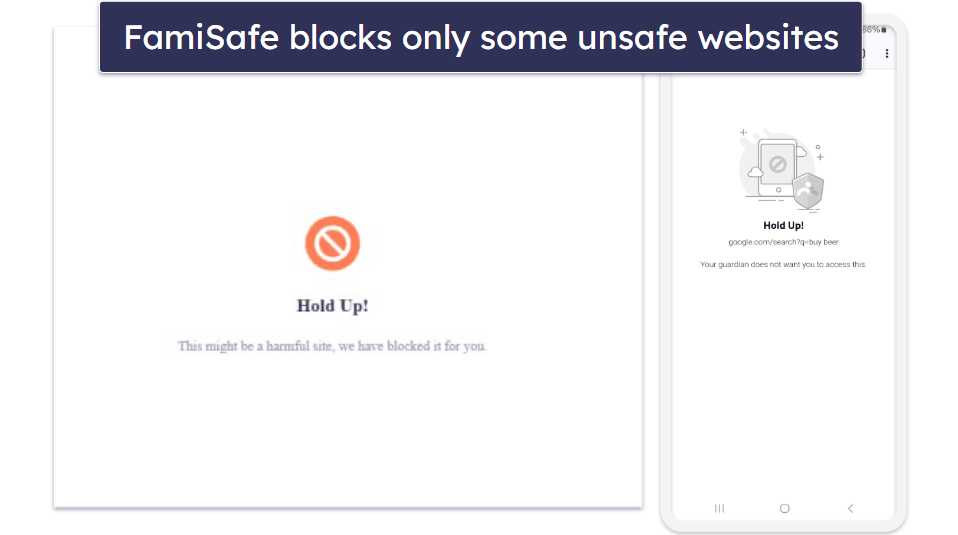
FamiSafe’s web content filtering does a subpar job of detecting and blocking unwanted content. It works across various browsers, including Chrome, Firefox, Safari, Brave, and Edge (but not the Google app). On Chromebook, it only works on the Chrome browser, but you can block your kid from downloading any other browser.
FamiSafe should prevent your kids from accessing web content in 15+ categories, which include:
- Adult
- Drugs
- Weapons
- Tobacco
- Religion & Spirituality
- Gambling
- Violence
However, it only blocks searches that match words in its Suspicious Words Library (you can find it under the Safe Search tab). In my tests, it blocked all search terms from the library.
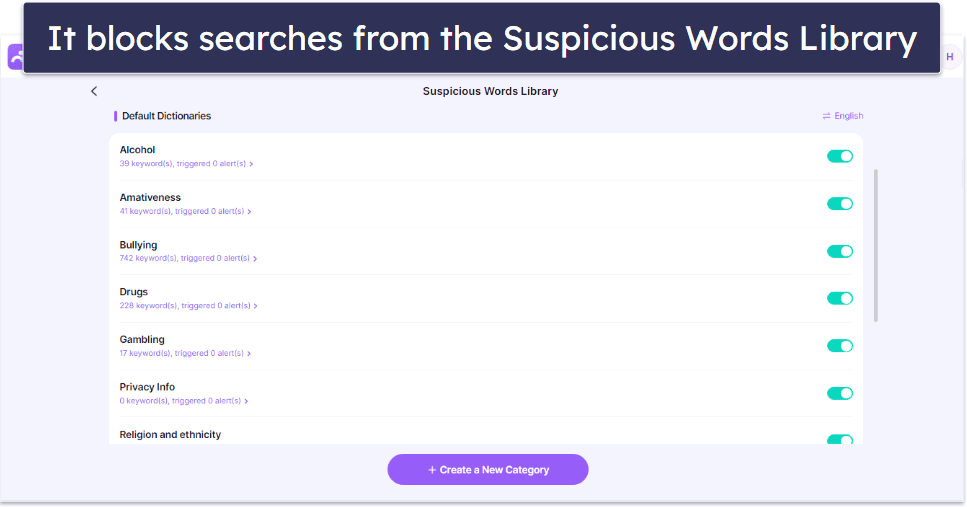
The issue is that the web categories don’t match all the categories in the Suspicious Words Library, and the web categories that are missing from the library don’t get blocked.
For example, FamiSafe doesn’t clarify what falls under “Unethical”. These aren’t in categories in the Suspicious Words Library, and when I tried multiple searches on divisive political issues and “how to cheat on exams”, FamiSafe didn’t block these.
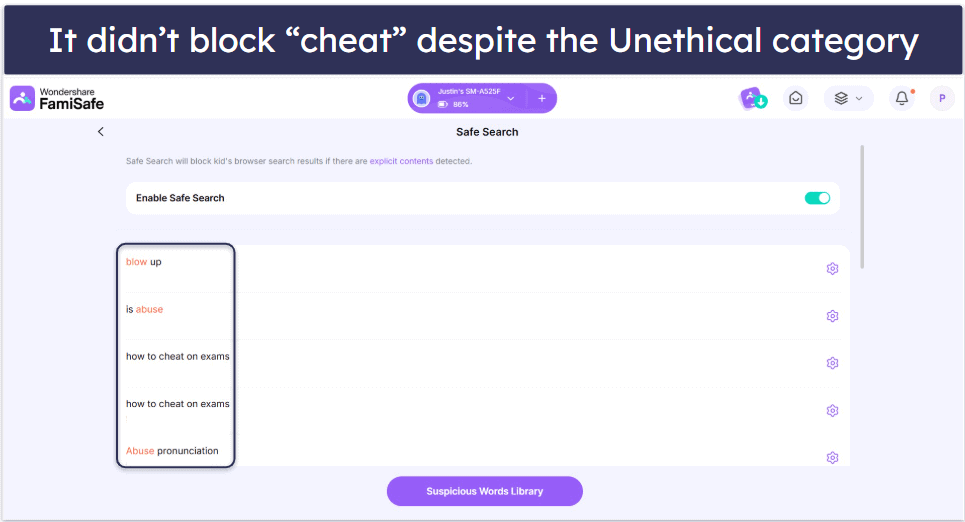
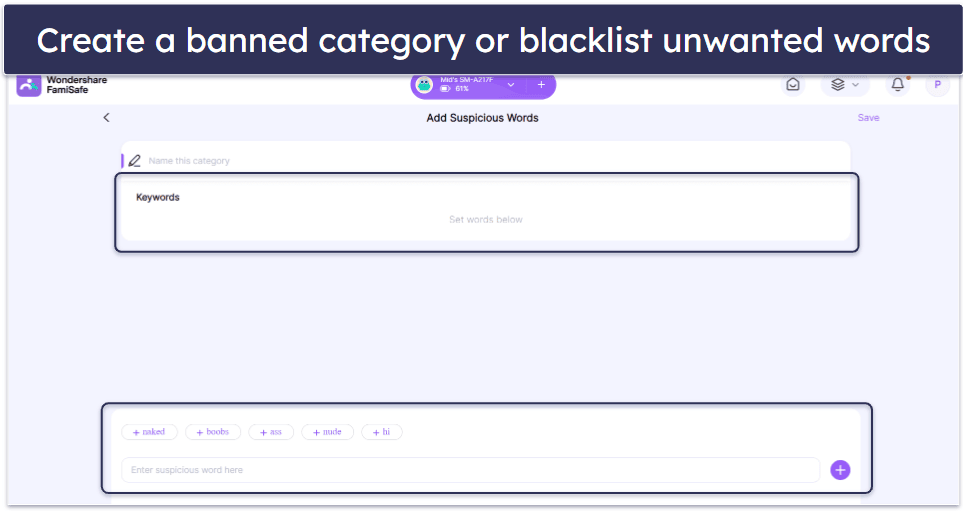
You can partially make up for this by adding words to the Suspicious Words Library. You can add words for existing categories or create new categories with as many words as you want.
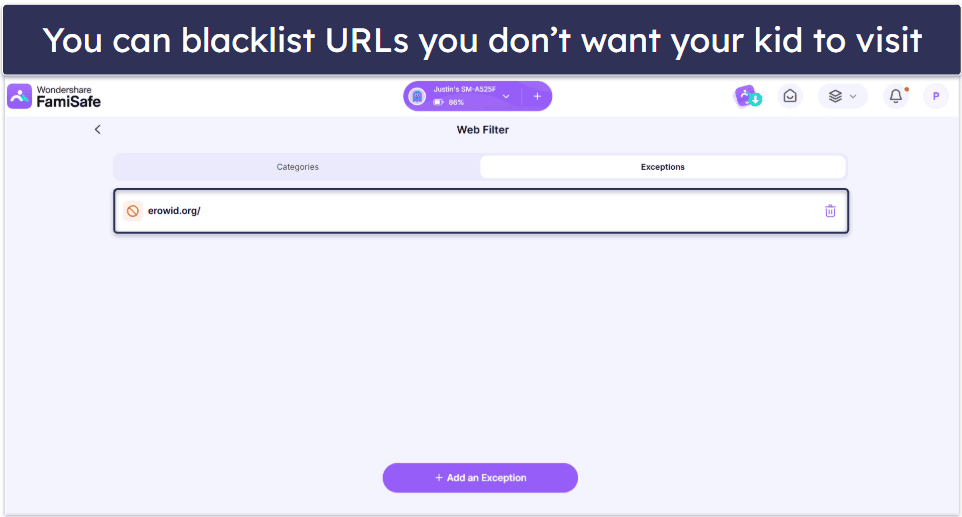
FamiSafe also lets you block specific website URLs under the web filter Exceptions tab (but this isn’t available when monitoring an Android phone). I found this worked very well — while the search filter didn’t block erowid.org, one of the largest pro-drug websites on the internet, the website filter took effect immediately after I entered a block of the URL in Exceptions. You can also allow safe websites. For instance, I could enable access to minecraft.net while the Game category as a whole was blocked.
The trouble with blocking and allowing individual websites is that it takes a lot of time and research to set up, and it’s a bit irritating. Competitors like Qustodio have more comprehensive blacklists — some even use AI technology to block inappropriate websites and search terms.
Another downside is that your child can’t request access to blocked sites like you can with Norton Family.
Even so, I appreciate how FamiSafe logs all browser history and notifies you about attempts to visit blocked websites — even in incognito mode. I was impressed that I got instant alerts about every single instance. This worked on Chromebook, too. I couldn’t bypass any of FamiSafe’s blocks using a VPN, which is excellent.
Overall, I think FamiSafe’s web content filtering could be improved. I like how easy it is to add new websites and search terms to its blacklist, but it requires parents to do too much work to set it up.
Screen Time Management — Very Versatile & Lets You Limit Individual Apps

FamiSafe’s screen time controls are versatile. You can set a different daily screen time limit for each day of the week, for example, to allow your kid more screen time on the weekend or when they finish chores. You can also set a screen time limit that’s the same for every day.
I really like that FamiSafe allows you to set time limits for individual apps and app categories (like Games and Entertainment). Only a few top parental controls can do that, including Qustodio. Plus, I found it very convenient that I could create a restriction schedule to only use specific apps during certain hours on my test device.
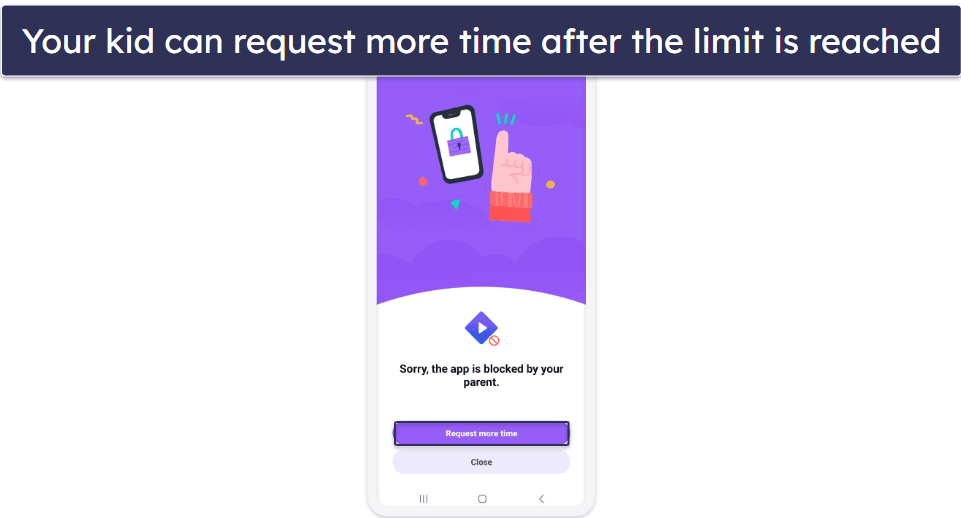
FamiSafe lets you instantly block every app on your kid’s device with 1 tap, too. When you toggle Instant Block, your kid is immediately stopped from opening any apps, and they lose access to any running apps (on iOS, the apps actually disappear). Your kid will receive a pop-up saying that they’ve reached the screen time limit, and their only option is to send you a notification requesting more time. This is handy if you want to have a family meeting and don’t want your kids using their devices. After the meeting, it’s easy to disable Instant Block, and you don’t have to worry about making changes to your settings.
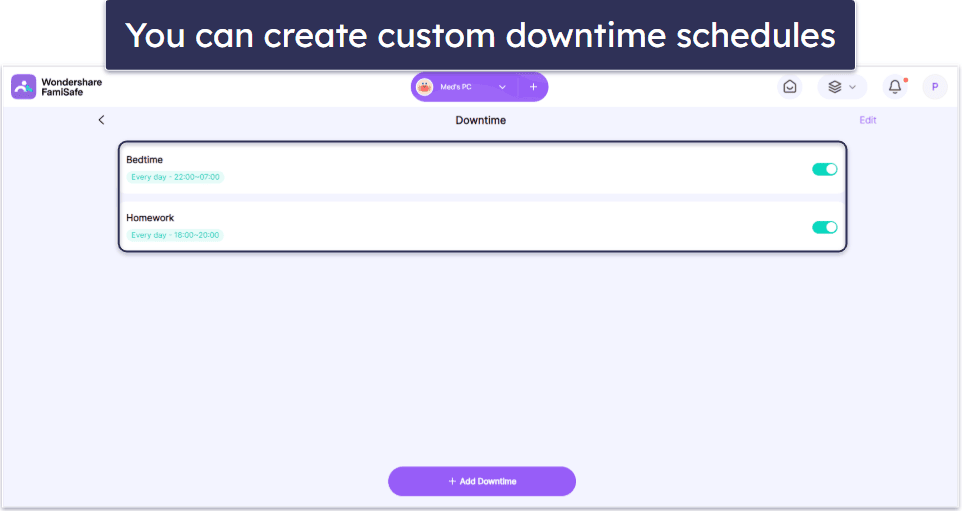
In my tests, all time limit controls worked really well on iOS, Android, Windows, macOS, and Chromebook. Finally, FamiSafe’s downtime feature blocks your kid from using their device after a specific period. It works well and is super straightforward to set up. Like with the daily screen time limit feature, FamiSafe lets you set a regular downtime that’s the same every day or a custom downtime schedule for each day of the week. What I really like is that you can name the schedules and then just click or tap on them when you want to enforce those particular restrictions, which is very handy.
When your kid’s screen time elapses on Windows and Mac, they get a 1-minute countdown to finish what they’re doing. But on iOS and Android, they’re instantly blocked from their device with no warning. That said, they can check how much time they’ve left on the kid’s app.
Overall, FamiSafe offers really good screen time controls for all operating systems, including Android, iOS, Windows, macOS, and Chromebook.
App Filtering — Excellent on Android, but Not as Great on Other Device Types
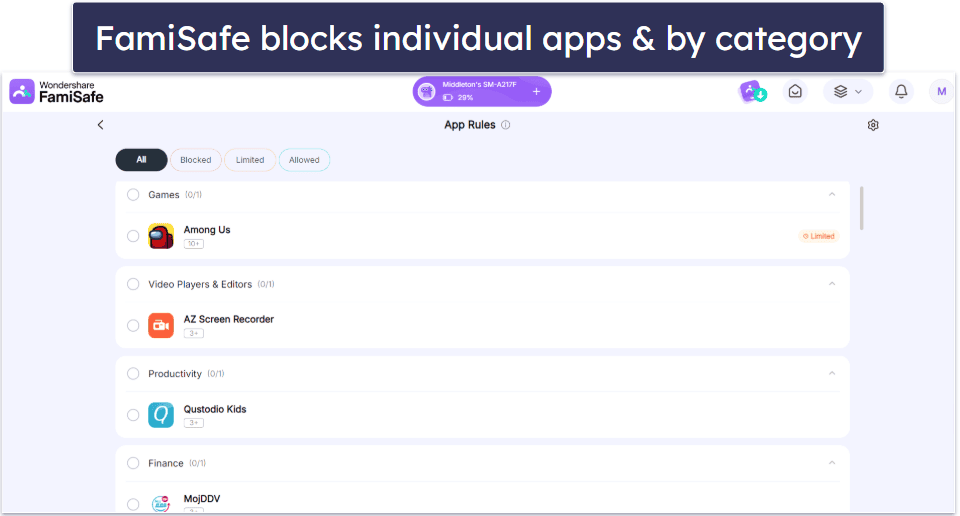
I tested FamiSafe’s app blocker on multiple devices, and FamiSafe always blocked the apps I wanted it to, but its app blocker doesn’t work the same on all devices.
On Android and Chromebook, FamiSafe allows you to block apps by category or individual apps. I like how FamiSafe blocked all the apps I wanted it to block in my tests, and the blocks took effect almost immediately.
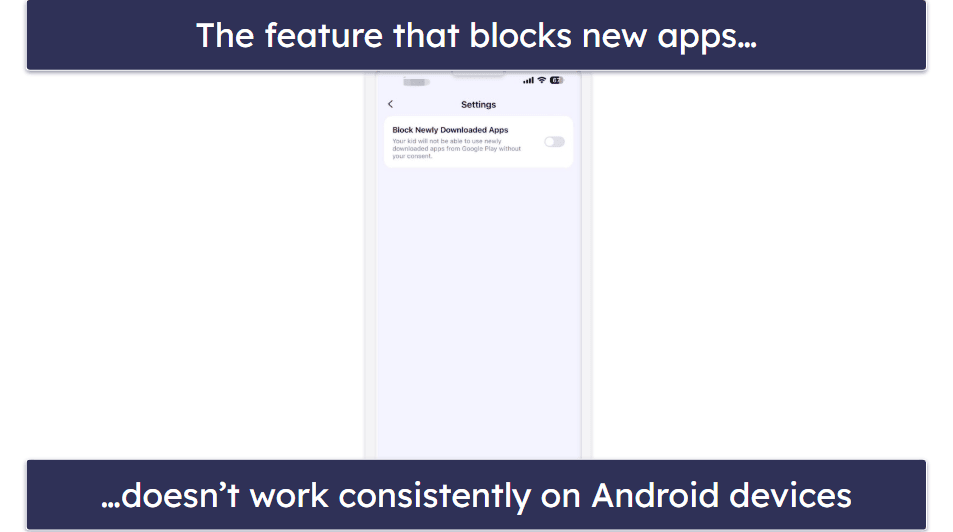
FamiSafe has a feature to stop your kid from using any new apps they download from the Google Play Store on Android and Chromebook, but it didn’t work well on Android.
On Windows and macOS, I couldn’t ban apps by category and could only ban the browser apps and the Settings folder on my test PC. None of the other apps, like Signal, Telegram, or Steam, appeared on FamiSafe’s list of apps.
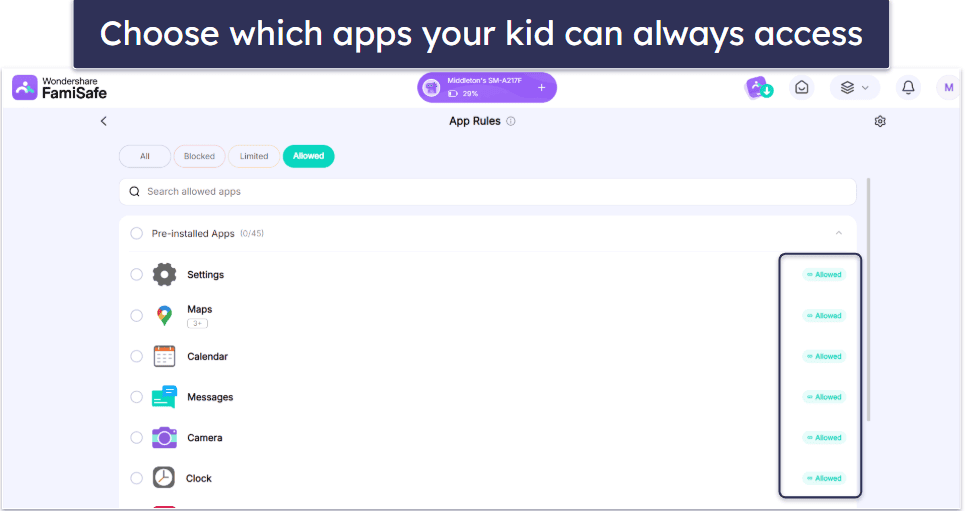
FamiSafe keeps a list of allowed apps on desktop and mobile — apps that you set that aren’t affected by any restrictions, like blocks or time limits. This is very handy because you can ensure your kid always has access to apps like Calculator, especially when at school or doing homework.
Overall, I think FamiSafe’s app-blocking tools are excellent for Android, iOS, and Chromebook, and good for Windows and macOS users. That said, they didn’t work as expected on my Chromebook.
Social App Detection (Android Only) — Looks Promising but Doesn’t Quite Deliver
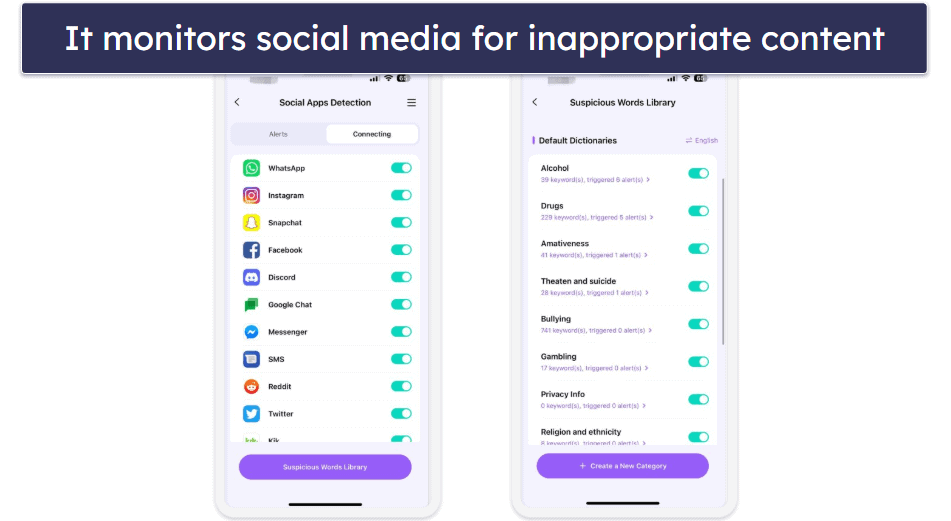
FamiSafe monitors 10+ popular social media apps on your kid’s phone for inappropriate words and alerts you whenever your kid comes across them. These apps include WhatsApp, Instagram, Snapchat, Facebook, Discord, Messenger, Reddit, X (formerly Twitter), Telegram, Google Chat, Reddit, and even your kid’s SMS app. FamiSafe allows you to choose which apps you want to receive alerts about, and it’s straightforward — all you have to do is toggle the switch on or off.
It scans the social media apps for content in 15+ categories (all from its Suspicious Words Library), including Gambling, Tobacco, Alcohol, Threats and Suicide, Drugs, and Bullying (by comparison, Bark monitors 30+ social media apps in 15+ content categories). These categories are predefined and come loaded with a long list of keywords.
However, FamiSafe needs to clarify some of the category names — “Amativeness” and “Scoundrelly and awkward content” don’t really convey anything until you start exploring the list of keywords. Also, I don’t like how some words like “heavy” and “airport” have harmless alternate meanings, which means you could spend a lot of time editing the lists or wading through alerts over innocuous messages. You can also turn off specific categories.
I think it’s great that FamiSafe allows you to edit categories — you can add as many words to the list as you want or remove keywords.
Conveniently, FamiSafe lets you browse alerts by app. To check whether your kid came across a suspicious word, you’ll need to check the Alerts page under Social App Detection in the parent app. Here, FamiSafe lists all suspicious words detected for all social media apps you’re monitoring. But there’s an option to only see the suspicious words on individual apps, too. This gives you an idea of which apps are more dangerous for your kid than others.
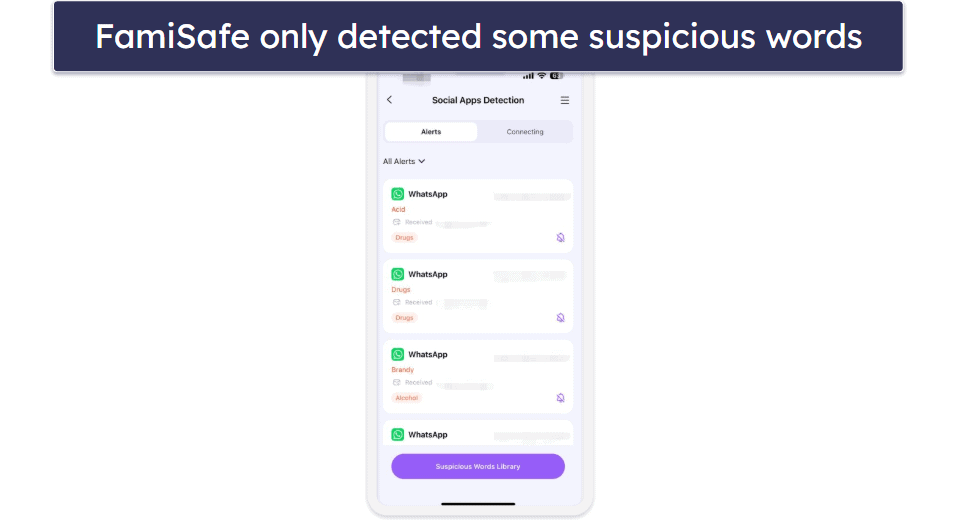
In my tests, FamiSafe detected all keywords, but it didn’t work on all apps. I received instant alerts for Instagram, Snapchat, and WhatsApp, and no alerts for Telegram and Facebook. That said, I like how the alerts tell you whether it’s your kid who used the word or someone else. If they received it in a chat, you can see the name of the contact or the number (on apps like WhatsApp).
Overall, FamiSafe’s social media monitoring promises a lot, but it falls short on the delivery front. It’s a helpful feature at first glance but doesn’t work as advertised. Bark’s social media monitoring is much better — not only does it work on all social media sites it monitors, but it also shows you a snippet of the content containing inappropriate language or visuals.
YouTube & TikTok Monitoring — Not Especially Useful (Only Detects Some Suspicious Words)
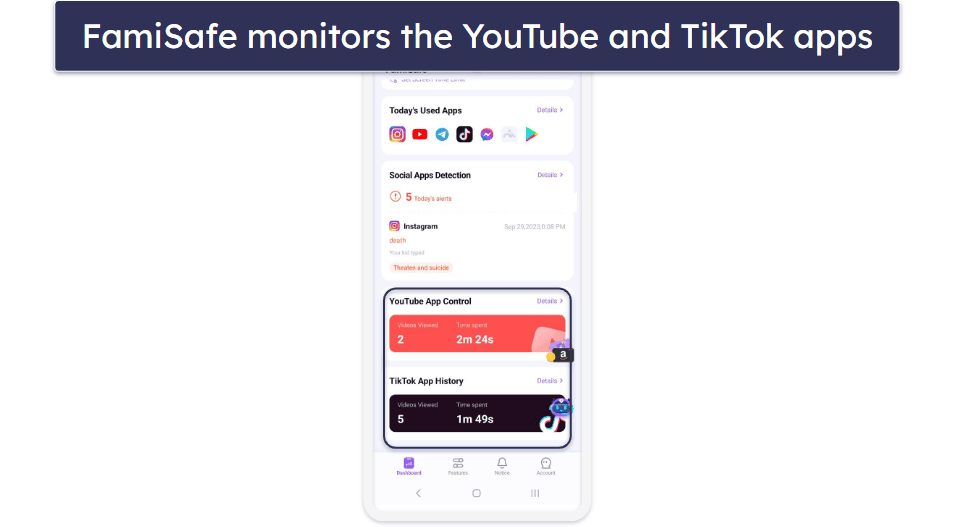
FamiSafe has a separate feature for monitoring YouTube and TikTok videos and searches (Android only). The YouTube monitoring feature is more comprehensive, but I found neither feature very useful.
The YouTube App Control feature monitors YouTube for words and phrases that are in the Suspicious Words Library on Android, including video titles, descriptions, and comments on videos your kid has liked, posted, or commented on. You can choose what categories FamiSafe monitors, remove categories, and add or remove suspicious keywords.
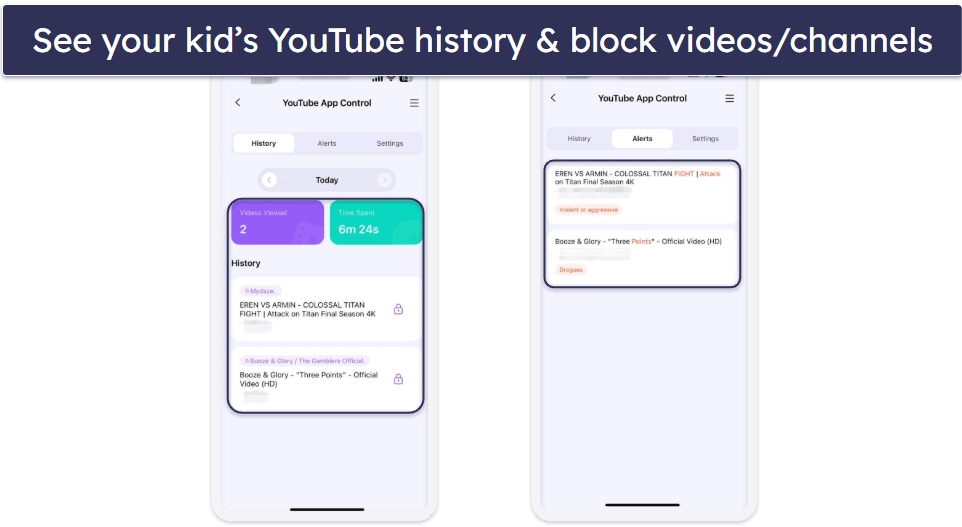
The YouTube App Control feature has 3 tabs. The History tab shows you all the videos your kid watches on YouTube and lets you open the video and the channel that posted it by clicking on them. From the list, you can block videos and channels by clicking on the lock icon next to every video on the list.
However, I didn’t like that FamiSafe failed to detect a lot of the suspicious words I tested and only displayed a couple in the Alerts tab. The Setting tab lets you see the Suspicious words library and edit it if you want, and includes a Blocklist page, where you can review all blocked YouTube videos and channels.
I honestly prefer Qustodio’s dedicated YouTube monitoring feature — it works on Android, iOS, Windows, and macOS devices.
For TikTok, FamiSafe only shows you a history of videos your kids watched. It doesn’t scan for suspicious words or inappropriate content, and there’s no option to block individual videos or accounts. It does show you how many videos your kids viewed on the TikTok app and how much time they’ve spent on it, but if you want to see the actual videos they watched, you have to log into their TikTok account.
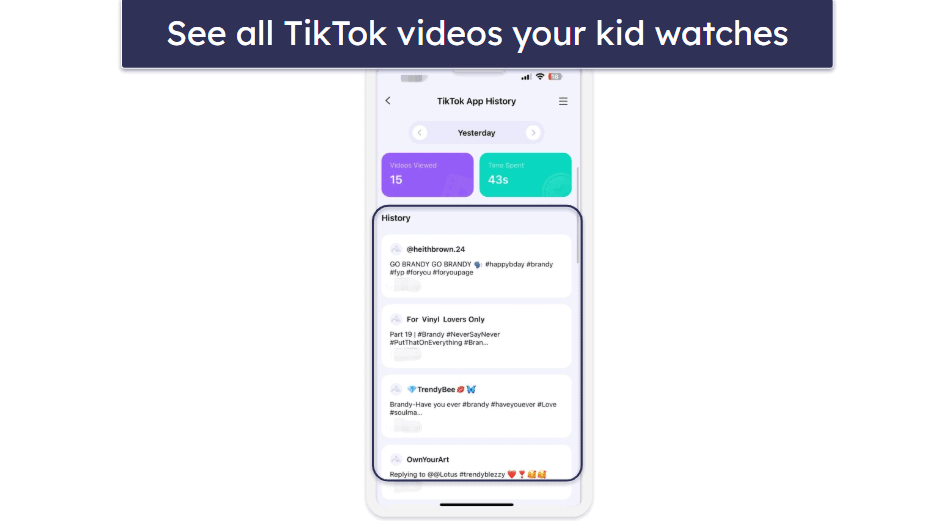
This is only useful if you occasionally want to see what your kid watches on the platform. Most kids watch hundreds of TikTok videos in an hour, and I can’t imagine how exhausting it would be to comb through every single TikTok video your child has watched to ensure they’re staying safe on the app. At best, it gives you a mountain of homework by listing every single search and video watched on these apps. That’s why I prefer Bark — it monitors your kid’s TikTok for inappropriate content and only alerts you when it detects something suspicious.
Overall, the YouTube and TikTok monitoring features aren’t very useful. I was disappointed that FamiSafe doesn’t do a good job of detecting suspicious words on YouTube. While you can access a TikTok history of videos on Android and Chromebook, you can’t do much else.
Call & Message Monitoring — A Practical Way to Oversee Your Child’s Communication (But It’s Limited on iOS)

This feature lets you keep track of your child’s incoming and outgoing calls and messages. It’s particularly useful for identifying any suspicious communication and ensuring your child isn’t engaging with dangerous contacts.
FamiSafe shows you your kid’s call history on both Android and iOS. This includes the duration and number of calls with each contact. You can block contacts, which would stop your kid from receiving and making calls to that specific number (your kid won’t receive any notification if a blocked number calls them, but they will see a notification when trying to call a blocked number). On iOS, you can also see who your kid is FaceTiming with. However, I prefer Qustodio for monitoring calls on iOS since it includes WhatsApp calls, too.
The message monitoring feature is also available on Android and iOS. You’ll be able to see who they’re texting and inspect the content of the texts. On iOS, you can also read sent and received iMessages.
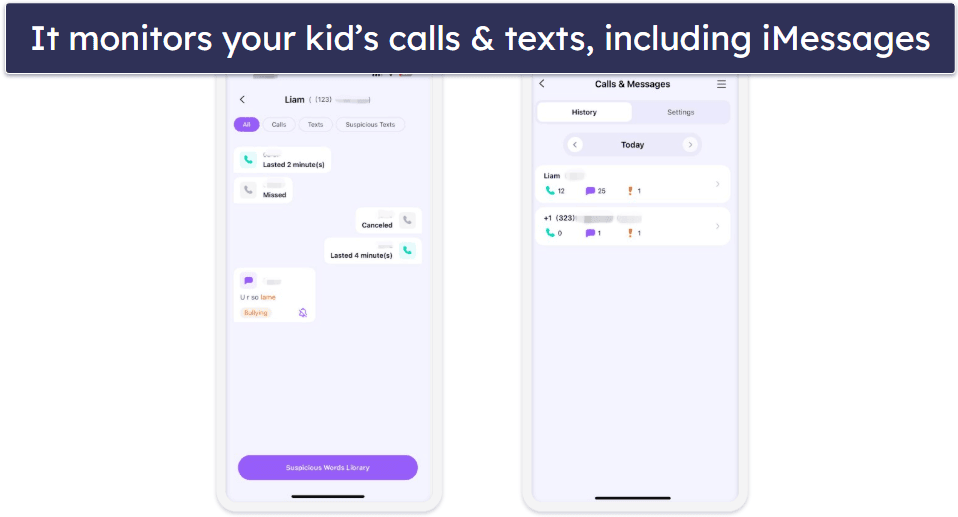
On Android, you get Sensitive Content Detection — a feature that scans text messages for the same suspicious keywords, so you won’t have to scroll down through entire conversations to check for inappropriate language.
Overall, I found Call & Message a useful tool for monitoring your child’s communication. It’s a shame that it only scans for inappropriate content on Android.
To use the Call & Message Monitoring feature, you’ll need to install FamiSafe Kids Plus on your child’s device. For Android, the process is simple — it will start monitoring calls and messages automatically. For iOS, the setup is a bit more complicated. You’ll need to download the FamiSafe Kids Plus on a Windows PC and then connect your kid’s iOS device to it via cable to enable the feature. This extra step is required due to Apple’s privacy restrictions. Note that your kid’s device and that PC need to be connected to the same Wi-Fi network for updates.
Screen Viewer — Good for Monitoring Untrackable Apps
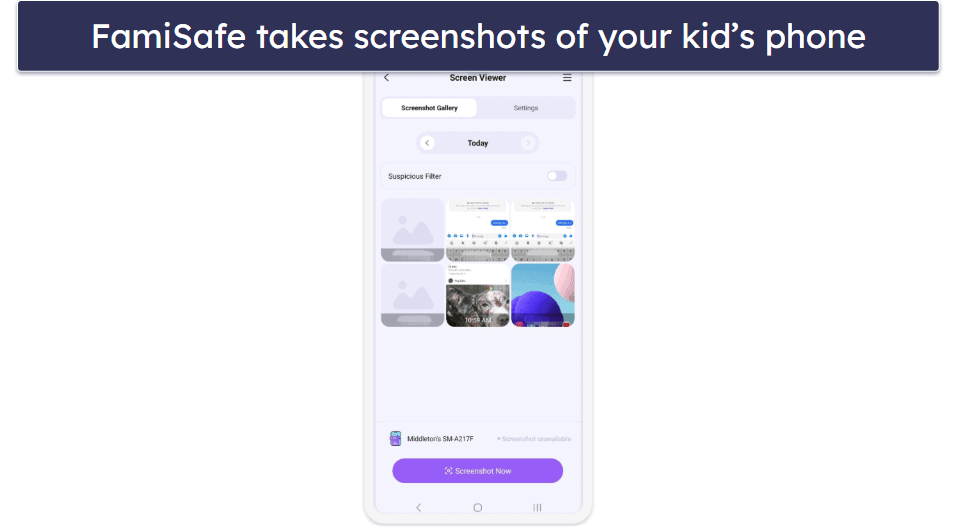
FamiSafe’s Screen Viewer feature captures screenshots of your child’s device remotely, making it useful for monitoring apps that FamiSafe doesn’t directly monitor for messages. For example, while you can’t read your child’s conversations on Instagram or Snapchat with FamiSafe, Screen Viewer allows you to see their activity on these apps through captured screenshots.
Once enabled, the feature periodically captures screenshots from your child’s device when they’re actively using it. You can set up intervals as short as every 2 minutes and up to every 30 minutes. The images are encrypted and stored securely in an encrypted gallery, so only you can access them.

In addition to automatic screenshots, you can also manually trigger a screenshot at any time through the parent app. This allows for more real-time monitoring if you want to see exactly what your child is doing at a particular moment.
FamiSafe uploads the images a couple of minutes after it takes the screenshot, and you can easily review all screenshots in the Screenshot Gallery. I also like how there’s a Suspicious filter, which only shows you screenshots with potentially inappropriate content, so you don’t have to inspect every screenshot if you don’t have the time. Parental controls like mSpy that take screenshots don’t monitor for suspicious content.
Overall, I like FamiSafe’s Screen Viewer, as it offers extra insight into your child’s activity, particularly on apps that don’t offer direct message monitoring.
Location Tracking & Geofencing — Impressive Tools With Frequent Live Updates
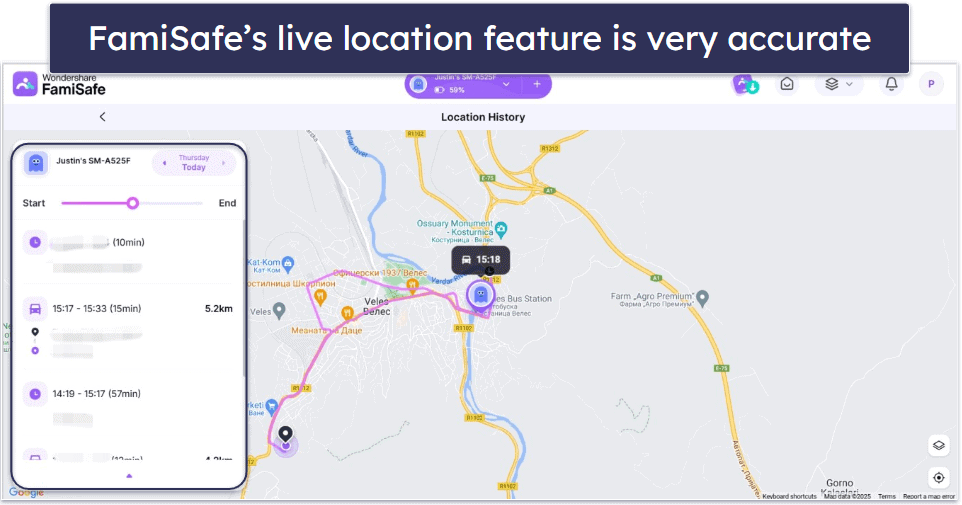
FamiSafe’s live location tracking works great on Android and iOS. Whenever I tapped on the live location feature, FamiSafe accurately showed me where my test device was, including the exact address and when the device was last detected there (from a few seconds to a few minutes). FamiSafe gave me live updates about my test Android’s location every 1–3 minutes. That said, I wish it provided directions to your kid’s current location, like Bark.
The Location History feature performed well, too. It tracked all of my outings, including my walks around the neighborhood and trips around town. Unfortunately, enabling location history can drain the monitored mobile device faster than normal.
I also tested FamiSafe’s geofencing feature by setting up a 100-meter geofence around my house. I asked my friend to go out walking with my dog, and sure enough, I got a notification from FamiSafe on my iPhone a couple of minutes later when he got about a block away from my home.
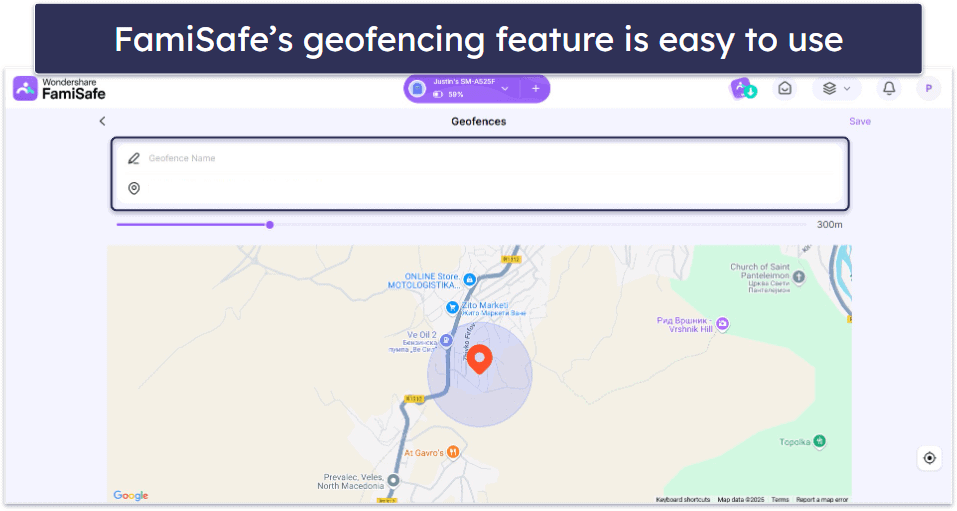
I like how easy FamiSafe makes it to adjust your geofence parameters — you can easily add new locations and set the radius of the geofence circle to between 100 and 1,000 meters (328 and 3,280 feet). This is great for kids who attend schools with large campuses, live on larger properties, or like to hang out around a specific neighborhood.
FamiSafe’s geofence is much larger than Qustodio’s (200 meters or 650 feet) but falls short of Norton Family (3,200 meters or 2 miles).
Overall, I was impressed with FamiSafe’s location tracking and geofencing features. They’re very accurate, and they provide quick and frequent updates on your child’s whereabouts.
Driving Report — A Great Way to Keep Tabs on Your Kid’s Driving Habits

FamiSafe lets you monitor your kid’s driving habits, and it works really well. It offers up to 3 weeks’ worth of driving reports and shows the following information:
- Highest speed.
- Total distance.
- Driving time.
- Number of hard brakes.
- Number of times speeding.
- And more…
I drove my dog to the vet and was impressed by the accuracy of the driving report. The report was easy to read and used color coding to show me dangerous statistics (such as the number of times I drove over the speed limit or hit my brakes harder than usual).
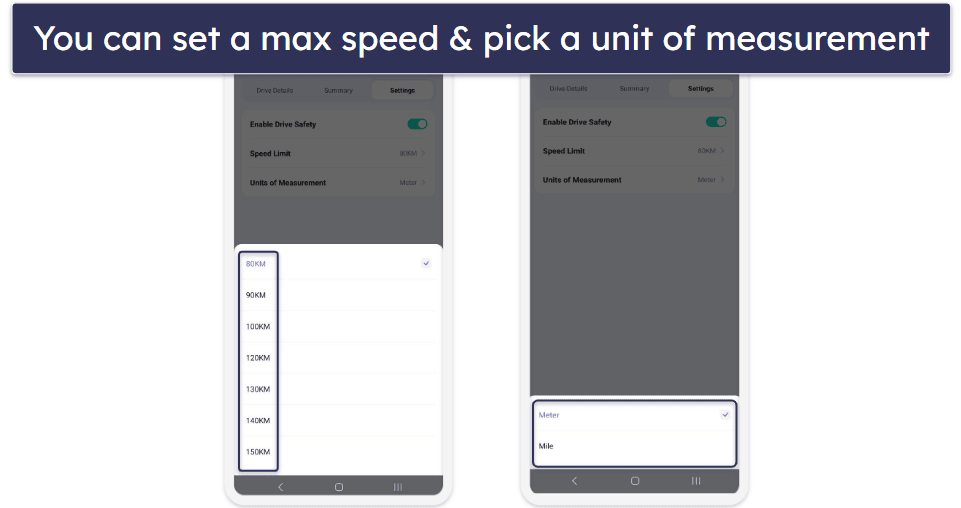
It also sends alerts to the parental app warning of dangerous driving — for example, if your kid goes over the maximum speed you want them to drive at. You can also choose to use miles or kilometers for the driving report, which is a pretty cool customization feature.
Overall, I was pretty impressed with FamiSafe’s Driving Report. It’s an excellent way to ensure your kids stay safe on the road, and it worked really well in my tests.
Activity Reports — A Good Amount of Detail (But a Bit Confusing)
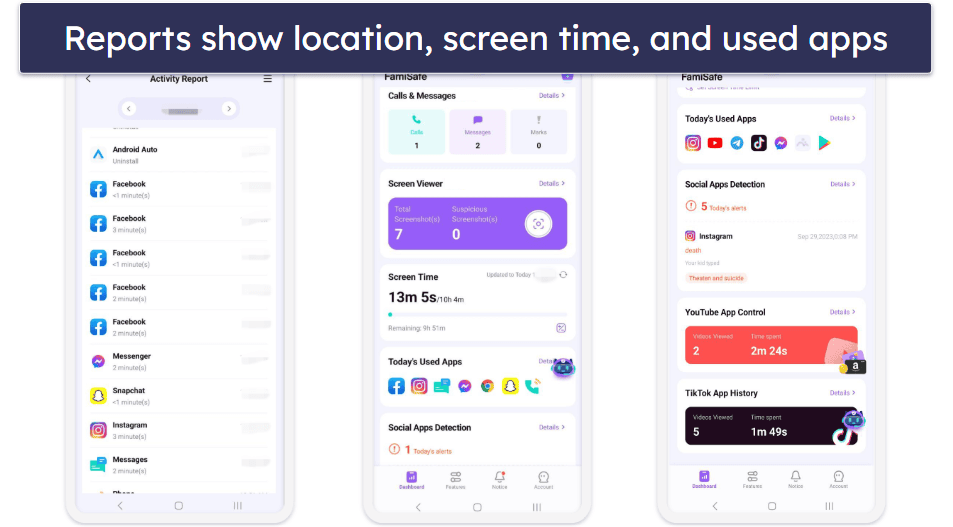
FamiSafe shows you a decent amount of details about your kid’s activity on the dashboard. This includes your kid’s live location, their screen time, the apps they used for the day, a brief overview of their YouTube and TikTok activity, their calls and messages, and the screen viewer. You also see alerts about inappropriate content detected on their social media apps. From here, FamiSafe lets you tap on each for more details.
There’s a separate Activity Report tab in the Settings, which shows you every app and website your kid has visited. However, I was disappointed it didn’t do anything else. You can see how long your kid has used an app and how many times your kid has visited a certain website — but that’s about it. You can’t set any restrictions, and it doesn’t show you any in-depth information.
I’d like to see FamiSafe provide better activity reports. Qustodio lets you receive daily, weekly, bi-weekly, and monthly reports, and each report contains an in-depth overview of everything your kid has been doing during that period.
The Activity Report on the desktop web app is similar to the mobile app’s. To see a summary of your kid’s device usage, click the Report button at the top of the dashboard. Here, you’ll see when your kid used their phone and how much time they spent on each app category today, last week, the previous 15 days, or the last 30 days.
It also immediately lists all apps your kid accessed in the period you choose and the recent browser history. For more details, you’ll have to go to the dashboard, just like on mobile.
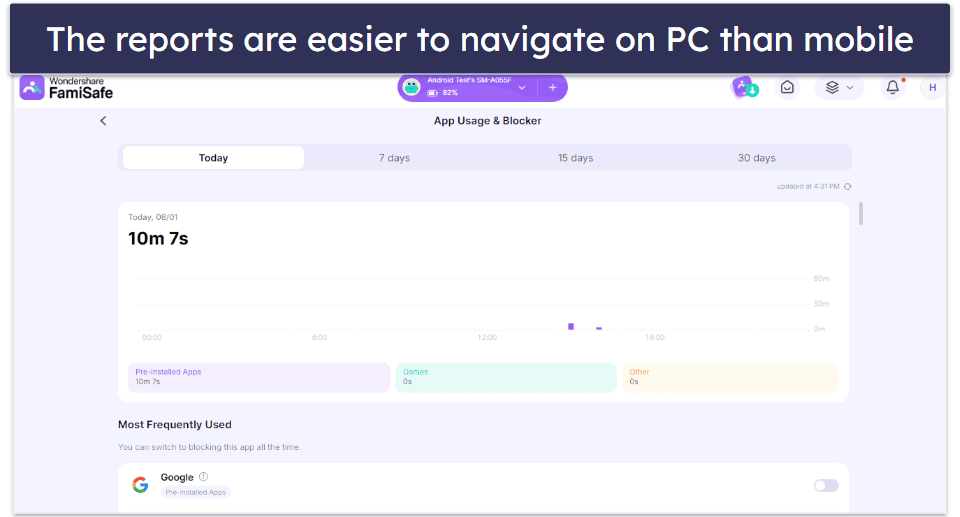
Overall, FamiSafe’s activity reporting is decent on the main dashboard. I don’t see the point of having a separate activity report just for the apps, and I’d like to see more than just daily reports.
Additional Features — Reverse Location Tracking Is Super Handy
FamiSafe comes with some interesting additional features — my favorite one is reverse location tracking. It lets your kids reverse the location tracking and see your location. This is a unique feature that other parental control apps don’t include, and it’s excellent if you need to meet your kids somewhere or if they get lost and need to find you. When your kid asks you to share your live location from the kids’ app, you must accept their request before they can see where you are, so you can still maintain your privacy if you want to.
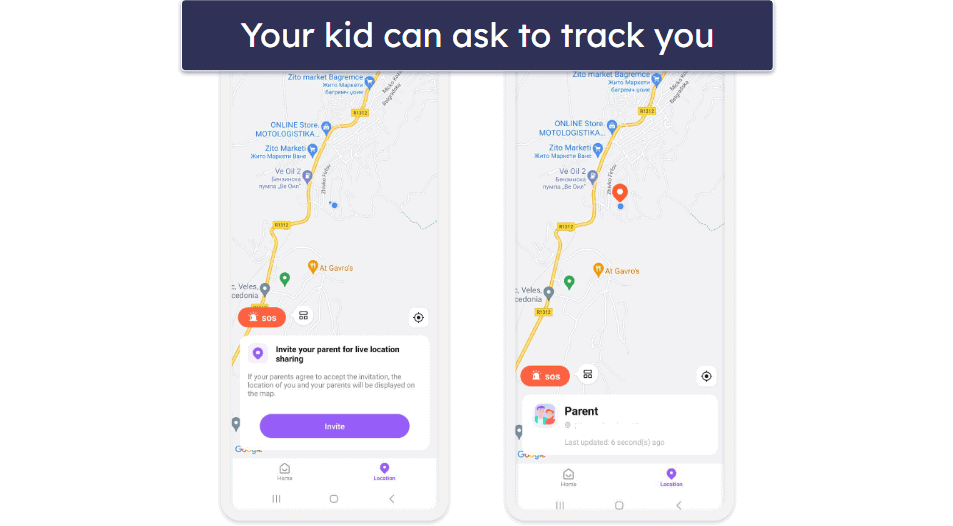
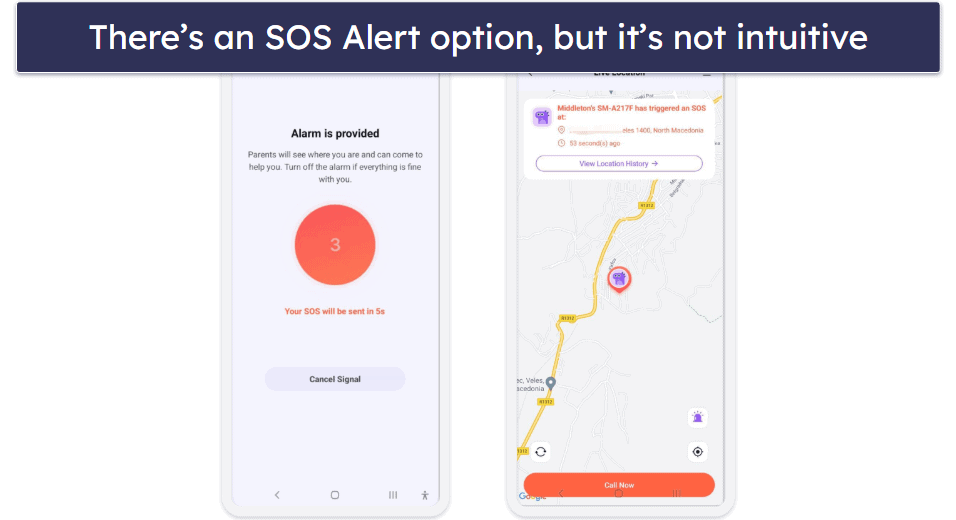
Your kid can also send an SOS signal to your device in case of an emergency. When I tested it, I got the alert right away in the parent’s app, and it showed me my test device’s accurate location. That said, Qustodio’s Panic button provides much more detail about your kid.
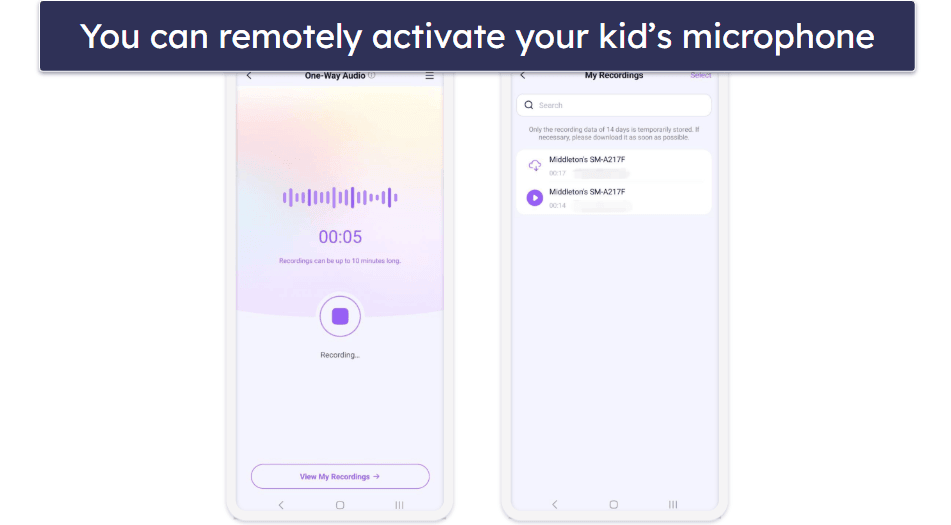
FamiSafe has a One-Way Audio feature that allows you to remotely activate the microphone on your child’s phone and hear what’s happening in their surroundings. This can be especially useful for situations where you’re concerned about your child’s safety or who they might be around. It takes recordings of up to 10 minutes and only works on Android. When I tested it, it worked well — I could hear everything said (and background noises) on the other side!
FamiSafe also includes a Safe Search feature that stops your kids from entering inappropriate search terms into search engines. If Safe Search registers an inappropriate term, it’s supposed to block the search engine results page and send you a notification.
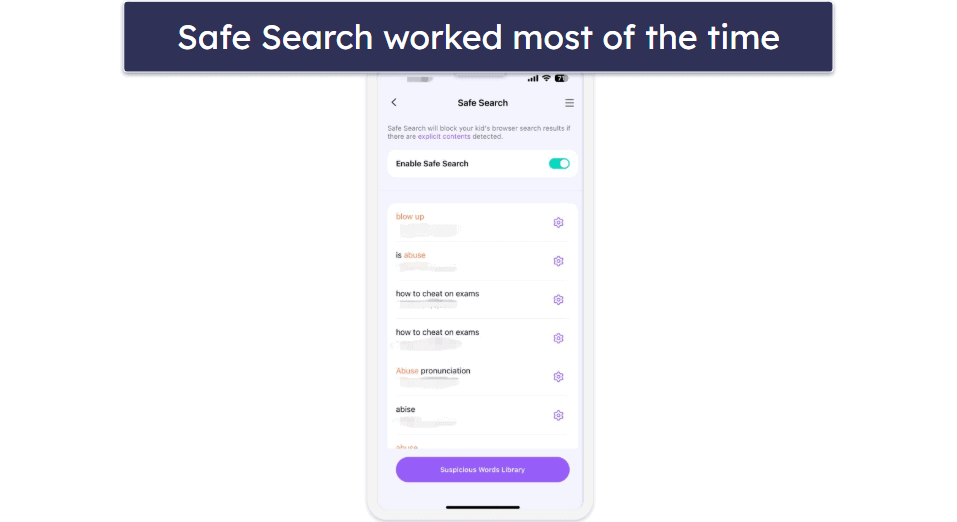
In my tests, it worked with all words in the Suspicious Words Library. If your kid misspells a word or types in something that’s only related to an inappropriate phrase in there, FamiSafe won’t detect it.
It also didn’t work at all on some search engines — for example, it sometimes blocked inappropriate search results on Google and Bing, but it didn’t block anything on the rest of the search engines I tested.
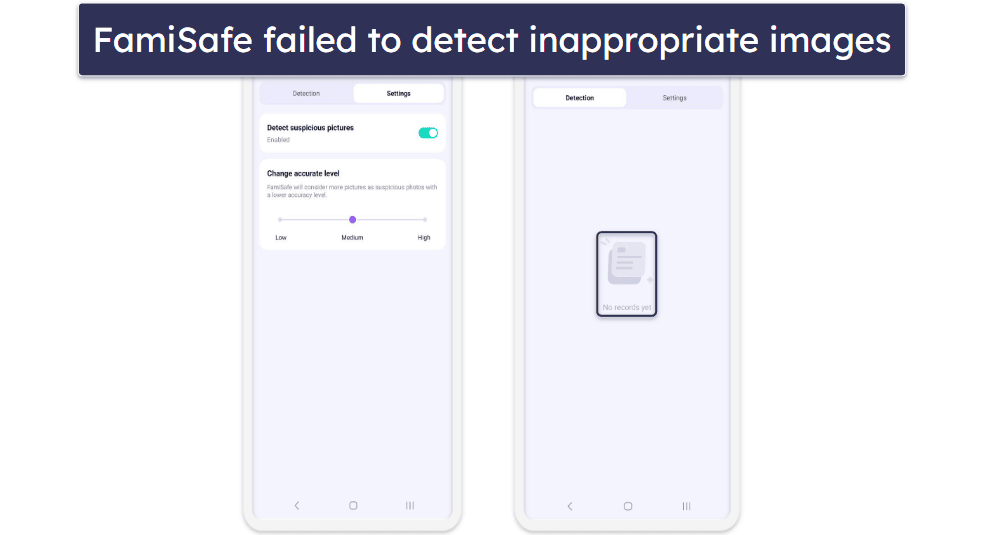
FamiSafe’s ability to detect and block inappropriate images didn’t work well in my tests either. FamiSafe claims it uses machine learning to detect and alert you to explicit photos downloaded onto your kid’s device. However, when I downloaded explicit images onto my test device, I didn’t receive any alerts on the parental app — the alerts showed up days later. When I performed the same tests on Bark, it alerted me to suspicious images right away.
Still, I think it’s pretty useful that it shows you the battery level on your kid’s device. This way, you can make sure that your kid charges their phone before they leave the house.
Overall, some of FamiSafe’s additional features are hit or miss. That said, they’re cool inclusions, and if you can get them to work, they’re all pretty helpful features to have.
FamiSafe Installation & Setup — Super Easy on Windows (Takes Longer on Mobile)
FamiSafe offers a kids app for all of the top operating systems, including Android, iOS, Windows, macOS, ChromeOS, and Kindle. In addition, it has a separate parental control app for Android and iOS, and a web-based version you access through your browser. It took me less than a minute to install FamiSafe and create a kid’s profile on my Windows 11 computer — but it took longer on my mobile device, as I had to allow several permissions, including location and administrator privileges.
FamiSafe Parental App Installation & Setup
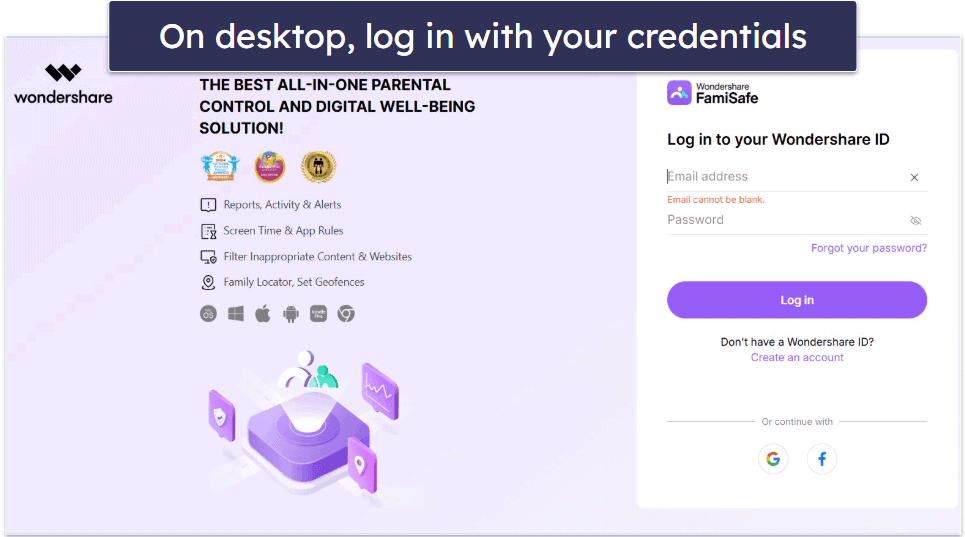
If you’re using a Windows or a Mac, all you have to do is log into your FamiSafe account on the official website. Once you’re in, you’ll be able to set rules and restrictions and follow your kid’s activity across all of their devices.
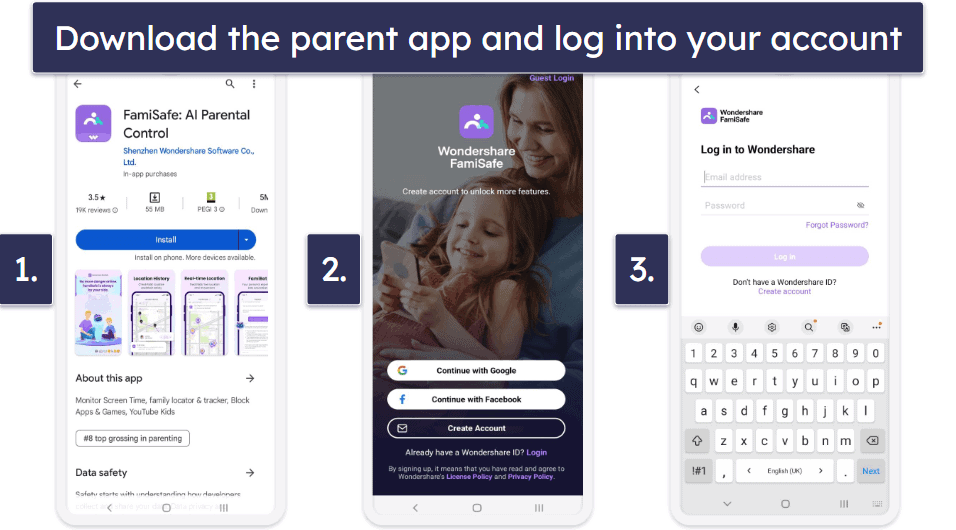
To use the iOS and/or Android versions of FamiSafe, download the parent’s app from the Google Play or Apple App Store. Then, log into your account and pair the device or devices you want to monitor.
FamiSafe Kids App Installation & Setup
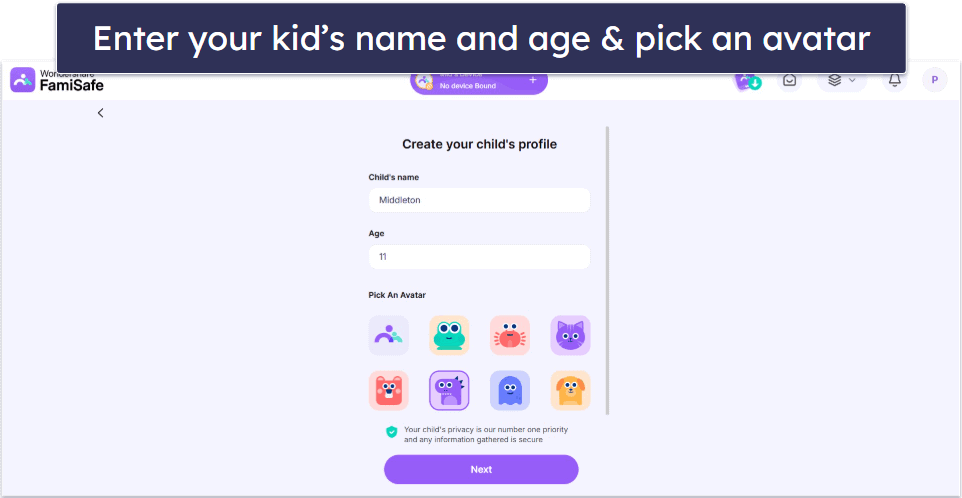
First, you’ll need to create a profile for your kid in the parent app. Then, download and install the kids’ app on your kid’s device.
If your kid has an iPhone or an iPad, you can either scan the QR code in the parent app or enter the pairing code. Then, you’ll need to allow the app’s permissions on your kid’s device.
Parents using Apple devices may also want to compare FamiSafe with other leading parental control apps for iPhone and iPad before deciding which solution best fits their family’s needs.
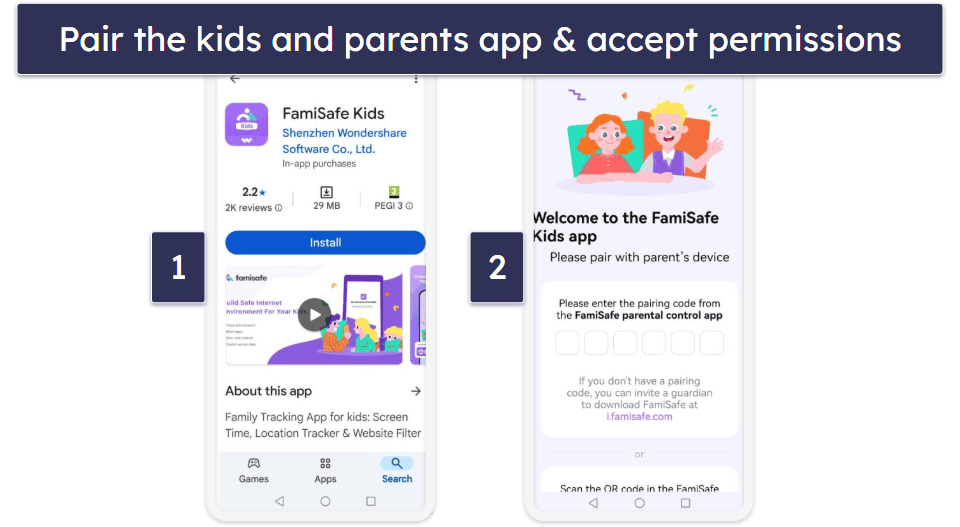
If your kid is using a Windows, Mac, Chromebook, or Kindle, your only option for pairing is to enter the pairing code that FamiSafe generates for you in the parent app — just choose the type of device you want to connect and then enter the code you see on the screen.
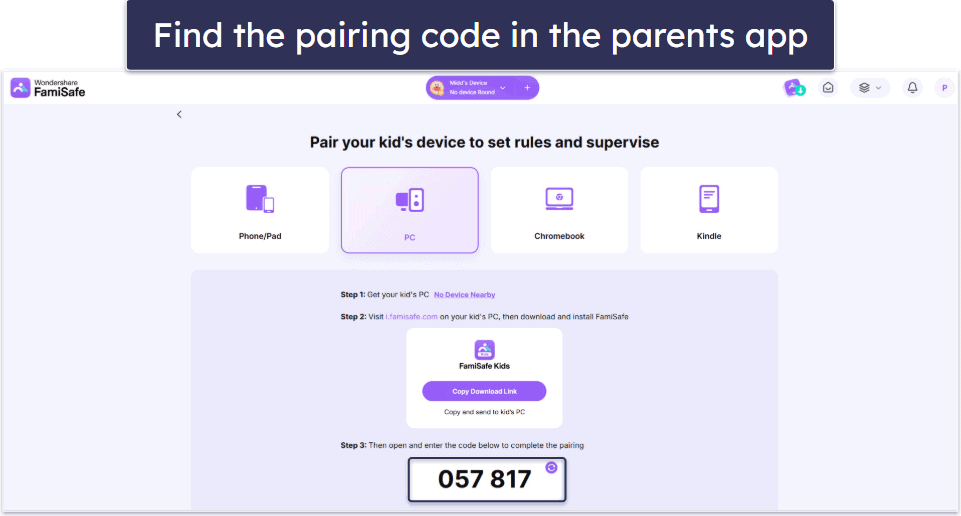
Once this is done, you can go to FamiSafe’s web-based dashboard (or use the mobile apps) to set rules and regulations. Just like that, you’re ready to monitor your kid’s online activity on your computer and mobile device.
FamiSafe Ease of Use — It’s Mostly Intuitive (But Kids Can’t See the Restrictions)
FamiSafe’s web and mobile apps are simple to use, with a few exceptions. For example, it took me a while to find the option to set app time limits — they’re under App Rules and not Screentime. Plus, this option only shows up on the screen once you select an app (so you don’t know it’s available right away).
The setting to prevent your child from using newly downloaded apps is also not in plain sight — you need to go to App Rules and click on Settings to enable it.
Finally, a lot of the settings require you to save them before FamiSafe enforces them. The “Save” button is very hard to see on a few pages — and there’s a good chance most parents will miss it (which can then lead you to believe you’ve set rules when you haven’t).
Otherwise, the features are mostly well divided, and each is accessible in a single menu. Also, you can change most settings with a toggle in 1 click.
However, I wish the kid’s app for iOS and Android made it easier for your kids’ to see what restrictions are on their devices. Norton Family lets your kids see what they’re allowed to access. The only options kids have in FamiSafe are seeing how much screen time they have daily and any scheduled downtime.
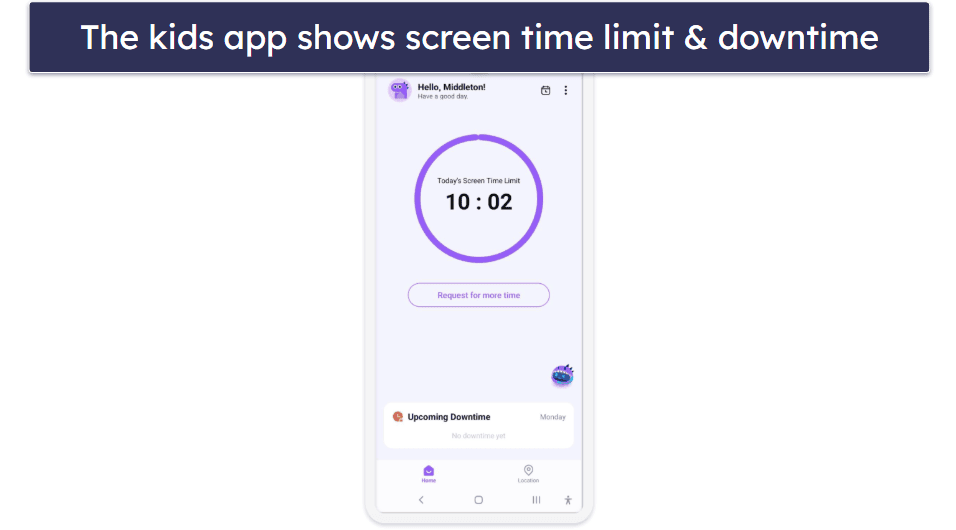
Mobile & Tablets — Feature-Rich & User-Friendly Apps
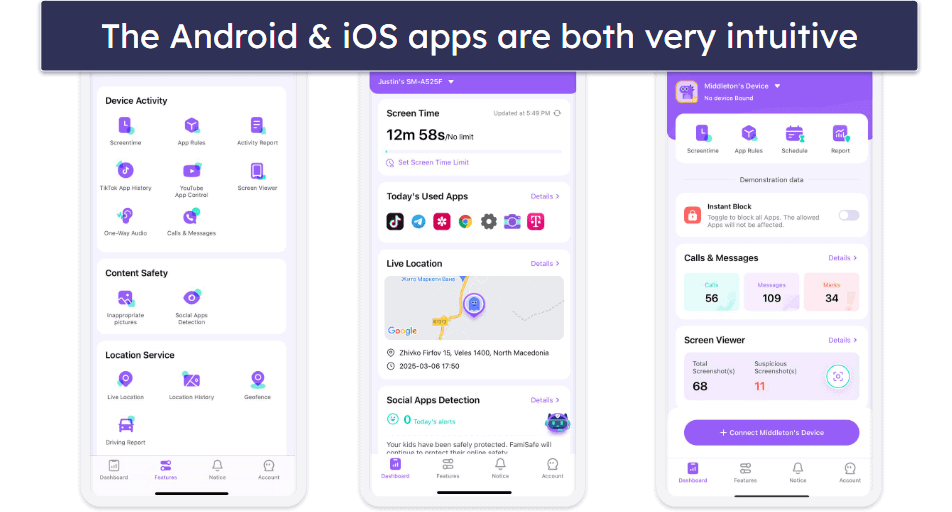
FamiSafe’s Android and iOS apps are mostly easy to navigate. They share the same design, and the majority of settings are where they’re supposed to be — for example, to set a screen time limit, all you have to do is go to the Features tab, select Set Rules, and tap on Screen Time Limit.
The Android and iOS apps provide access to the same features, and neither slowed down my device while using them. My only complaint is that FamiSafe doesn’t provide as detailed explanations under each feature as Norton Family.
Overall, FamiSafe’s mobile apps are user-friendly and include features to keep your kids safe online.
Web App — Pretty Simple (But Some Features Are Hard to Find)
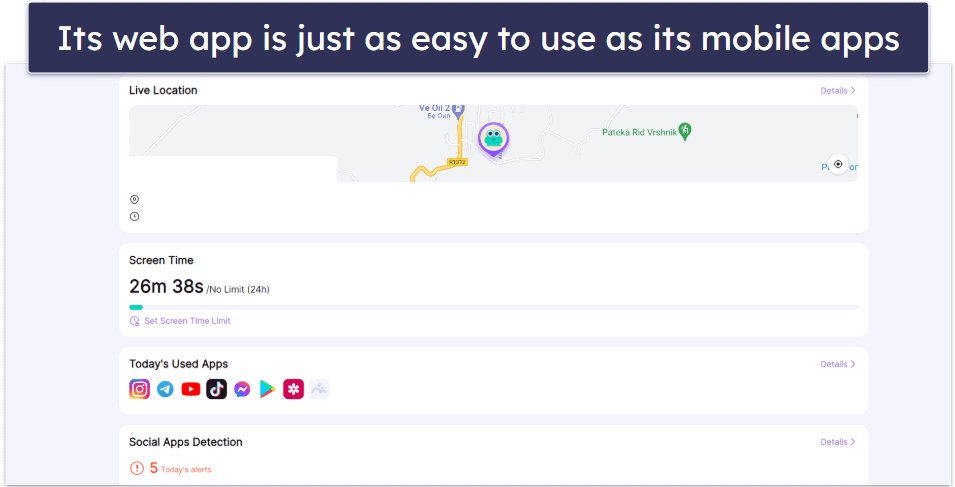
FamiSafe’s web app is designed in a similar way to the mobile app, and it’s just as easy to use — most features are right where they’re supposed to be.
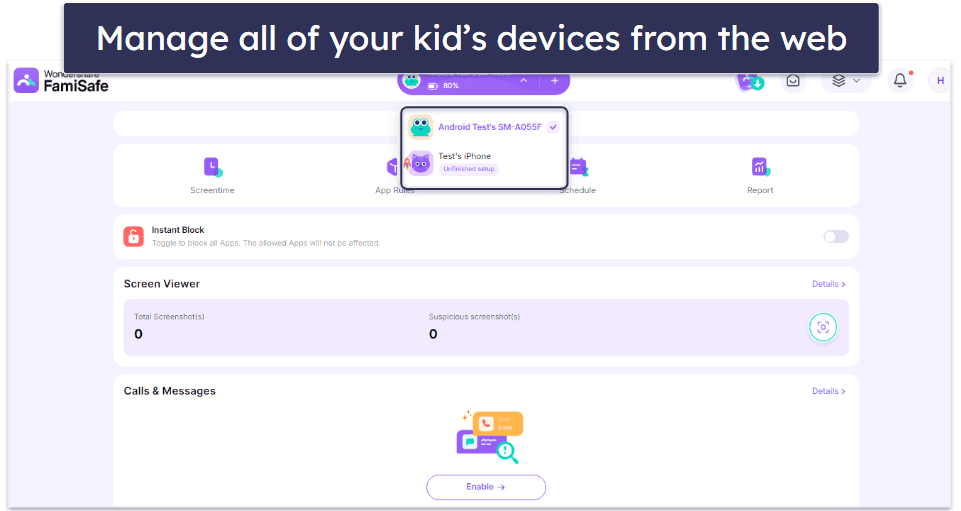
The main dashboard shows a live map with the location of your kid’s device, lets you see your kid’s screen time for the day, and shows you anything inappropriate on your child’s social media. You can also click on Details next to each section and get more information.
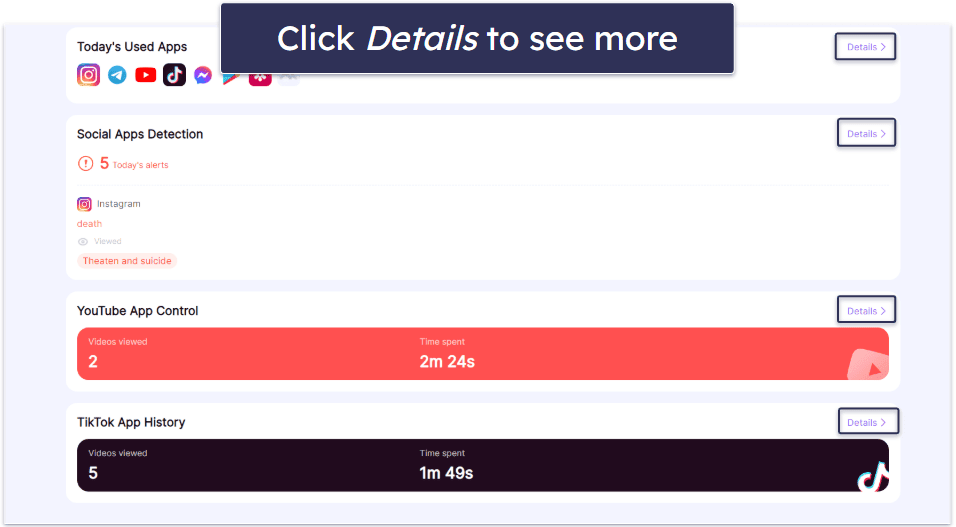
If you want to change rules for a device, all you have to do is click the Set Rules option at the top. From there, you can instantly block all apps on your kid’s phone, set screen time rules, time rules for apps, and block apps. Honestly, no explanation is needed — most of the time, you can make adjustments with just a few clicks.
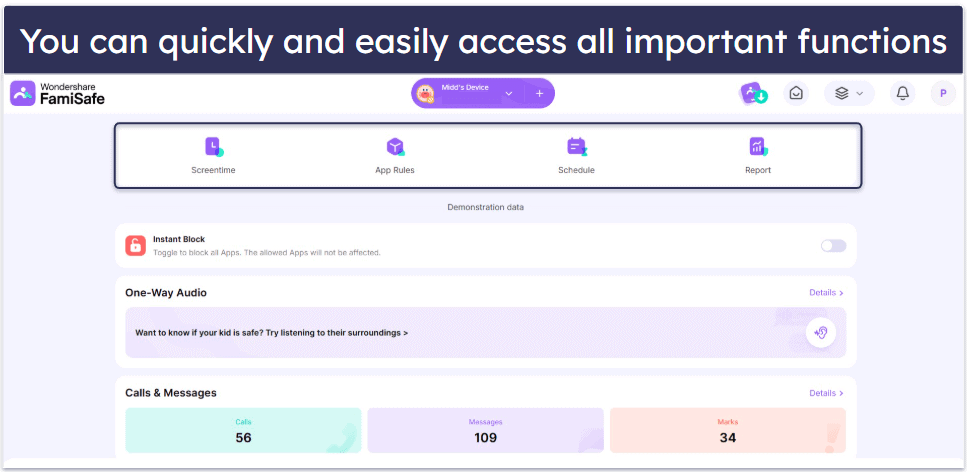
Overall, however, FamiSafe’s web app is easy to navigate, and I recommend it for beginners.
FamiSafe Customer Support — Room for Improvement (Way Too Hard to Access)
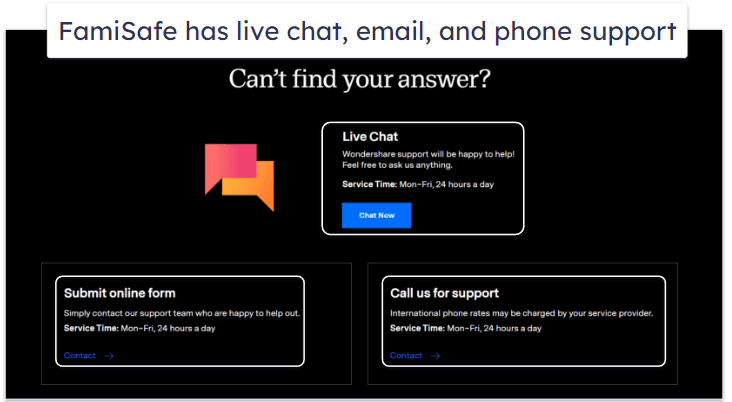
FamiSafe offers a lot of customer support options, such as live chat, email, phone assistance, and an online knowledge base. It also maintains an active YouTube channel, where its support staff regularly shares content, including instructional videos on utilizing FamiSafe.
FamiSafe’s support options aren’t always easy to access — the only way from the dashboard is by clicking on the FAQ link in the profile menu, which isn’t exactly intuitive. The FAQ page has a lot of questions and answers, but some of them are out of date. From there, you can access other support options by clicking on the Support link. You have to click through several more pages before you get to the live chat and phone options, which are provided by FamiSafe’s parent company, Wondershare.
After clicking on the Chat with us button, a chatbot opens up, and you have to choose FamiSafe from a long list of Wondershare products. You’re then given a list of potential questions that might be related to your inquiry. However, if you have a different question, the chatbot is useless — the answer I received had nothing to do with the question I asked. At that point, I asked for a live agent and was promptly connected to one who was friendly and helpful.
However, most of the agents in future tests weren’t as helpful — I often didn’t get straightforward answers to my questions, and if I asked more than one question at a time, the live chat rep would typically only answer one of them. When they reached out to me via email to follow up (because they just didn’t solve my issue), they completely missed most of my questions.
FamiSafe’s phone support could be better as well. While it offers 24-hour phone support on weekdays and operates phone lines in the US, Asia, Canada, and Europe, as well as one international number, it provides a generic phone number operated by Wondershare. Like with live chat, you have to sift through a list of different product categories until you find FamiSafe, which was frustrating. When I eventually got through to a phone support rep, they were friendly and helpful.
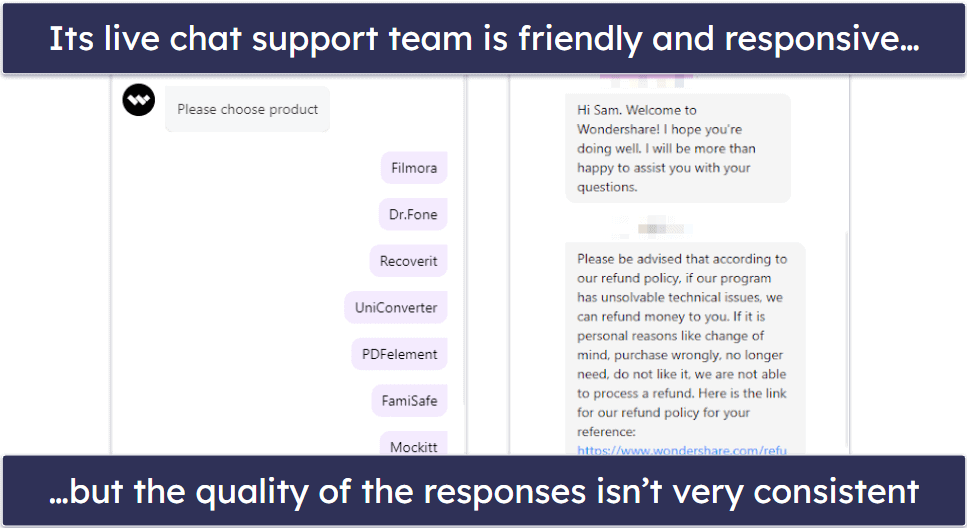
FamiSafe has a ticketing system and a support email address, but both are very difficult to find. I had to do a Google search to find FamiSafe’s support page (not the general Wondershare support page), and the link to the ticketing form on the page didn’t work.
I eventually found the form through another Google search. Email support is also available, but I only found the email address buried in the blog. Both of these support options should be easily accessible with one or two clicks from the FamiSafe dashboard.
Finally, I visited the knowledge base, and it’s really good, but again, not easy to find. After getting to the FAQ page, you have to click on the FamiSafe Explore menu and not the Wondershare Support menu. Once you get there, you’ll find lots of useful resources like video tutorials on how to use FamiSafe, detailed how-to guides, and helpful blog articles. There’s even a comprehensive FamiSafe PDF guide that you can download and print out — something most competitors don’t offer.
Overall, FamiSafe’s customer support is okay at best. It offers a number of support channels, but most of them are way too difficult to access. Its phone support and live chat are decent — the agents are friendly but didn’t always supply useful answers. The detailed knowledge base is really good.
What FamiSafe Can Do Better — Better Filtering, Reports & Improved Usability
FamiSafe is a good, all-around parental control app, but there are a few things it can do better:
- Very basic web filtering: FamiSafe’s web content filtering is very basic — it relies on a set list of words and requires a lot of manual work if you want a more comprehensive approach. Bark, for instance, employs machine learning to scan for troubling content on your kids’ devices and sends you alerts when it finds it.
- Social media monitoring has gaps: FamiSafe’s ability to monitor social media apps is somewhat constrained. Social media monitoring works only on Android devices; it doesn’t always detect keywords you define, it doesn’t effectively monitor TikTok and YouTube as it claims, and it comes with only 15+ predefined categories — Norton Family has 45+ categories and is very effective at blocking social media apps.
- Very limited activity reports: I’d like to see FamiSafe improve its activity reports and, ideally, put all the information you need in the same place. Currently, you can get most information from the dashboard, and its separate activity reports only show you the apps your kid used for the day and for how long, as well as their browser history.
- Some features are hard to find: Several important features in FamiSafe are buried in menus or require multiple steps to access. For example, app time limits only show once an app is selected. Additionally, the “Save” button for settings is hard to spot, which could lead parents to think they’ve set rules when they haven’t.
- Problematic customer support: FamiSafe has many support channels, but most of the channels are too difficult to access — I had to do Google searches to find some of them. I also had to navigate a time-consuming menu on the phone, I didn’t get a response to my email question, and the answers to my questions were not always helpful.
Does FamiSafe Keep Kids Safe Online?
Yes, FamiSafe does keep kids safe online, and since it offers unlimited device coverage on its annual plan, it’s a great option for larger families.
FamiSafe includes all of the features you’d expect in parental controls in 2025. This includes web content filtering, screen time limits, and activity reporting. In my tests, I couldn’t bypass FamiSafe using a VPN, which means even the more tech-savvy kids will struggle to beat its restrictions.
It also provides lots of cool extras, like a unique driving monitoring feature, a call & messages monitoring feature, and a Screen Viewer. Plus, you get access to a One-Way Audio feature that records your child’s surroundings.
However, FamiSafe isn’t perfect. You do have to make a few manual adjustments before you can rely on it. For example, the web and search content filters are very basic and require manual input for better coverage. The social media monitoring feature didn’t work on all apps, and it can be challenging to find customer support channels (and they’re not 100% helpful).
Overall, FamiSafe is a good parental control app. It offers multiple pricing packages, and it provides a 7-day money-back guarantee on all purchases.
Frequently Asked Questions
Can FamiSafe see Snapchat messages?
You can use FamiSafe to monitor Snapchat, but you can’t see your kids’ messages. FamiSafe’s social app detection feature monitors your kid’s Snapchat for inappropriate content and alerts you when your kid sends or receives it. It doesn’t let you read your kid’s chats on Snapchat, but you’ll get the full sentence where the inappropriate word or phrase was used.
Its app monitoring feature also allows you to see how often your kid has accessed Snapchat and how long they have used it in a given session. You can also set usage limits on Snapchat, so your kids can only use it during certain hours or for specific lengths of time. Finally, if you don’t want your kids using Snapchat, you can block it entirely.
Is FamiSafe free?
No, FamiSafe only offers paid plans, but you get a 3-day free trial with its annual plan. The free trial includes all of FamiSafe’s paid features, but you can only monitor 1 device during the trial and only get reports for the day. It’s still a pretty good way to test FamiSafe’s features.
FamiSafe also offers a monthly plan that covers 5 devices and a quarterly plan that monitors 10 devices. Plus, all of its paid plans come with a 7-day money-back guarantee.
Can my child delete FamiSafe?
No, your child can’t delete FamiSafe. If your kid tries to delete FamiSafe on any device, they’ll be asked to enter your account password or a 4-digit PIN (which you create when you first install FamiSafe).
Since you need to give FamiSafe administrative privileges on mobile, you can’t delete it like you would a typical mobile app. You have to instead navigate into your device’s settings to uninstall FamiSafe — something kids might struggle with. However, even if your kids manage to guess your PIN or account password and successfully delete FamiSafe, you’ll be issued a notification on your own device saying FamiSafe has been uninstalled.
Can FamiSafe see my screen?
No, FamiSafe can’t see your screen. FamiSafe can monitor the apps your kids are using and allow you to set limits on those apps. For example, you can choose how long your kids can use a particular app for and during what hours they can use that app.
FamiSafe also includes web content filtering, so if your kids try to visit an adult website, they won’t be allowed to, and you’ll receive a notification saying they attempted to access a blocked site. My only complaint is that FamiSafe doesn’t allow your kids to request access to a blocked website.
Is the FamiSafe app safe to use?
Yes, FamiSafe is a legitimate app that’s safe to use. It’s made by Wondershare, a trustworthy company that also makes video editing software, PDF readers, and more.
However, if you’re unsure whether FamiSafe is a safe app, you should consider downloading an antivirus program. An antivirus program can scan apps for malware and viruses and alert you if they’re unsafe. Check out our list of the top 10 antiviruses to see our favorite antiviruses that can keep you protected from all types of malware.
Does FamiSafe monitor phone calls?
Yes, FamiSafe provides call monitoring on Android and iOS. It shows you all of your kids’ incoming and outgoing calls and call duration, and you can even block certain contacts.
Can FamiSafe read text messages?
FamiSafe monitors messages on Android and iOS. On Android, it lets you read all of your kids’ text conversations, and it even monitors for inappropriate keywords in 15+ content categories like bullying and drugs. On iOS, it only allows you to read your child’s texts and iMessages.
Does FamiSafe work on Chromebook?
Yes, FamiSafe works on Chromebook. However, it doesn’t offer an exclusive Chromebook app. To use FamiSafe on Chromebook, you need to download the Android app from the Google Play Store on your Chromebook. FamiSafe also supports Windows, macOS, iOS, and Kindle.
Can FamiSafe see incognito history?
Yes, FamiSafe can see incognito history. I tested this on my Windows 11 computer by performing searches in incognito mode, and FamiSafe successfully logged and blocked filtered websites. I also performed the same tests on my Android and iOS phones, and FamiSafe still showed all incognito history. That said, FamiSafe doesn’t alert you that your kid is using incognito mode (and it doesn’t allow you to block it entirely). Qustodio lets you block incognito browsing.
Is FamiSafe detectable?
FamiSafe is detectable on most devices. Since FamiSafe is considered a device monitoring tool and not a spying tool, your kid will be able to see a notification on their device’s status bar saying FamiSafe is running. However, if you’re running FamiSafe on your computer, FamiSafe will only appear as an icon in your system tray — so your kid is less likely to see it.
Does FamiSafe have GPS tracking?
Yes, FamiSafe offers both location tracking and geofencing, and they worked really well in my tests. FamiSafe tracked my test phone with pinpoint accuracy and alerted me if the test phone left a preset area. FamiSafe also offers a Driving Report feature, which monitors your teen when driving and logs their driving time, highest speed, distance driven, and more.
Does FamiSafe drain battery?
FamiSafe drains the battery on your kid’s device when you’re monitoring their location. However, FamiSafes provides a warning for this on the location tracking map, saying that you should only use the location tracking feature for a short time.
FamiSafe had a 0.94% impact on my device’s battery life when using the parents’ app. Most apps (including Facebook and Instagram) have a 3-4% impact — so FamiSafe really isn’t that bad in comparison.