Bark Review: Quick Expert Summary
Bark is different from most parental control apps — it focuses on monitoring rather than constant oversight. Bark scans your kid’s texts, photos, videos, and 30+ social media platforms for potential risks. It then alerts you to issues like cyberbullying, explicit content, or online predators, encouraging open conversations about online safety with your kid rather than providing 24/7 surveillance.
This makes Bark ideal for parents whose kids have a basic understanding of online safety. Bark may not be a good choice for someone with younger children or parents who want real-time access to their child’s online behavior.
That said, Bark has a few drawbacks when compared to the competition — it only lets you view activity that triggers an alert, it doesn’t track how long children are using certain apps (so you can’t set time limits for particular apps, unless you’re using Bark phone), it’s pretty easy to disable or work around some of its features, and the Android and iOS parents apps (as well as the option to get alerts on your phone) are only available in the US, Australia, Guam, and South Africa. In addition, Bark doesn’t offer a money-back guarantee like all of the top competitors (but the app comes with a 7-day free trial).
Bark provides monthly and 1-year plans starting at $5.00 / month. Plus, it allows you to monitor an unlimited number of devices.
Bark Full Review — Great Social Media Monitoring That Encourages Trust
I spent weeks researching and testing Bark to see how it compares to the top parental control apps on the market in 2026. I installed it on my child’s phone to get “natural” test results, as well as on my Android device for more sensitive tests I didn’t want to do on my child’s device.
Bark has advanced technology to monitor 30+ social media platforms at the account level and alert parents about a wide range of concerning behaviors. Bark also has other parental control features like website and app filtering, scheduling, location tracking, and activity reports, but because Bark encourages trust, some of these features aren’t as functional as competitors like Qustodio or Norton Family.
Bark also has easy-to-use native apps for Android, iOS, Amazon Fire, and Chromebooks, and it has browser extensions for Chrome and Microsoft Edge.

Bark Plans & Pricing — Great Value Monitoring for Unlimited Devices
Bark offers 2 comprehensive plans, plus other flexible options to suit different needs. You can purchase the parental control app with either monthly or annual subscriptions, and Bark also offers a phone, a smartwatch, and a router that include its parental control features.
The Bark Jr plan is a more affordable option that supports unlimited devices but is missing most features, making it a great budget-friendly choice for families who want basic protection and flexibility. Moreover, it comes with a 7-day free trial to test it before you commit.
Bark Premium plan also monitors unlimited devices. Plus, it comes with a 7-day free trial to test it risk-free. Qustodio monitors unlimited devices, too, and it’s a better pick if you need more granular screen time control.
If you want more monitoring options, you can get Bark Home, a physical device that connects to your Wi-Fi router, or one of Bark’s phones: Bark Phone or Bark Phone Pro — devices that come preloaded with all of Bark’s features and a couple of extras. Bark even lets you purchase a smartwatch for your kid with built-in parental control features, called Bark Watch.
Here’s a quick overview of Bark’s plans:
Bark Jr — Starter Plan
Bark Jr only includes a handful of Bark’s features, but starts at $5.00 / month. It includes website filtering, screen time controls, and location tracking for unlimited devices. It’s available as a monthly or yearly subscription.
Bark Premium — Best-Value Plan
The 1-year Bark Premium plan will cost you $14.00, but it’s worth the price, considering there are few parental controls on the market that let your kids keep their privacy. You can also subscribe to the annual plan for $8.25 / month, which gives you a small discount over the monthly option. Bark Premium includes every parental control that Bark offers, including screen time management, location tracking, website and app filtering, and the content monitoring feature that makes Bark stand out from its competition.
Bark Home — Wi-Fi-Level Monitoring
Bark Home is a physical device that connects to your Wi-Fi router to monitor content. You can purchase it for a one-time cost of $79.00 / lifetime, or choose a leasing option at $6.00 / month or $4.09 / month. It also manages screen time, filters websites and apps, and even turns off the internet for any device on your home network. Plus, it alerts you of any attempt to view sensitive content on devices not supported by the Bark apps, like game consoles and smart TVs.
Bark Home can’t monitor devices or alert you of issues when your children leave home, but it could be a great way of letting parents set permissions for different times of the day, including rules about which apps are allowed during bedtime, without adding another recurring subscription to the budget.
Bark Phone — Social Media Monitoring + Extras
If you’re looking for a complete solution that combines hardware with built-in parental controls, Bark also offers its own smartphones. Bark phone is a Samsung smartphone that comes pre-installed with Bark. You can pick and choose which parental control features the phone uses from the parent dashboard, and it prevents your child from deleting text messages, downloading apps without permission, or changing any of your parental control settings. It even provides contact management, so your kid has to have approval before adding new contacts. This way, you know who they’re talking to.
Bark Phone costs $29.00 / month for 24 months, and the Bark Phone Pro is $19 / month for 24 months—these prices cover the cost of the device only. You’ll also need to purchase a Bark wireless plan separately. The Starter plan costs $29 / month, includes a Bark Premium subscription and wireless service, and doesn’t require a contract. For more features, the Advanced plans start at $39 / month and add access to apps, social media, and web browsing, with 4GB, 8GB, or unlimited data, depending on the plan you choose. It’s currently only available in the US.
Bark Watch — Text Monitoring & GPS Tracking
Bark Watch is priced at $169, with an additional $14.00 / month for cellular service and Bark’s parental controls. It’s a smartwatch that comes with built-in parental controls like text monitoring, GPS location tracking, and contact management. It also includes an SOS button for emergencies, ensuring your child can reach you when needed. But unlike Bark’s other products, it doesn’t offer social media monitoring. Plus, it’s only available in the US.
It’s a great option for younger kids who might not yet need a smartphone, but still require some form of supervision and a direct line to their parents.
Bark Features — All Industry-Standard Features (Plus Conversation Mood Monitoring)
Bark has the following industry-standard parental control features:
- Website and app filtering — Allows you to block children from accessing certain websites and also prevents them from using certain apps by disabling internet access to them.
- Scheduling — Lets you allow or disallow certain apps at different times of the day, like during school hours or at bedtime.
- Location tracking — Tracks your child’s location in real-time and sends you alerts when they enter or leave certain places. You also get a less invasive option to ask your child to share their location with you, if you think the real-time location tracking isn’t appropriate for your kid’s age.
- Activity reports — Bark gives you general insights about your child’s activity over time. It provides a lot of information like top contacts, recently installed apps, and vague information about the overall mood of their conversations (whether they are having more positive or negative conversations).
Content Monitoring — Check Your Child’s Activity on Over 30 Social Media Apps
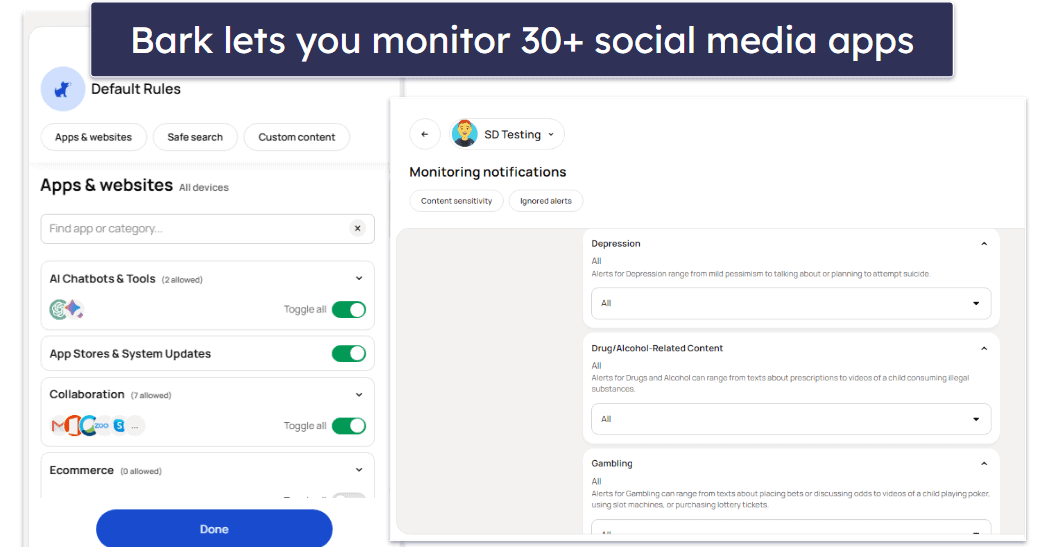
Bark scans texts, emails, photos, videos, and 30+ social media platforms for inappropriate content. Instead of using a list of keywords to filter content, Bark uses machine-learning algorithms to scan for 19+ categories of potential issues, like anxiety, bullying, weapons, drugs, and more — and it even flags slang.
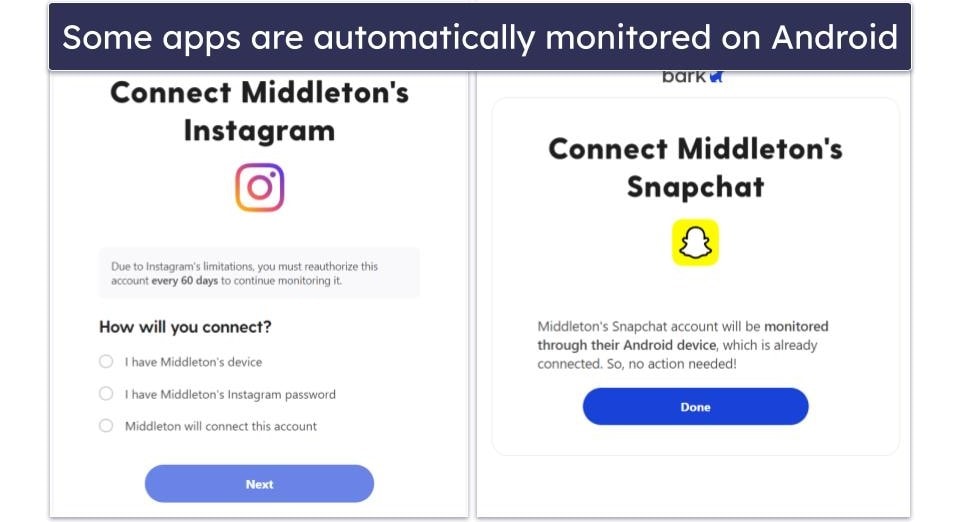
Bark monitors text messages on iMessage, Samsung Messages, and Google Messages, and sent and received email and email attachments on Comcast, Gmail, Outlook, Yahoo, and iCloud email accounts. In terms of social media, it automatically monitors TikTok, Kik, Skype, Discord, and Snapchat.
To monitor other social media (or email) apps, you need to log into your child’s account from the parent dashboard or allow your child to log in from their device. This lets you monitor their account while not requiring them to give you their password, which prevents you from accessing all of their activity. It also means that no matter what account your child logs into, you’ll still get notifications for inappropriate content (so long as they’re still using their account).
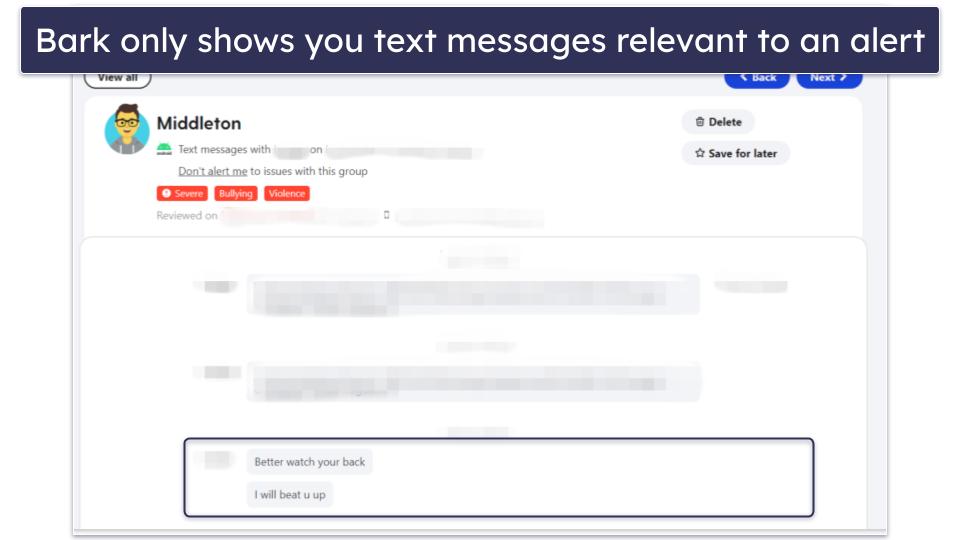
However, Bark only shows text messages or content when it detects a potential issue — it doesn’t let you read your kid’s entire conversations in real-time. This way, you give your child as much privacy as possible while ensuring they’re safe. Competitors like Qustodio will allow you to view all of your child’s text messages (but not email).
I like that Bark can detect when your child switches to or creates an alternative account, or if your child’s profile on social media is set to public instead of private. It even keeps an eye out for emails verifying that your child has created a new social media account. This helps prevent your child from creating a secret profile to circumvent Bark’s monitoring and stops strangers from being able to see your kid’s photos or videos on social media.
Bark lets you adjust the sensitivity of its monitoring algorithm by letting you turn alerts on or off for each category of potential issues and each child. This is useful for letting a more mature child browse freely when it comes to things like profanity without receiving alerts.
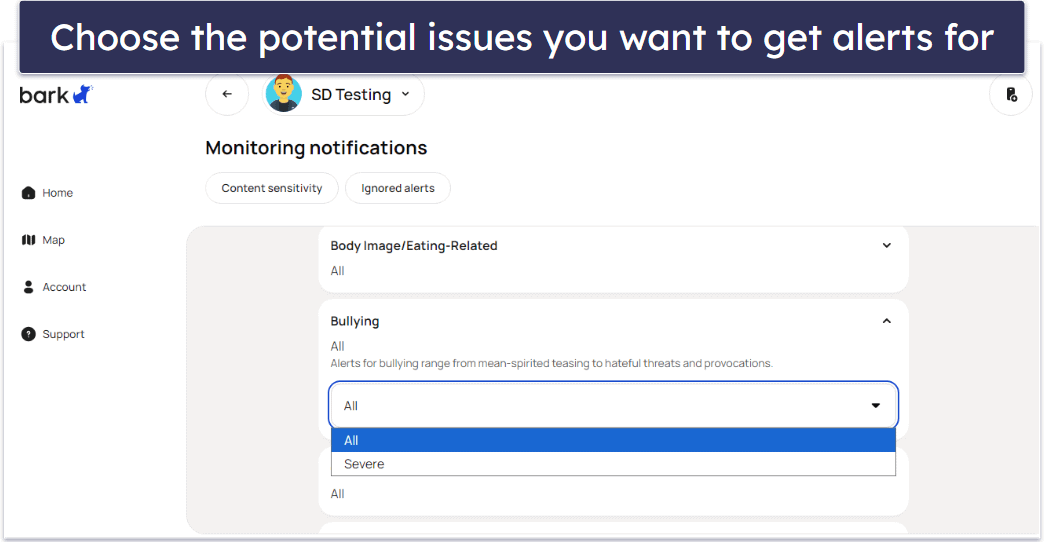
To test how sensitive the alert system is, I didn’t change any settings and instead allowed Bark to alert me of all potential issues — and it performed great. I received alerts any time a curse word appeared on the screen while browsing the internet, and I was also alerted any time a banner ad on a website was related to any potential issues like alcohol or gambling references (this led to dozens of alerts that I had to sort through and mark as reviewed). On this highest sensitivity level, Bark gave me a few false positive alerts — I even got an alert about violence because an email I received had a sentence about donating to a charity for war victims.
I also tested Bark’s text message monitoring by having a family member send me a threatening message. Bark sent me an alert 20 minutes later that included the text of the relevant message.
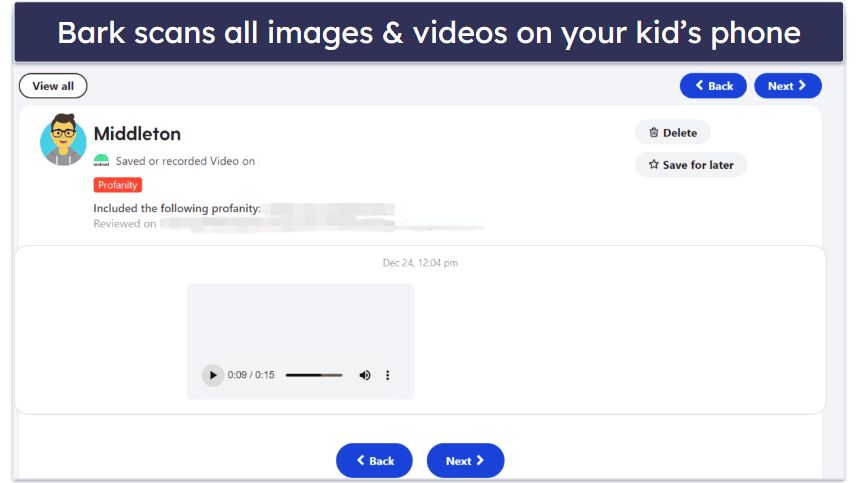
Bark also alerted me about concerning photos and videos. It flagged a photo I took of my kitchen knives and an image of a gun I downloaded from the web. It also sent me an alert about a 15-second video of a tiny mouse trapped under a piece of furniture I had in my gallery. I consider this a false positive because I’m not sure what a trapped mouse has to do with bullying, but it’s nice to know Bark’s machine learning can detect potentially insensitive content and flag it for review.
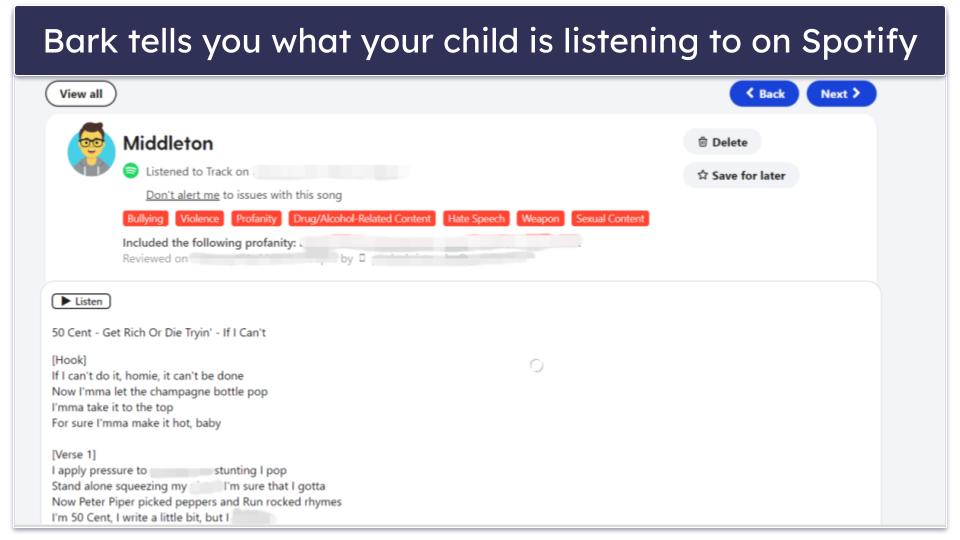
Bark can monitor apps that other parental control providers can’t, like Spotify, making it perfect for parents who want to monitor the types of music their children are listening to. I connected my personal Spotify account to get an idea of the types of alerts it would give me, and I was blown away. Bark not only alerted me when a song contained profanity or references to mature topics, but it also scraped the internet to find me the full lyrics of the song and linked me to Spotify so I could listen to it myself.
Bark’s content monitoring gets a bit inconvenient if your kid has an iPhone or an iPad. On iOS, it only monitors texts, photos, and videos when the device is on the same Wi-Fi as a desktop running the Bark for Parents app. This means you can only check these files when your kid is home, which isn’t ideal.
Another issue is that you can circumvent Bark’s browser monitoring by downloading the Brave browser. Bark never alerted me that Brave had been installed, and I was able to freely browse the web without triggering any alerts on the parent dashboard.
Overall, Bark’s content monitoring feature is pretty good. It monitors 30+ social media apps, email, text, and even photos and videos for 19+ potential issues like anxiety, drugs, and violence. That said, it can’t monitor iOS devices in real time, and browser activity can be circumvented by using a browser Bark can’t detect (like Brave).
Website & App Filtering — Block or Allow Access to Apps & Sites

Bark’s website and app filtering can block web access to websites and mobile apps — it uses a virtual private network (VPN) to route all internet activity on your child’s device through an encrypted server, allowing connections to some websites and apps while blocking others.
Bark can block or allow internet access to many websites and apps like social media, e-commerce, AI chatbots and tools, streaming services, and games, as well as what it defines as “unidentifiable traffic” like VPNs, P2P sites, and private gaming networks. It can also require safe search to be enabled when using search engines like Google, DuckDuckGo, and Bing, and it can require restricted mode to be turned on when using YouTube.
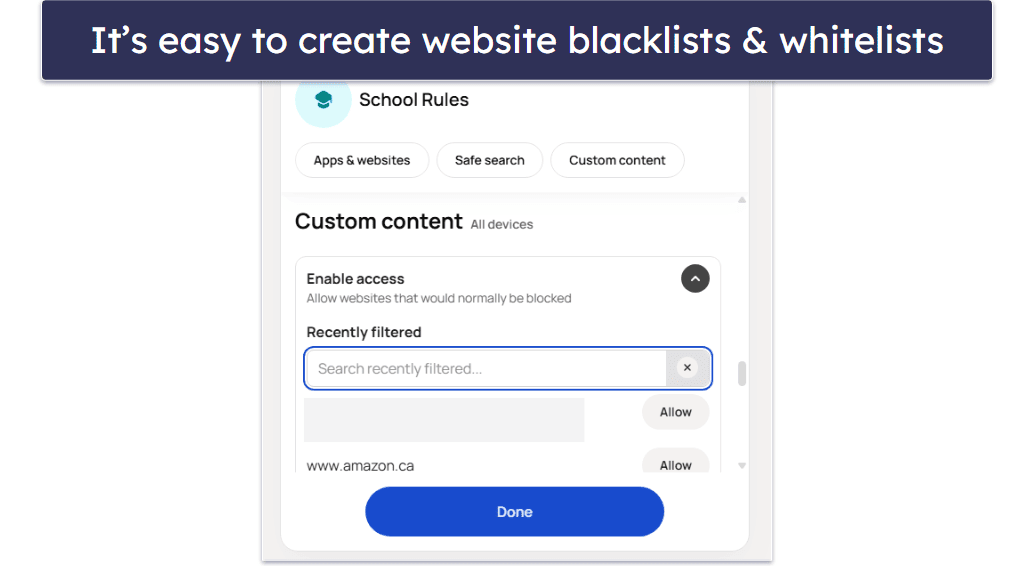
Bark also lets you create lists of custom exceptions to either allow certain websites or apps that get blocked by its VPN or block certain content if Bark’s algorithm isn’t picking it up. This is also really easy, and all you have to do is add URLs to your lists of exceptions/exclusions. It even shows a list of recently filtered sites that you can click “Allow” on if your child should have access to it.
Bark did a really good job during my tests — after installing the Bark Kids app on my own Android phone, I tried to visit 10+ adult and online casino websites. Bark blocked every one of them, and sent alerts to my dashboard that one of my “children” had attempted to visit this type of website. Unfortunately, when Bark alerts you about a blocked website, it doesn’t give you an option to immediately whitelist it from within an alert page, and you’ll need to manually go into the app settings and add the URL to the list of allowed websites.
I like how it’s difficult for your kid to disable Bark’s VPN. It comes with uninstall protection via a device code. The only way to access VPN settings is by entering this code, which changes constantly and is only available in the Bark parental control app. As long as your kid doesn’t know your code, they won’t be able to uninstall the VPN.
Another big drawback with Bark is that it can’t block offline apps. The app filtering features offered by Qustodio and FamiSafe allow you to completely block apps by placing an overlay on the screen when accessed. Bark is only able to block internet access to mobile apps, so it can’t block offline apps like games, video players, or the phone’s camera app.
Overall, Bark’s website and app filtering work well, but it’s a shame it can’t block offline apps.
Screen Time Management — Create Screen Rules & Schedules (But You Can’t Limit Specific Apps)
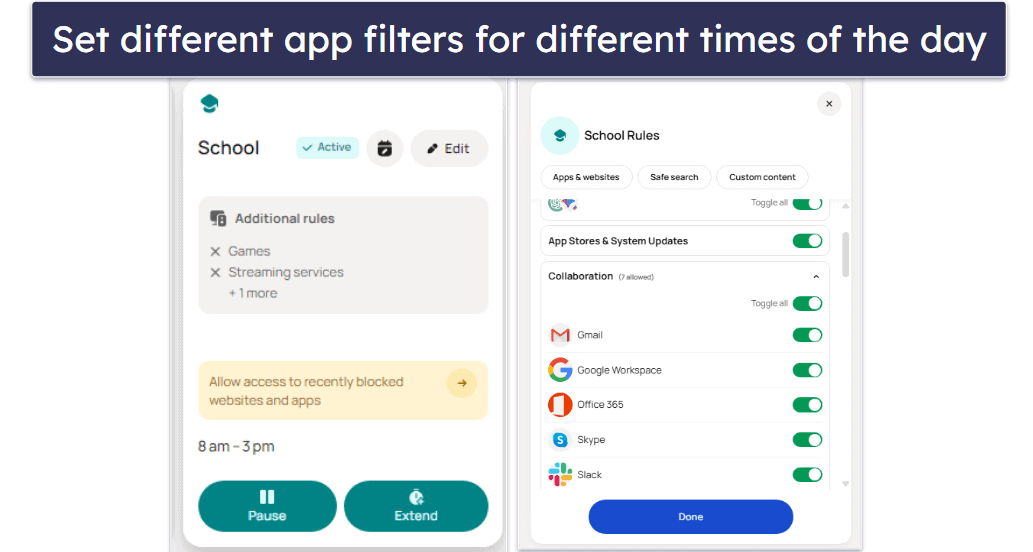
Bark’s screen time management works by applying different web and app filtering rules to different times of the day.
You can use default settings and create 3 alternative rule sets for your kid’s free time, school hours, and bedtime. Bark lets you automatically enforce different rule sets during different times of the day, manually switch your child to a different rule set, or completely pause the internet on their device at any time. Changing which apps are allowed is incredibly easy, and it simply requires toggling each app/website on or off.
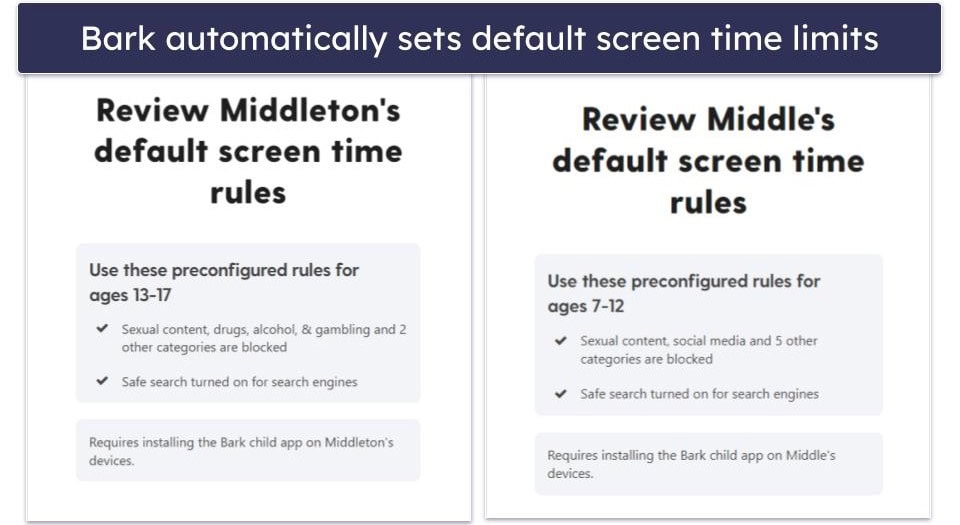
You can create different schedules for each day, too — this allows you to restrict access to certain apps during school hours and let your child access social media or games on the weekends.

Unfortunately, Bark doesn’t allow you to set strict time limits for specific apps (like only allowing 2 hours of YouTube per day). Top competitors like Qustodio allow you to impose strict time limits that allow your child to use a chosen app for only a set amount of time each day.
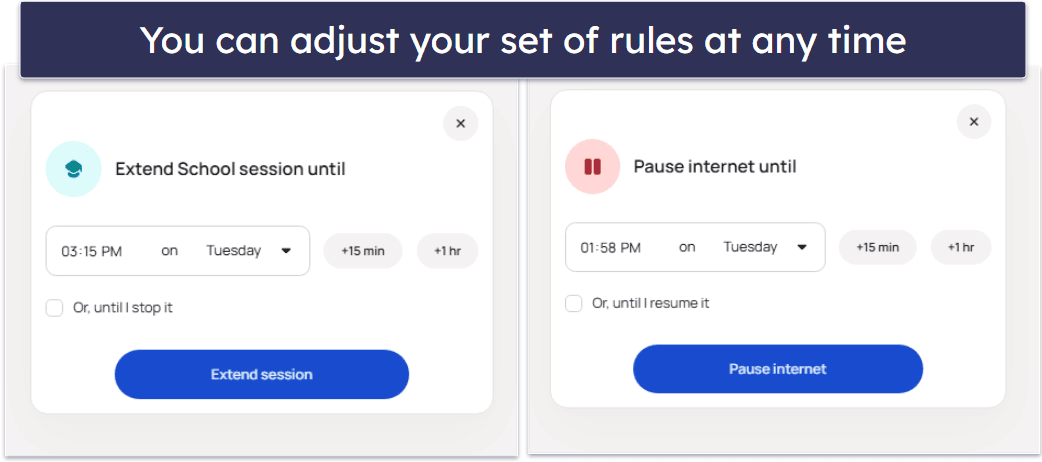
You can also change your child’s rule set at any time or disable web access until a specific time. This came in handy when my children were misbehaving — with just 3 or 4 taps on my phone, I was able to disable the internet on their devices for a couple of hours, preventing them from watching YouTube or playing their favorite online games.
Bark has a few limitations — it can only disable the internet and can’t directly control apps, so any offline games or apps will be unaffected by these rules. It also can’t lock your kid’s device, which would prevent them from using it for any activity.
Overall, Bark’s screen time management is okay, but it could be improved — it allows you to create 3 different lists of allowed or blocked websites and apps, and to choose what times each set of rules is applied. Bark doesn’t track how long your child is using each app, or even their device, so you can’t set strict time limits with Bark the way you can with Qustodio.
Driving Summary — Basic Monitoring of Your Child’s Driving Habits
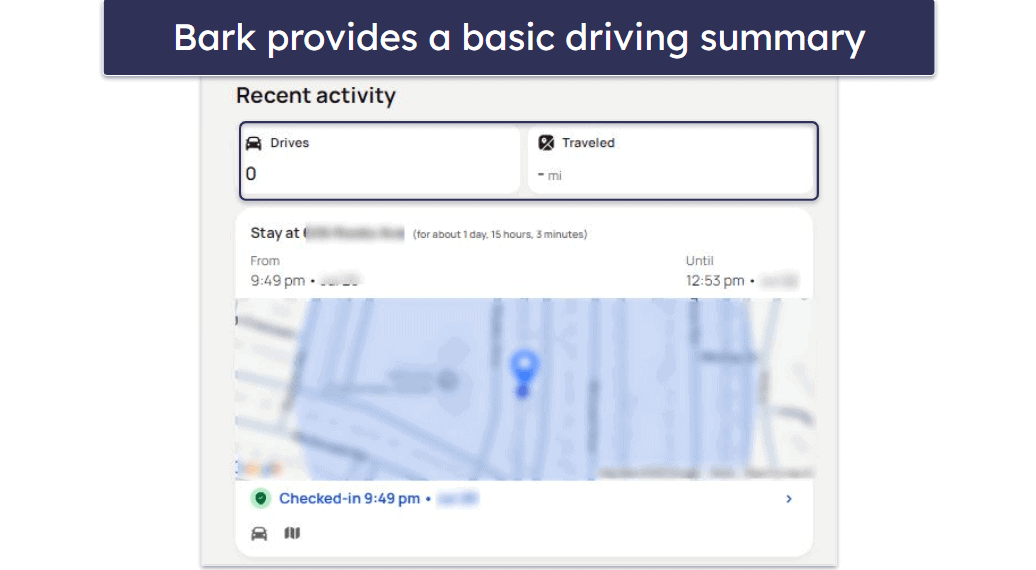
Bark’s Driving Summary feature provides a basic overview of your child’s driving habits. It records the number of trips your child takes, the total miles they’ve driven, and the maximum speed reached during each trip.
However, in my test, it didn’t detect my driving at all. Even if it did, the feature pales in comparison to what FamiSafe offers. FamiSafe’s Driving Report provides a detailed analysis, including the average speed, the number of hard brakes, and the number of times your child exceeded the speed limit.
Overall, Bark’s Driving Summary is a handy feature for basic monitoring of your child’s driving habits, but if you need a more detailed report, I recommend FamiSafe.
Location Tracking — Pretty Accurate (With a Useful Family Map Option)
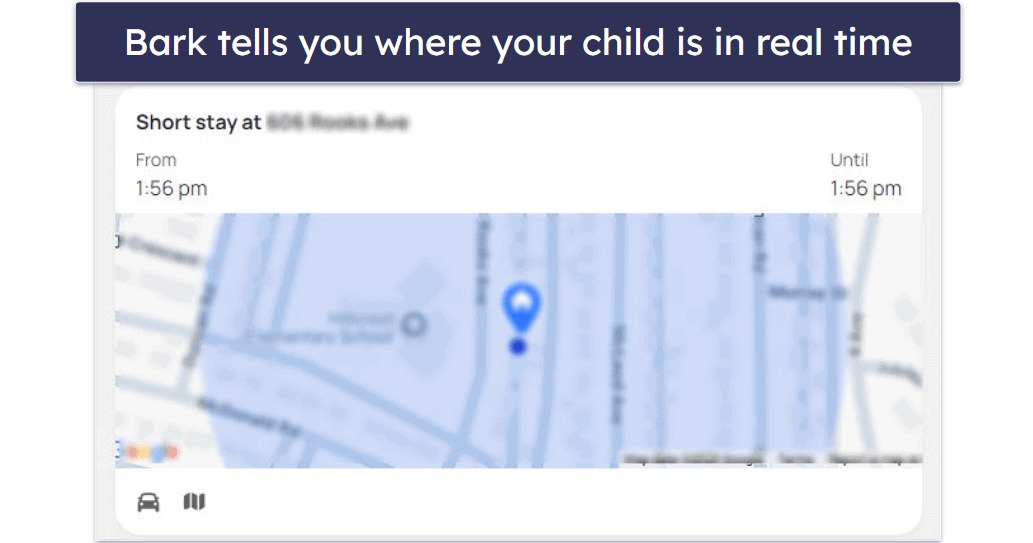
Bark allows you to track your child in real time on Android and iOS. As long as your kid has an internet connection, you can see where they are on a pretty accurate map (in my tests, Bark updated the location every 4–5 minutes).
Bark also has a geofencing feature that allows you to mark places and set boundaries on a map — you can add familiar places, like school or home, and use a differently colored pin for each one, set a radius of up to 0.12 miles (or 200 meters), and get an alert when your child leaves or arrives in predefined zones. To test this feature, I listed my home, and any time I left or returned to it, Bark sent me an alert within 5 minutes. Still, I prefer Norton Family’s geofencing feature that lets you have zones of up to 2 miles or 3,200 meters.
If you want to see all of your kids’ locations in one place, Bark lets you do that, too. There’s a Family Map option where Bark keeps tabs on every device you’re tracking and shows you exactly where they are in real time. You can also get directions to your kid’s current location, which is pretty useful when you need to pick them up, and the app will even tell you whether your kid is walking, running, or driving based on their pace!
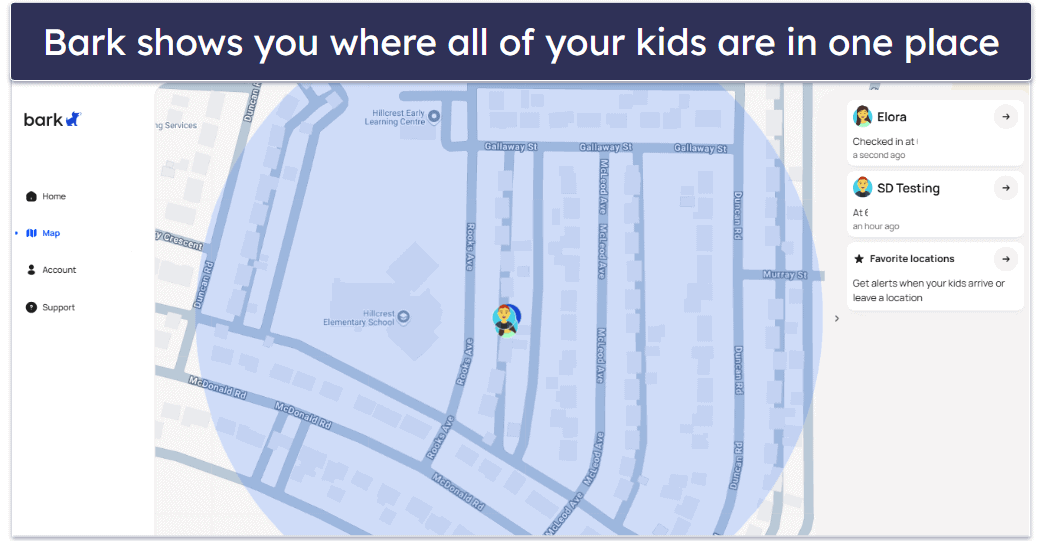
Alternatively, Bark lets you request a check-in. This sends a notification to your child’s device, and they can then open the app and press the check-in button. You’ll then get an alert on your dashboard in minutes containing their physical address, a timestamp, and their location on the map. From there, you can get directions to their exact location. This is great for parents of older children who don’t want to constantly monitor their location, but if your child is unresponsive or simply loses their phone, Bark can’t help locate their device.
Bark also keeps a location history of all the places your child has visited in the last 7 days and when they’ve arrived and left those places, so you can more easily identify certain patterns. I also think it’s great that Bark tells you how long your kid has spent in a certain area and that it follows their steps in that area.
Overall, Bark’s location tracking is pretty good. It allows you to see the live location of your child’s device and lets you request a check-in from your child if you prefer a less invasive alternative. Bark also sends alerts when your child arrives at or leaves a given address and lets you set up predefined zones for those areas.
Activity Reports — A Bit Too Vague (No Full Browser or App History)
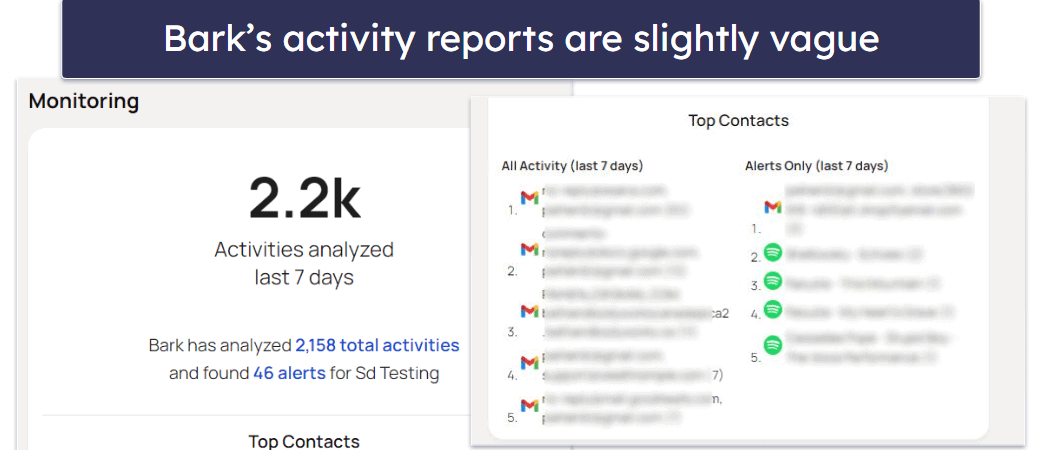
Bark keeps track of your kid’s weekly activity in the parental app, but its reports aren’t very detailed. They include a general summary of the number of activities the app analyzed, top contacts, and the number of alerts it sent.
You can also see the number of sites Bark analyzed, the number of allowed sites your child visited, and a list of all the sites that Bark blocked your kid from accessing. Bark’s reports also keep a list of all apps that are on your kid’s device, including the recently installed ones.
Bark doesn’t report nearly as much as other top competitors like Qustodio, which shows you each app your child accesses and when. That said, Bark typically doesn’t share any information about your child’s activity unless it triggers an alert, and it doesn’t allow you to view your child’s browser history or complete app usage.
Barka also sends weekly reports to your email, but these reports provide even less information — you only get the number of blocked and allowed apps and websites, the categories they belong to, the number of potential issues, and the number of average detected activities a day.
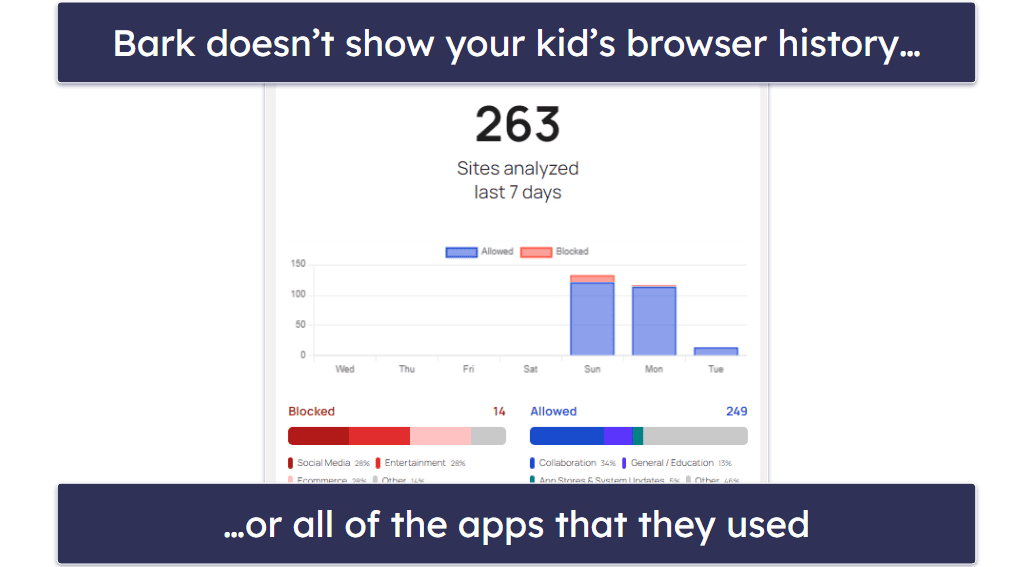
Overall, Bark’s weekly activity reports aren’t very useful — they give vague information about how your child is using their device, but Bark doesn’t allow you to view your child’s full browser or app history.
Bark Installation & Setup — Pretty Simple (But a Bit Tricker on iOS)
Bark has 3 separate apps. There’s a Bark Parent app for Android and iOS, and Bark for Kids app that monitors your child’s device for Android, iOS, and Chromebooks (Chrome OS). Bark has a desktop app for parents, too, but it’s only useful for setting up the Bark for Kids app for iOS. Alternatively, you can easily access the parent dashboard on your web browser by logging into your Bark account.
Bark Parental App Installation & Setup
Installing the main Bark app only takes a few minutes. All you have to do is download the app directly from the Google Play Store or App Store, depending on what device you’re using. If you haven’t created an account already, you can do that on Bark’s website.
The next step is to create a child account. Enter your child’s name and birthday, then select any devices and apps they use. Bark will also ask about any emails and web browsers your kid uses.
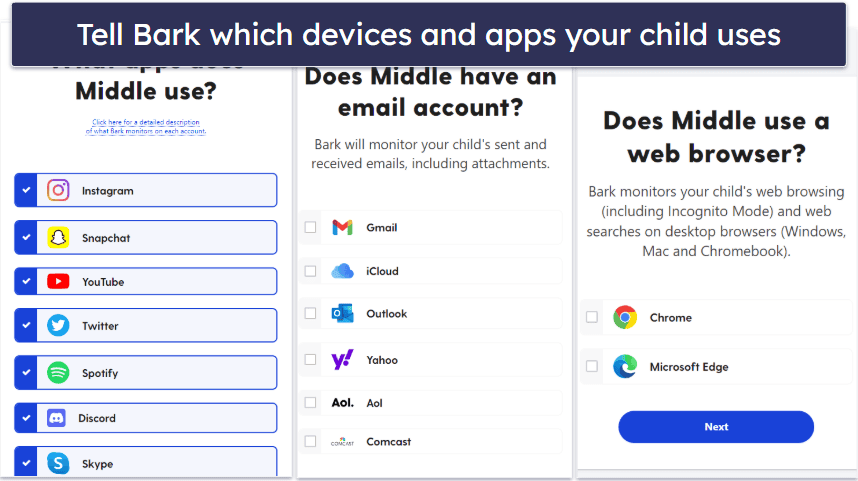
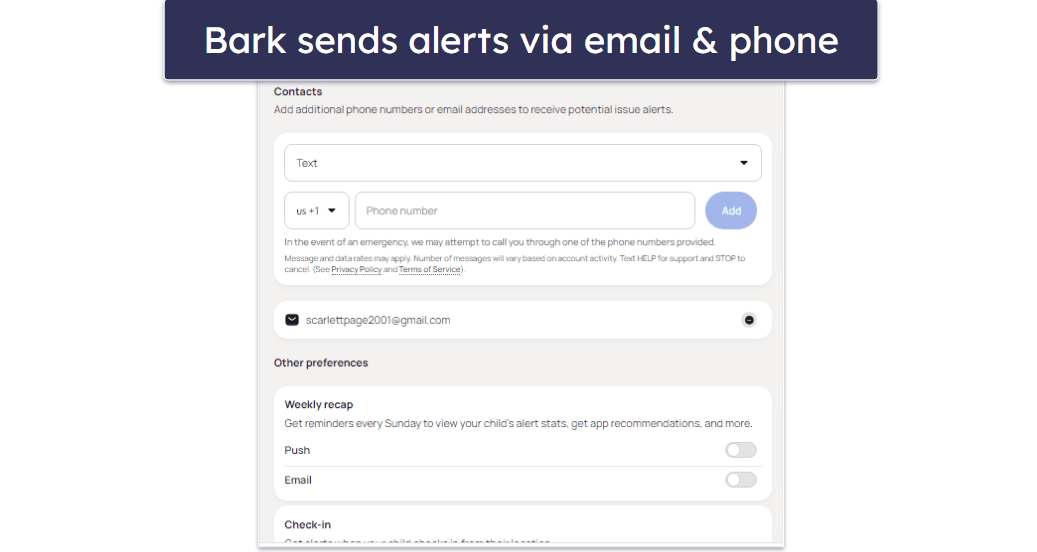
Then, you’ll need to add an email address or a phone number where you want to receive Bark alerts. After that, Bark will guide you through installing the Bark for Kids app.
Bark Kids App Installation & Setup
On Android, you need to download the Bark for Kids app from the provider’s site, as the app is not available on the Google Play Store. Bark guides you through the whole process with step-by-step instructions — the good news is the process doesn’t take any longer than it would if you were downloading the app directly from the Google Play Store (all you have to do is click on a button that says “Download Bark Kids” from the website).
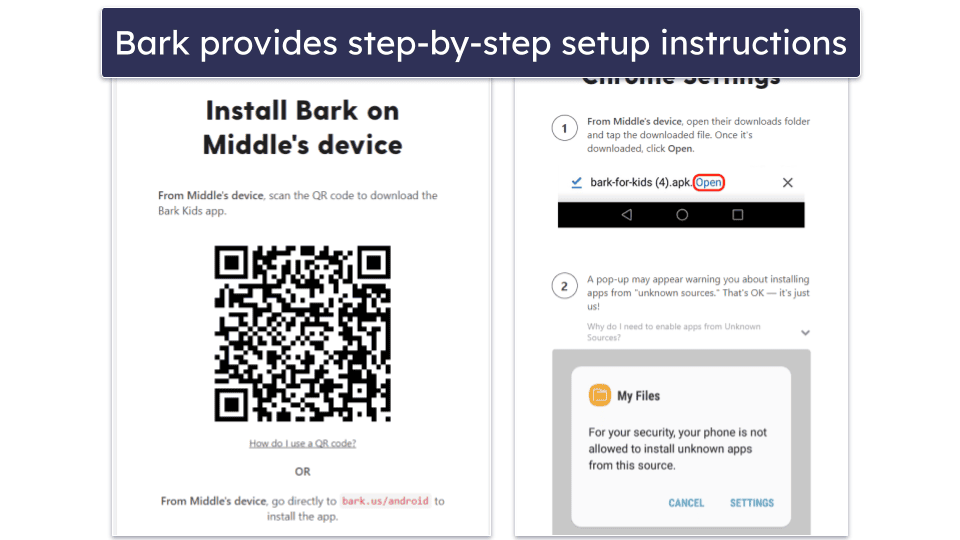
Once you download and install the app, you’ll need to enter a code you can find on the parent’s dashboard.
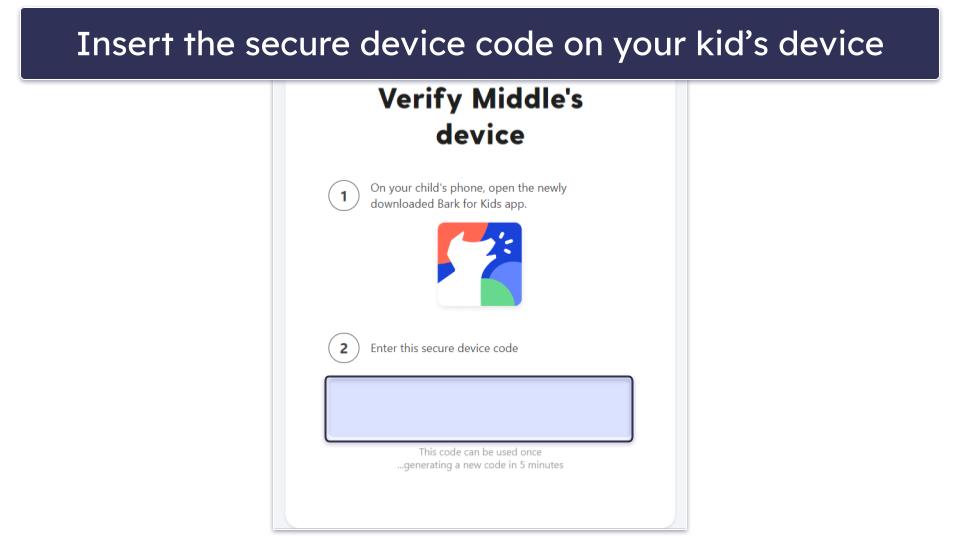
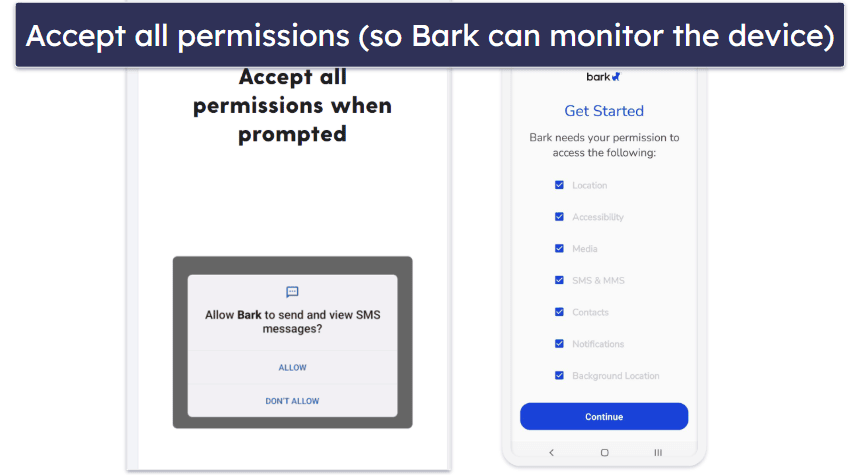
When that’s done, you or your kid will have to accept Bark’s permissions. Once everything is ready, Bark will automatically start monitoring your kid’s texts, location, contacts, photos, and videos.
Setting up the Bark for Kids app on iOS isn’t as straightforward, though. Because Apple doesn’t allow apps to scan internal data like texts and photos, Bark has to manually scan the phone using a desktop device with the Bark desktop app installed on it.
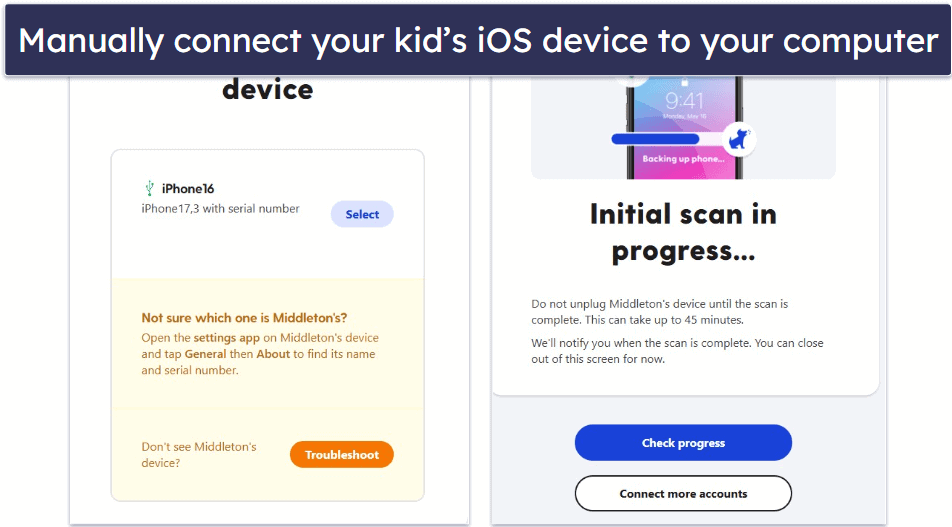
You’ll only have to physically connect the iOS device once for the initial setup. You have to use an Apple charger for this (a regular USB-C cable from your Android phone, for example, won’t work). You’ll have to keep the phone physically linked to your computer for an hour for Bark to scan your kid’s iOS device. Then, as long as your kid’s device and the computer with the Bark app on it are on the same network, the app will automatically scan texts, photos, and videos.
To monitor emails, social media, and other apps, you’ll need to log into your child’s account for each platform/app you want to monitor. Setting up each one only takes 1–2 minutes, and Bark gives you the option of logging in yourself or allowing your child to log in using their own device — you can send them a request via text or email.
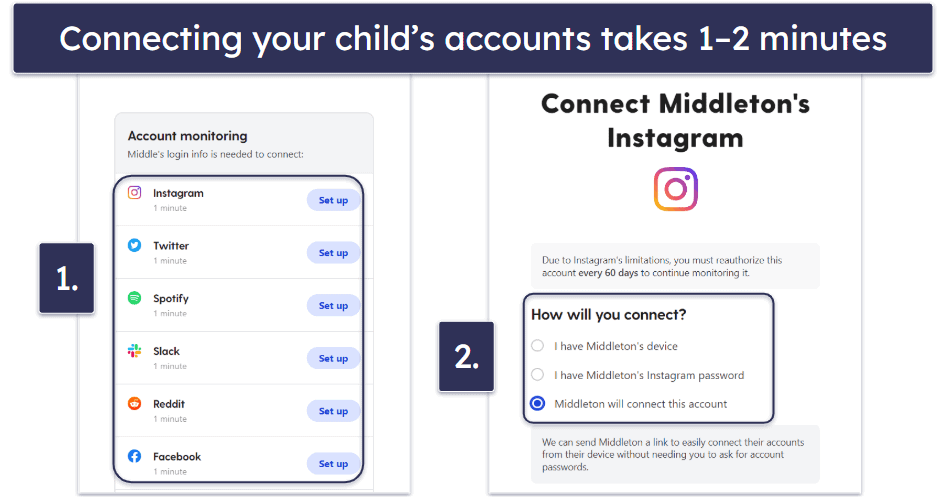
Any accounts you connect to Bark will be monitored regardless of what device your child is using, and you can use Bark to monitor activity on any of these accounts without ever installing the Bark for Kids app on your child’s device (though the rest of Bark’s features like text, photo, and video monitoring, location tracking, and website/app filtering won’t work if you don’t have the app installed).
Overall, Bark is really easy to install and set up — installing the app only takes about 1–2 minutes, but the setup time can vary depending on how many of your child’s accounts you want to connect and monitor. iOS devices require a desktop device to install Bark, but still only takes about 2–3 minutes to set up.
Bark Ease of Use — Intuitive Apps With a Consistent Interface
All of Bark’s apps are intuitive and easy to use, but they don’t all work the same. I really like that Bark maintains a consistent interface across all devices, and I never experienced any bugs or glitches during my tests.
If you’re already using a parental control app like Google Family Link, you may be blocked from downloading the apk (Android Package Kit) file to install the app.
Desktop — Only Useful for Monitoring iOS Devices
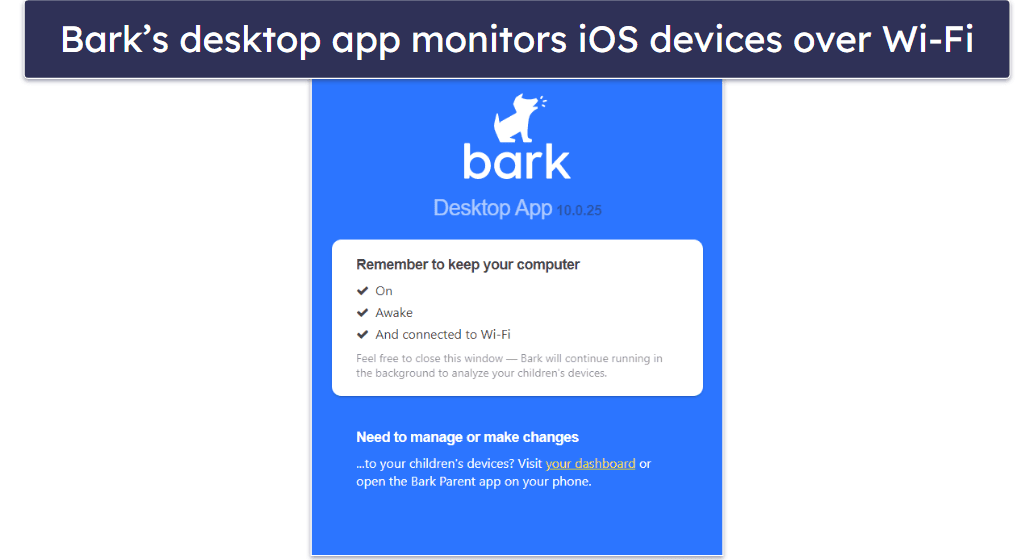
Bark’s desktop app is needed to monitor texts, photos, and videos on iOS devices over Wi-Fi, but there’s no functionality to it — all you can do is install it and let it scan your kid’s iOS. For this, it needs to be on and connected to the same Wi-Fi as your child. You can’t use it as a fully functional parent app or monitor Windows and macOS devices.
While it’s easy to access the control panel from a web browser, it would be more convenient to have a fully functional desktop app for parents that is capable of enforcing filtering and screen time rules like Kaspersky Safe Kids.
Mobile & Tablets — Easy to Use (But Not Enough App Removal Protection)
Bark has 2 mobile apps available for Android and iOS devices: one for parents and the other for the child’s device.
The Bark app for parents is your control panel and is fully functional. It’s incredibly intuitive and makes it easy to manage your content monitoring, web filtering, and screen time settings, request a check-in, view alerts and insights about your child’s activity, and more.
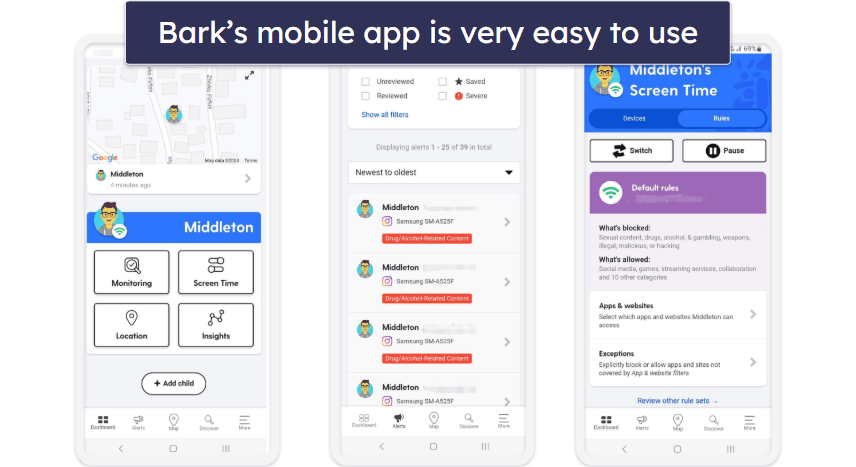
The Bark for Kids mobile app handles all of the monitoring on your child’s Android device. If your child’s using an iOS device, Bark monitors it over Wi-Fi via the Bark desktop app.
Bark also provides an app to monitor photos and videos on Chromebooks. I was unable to test the Bark for Chromebook app, but the installation and setup follow the same method as on Android, and Bark provides step-by-step guides.
Overall, Bark’s mobile apps are very intuitive, but it’s very easy to disable Bark’s web filtering and screen time management on Android, and iOS doesn’t have uninstall protection, so your child can easily remove the app at any time. It would also be nice to see Bark build a single app that works for both parents and kids like Kaspersky Safe Kids, which allows you to choose whether it’s being used on a parent’s or child’s device.
Web App — A Sleek & Uncluttered Interface
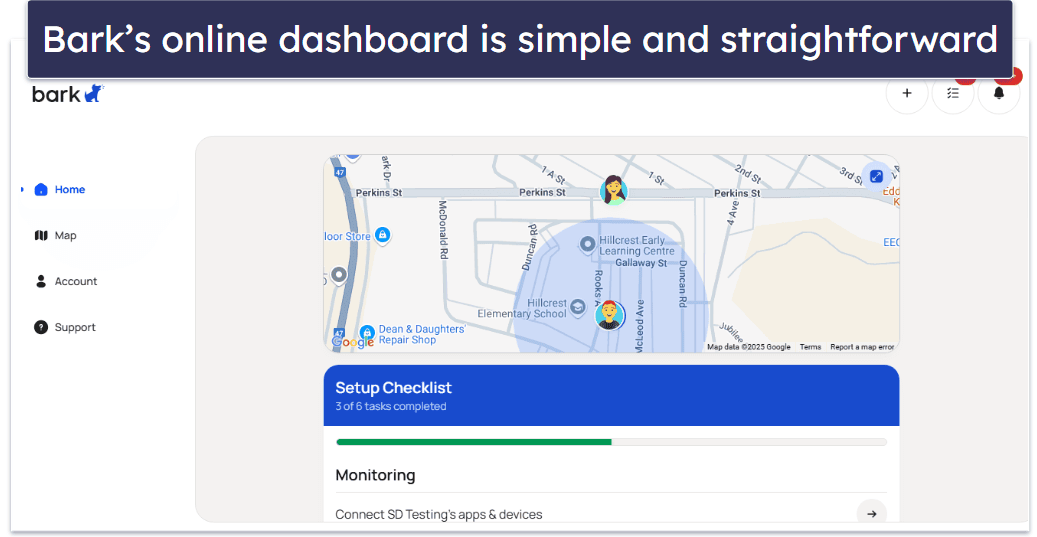
Bark’s web app is your only access to the control panel on desktop devices. Everything is clearly labeled and uncluttered, and Bark provides descriptions for nearly all of its settings.
I prefer using the web app over the mobile app when I’m at home, simply because I have a larger screen and everything is spaced out better. Sometimes alerts can contain a lot of information, so viewing them on a smartphone can require a lot of scrolling.
Overall, I really like Bark’s web app — it’s very easy to use, navigate, and manage all of your parental control settings.
Browser Extensions — Good Extensions for Chrome & Edge
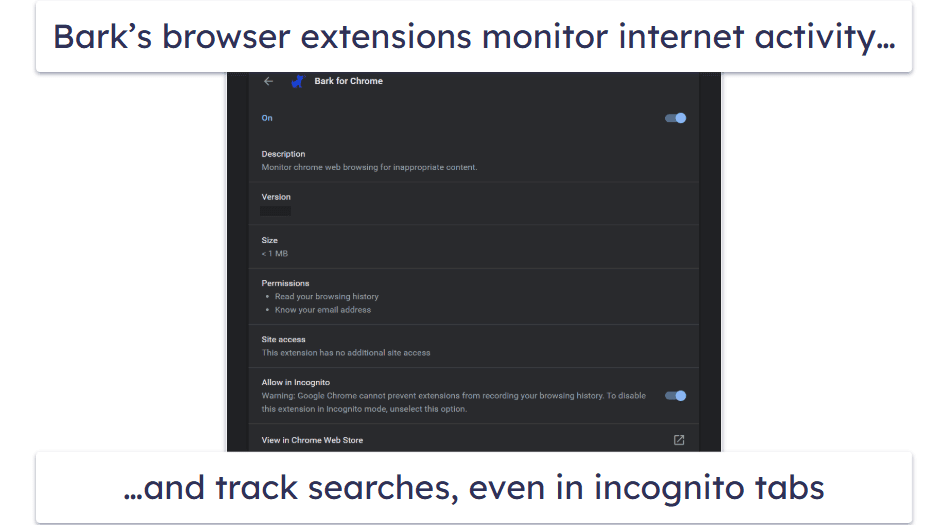
Bark offers browser extensions for Chrome and Edge that monitor your kid’s searches for inappropriate content. While connecting your child’s email account allows Bark to monitor their browser and search history, Bark’s browser extension takes it a step further and is able to monitor content while in incognito mode (or while browsing in InPrivate on Edge). If the browser extension is removed or stops working for any reason, Bark will send an alert to your dashboard. You’ll also get an alert if your kid removes the extension from their browser, which they can do simply by clicking the “Remove” button.
Overall, Bark’s browser extensions are good, but it would be nice to see them on more browsers.
Bark Customer Support — Great Knowledgeable Support & Excellent FAQs
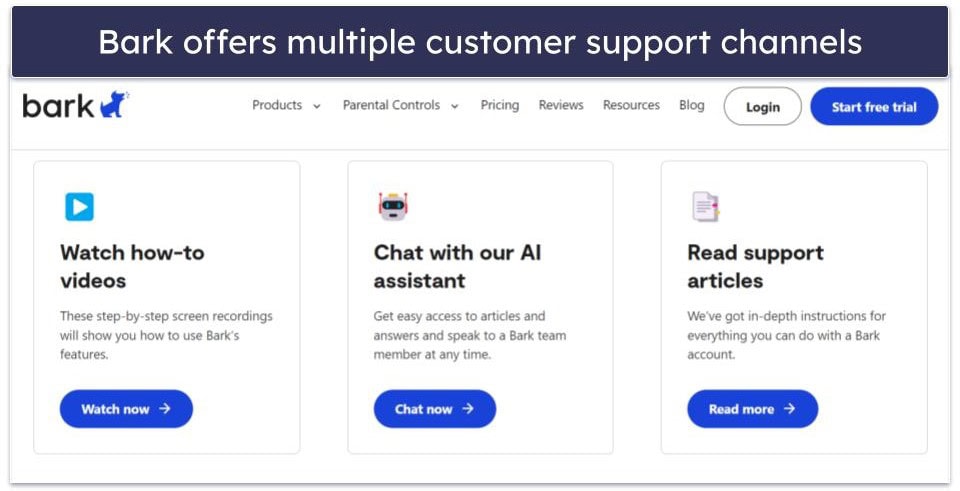
Bark’s customer support is pretty good overall — it provides email support, a great chatbot, video guides, and 100+ FAQ articles.
Bark’s email support is great — I submitted requests for email support at different times of the day and always received a response within 1–3 hours. I got a different representative each time, but always received a knowledgeable and helpful answer.
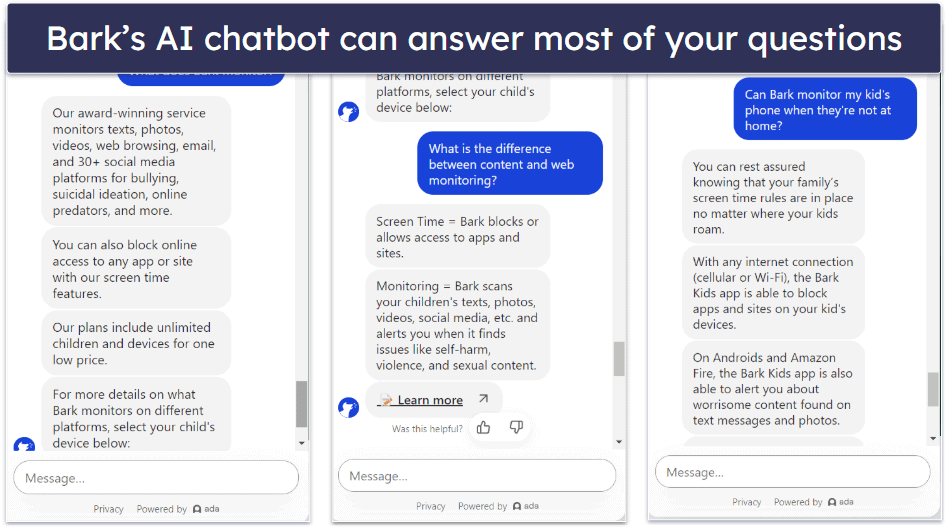
Bark also has a chatbot that can help you find answers to many questions by providing thoroughly-written auto-responses and linking to FAQ articles for additional information.
You get live chat support, too, that’s available Monday through Sunday, but it’s only in certain hours. When I talked to some of its live chat reps, they were extremely helpful and very quick to answer all of my questions.
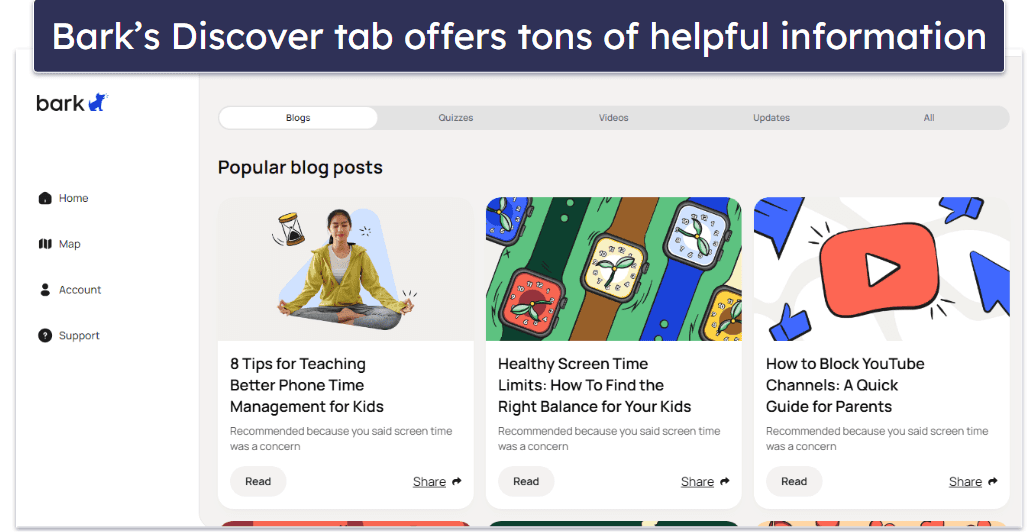
The Discover tab on Bark’s dashboard includes a lot of valuable information. From how-to videos and age-based curated blog posts to even slang translations. It helps parents stay updated with their net-savvy kids.
Bark’s FAQ page is truly excellent — rather than just providing short answers to basic topics like most tech companies, Bark goes the extra mile. The FAQs address over 100 questions with comprehensive articles. Some of the FAQs are complete step-by-step instructions that can assist you in getting started and resolving any technical problems you may encounter in the app.
Bark offers a unique feature where you can schedule a one-on-one call with a representative to help set up the app. I scheduled a call via the chatbot and received a callback within hours. The representative was extremely helpful and quickly guided me through the process. This could be especially beneficial for users who aren’t tech-savvy, but I’m not a fan of Bark insisting on scheduled calls rather than having a phone support line that users can reach out to when needed.
Overall, I’m happy with Bark’s customer service — Bark has video guides, in-depth FAQ articles, a chatbot, and more. If you still need help, Bark’s email support quickly provides knowledgeable answers. I just wish the provider would also offer live chat support.
What Bark Can Do Better — More Filtering Categories & Fewer Bypassing Opportunities for Kids
Bark is an outstanding parental control app, but there are several areas where it can improve:
- Limited web filtering categories: Bark offers 19 web filter categories, which isn’t as extensive as some other parental control apps. This limitation could restrict your ability to fully customize web filtering according to your specific concerns and needs. Norton Family, on the other hand, has 45+ predefined content categories for monitoring.
- False positive alerts at high sensitivity settings: Although it’s great that you can adjust the sensitivity level of alerts you receive about concerning content, at the highest sensitivity, Bark tends to generate some false positives. For instance, references to alcohol or gambling in banner ads can trigger alerts, requiring you to sift through numerous notifications, which could be overwhelming.
- Ease of bypassing web monitoring: I’d like to see Bark create extensions for more browsers. The extensions for Chrome and Edge are very effective, but to get around them, all your child has to do is download and use the Brave browser. You won’t receive any alerts about concerning content or even get alerts that they downloaded Brave.
- Differences in monitoring on iOS and Android: Bark’s monitoring varies between Android and iOS platforms. For instance, Bark actively scans texts, photos, and videos, but only on Android. For iOS, monitoring only works from the desktop app and only when the mobile device is connected to Wi-Fi. This could lead to confusing inconsistencies in supervision if your household uses different operating systems.
- Limited screen time controls: With Bark, you won’t be able to set strict time limits by app — you can only manually block and unblock apps or internet access, which is a bit inconvenient if you just want to limit your kid’s time on YouTube. Bark also won’t show you how much time your kid spends on particular apps.
Is Bark Good & Worth the Cost in 2026?
Unlike most parental apps, Bark encourages trust and privacy over spying. It monitors texts, photos, and videos, as well as 30+ social media platforms and apps. Plus, it offers real-time location tracking and a driving report summary, allows you to monitor an unlimited number of devices, and has good customer support.
However, some of its features are a bit limited — you can only view content that’s relevant to a potential issue, you can’t set strict limits on how long your children can use particular apps, and disabling some of its features is pretty easy.
That said, a parental control app like Bark can be great for older kids, who you don’t have to monitor so closely. It allows you to monitor the most severe instances of concerning behaviors without making your child feel like they don’t have any privacy.
Bark offers monthly and yearly plans starting at $5.00 / month. All plans include a 7-day free trial, but there’s no money-back guarantee.
Frequently Asked Questions
Can Bark be bypassed?
Yes, but only on iOS, which can be uninstalled without parent consent. For Android, Bark generates a device code, which is required before deleting the app. For both OSs, the code is also needed to make changes in the settings on the Bark app and the settings on your kid’s phone. The device code changes every 5 minutes, which is how long you have until the system automatically re-locks all protected features once the 1 code is used.
Your child may be able to try and get around web filtering and app blocking by installing a VPN or a proxy to override Bark’s VPN. To prevent this, I recommend disallowing “unidentifiable traffic” from the parent’s dashboard.
Can my child delete the Bark app?
Yes, but only on iOS. On Android, this is only possible if they gain access to the device code, which can be found in the parent app. If your kid does manage to remove the app, you’ll get an alert.
When I uninstalled the Bark for Kids app from my Android test device, it disabled the website and app filtering, screen time management, and monitoring of text messages, photos, and videos, but Bark kept monitoring activity on accounts I had connected through the dashboard.
Does Bark monitor deleted texts?
Yes, Bark may monitor some deleted texts. It doesn’t keep a list of every deleted message, but Bark can alert you if it finds something worrying in deleted texts. Barks says there’s a better chance of this happening on Android because there are fewer restrictions, so if your kid has an Android, Bark can check deleted messages more effectively than on an iPhone. Bark also prevents your kid from deleting texts, but only if they’re using a Bark Phone.
What does Bark monitor?
Bark monitors 30+ social media services and various data on your kid’s device, including text messages, photos, and videos. It monitors your child’s activity at the account level and will alert you of potential issues regardless of what device your child is using, even without installing the app.
Can Bark track my child’s location?
Yes, you can track your child’s location with Bark. Bark lets you see where your kid is in real time, how long they were at a certain location, and the places they’ve visited in the last 7 days. Bark also allows parents to request a check-in from their child, which then requires the child to open the app and respond. You can also create a list of addresses, set geofenced zones, and receive an alert any time your child arrives at or leaves one of these locations.
What devices can Bark monitor?
Bark has monitoring apps for Android, iOS, and Chromebooks. Monitoring iOS devices works a little differently and requires a few extra steps to get set up, but Bark provides step-by-step guides to help you get started. Bark also has browser extensions for Chrome and Edge that allow you to monitor desktop devices.
If you’re specifically looking to manage and monitor your child’s iPhone or iPad, it’s also worth comparing Bark with other leading parental control apps for iOS to find the best fit for your family’s needs.
Will Bark slow down my child’s device?
Any parental control or monitoring app can slow your device a bit, but it should never be significant. During my tests, I never noticed Bark slowing down my computer or my child’s devices.
Does Bark collect your data?
Yes, Bark collects some data, but only what’s needed to provide its services and keep users safe. It gathers things like IP addresses, browser details, and device info when you visit the site. If you connect through a mobile device, it may collect some additional data.
Bark may also pull limited info from social media or email accounts for monitoring, but its privacy policy says it never sells or shares your data with third parties. It uses encryption and follows strict privacy laws like COPPA and FERPA to keep everything secure.