Aura Parental Controls Review: Quick Expert Summary
Aura’s parental controls are good for keeping an eye on your child’s Android and iOS devices and the games they play on Windows. Aura’s most expensive bundle also provides a well-rounded security suite, including Safe Gaming, an antivirus, and more to protect you and your kids online. It’s a little pricey, but you get a fair amount of features to justify the cost.
The parental controls come with a set of industry-standard features, like web and app filtering, activity reports, screen time management, and a tool to pause the internet. You can even set time limits for individual apps, such as setting two separate limits for social media and educational content.
I like the Safe Gaming feature, which makes sure your kid isn’t being cyberbullied in online games by monitoring their online gaming sessions and alerting you if it detects any bullying language. It monitors 200+ online games.
I also really like the Balance feature, which uses AI to provide meaningful insights into your child’s social activity, device usage, and mood/tone trends and changes.
However, there are a lot of areas for improvement. For example, it has no location-tracking or YouTube monitoring, which you get with Qustodio and Norton Family, and the app is also pretty easy to uninstall, so if your kid is a little tech-savvy, they can remove it from their device without too much effort.
You can purchase the parental controls as part of Aura’s Family plan. It comes with all of Aura’s features, covers unlimited devices for 5 adults, and lets you monitor an unlimited number of kids’ devices. It includes a pretty generous 60-day money-back guarantee and a 14-day free trial, so you can try it risk-free.
Aura Parental Controls Full Review — Good Overall, but There’s No Uninstall Protection
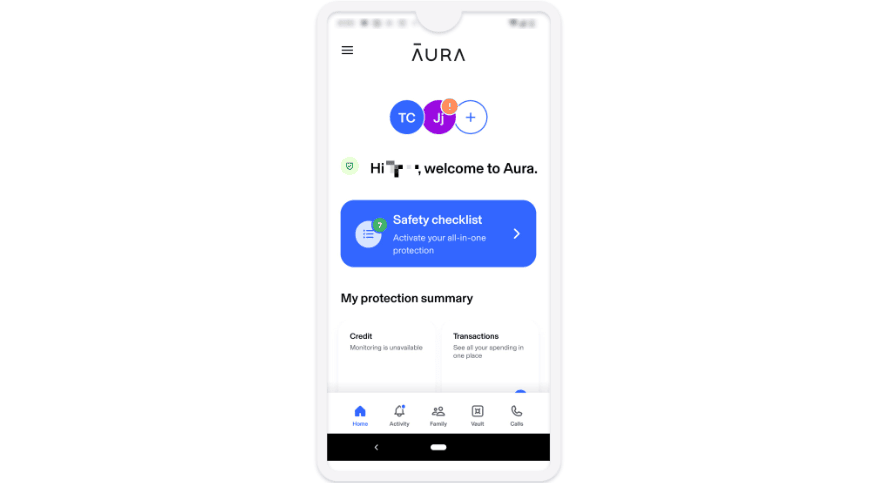
I spent a week trying out Aura’s parental controls and all of its features, which are powered by Circle (you can read my colleague’s full review of Circle’s parental controls here). I tested it using multiple devices, thoroughly used the kid’s app to make sure it properly blocked websites, and talked to customer support to get a feel for the overall product.
I’m confident in saying that Aura offers good overall parental controls. You get a decent set of core security features, like reliable web/app filtering and good screen time management tools.
That said, there are a few notable drawbacks that might stop Aura from being a great pick for everyone — most of its parental control features only work on mobile (though you can manage your kid’s device through the Aura website), and it’s very light on extras compared to the top parental control apps. I particularly don’t like that it doesn’t have location tracking, which is a pretty standard feature on most parental control apps.
But the biggest drawback, in my opinion, is that your kid can simply uninstall the app. They can get around the parental controls until you re-link their device. You’ll be alerted as soon as they delete the app, but you may not be able to prevent them from getting on the blocked website they want to access fast enough.
It’s also pricier than most parental controls, though it’s worth noting you get a lot more than parental controls, including identity theft protection and an antivirus. It’s not the best value for your dollar in my opinion. Options like Norton are cheaper and come packed with more features, like YouTube video monitoring, cloud storage, and more extensive dark web scanning.

Aura Parental Controls Plans & Pricing — A Bit Pricey, but You Get a Range of Security Products
Aura’s parental controls are only available on its 1-year Family plan, which costs $8.33 / month. It monitors unlimited devices and includes app blocking, time limits, activity monitoring, and Safe Gaming.
It also grants other premium Aura features for up to 5 adults and unlimited devices, like real-time antivirus protection, dark web monitoring, and identity theft protection up to $1 million per adult.
While it’s pricey, you’re getting quite a few security products for one subscription. If you’re just looking for good parental controls, there are cheaper and better standalone options out there, like Qustodio.
Aura offers a 14-day free trial and a 60-day money-back guarantee.
Aura Parental Controls Features — A Decent Number of Tools
Aura’s parental controls come with a fair amount of features, including:
- Web & app filtering. Set custom rules for which websites and apps your kids are allowed to visit and use.
- Time limits for apps and sites. Set time limits for your kid’s screen time and how much time they spend on individual apps.
- Safe Gaming. Monitors 200+ online games for potentially dangerous language and notifies you if it detects suspicious behavior.
- Activity monitoring. View a list of the websites your child is trying to view. You can filter blocked sites or see a complete activity list.
- Identity theft monitoring. Monitors the dark web for you and your child’s data and informs you if it detects emails, passwords, or social security numbers.
Content Filtering — Easy to Use & Works Well
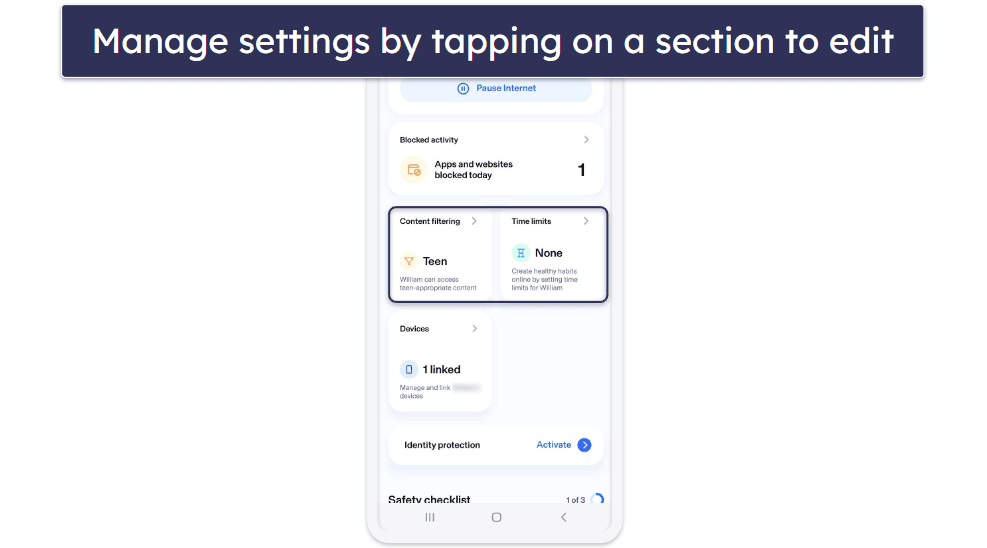
Aura’s web filtering is basic but effective. There are 2 presets in the app: Child mode, which has a lot of default restrictions and is good for smaller children, and Teen mode, which only blocks explicit content, mature content, gambling, dating sites, and VPNs by default.
However, you have tons of customization options besides the two presets. I tried out all 25+ of the website categories you can block. I blocked dating apps, shopping sites, online forums, gaming websites, and even some of the top VPNs out there. When I tried visiting sites that fall into these content categories, Aura’s parental controls did a very good job at blocking my access to them on my Android test device.
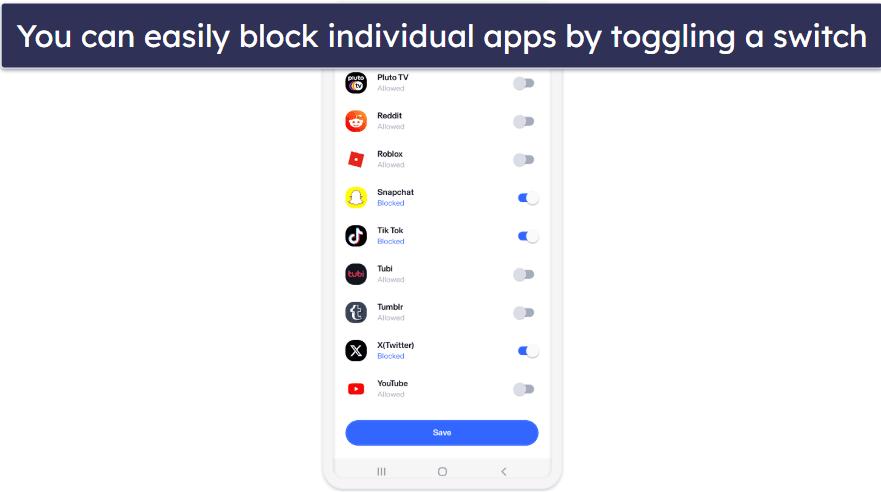
I could block individual apps just as easily. The interface shows you every app installed on your kid’s device and lets you block them by toggling a switch on or off. When I tested this on my test device, I couldn’t open any of the apps I’d blocked from the parent’s dashboard.
I’d like to see a way for kids to request access to a blocked website, which you get with top parental controls like Norton Family and FamiSafe. For example, if you have the “News” category turned off but your kid needs access to a specific article for a homework assignment, it’s handy for them to be able to ask permission via the app.
Overall, the content filtering is pretty good. It was easy to use, there were a lot of categories for website filtering, and the app blocking worked well.
Time Limits for Apps & Sites — Customizable & Effective
You can set time limits for your child’s internet use and for specific sites and apps. For example, the app lets you set a 3-hour daily limit for your child’s overall screen time, a 1-hour limit on video games, and a 1-hour limit for the YouTube app.
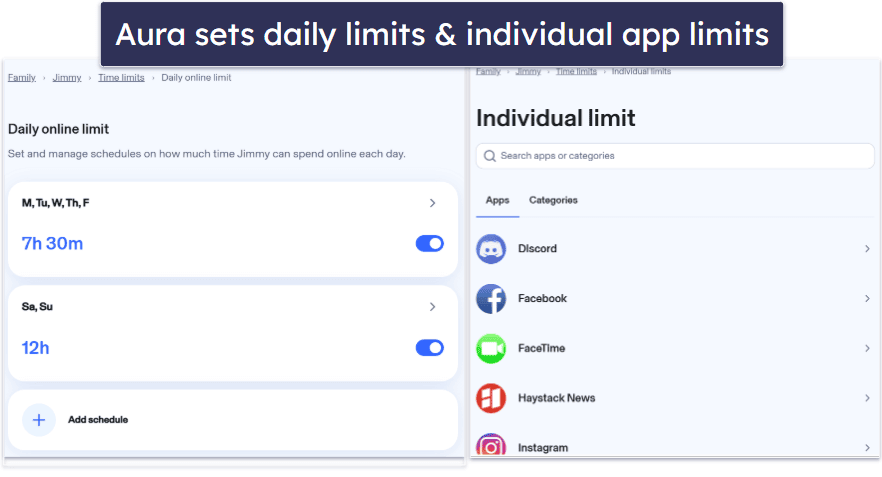
It’s pretty customizable and can be done right from the Family section on your phone. Just tap on your kid’s account and scroll down until you see the option.
You’ll also see the pause button at the top of the screen. Tapping on the Pause Internet option allows you to completely prevent internet access on your kid’s phone. You can resume it whenever you want by tapping Unpause Internet in the same spot.
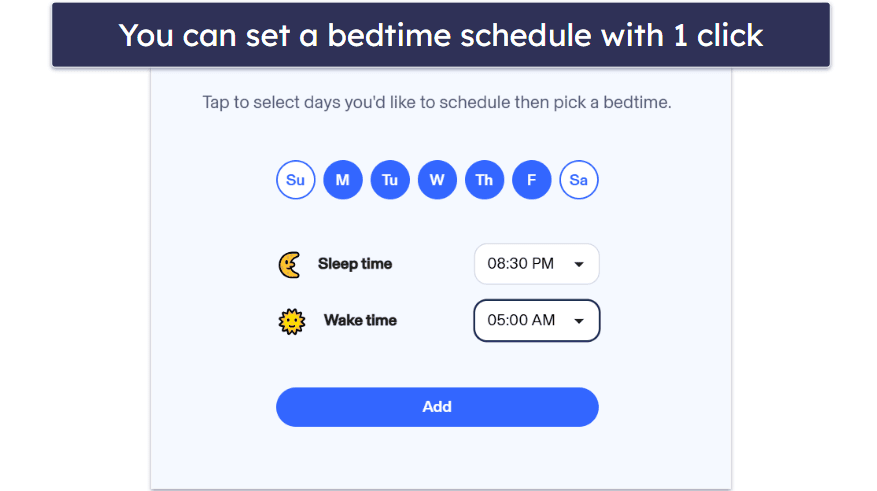
You can also set a bedtime that restricts their internet access at night — choose which days the bedtime takes effect and control when it starts and ends. For example, you could set your younger child’s bedtime for 8pm and your teenager’s at 11pm.
There’s also an option to add “Bonus Time”, which adds extra time to your kid’s daily limit as a reward for good behavior or if they need extra time working on a school assignment. You can add minutes or hours, which is pretty flexible.
Finally, there’s Focus Time, which is ideal for restricting app and internet access when your child needs to focus (like at school or during a family activity). I like that you can choose to limit or fully block internet access for certain periods of time.
All in all, I like Aura’s time limits. They’re pretty customizable and work as advertised.
Safe Gaming — Nice Extra, but It Only Works on Windows
Safe Gaming automatically monitors your kid’s games for cyberbullying and predators on Windows. The feature monitors the chats of over 200 popular online games, including Fortnite, Minecraft, Roblox, Call of Duty, and more. It’s particularly user-friendly since all you need to do is install it using the Aura desktop app and leave it running.
It works by monitoring your kid’s online game chats (including voice chats) for signs of cyberbullying or overt sexual behavior. As soon as it detects suspicious language, you’ll receive alerts so you know what’s going on.
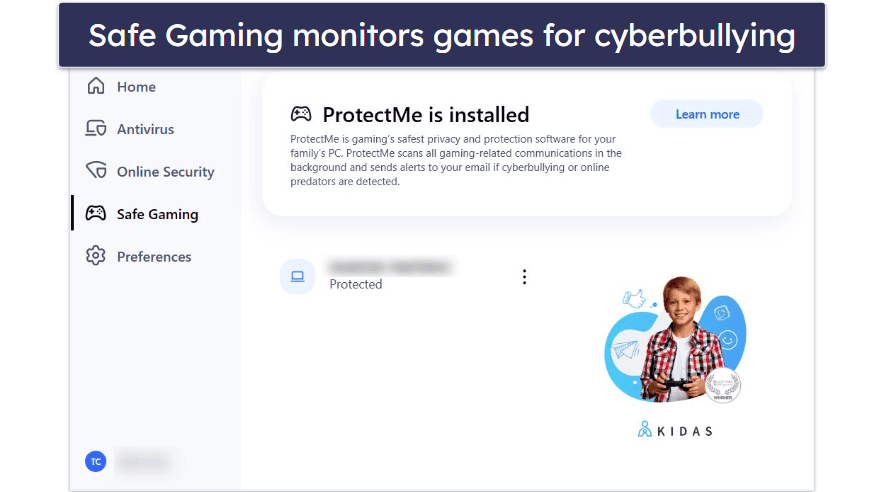
You’ll get a full report with a breakdown of each threat detected, gaming time insights, and a threat severity score, so you know how much danger they’ve been exposed to. Note that it only monitors online games, so you’ll still want to be watchful of what your kid is doing elsewhere.
My only complaint is that this isn’t a complete parental control tool for Windows. Unlike the mobile app, it doesn’t let you set time limits, pause the internet, or create any web or app filters for Windows.
Overall, Safe Gaming is a decent extra feature if your kid plays games online. It works as intended and monitors games that are popular among kids, like Fortnite and Roblox. The only downside is that the feature only works on Windows, and that this is the only parental control feature that you get for your kids’ Windows devices.
Identity Theft Protection — $5 Million Identity Theft Insurance
Aura offers identity theft protection for both you and your child. This includes dark web monitoring, credit monitoring (3-bureau monitoring), and up to $5 million in identity theft insurance ($1 million per adult).
The dark web monitoring scours through remote parts of the internet for your family’s personal information, like emails and passwords. It also searches for SSNs — when it finds your information, it sends you an alert and requests that the broker delete the data. When I tried it, I was able to find multiple breaches dating back to 2018.
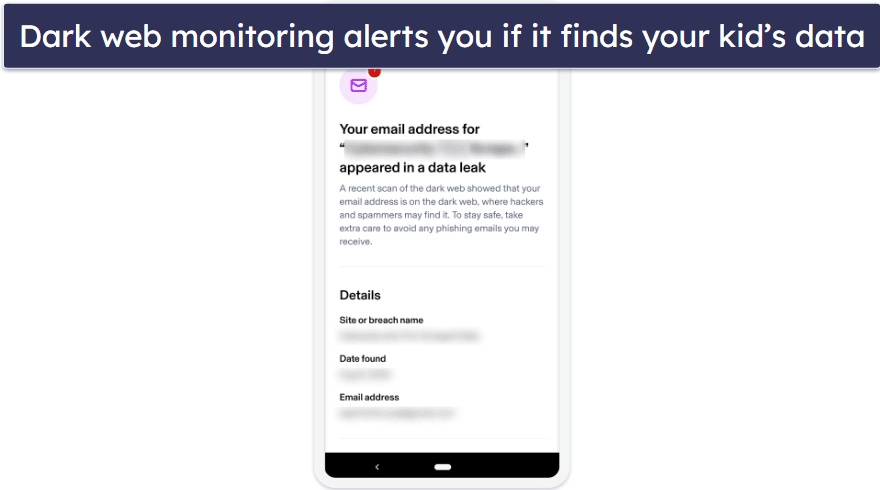
It also monitors your credit. While it’s not focused exclusively on your child, it benefits them vicariously. For example, if there’s a crisis, you can quickly freeze your credit to prevent new cards from being taken out in your name or take advantage of the $5 million identity theft insurance to mitigate financial damage to your family.
Overall, the dark web monitoring and identity theft protections ensure that no bad actors steal, use, or sell your child’s information.
Blocked Activity Monitoring — See What Your Child Accesses, But It’s Very Basic Monitoring
Aura parental controls keep a list of apps and websites your kid accessed. You can view the full list of banned sites your kid tried to view by tapping on the Blocked Only box in the app. The app tells you what category the site belongs to, shows you the exact URL, and gives you the time at which your kid tried to visit the blocked site.
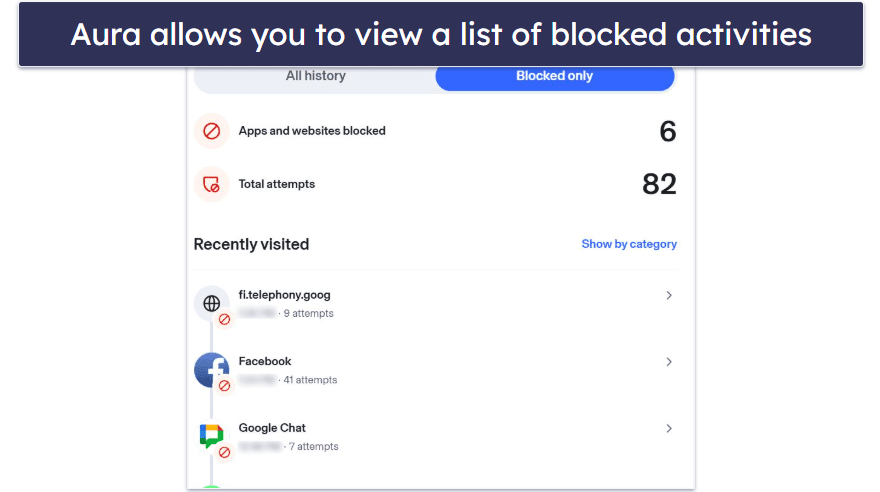
If you pick All History, you can see a list of the sites and apps that your kid tried to access. However, Aura needs to iron out a few kinks to improve it.
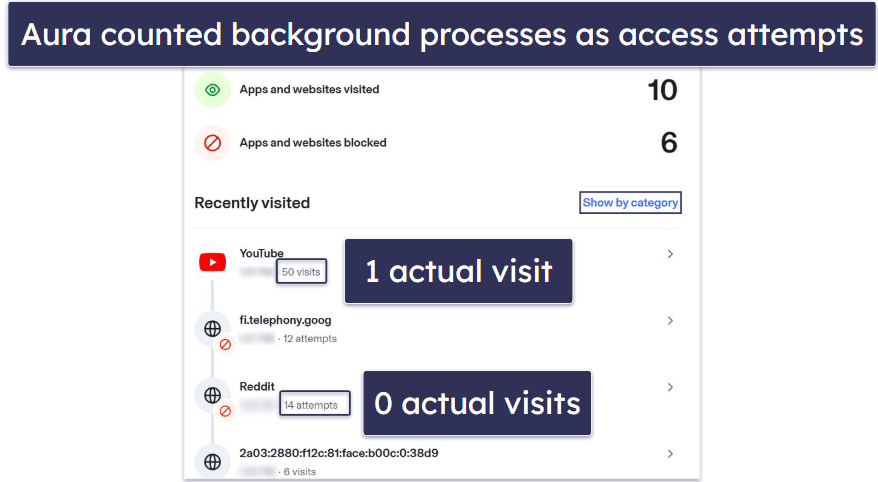
For starters, I encountered a bug that caused Aura to lump background activity with active visits, meaning it showed that my kid accessed YouTube 50 times in a day when I had the device and it was only opened twice. During my tests, the times were inaccurate, too, since it counted every instance of a background process as a separate time I opened the app.
It’s a decent tool, but I’d like Aura’s activity reporting to go further. Most top parental controls display time limits for the apps kids use, as well as their overall use time. Aura only displays the blocked websites your kid attempted to access and the apps and sites they visited.
Overall, this is an easy way to see blocked sites and apps your child tried to use, but it’s missing more comprehensive activity reporting, which you get with Qustodio and Norton Family. These apps show you which apps and sites your kid visited, how much time they spent on them, their web searches, and more.
Additional Features — Screen Time Score, Mood Trends, & Highlights
Aura doesn’t come with many additional features, but there is a unique AI feature called Balance, which provides insights into your child’s digital mood and emotional well-being.
- Daytime Score. Gives you a quick snapshot of how balanced your child’s screen time is during the day. A higher score means they’re taking breaks and using their devices in moderation, while a lower score usually points to long stretches without stopping. I like the simplicity, but I think Aura could improve it by showing more context, like which apps were driving those long sessions.
- Screen Time Habits and Trends. Helps you track whether your child is glued to their screen for hours or if usage is steadily increasing week after week.
- Highlights. Shows the positive side of your child’s digital behavior, like when they take breaks, use kind words, or balance time across apps.
- Social Persona. Assigns labels like “Social Maven” or “Focused Texter” to show how your child is interacting online.
- Express Tone. Analyzes the mood of your child’s messages and groups them into positive, neutral, or negative categories. I tested this during a time when my kid was upset over a friendship, and Aura correctly flagged an uptick in negative tone. This lets you start a conversation with your kid about difficulties they may be having.
- App Engagement and Messaging Trends. Breaks down which apps your child spends the most time on and how active they are in messaging.
Aura Parental Controls Installation & Setup — Pretty Easy Overall
Aura has parental control apps for Android and iOS and a desktop app for Windows with Safe Gaming features. You can also manage your child’s device using the Aura website on your browser.
Aura uses the same mobile app for both parents and adults. It’s pretty easy to set up, but setting up the app for your kid involves a few extra steps.
Aura Parental Controls App Installation & Setup (Parental App + Kids App)
Download the Aura app from your phone’s app store on yours and your kid’s phones.
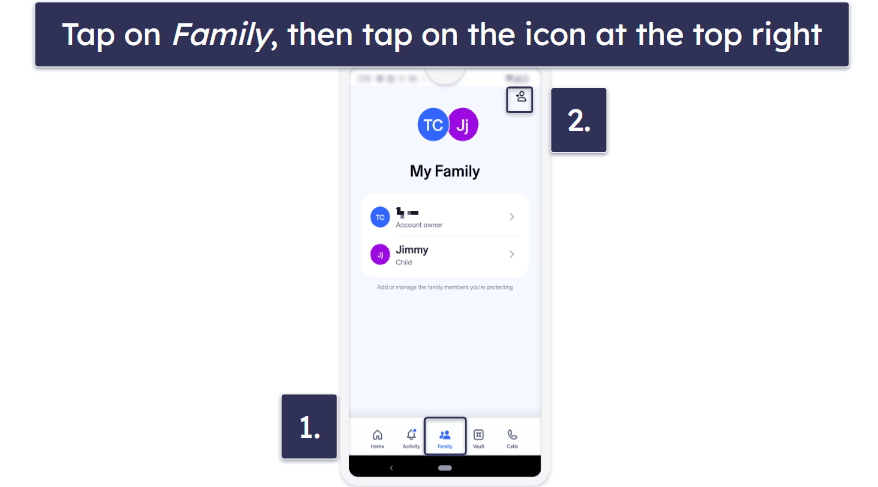
On your phone, log into your account and tap on the Family tab. On the top right, tap the icon that allows you to add more people to the account.
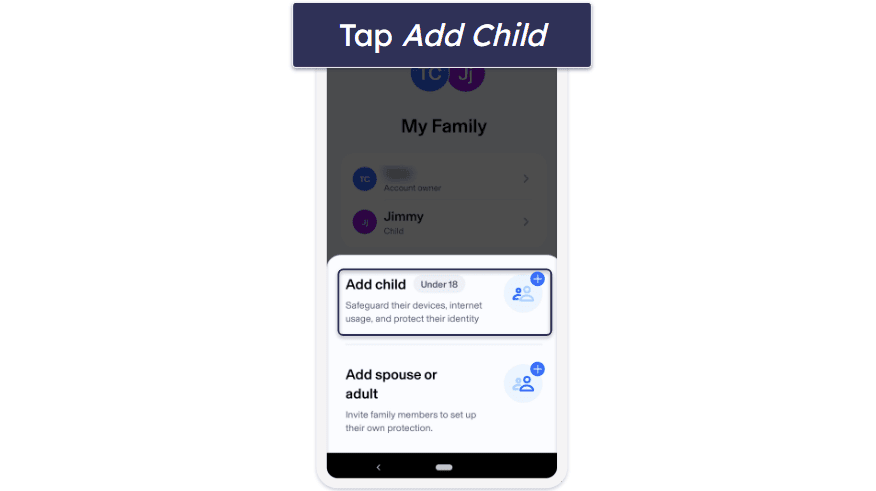
Next, tap on Add child. Fill in your kid’s information, like their first and last name and birthday.
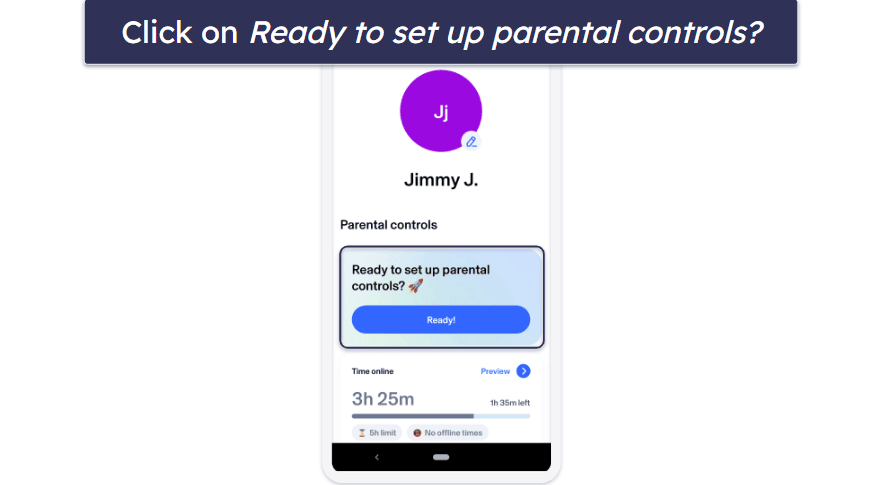
After an account is made for your kid, open up their profile and tap on Ready to set up parental controls at the top of the screen.
It will open up a QR code you can then use your kid’s camera to scan (you can also get a link). If your camera doesn’t automatically scan QR codes, you may need to use the Lens mode, or whatever your phone’s QR scanner is called.
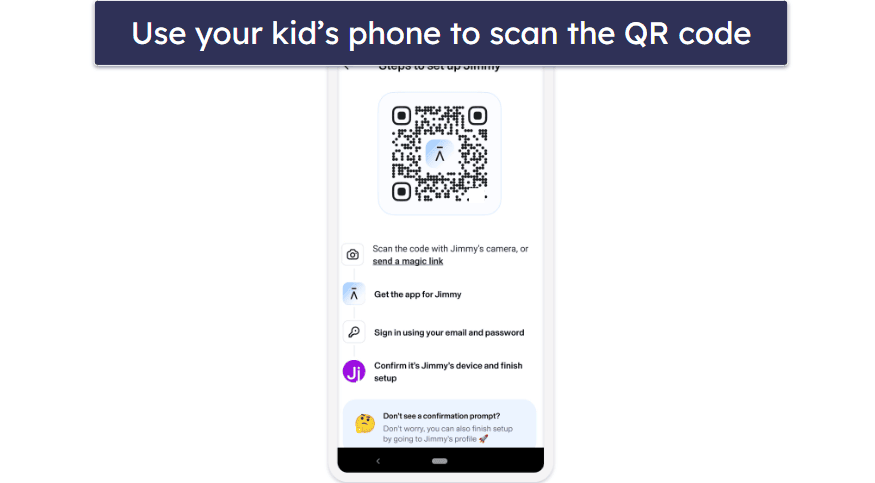
After scanning the QR code, your kid’s device will be linked. All you’ll have to do then is accept the permission the app needs to monitor your kid’s device and allow you to set rules.
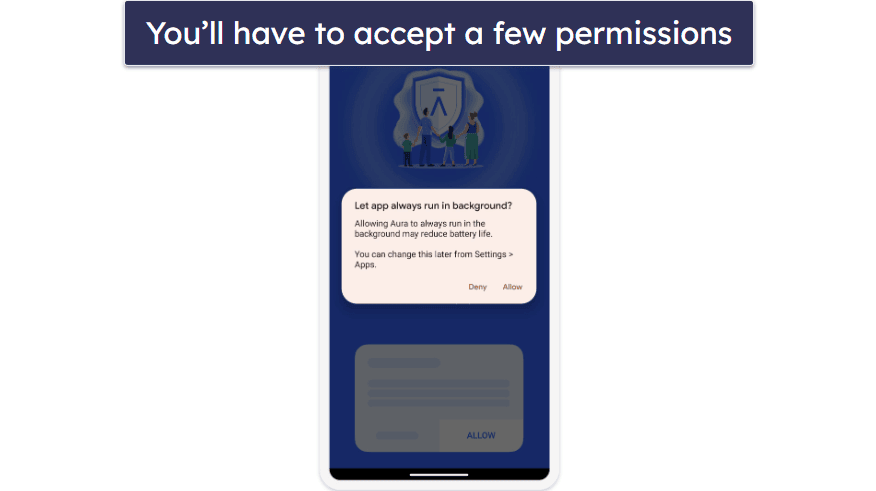
Adjust your parental control settings using your phone or through Aura’s website on your browser. You can customize all the settings for each kid’s device you’re monitoring.
Just note that there’s no uninstall protection, so your kid can easily remove the Aura app from their phone. However, you will be notified if they disable their parental controls.
Aura Parental Controls Ease of Use — Very Beginner-Friendly
Aura’s parental controls are extremely easy to use and very beginner-friendly. Even if you’ve never set up parental controls before, you’ll have no problem installing the app on all the relevant phones, linking your child’s device, and setting restrictions on their internet use.
The kids app is only available on mobile, but you can use the web app to manage your child’s settings and view activity reports. The desktop app only contains Safe Gaming, and once you set that up, it runs in the background. Each app is pretty intuitive.
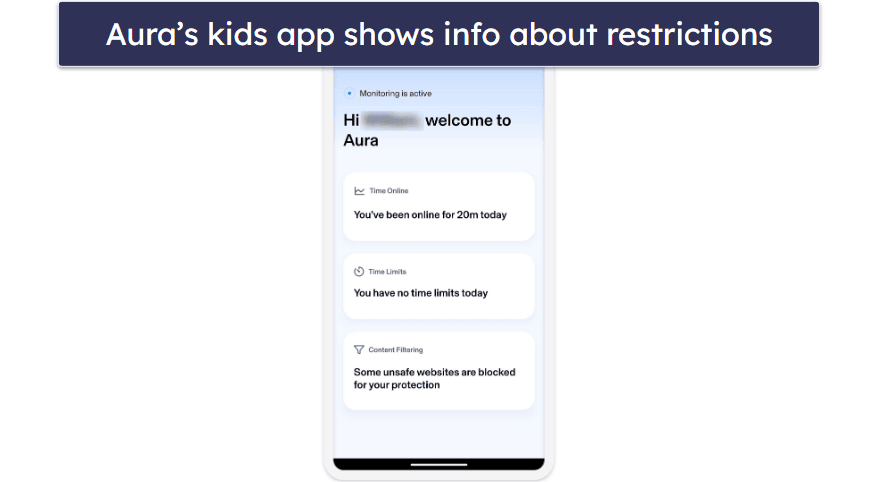
Aura’s app on the kid’s device is extremely minimalistic, only showing your time limits, current time used, and current level of content filtering. Kids don’t have any control over the settings of the app — that’s all handled through your phone.
Mobile & Tablets — Intuitive & Mostly Bug-Free Apps
The Android and iOS apps are both intuitively designed and user-friendly. I was able to install the apps, link my kid’s device, set up custom rules, and monitor their usage with minimal problems or bugs.
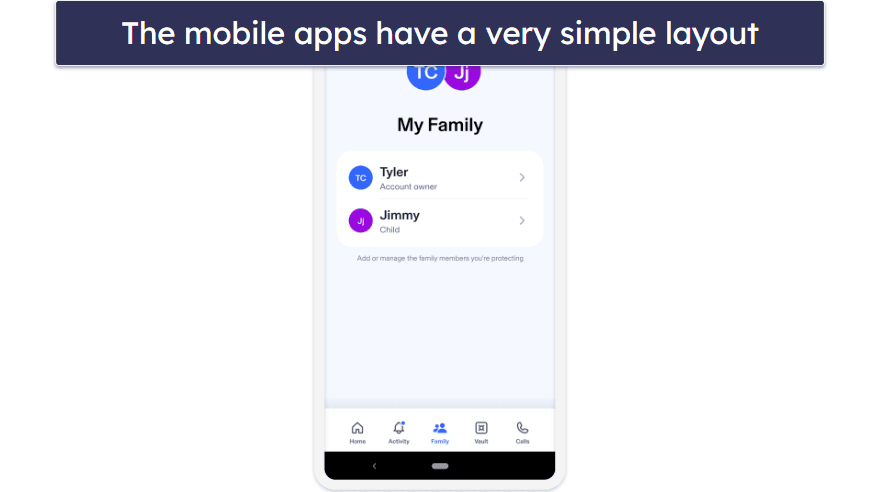
The app’s homepage is divided into neat sections that let you check your family’s accounts and tweak the parental controls settings, without being overwhelmed.
I was able to link my test account and set up rules within 15 minutes (5 minutes to link the account, 10 minutes to set up rules), and I was good to go.
The only problem I had was when I first set up the parental control app — it would count background processes as a new visit. This meant that if I tried to open YouTube and it got blocked, it would register background processes (presumably reconnect attempts on the app’s side) as independent visits.
Desktop — Just the Safe Gaming Feature
Aura’s desktop app only comes with one very light form of parental controls. It doesn’t monitor web apps, have time limits, or come with the option to pause the internet — instead, it just comes with the Safe Gaming feature.
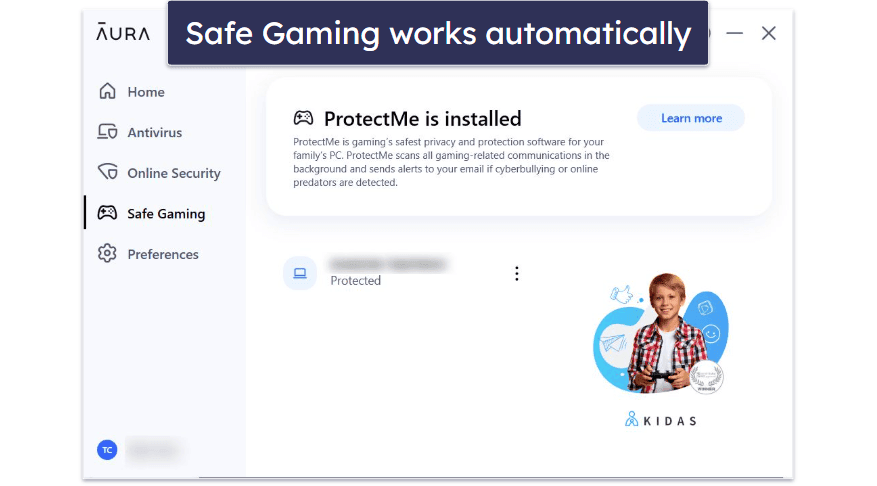
You can install it in a few clicks, and it works automatically in the background. You don’t have to manage anything either. You’ll receive automatic alerts about any suspicious behavior — so you truly do just install it and leave it alone.
Aura Parental Controls Customer Support — Great Help Center, but Email Support Isn’t Helpful
I found Aura’s customer support to be informative and pretty helpful. I started out by contacting its live chat support. It was a bit disappointing that it was a bot and not a real person, but the bot was able to answer most of my questions. It also helped me connect with a live representative and included Aura’s customer support phone number for future use.
The live support was pretty good. I had a few questions for them, and they were able to answer the problem without any complicated language, sales pitches, or fluff. They were polite, direct, and helped me with the activity report bug I mentioned earlier.
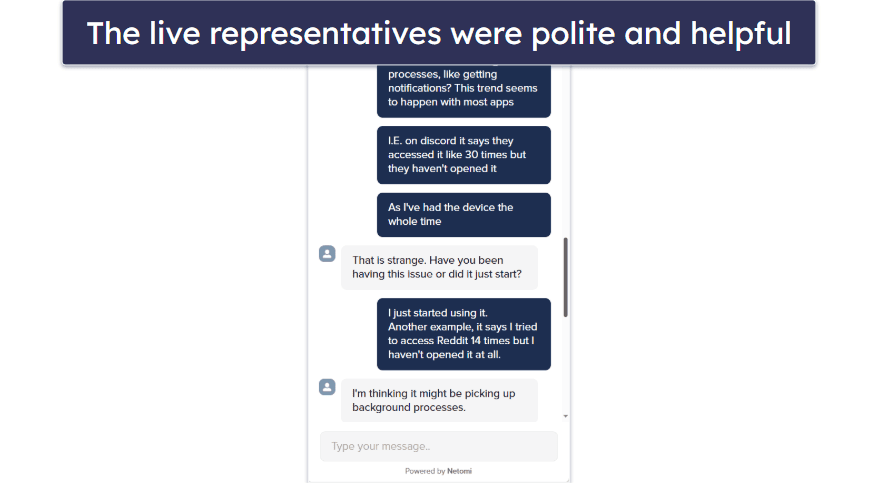
You can also rely on email support, but it’s not terribly helpful. The response time has an average of two days, and if your issue is important, they provide you with the customer support phone number, so it’s not helpful during immediate emergencies. From my experience, the live representatives responded faster and helped more effectively.
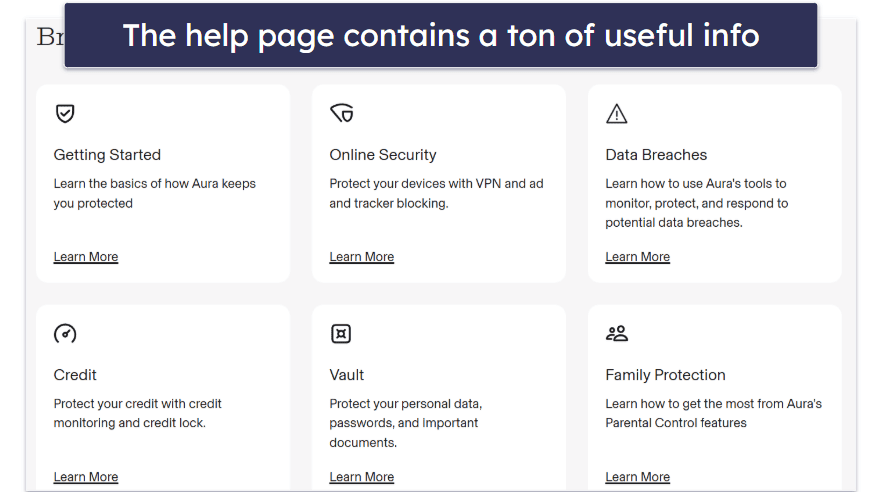
However, I really like the website’s help center, which contains an extensive FAQ section broken up into several windows, with a long list of answers and guides available in each section. While the FAQ is great, it would be even better if there were a public forum and complete product manuals.
Overall, Aura’s customer support is decent, but it could be better. I’d like to see it add a live chat option that’s not a bot (Norton Family is one of the few parental apps that has a 24/7 live chat) and product manuals in the help center.
So, Are Aura Parental Controls Worth The Cost?
I would say it’s worth the cost as long as you know what you’re getting. Aura’s parental controls are effective and beginner-friendly, but they’re pretty basic.
Starting with a positive, Aura has reliable web and app filtering that you can use to prevent your kids from visiting unwanted websites. It blocks fraudulent and malware-ridden sites, pornography, and violent material, while being fully customizable. You can also monitor your kid’s app and internet usage, pause the internet, and set timers for phone use and individual apps. Aura also scans the dark web for you and your child’s information, including SSNs.
But while its core features are strong, there’s no location tracking or any extra features that better standalone options offer. The only extra thing you get is the Safe Gaming feature that’s only available on Windows, but that’s really the only parental control feature you get on the desktop anyway — the rest are available on mobile only and through the web app.
On top of decent parental controls, it comes with a complete antivirus and more to protect you and your family’s devices. That said, the price is pretty intimidating when you compare it to Norton’s top plan, which offers parental controls, 500 GB of cloud storage, a VPN, and more identity monitoring features for a more affordable price tag.
Overall, Aura’s parental controls aren’t too bad, but I’d like to see improvement. It makes up for its simple features with the full internet security suite you get in one plan, but if you’re only looking for parental controls, there are better standalone options out there. Still, since it comes with a 14-day free trial and a generous 60-day money-back guarantee, you can try it out risk-free.
Frequently Asked Questions
Does Aura have a free plan?
Unfortunately, Aura doesn’t have a free plan. However, it does come with a 14-day free trial you can use to test its parental controls app (and the rest of it). It also comes with a pretty generous 60-day money-back guarantee, making it completely risk-free.
Are Aura parental controls good?
Aura parental controls are pretty good. You can monitor your children’s internet activity and easily set which websites your child can and can’t access. Plus, you can set time limits on phone usage and for individual apps, and you can pause the internet entirely whenever you need to.
It’s easy to work with and can be set up on your child’s device in a matter of minutes. Plus, it works well right out of the box, meaning its default restrictions will automatically block porn sites, fraudulent websites, and other online threats without you needing to tweak a single option.
Why are Aura plans pricey?
Because you get a full suite of various cybersecurity tools. On top of the parental controls, it includes an antivirus engine, identity theft protection, and a lot more.
If you plan on picking up Aura, it’s best to ensure you’re looking for all (or at least most) of its features. It’s still a little cheaper than buying multiple cybersecurity products separately and covers unlimited kids’ devices, but that initial price point can certainly be intimidating. Aura also comes with a 14-day trial of all of its plans, so you can try it without fully committing.
Are the parental controls secure?
Yes, Aura’s parental control apps are highly secure. Not only will they prevent your child from being able to access malware-ridden websites, but you’ll be able to completely monitor their activity. Besides the parental controls, Aura’s malware engine scored pretty well during our in-house tests.