
Published on: December 30, 2022 Updated 5 times since publishing
Short on time? Here’s how to cancel your Keeper subscription in 2026:
- 1. Export your passwords. Export your passwords as a CSV file or an encrypted file so you can import them to your next password manager.
- 2. Cancel your Keeper subscription. Log into Keeper and cancel your subscription from the Account menu.
- 2. Uninstall Keeper. Navigate to your computer’s Control Panel and uninstall the Keeper app.
- 3. Try an alternative password manager. Download a good alternative password manager, like 1Password, so you can continue to safely store your passwords and other sensitive information.
Keeper is a great secure password manager, but it’s not to everyone’s taste. It might be that you’re after a password manager that includes dark web monitoring in its packages rather than making it a paid add-on, for example.
I’m glad to tell you that canceling your Keeper subscription is a simple process that only takes a few minutes. But since Keeper only offers prepaid plans, if you’ve already purchased a subscription, you won’t be able to get a refund — however, you will be able to use Keeper until the end of your billing period unless you delete your account.
Keeper’s 30-day free trial period doesn’t require a credit card, so if you have a trial subscription, it will automatically expire without you being charged at all. Your account will automatically be downgraded to the free version as well. So if you haven’t put in any of your credit card information, you don’t have to worry about canceling your subscription.
You should choose an alternative password manager after canceling Keeper. To save you time and effort, I’ve put together a brief list of the best password managers in 2026. 1Password is my favorite, but there are several great options.
TRY 1PASSWORD (14 Days Risk-Free)
How to Cancel Your Keeper Subscription (Step-by-Step Guide)
- 💻 How to Cancel Your Keeper Subscription on your Windows or Mac Computer.
- 📱 How to Cancel Your Keeper Subscription on Your iPhone or iPad.
- 🤖 How to Cancel Your Keeper Subscription on Your Android Device.
How to Cancel Your Keeper Subscription on Your Windows or Mac Computer
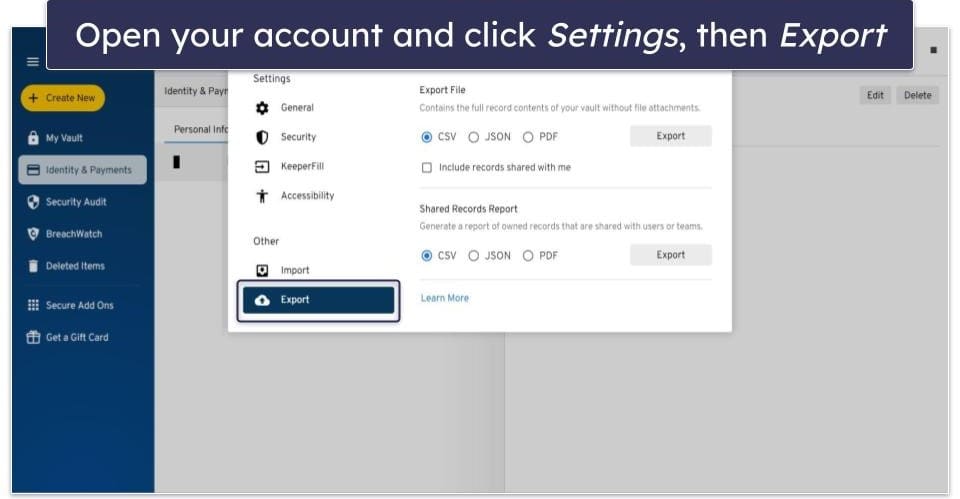
- Export your passwords as a CSV file so you can easily import them into your new password manager. Head to the Keeper website and log into your account. From there, click on your icon in the top right corner, click Settings, then click Export. Finally, just follow the prompts and you’ll have a CSV file you can import into other password managers.
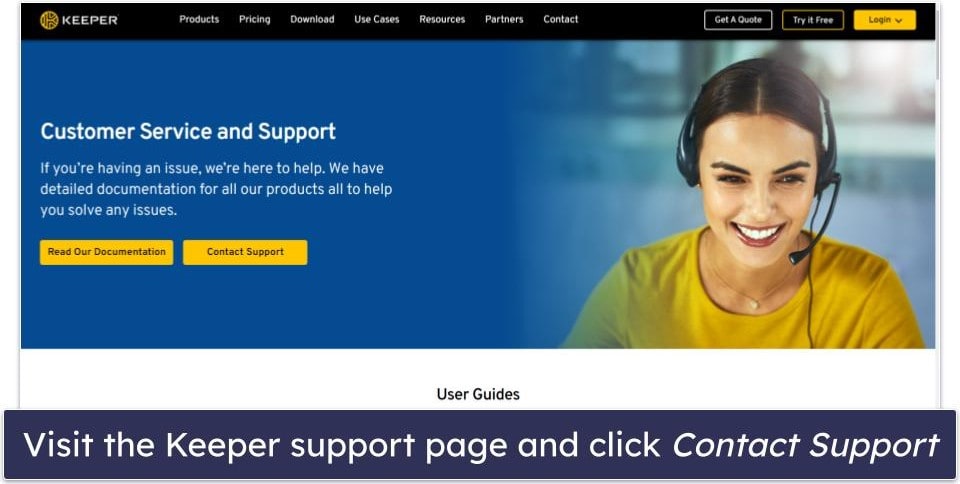
- Navigate to the Keeper support page (keepersecurity.com/support.html) and click Contact Support.
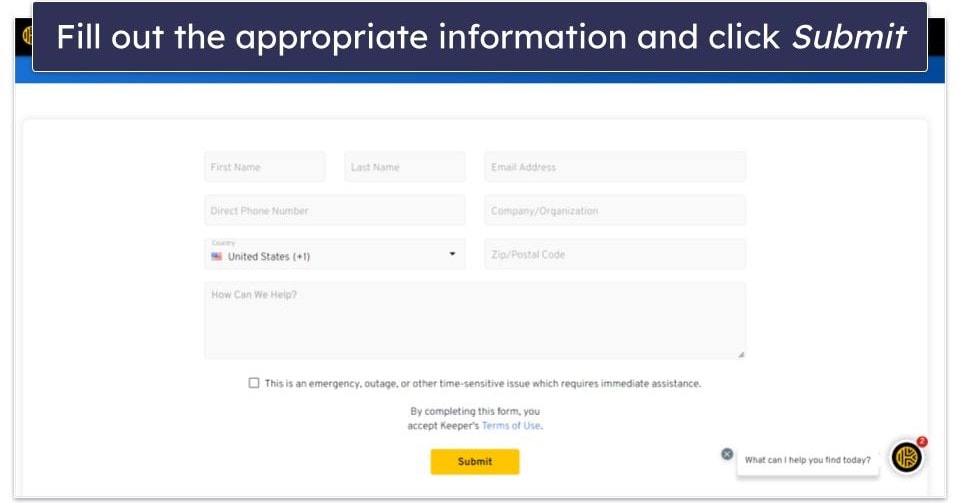
- Fill out the appropriate information in the customer support form (your full name and your email address). Then, in the “How Can We Help?” text box, explain that you want to unsubscribe from Keeper. Finally, click Submit.
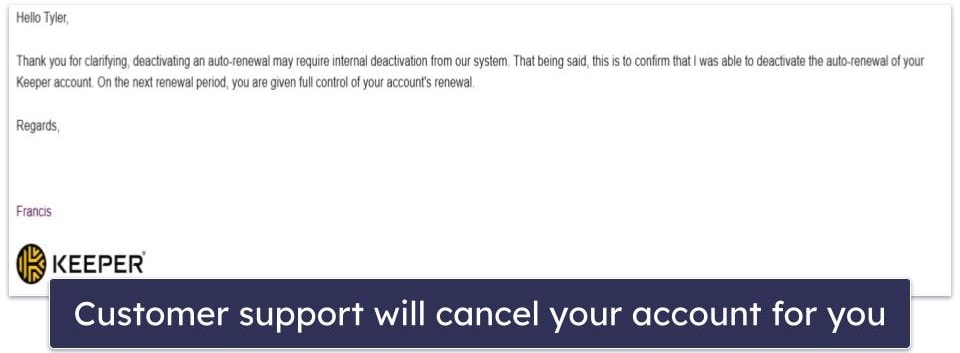
- Customer support may ask for additional details about your request, like checking whether you want to cancel or delete your account — but as long as the information you provided was correct, you should have no problem canceling your account. Customer support canceled my account and let me know via email within an hour.
- Install an alternative password manager to keep your passwords secure. I recommend 1Password as the best overall alternative, because it has customizable vaults and useful and unique extra features like virtual payment cards that Keeper doesn’t have (read more about Keeper in our full review).
How to Cancel Your Keeper Subscription on Your iPhone or iPad
If you purchased your Keeper subscription through the Keeper website, all you need to do is follow my instructions above to cancel your account. However, if you purchased Keeper via the Apple App Store, your subscription is handled through your App Store subscriptions. To cancel it, you’ll need to follow these steps.
- Go to your iOS Settings.
- Tap on your name, then tap Subscriptions.

- Find your Keeper subscription on the list and tap on the icon.
- Tap Cancel Subscription (you may need to scroll down to find it). Confirm your choice, and your subscription will be canceled.
- Choose an alternative password manager. 1Password is my favorite, with extra features that Keeper doesn’t have, like a Travel Mode, a great multiple vaults system, and an intuitive iOS app.
How to Cancel Your Keeper Subscription on Your Android Smartphone or Tablet
If you purchased your subscription from the Keeper website, all you need to do is follow the instructions above to cancel it. However, If you bought it via the Google Play Store, your subscription is managed there, so you’ll need to follow these instructions instead.
- Navigate to your Play Store app, tap your profile picture, then tap Payments & subscriptions.

- Tap Subscriptions.

- Tap your Keeper subscription and then tap Cancel Subscription. You’ll have to verify you want to cancel. After tapping Cancel Subscription one more time, you’ll have successfully unsubscribed from Keeper.
- Once you’ve canceled, you’ll want to consider an alternative password manager ( 1Password is my favorite).
Quick Summary of the Best Keeper Alternatives in 2026


How to Uninstall & Fully Remove Keeper Files From Your Devices
After choosing an alternative password manager, you should uninstall Keeper from your device. Each operating system has a different process to uninstall, so make sure you’re following the guide that’s appropriate to you.
Remember: before you uninstall Keeper on any device, make sure you’ve exported your passwords first.
- Uninstall Keeper From Your Windows PC or Laptop.
- Uninstall Keeper From Your Mac.
- Uninstall Keeper From Your iPhone or iPad.
- Uninstall Keeper From Your Android Smartphone or Tablet.
How to Uninstall Keeper from Your Windows PC or Laptop
Uninstall Keeper on Windows 11
- Click on the Start icon at the bottom of your screen.

- In the search field at the top of the Start menu, type “programs”.
- Find and click on Add or remove programs on the list of installed programs.

- Scroll down the app list until you find any programs related to Keeper. Click on the 3 horizontal dots next to each Keeper program and then click Uninstall.

- You’ll be warned that uninstalling will delete the app and all related info. Click Uninstall to confirm. Accept any further prompts that appear, and once this is completed, you will have successfully uninstalled Keeper from your Windows 11 PC.
Uninstall Keeper on Windows 10
- Type “remove” into the search bar next to the Start button and click Add or remove programs.

- Scroll through your list of installed apps until you find programs related to Keeper. Click on them, then click Uninstall twice.

- Accept any further prompts that appear, and you will have successfully uninstalled Keeper from your Windows 10 PC.
How to Uninstall Keeper From Your Mac
- Open Finder, which is located on the left-hand side of your dock by default.
- Find the Keeper Password Manager app and drag it into the Trash, which is located on the right-hand side of your dock by default.

- Empty the bin to completely remove Keeper Password Manager from your system.
How to Uninstall Keeper From Your iPhone or iPad
- Find the Keeper app icon on your screen.
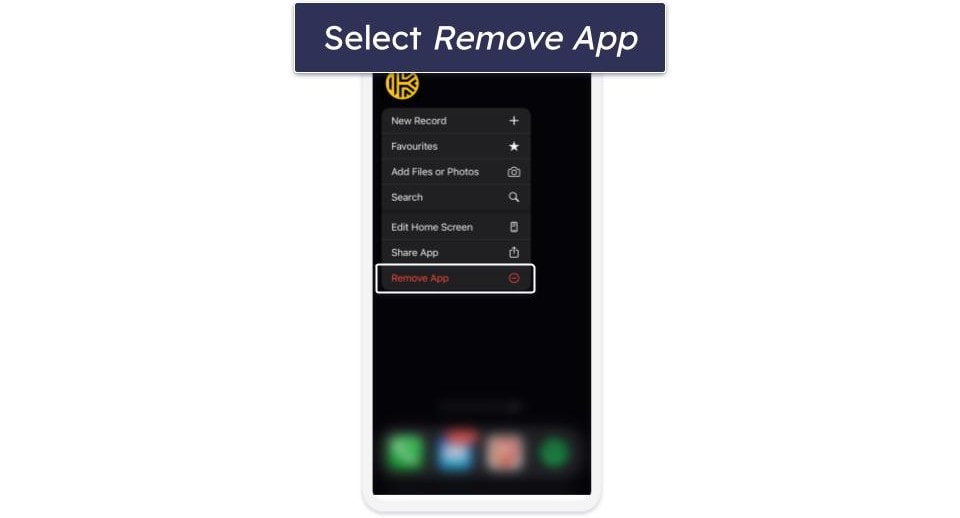
- Long press it until the menu appears. From the menu, select Remove App.
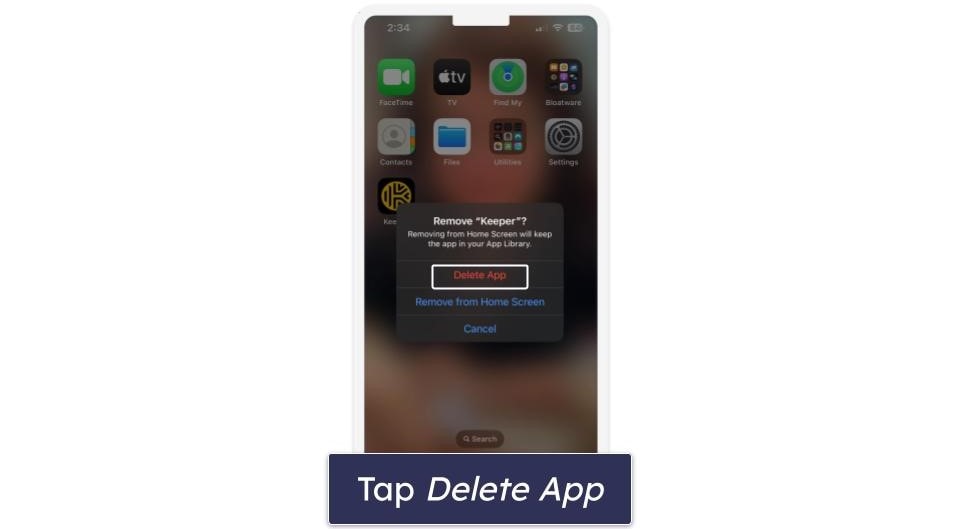
- A “Remove “Keeper”?” box will appear. Tap Delete App.
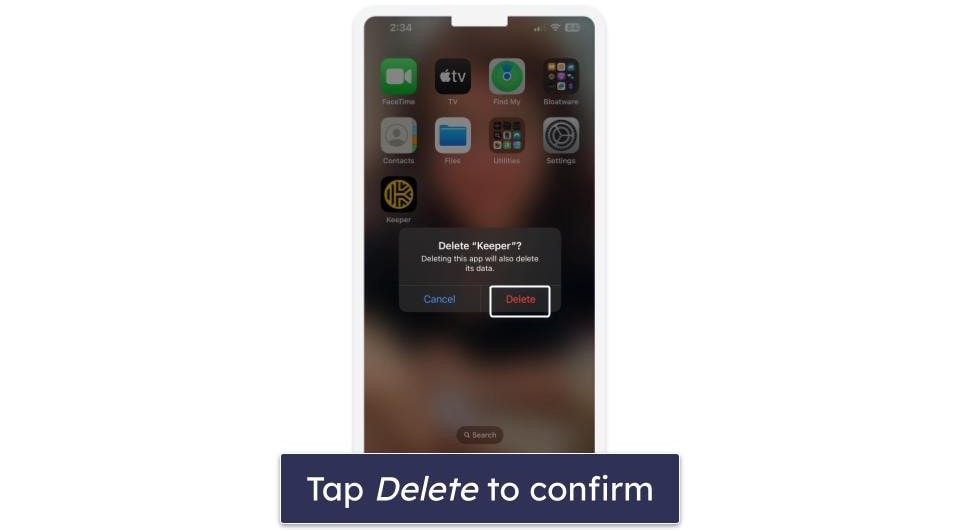
- Another box will appear saying “Delete “Keeper”?” Confirm by tapping Delete, and you will have fully removed Keeper from your phone.
How to Uninstall Keeper From Your Android Smartphone or Tablet
- Navigate to your Settings.
- In Settings, select Apps & notifications (or Apps).

- Find Keeper in the list of apps and tap on it to bring up the app info.
- Tap Uninstall.

- It will prompt you with an “Are you sure?” box to make sure you really want to uninstall it. Click OK and the app will be deleted.
Frequently Asked Questions
Does Keeper offer a refund?
No, unfortunately, Keeper does not offer a refund because its plans are prepaid. You can cancel your subscription and uninstall it from your device, but you won’t be able to get your money back.
Keeper plans do come with a 30-day free trial period, so you can try it out before buying. While this isn’t as helpful as a refund, it does mean that anyone can try Keeper out risk-free, so you know whether or not you want to invest in its premium version. If you don’t choose to purchase Keeper during your trial period, you’ll be downgraded to the free version automatically.
How to cancel my Keeper free trial?
Keeper’s plans don’t require a credit card, which means you don’t risk facing any unintended charges after the trial period is up. You’ll automatically be switched to a free plan once the trial period finishes, so the only way to fully cancel the trial is to delete your account.
If you do decide to cancel the free trial, you’ll need to delete your account. To do so, head to the Keeper Security Support page and click Contact Support. Then, you’ll need to submit a form requesting the deletion of your account, which customer support will take care of.
After deleting your account, consider an alternative password manager. 1Password, for example, offers great extra features like Travel Mode and secure password sharing.
Why can’t I uninstall Keeper?
Uninstalling Keeper should be a simple process — you just have to follow these simple steps. To remove the Keeper browser extension, all you have to do is open your extension manager and remove it from your extensions. The whole process should only take a few seconds.
After you uninstall Keeper, you’ll need a good alternative password manager. I think 1Password is the best password manager in 2026 — it offers unbeatable security and a plethora of additional features like hidden vaults (Travel Mode) and virtual payment cards (Privacy Cards). 1Password also comes with a 14-day free trial, so you can try it out completely risk-free.