Mobicip Review: Quick Expert Summary
Mobicip is a great parental control app for Windows, macOS, Android, iOS, ChromeOS, and Kindle that can help you keep your kids safe online and manage their device usage. It’s quick to set up, has a minimalistic interface that makes it easy to use, and provides good customer support.
Mobicip has all of the industry-standard features you’d expect from a premium parental control app, including web and app filtering, time limits, location tracking, scheduling, and activity reports. Its scheduling tool is especially notable as one of the best on the market. It’s also capable of monitoring YouTube activity, as well as some of your child’s social media accounts, alerting you if your child sends or receives any concerning content.
However, there are a few areas where Mobicip is lacking compared to the competition. It can’t monitor calls and SMS messages, it only monitors 2 social media platforms (Snapchat and Facebook), and it can’t set time limits for individual apps.
Mobicip offers Lite, Standard, and Premium annual plans, which let you monitor 5, 10, and 20 devices, respectively. It also has a free plan (Basic) that gives you access to limited versions of paid features. Mobicip lets you try out its Premium features for free for 7 days and offers a 30-day money-back guarantee, so you can take it for a test drive and get a refund if you think it doesn’t suit your needs.
Try Mobicip (30 Days Risk-Free)
Mobicip Full Review — Good Essential Features & Flexible Scheduling Options
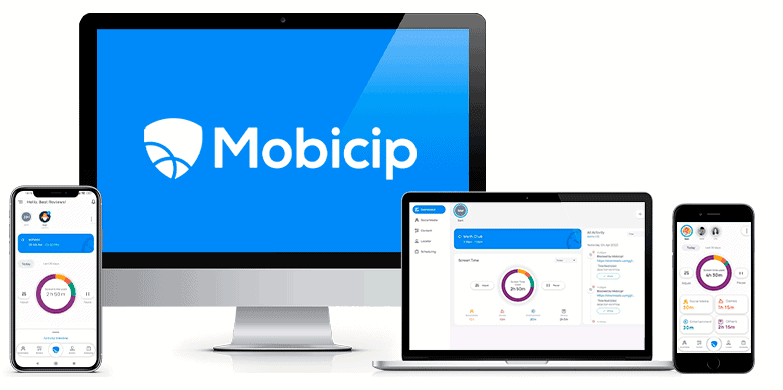
I’ve done extensive research and testing on Mobicip in the past 2 weeks, and I was honestly surprised by how good it is. It has some apparent weaknesses compared to other top parental control apps, but it has some unique strengths as well.
Mobicip has all the essential parental control tools you need to protect your child and monitor their device usage. It also gives you the ability to create different restrictions for different times of the day and monitor your children’s activities on major social media platforms.
But some of its features fall short. For example, it doesn’t let you set time limits on individual apps like Qustodio does, and it only monitors 2 social media sites, whereas Bark monitors 30+ social media sites. I’d also like to see it provide better in-app explanations for its features.
Despite these weaknesses, I still think Mobicip is worth considering for its flexible scheduling capabilities. It has pretty affordable annual plans, and you can take advantage of its 7-day free trial and 30-day money-back guarantee to try it out yourself.

Mobicip Plans & Pricing — A Good Range of Affordable Options
Mobicip has 1 free and 3 annual paid plans: Basic, Lite, Standard, and Premium. The Basic free plan only offers a limited version of most functionalities. The Lite plan (5 devices) and Standard plan (10 devices) are identical apart from the number of devices you can monitor. The Premium plan (20 devices) adds the ability to set time limits on apps and access the social media monitoring feature.
There’s also an option to request a quote if you want to monitor more than 20 devices. It’s possible, too, to get a monthly plan if you sign up for Mobicip on the Google Play Store or the Apple Apple Store.
Each plan starts with a 7-day free trial, which gives you access to all Premium features so you can try out everything risk-free. Mobicip offers a 30-day money-back guarantee on all of its plans as well.
Mobicip accepts payment only with credit cards, including Visa, Mastercard, American Express, and Discover. Debit cards and cryptocurrencies are not accepted.
Here’s an overview of Mobicip’s plans:
Mobicip Basic — Decent Free Plan
Mobicip Basic is the free plan. It offers limited versions of some paid features. For example, it lets you locate your child’s device, but it won’t track location history, and it’ll show your child’s screen time and app usage but only for the current day (the paid version covers 30 days).
You can sign up for it by entering your email (no credit card required). Alternatively, if your paid subscription runs out, you’ll be downgraded to the Basic plan.
Mobicip Lite — Simple & Very Affordable
The 1-year Lite plan costs $2.99 / month. It gives you access to unrestricted versions of all features available in the Basic plan, plus extra features, like Vacation Mode and location history. It covers up to 5 devices. It’s a good deal if your kids don’t use too many devices that you’d like to monitor and if you’re willing to skip social media monitoring.
Mobicip Standard — A Few Extra Devices
The 1-year Standard plan costs $4.99 / month and is almost identical to the Lite plan. The only difference is that it allows you to monitor up to 10 devices. Honestly, it’s a little disappointing that you don’t get more — the plan is missing social media monitoring just like the Lite plan, and I especially don’t like how it doesn’t include the ability to set time limits for apps, as this is a more standard parental control feature.
Mobicip Premium — Full-Featured Plan
The 1-year Premium plan costs $7.99 / month and grants you access to social media monitoring and the ability to set time limits on app categories. Additionally, the Premium plan lets you monitor up to 20 devices and includes “Parenting Expert Advice.” It’s a nice inclusion, but I didn’t really find the advice Mobicip offers to be that useful — there are plenty of free resources online for preventing screen time addiction and educating yourself on potentially dangerous apps, for example.
Mobicip Features — All the Industry-Standard Features (Plus Social Media Monitoring)
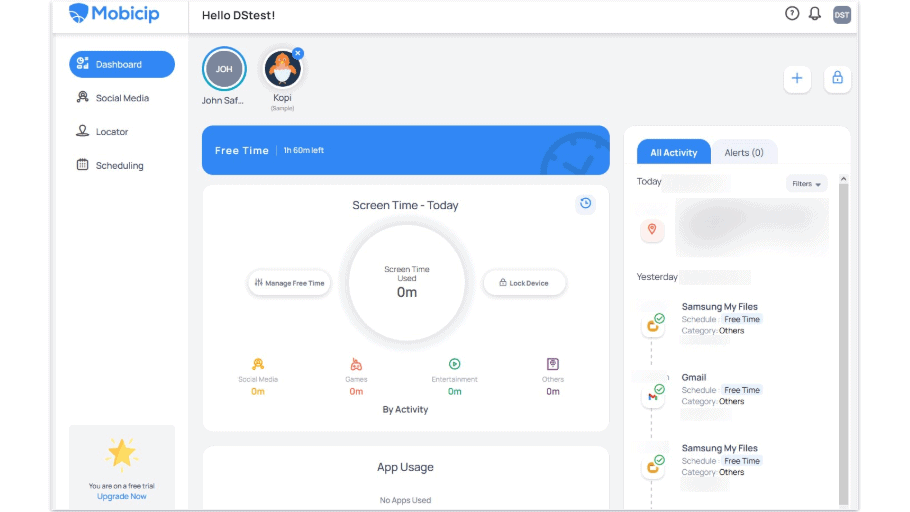
Mobicip includes these essential parental control features:
- Web and app filtering — Block apps that you don’t want your kids to use and prevent access to websites that may contain inappropriate or harmful content.
- Time limits — Set limits on how much free time your kids get on their devices.
- Location tracking — Find out where your kids are and where they’ve been recently.
- Scheduling — Set different app and website restrictions for different times of the day and different days of the week.
- Activity reports — Provides a quick overview of your child’s device usage including how much time they’ve spent on their device, which websites they’ve visited, what apps they’ve used, and more (on browsers only).
Mobicip comes with some great extras, too, including social media monitoring and YouTube content filtering.
Scheduling & Screen Time Limits — Excellent Tool With Unlimited Customization Options
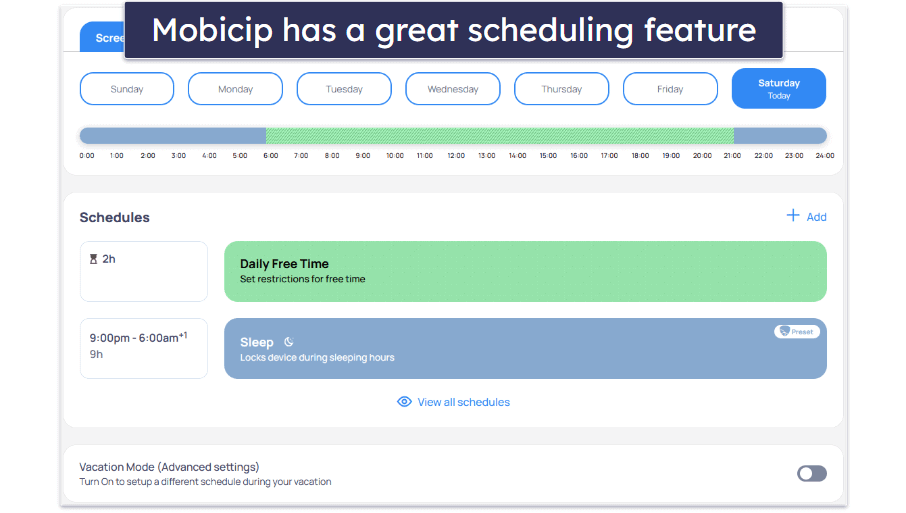
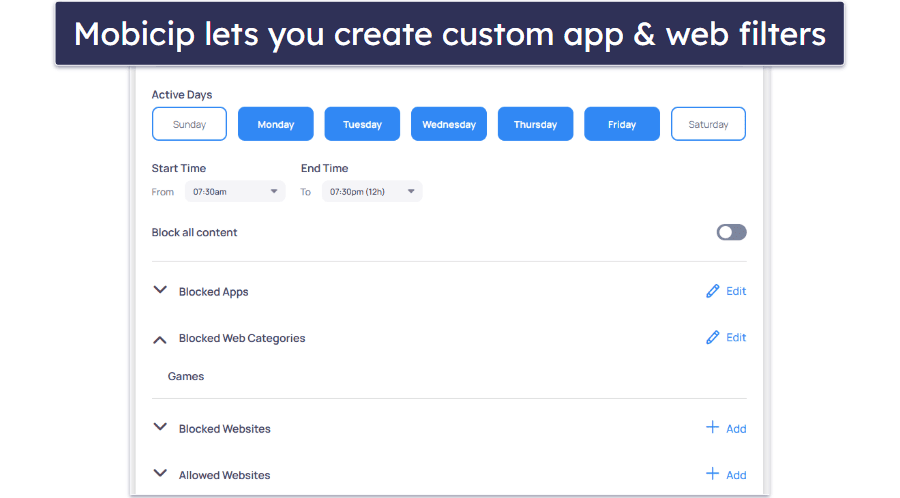
Mobicip’s scheduling feature is really good. It lets you create an unlimited number of custom app and web filters for specific times in the day and for particular days of the week in 5-minute increments. These override your general content filters and let you restrict individual apps or websites — such as gaming sites — or all apps and websites during certain times of the day, like during school hours or when your kids should be sleeping.
Mobicip gives parents a lot more control compared to the scheduling features of other top parental control apps. Qustodio lets you apply restrictions in 15-minute increments, and Net Nanny’s scheduling features only give you the option to restrict internet access or disable the entire device.
Mobicip gives you the ability to limit your child’s total screen time. Any time in the day where there’s no set schedule is considered “free time” by the app, and any time spent by your child on their device during these periods is subtracted from their Daily Free Time Limit. I like that Mobicip offers appropriate screen time allowances by age, based on what you say your kid’s age is when you activated the service. You’re still free to adjust the total for each day of the week in 15-minute increments however you like.
Once your child’s Daily Free Time Limit is used up, they won’t be able to use their device (except for making emergency calls). I like that Mobicip notifies your child when their Daily Free Time Limit is about to be used up, and that it allows them to request grace time from you directly through the app, which will send you a notification and allow you to approve or reject their request.
Finally, Mobicip includes a handy feature called Vacation Mode, which overrides your usual schedule. This lets you set more lenient app and web filters or more generous Daily Free Time Limits for things like family vacations or summer breaks and will apply until a preset end date or continue until you choose to turn it off manually.
Overall, I’m very happy with Mobicip’s scheduling and screen time limit features — It’s one of the best I’ve seen out of all the parental control apps I’ve tested.
Web Filtering — Works Really Well (But Limited Content Categories)
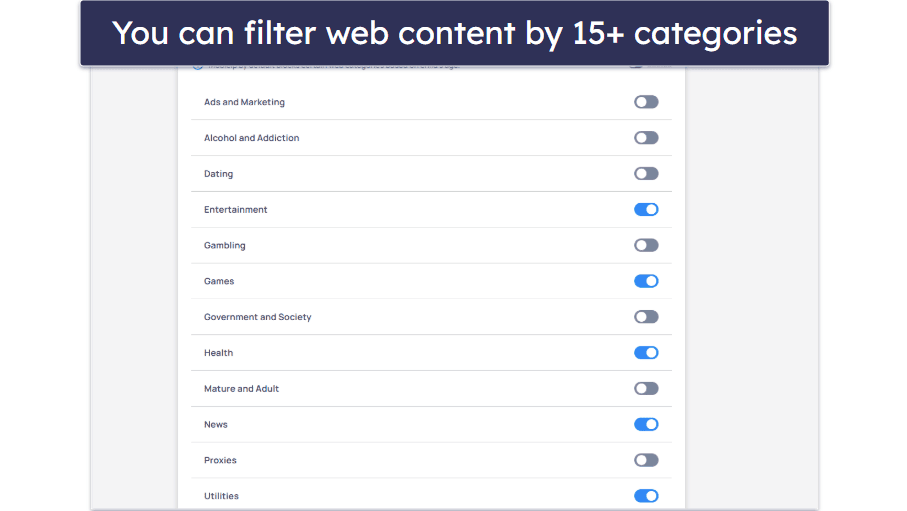
Mobicip’s web filtering lets you easily manage the websites your child can access online by setting permissions for websites in 15+ predefined content categories, including Alcohol and Addiction, Games, Mature and Adult, Shopping, Social, and more. I really like how it automatically turns on some of these categories based on the age of your kid, so you don’t have to customize it if you don’t want to.
I would like to see the list of content categories expanded, though, to give parents more control. For comparison, Qustodio has 25+ predefined categories, and Norton Family has 45+. Some of Mobicip’s content categories also lack clarity. For example, I’m not entirely sure what the Utilities category is or how the YouTube category differs from just putting YouTube on the website blacklist or blocking the YouTube app on mobile devices. It would be good if Mobicip included brief descriptions of what is blocked in each category.
It’s really great that Mobicip uses advanced AI and machine learning to scan web pages in real time, taking into account both the content and context. This allows Mobicip’s filters to keep up with the new content that’s constantly being put up on the web.
Mobicip’s web filtering worked really well during my testing, blocking all of the web pages in restricted categories that I tried to access on my child’s device. It worked on Chrome, Edge, and Firefox, and even while browsing in private (incognito mode). No web filter is perfect though, so I like that when your child attempts to visit a blocked website, Mobicip allows them to request access from you directly within the app. If you approve their request, the website will then be automatically added to a whitelist, so it’ll always be accessible to them in the future.
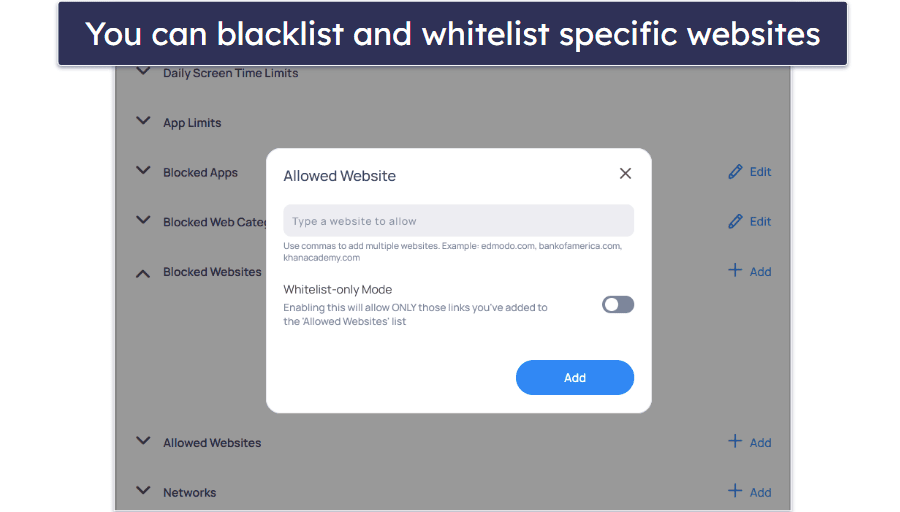
Mobicip also lets you filter web content by adding specific sites to a blacklist or whitelist. There’s even a unique “Whitelist only mode” that you can enable to only allow access to the websites you specify. This can be a good option for parents with very young children, whose internet usage you may want to restrict to a few specific websites as you ease their entry into the online world.
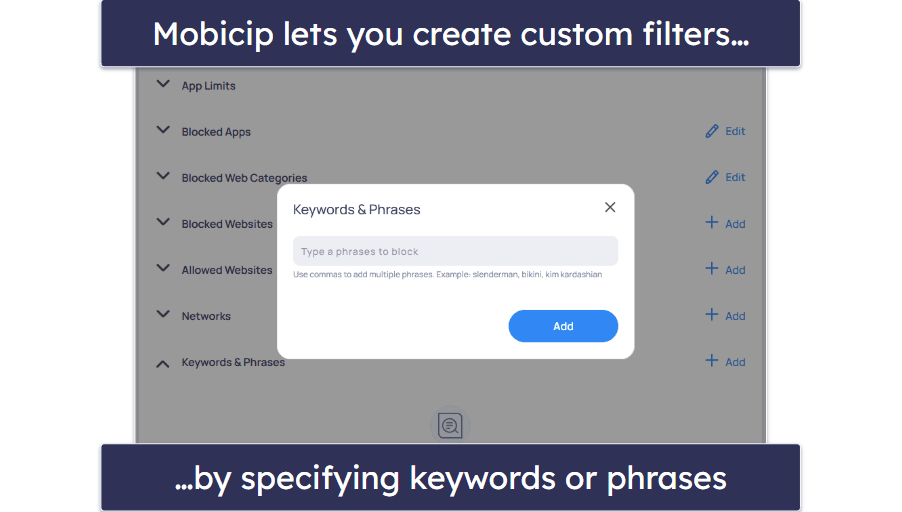
Mobicip lets you create your own custom filters by specifying keywords. How this feature works isn’t explained at all in the app, but what it does is block any web pages where the words or phrases you specify appear. At first glance, this seems pretty useful, but it’s really easy to accidentally block a lot of innocuous websites if you aren’t careful when setting your keywords. In this regard, I prefer Net Nanny, which has a similar feature but offers the ability to simply alert you when your child accesses content containing the keywords. Net Nanny has the ability to automatically mask profanity on web pages as well, which is super neat.
Finally, Mobicip gives you the ability to disable parental controls on specific networks. The in-app explanation states that you can “Disable Mobicip on your child’s protected school network.” This might be useful if you know your child needs to use the internet for schoolwork while at school and you don’t want Mobicip (especially innocuous keyword filters) to interfere. This would save you from using Mobicip’s scheduling feature to set up custom app and web restrictions specifically for school hours. To get the network exceptions to work, however, you need to know the target network’s IP address or IP address range, which could be a bit of a hurdle.
Overall, Mobicip’s web filtering features are pretty good and work really well. Their core elements are comparable to the best parental control apps on the market, but I’d like to see better explanations for the categories and some of the features.
App Filtering & App Supervision — Effective App Blocking (Including Preemptive Blocks)
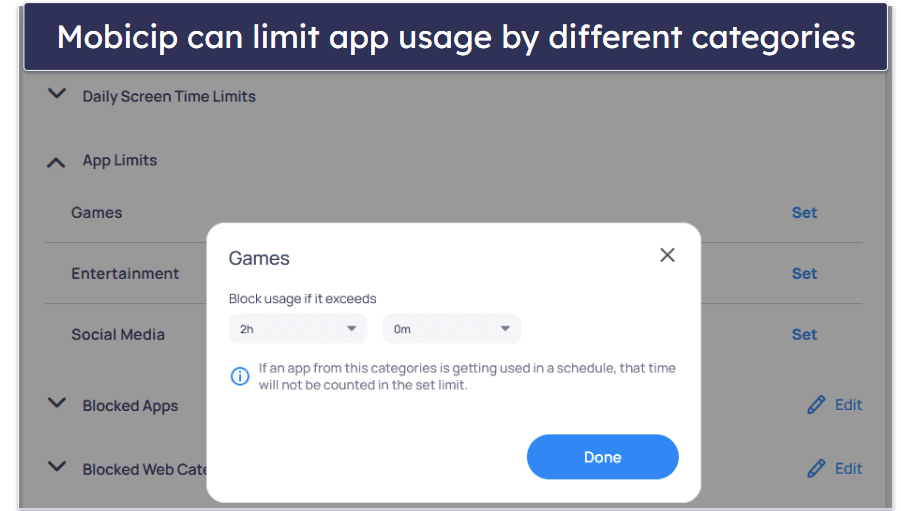
Mobicip lets you limit what apps your child is able to access on their device. One way you can do this is to restrict apps by category — Mobicip offers 3 predefined categories for you to choose from: Social Media, Entertainment, and Games. This is a convenient feature that’s missing on most other parental control apps. It lets you quickly target some of the most commonly blocked apps just by flipping a switch rather than needing to find and block each one individually (and risk missing some in the process).
The feature works by preventing your kid from accessing apps in that category once they reach the total time limit for the day. You can adjust the time limit in 15-minute increments. Unlike Qustodio, however, you can’t set time limits on individual apps, so Mobicip trades a lot of granularity for convenience.
I tested the feature’s reliability by attempting to run half a dozen game apps on my child’s device, from the popular to the obscure, and Mobicip was able to identify and block every one. It’s a little unfortunate that the categories are so indiscriminate, though — puzzle, word, and other potentially educational games will also be blocked if you choose to restrict Games. Another minor gripe I have with the categories is that it’s not made clear what kinds of apps fall under the Entertainment category and how it differs from the other two.
Note that all apps rated 17+ on their respective app store are blocked by default (and there’s no way to turn this off). This is great if you want to make sure that your kid doesn’t have access to content that’s inappropriate for their age.
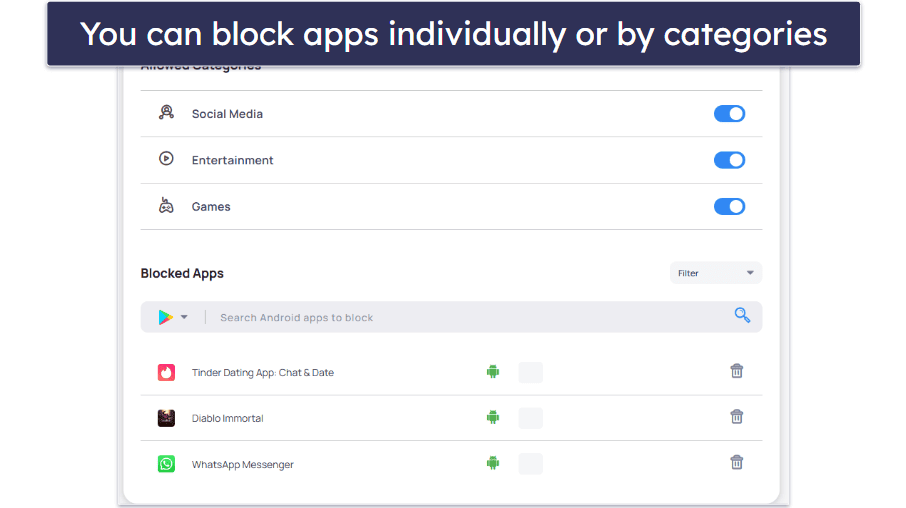
Mobicip also lets you search for and block specific apps from your device’s app store. This is a unique feature among parental control apps. Most, like Qustodio and Net Nanny, can only detect the apps after they’ve been installed on your child’s device.
However, Mobicip doesn’t make it easy for you to see which apps your child actually has on their phone, which seems to me like a pretty big oversight. You could try to block apps as they show up in the activities log of your parental app dashboard, but that’s a rather clunky workaround.
Overall, Mobicip is very good at blocking apps and is one of the few parental control apps capable of blocking apps preemptively (Google Family Link is a good free alternative). There’s a bit of clunkiness to its app blocking features though (such as its inability to list which apps are installed on your child’s device), and I’d like it more if I could set time limits on specific apps rather than by category.
Location Tracking — Accurate Detection (& You Can Share Your Location With Your Kid)
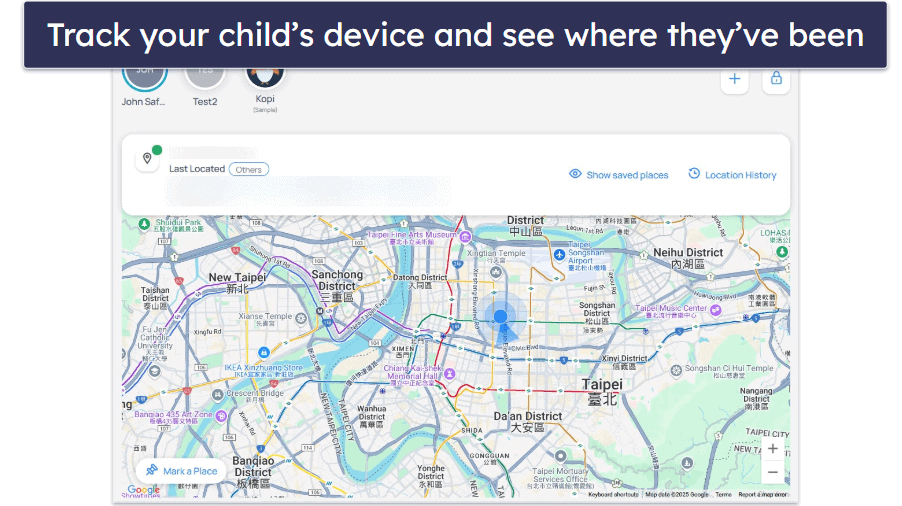
Mobicip’s location tracking feature is very good. It was able to accurately detect where my monitored device was and show me the location directly on Google Maps. It also tracks where the device has been through its location history function, which stores up to 30 days’ worth of location data.
I really like how it lets you share your location with your children, too, which is great if you need them to find you. This simply entails adding family members to your family group by clicking on the plus button at the top of the Locator tab
Mobicip has a geofencing feature as well, which will alert you when your child enters or exits areas that you define on the map. The zones can cover up to 3,280 feet (1,000 meters). This puts it above top parental control apps like Qustodio and Bark, whose zones can only cover up to 650 feet (200 meters), and Net Nanny, which only lets you set specific addresses.
However, Norton Family creates larger geofenced zones (2 miles or 3,200 meters). It also has some great extra features that Mobicip lacks, such as the ability to notify you where your kids are at scheduled times in the day and the option to allow your children to share their location with you instead of using real-time tracking (in case you don’t want to be too invasive).
Overall, Mobicip’s Locator feature is one the best on the market. Still, it falls short of Norton Family and Qustodio, which has my favorite location supervision features out of all parental control apps.
Social Media Monitoring — Scans for Concerning Content on Facebook & Snapchat
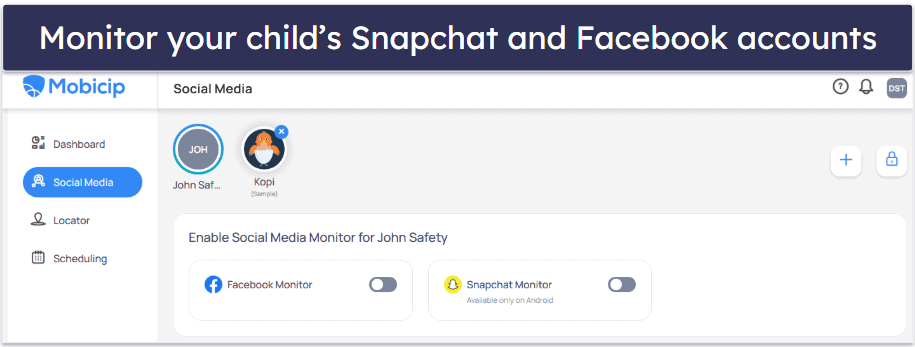
Mobicip gives you the ability to monitor some of your children’s social media accounts. This works for Snapchat and Facebook, but Snapchat monitoring doesn’t work on iOS devices.
It scans your child’s social media for inappropriate or concerning content relating to bullying, sex, violence, drugs, and self-harm/suicide. If it finds something, you’ll be alerted immediately and sent a snippet of the offending content, so you can evaluate whether intervention is necessary.
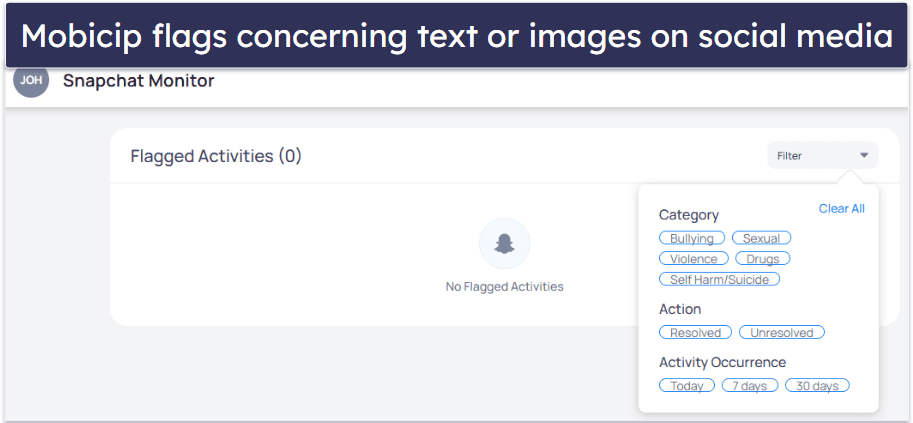
Mobicip’s social media monitoring feature is very useful, but I prefer Bark for content monitoring. For starters, Mobicip is only able to monitor 2 social media platforms compared to Bark’s 30+ social media platforms and apps (including ones popular with kids today, like Discord and TikTok). Bark is also capable of detecting a lot more categories of problematic content or unhealthy behavior, including things like anxiety and body image/eating-related issues. And it allows you to fine-tune how sensitive you want the algorithm to be for each of the 15+ categories it monitors.
Overall, it’s a good feature, but there are better options for social media monitoring than Mobicip. If this is what you’re looking for, I strongly recommend checking out Bark instead.
Activity Reports — Straightforward Summaries by Category & App
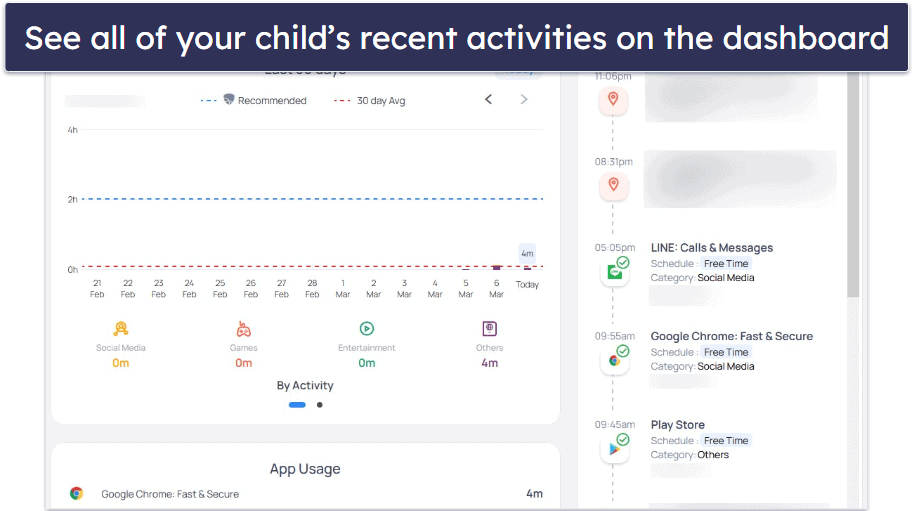
Mobicip’s Dashboard tab gives you a comprehensive summary of your kid’s activities for the last 30 days. You can see how much time they spend on their device, what they’re spending that time doing (broken down by category and app), which websites they’ve visited, and where they’ve been. There’s also a tab for alerts, where you’ll be notified if your kid accesses potentially harmful or inappropriate content.
I like how easy it is to switch between different kids’s activity reports by using the icons at the top. For example, you can tap on an app or website in the activity timeline to block it from the Dashboard, and there’s the option to filter activities by Activity Type (Web, Apps, Location, and Social Media), by Activity Occurrence (Today, Yesterday, 7 days, and 30 days), and Devices (in case your kid has more than one device). It’s also convenient that there are shortcuts on the Dashboard for managing your kid’s screen time and locking their devices.
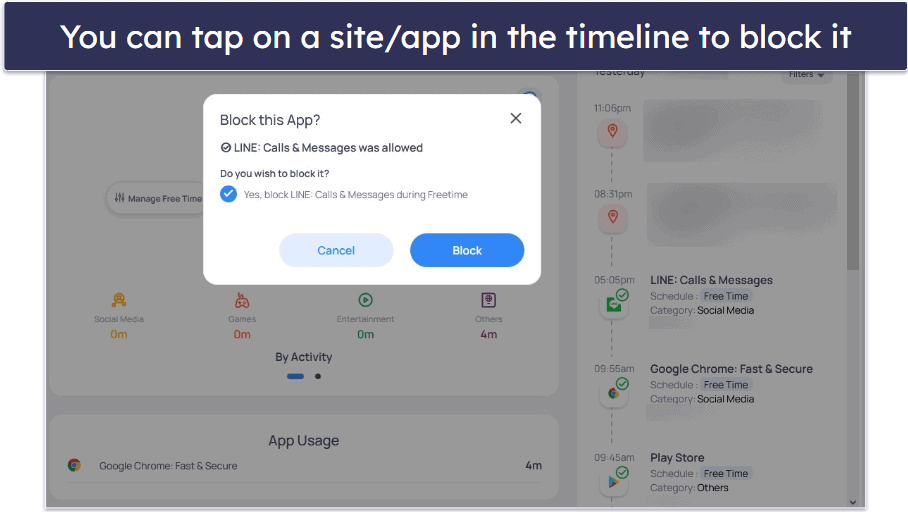
There are some areas where Mobicip could improve its activity reports. Most notably, I want faster updates. Right now, it can take quite a while before an activity pops up on the timeline. It’d also be nice if Mobicip’s tracker lets you see a kid’s individual app usage over a longer period of time to help parents pinpoint problematic apps.
Overall, I think Mobicip’s activity reports are very good, but I’d like to get faster updates and for the app to provide details on app usage over a period of time.
Additional Features — A Few Useful Extras, Including Uninstall Protection
Mobicip comes with the following additional features:
- Uninstall protection — On Android and iOS devices, you can set it up so that your child can’t uninstall Mobicip without your Mobicip account credentials. On Mac or Windows, you’ll have to ensure that your child doesn’t have access to an admin account.
- YouTube filters — Mobicip claims that it filters out YouTube videos with inappropriate words/phrases in the title, description, comments, and meta information. However, I’m baffled by the lack of configurations for this feature: you can’t turn it on or off and have minimal input on what counts as “inappropriate”. It does little more than what YouTube’s built-in “Restricted Mode” already does. Check out our guide on how to keep kids safe on YouTube to find better alternatives when it comes to YouTube monitoring.
- Duplicate settings — Mobicip lets you transfer all of the settings for your child’s device to another child. This is convenient if your kids are about the same age.
- Lock/unlock device — You can lock all of your kid’s devices for a set period (in 15-minute increments) with just a couple of clicks. This is useful for dinner time or an early bedtime that’s out of the usual schedule.
Mobicip Installation & Setup — Super Easy & Quick
Mobicip has a parental web app that can be accessed from any device with internet access without requiring you to install anything. It also has a mobile app for parents. It has kids apps to monitor Android, iOS, Windows, macOS, Kindle Fire, and Chromebook devices.
Both the parent and kids apps are very easy to install and set up on any device. If you’re having trouble, Mobicip has very comprehensive guides in both written and video formats to ensure that even non-tech-savvy parents are able to use its products. For reference, it took me about 5 minutes to set up Mobicip on my main phone, my test Android smartphone, and my Windows 11 PC.
Mobicip Parent Apps (Installation & Setup)
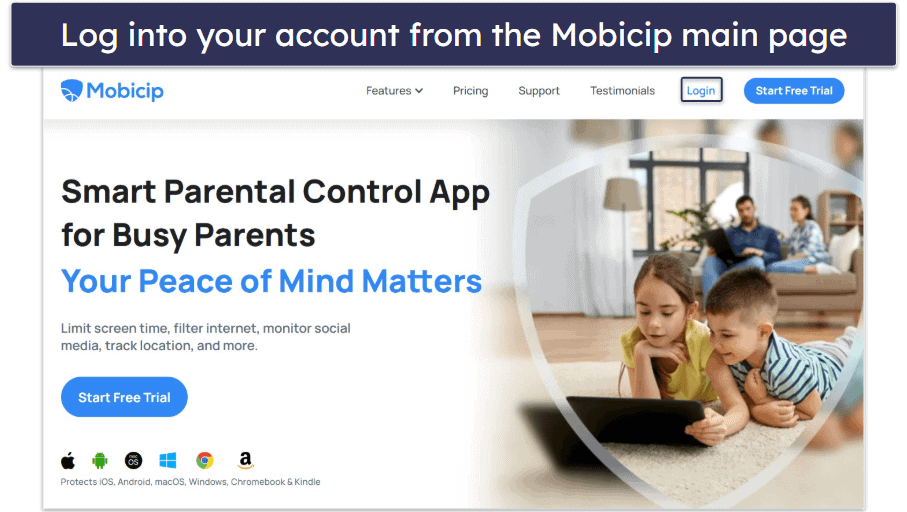
If you use Mobicip’s parental web app, all you have to do is log into your account from the main page on its website.
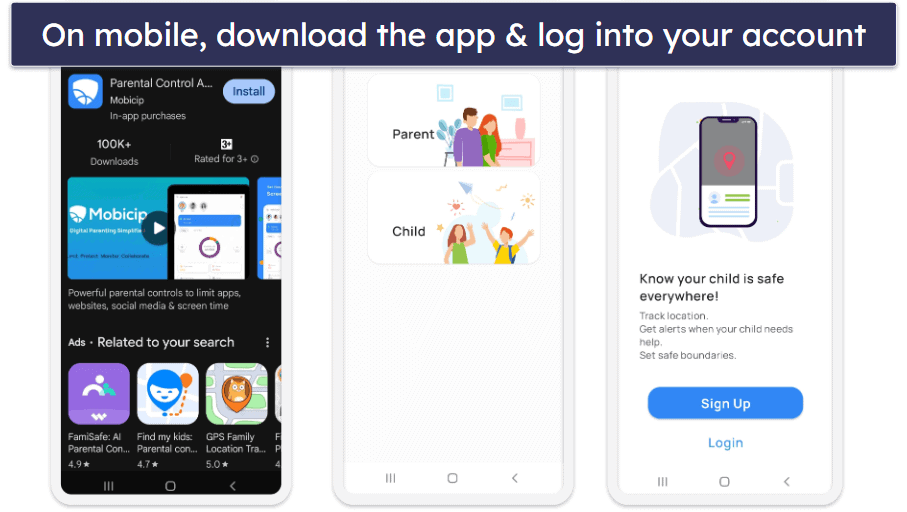
On mobile devices, you can use its mobile parental apps. You’ll have to get the app from your device’s app store. Then, when asked who uses the device, choose Parent, and log into your account to reach the dashboard.
Mobicip Kids Apps (Installation & Setup)
To start, you’ll need to download the Mobicip app onto your child’s device. When asked who uses the device, select Child. You’ll then be asked to log into your Mobicip account. You can also scan a QR from your parent app or the web portal instead.
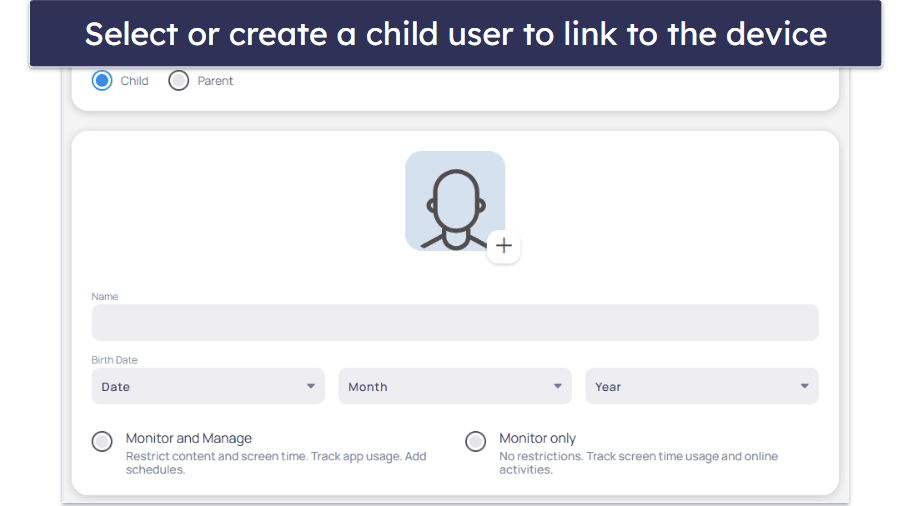
Next, you’ll be asked to select the child who will be using the device. If there aren’t any child users linked to your Mobicip parent account, you’ll have to create one.
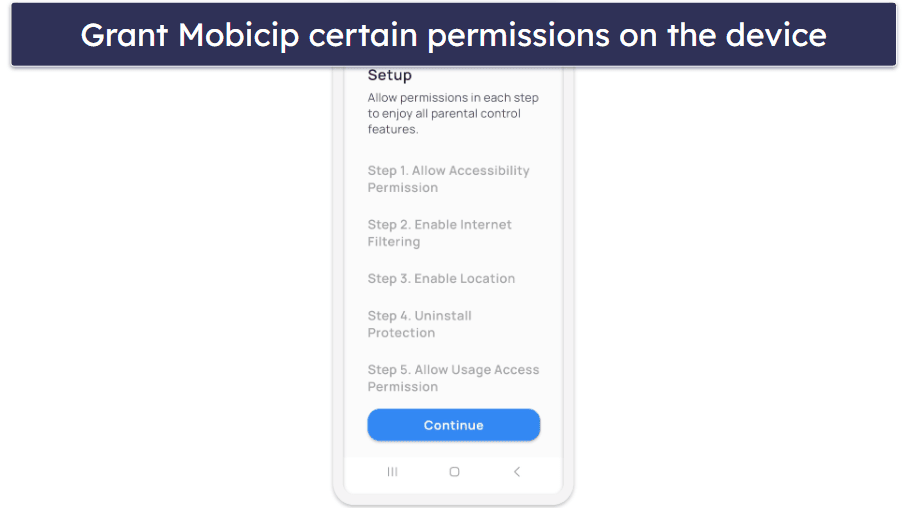
Finally, you’ll need to grant Mobicip some permissions on the device to ensure that it functions properly. The installation wizard will guide you through the whole process. I like how it will even warn you about programs (such as antiviruses on Windows devices and Google Family Link on Android devices) that might conflict with Mobicip’s monitoring capabilities. All you need to do is follow the on-screen instructions.
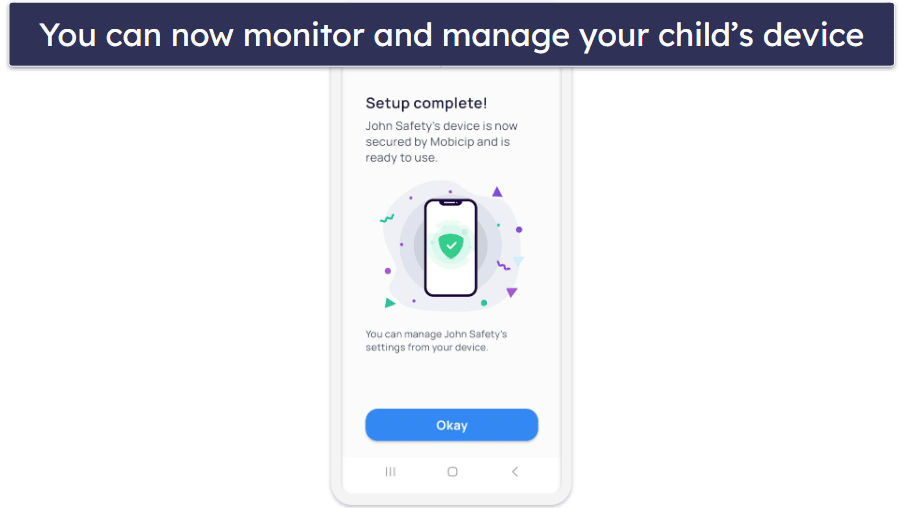
Once you’ve gone through all 5 steps, you’re all set! You can now monitor and manage the device on the Mobicip web app or the parent app.
Mobicip Ease of Use — User-Friendly, Even for Beginners
Mobicip’s web and mobile apps are both user-friendly — the interfaces are simple and clean. You shouldn’t have any trouble navigating the apps even if you’re new to parental controls.
Its kids apps are also very simple, so your kids can easily check how much screen time they’ve used up, any upcoming schedules, and more. On desktops, the kids’ apps run quietly in the background and won’t disturb your children.
Mobile & Tablets — Feature-Rich Apps With a Clear Layout
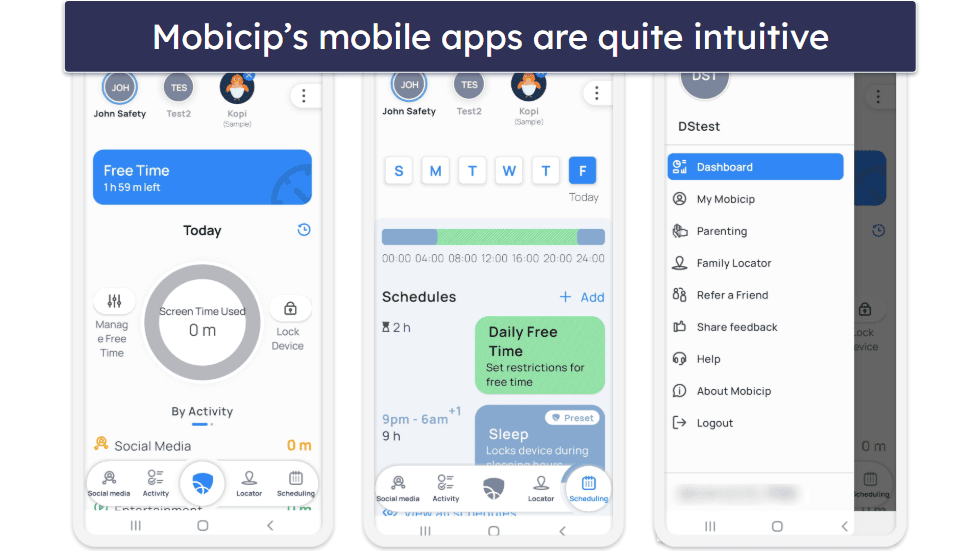
I like Mobicip’s Android and iOS apps. Both interfaces are quite intuitive, and I never had any trouble finding what I was looking for. I also never encountered any bugs when using either of them. Additionally, I like that both apps have similar designs (so it’s easy to switch back and forth) and that both share most of the same features — the only difference being that the iOS app doesn’t let you monitor Snapchat.
Parents focused on managing Apple devices should also compare Mobicip with other top-rated parental control apps for iPhone and iPad to find the feature set that best matches their family’s needs.
The main dashboard contains a lot of important information on your children’s recent activities. For example, you can quickly see how much screen time your children used that day (and in what categories) and pull up their activity timeline to see what they’ve been up to recently. There’s also a shortcut that lets you instantly lock your child’s device.
I’m a fan of how all of its settings are clearly divided and are all accessible with a single tap from any screen by utilizing the bottom menu. This makes it very easy to find the features you’re looking for and set new rules and restrictions. I was able to create a set of rules for my test device in less than 10 minutes.
However, Mobicip’s minimalistic interface has its downsides. For example, its Social Media Monitor and Keywords and Phrases features have incomplete or non-existent in-app explanations, which forced me to look up how they work on Mobicip’s website.
There are also some other unintuitive parts. For example, I found Mobicip’s graphical indicator for whether an app or website is blocked or unblocked to be rather unclear (Mobicip must have thought so too since it included a legend on relevant pages). The grayed-out graphic just doesn’t automatically translate to “blocked” in my head, so it always takes me an extra second to process what I’m seeing. I think a red and green color coding and/or a blocked/unblocked text directly on the toggle would make things much clearer.
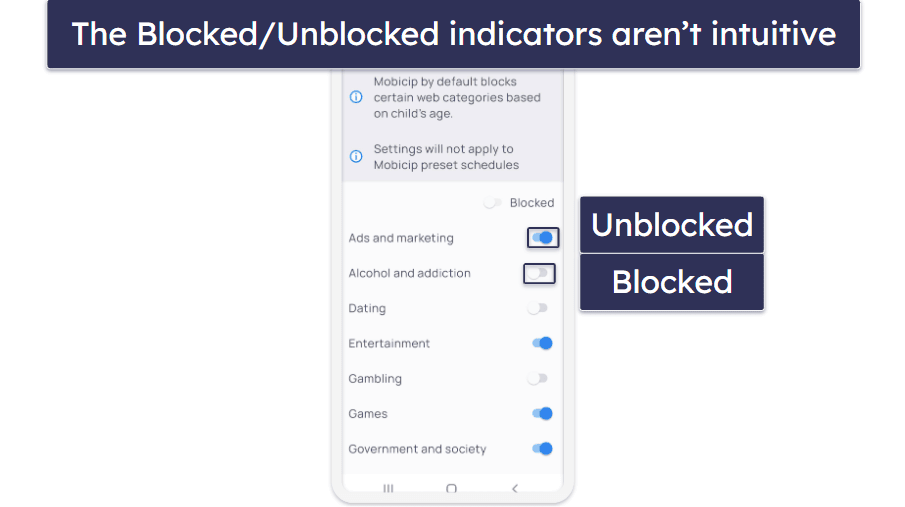
The mobile apps can feel a little cramped, too, because of how much information is stuffed into certain screens. This also causes one or two oddities in the text. For example, some of its text sticks out of its boxes, and I spotted a word broken up into two separate lines. But these are very minor issues.
Overall, I think Mobicip’s Android and iOS apps are very solid. They’re fairly intuitive and feature-rich. But there are one or two areas where they could be more user-friendly, and the iOS app is unable to monitor Snapchat.
Web App — Clean & Well-Designed
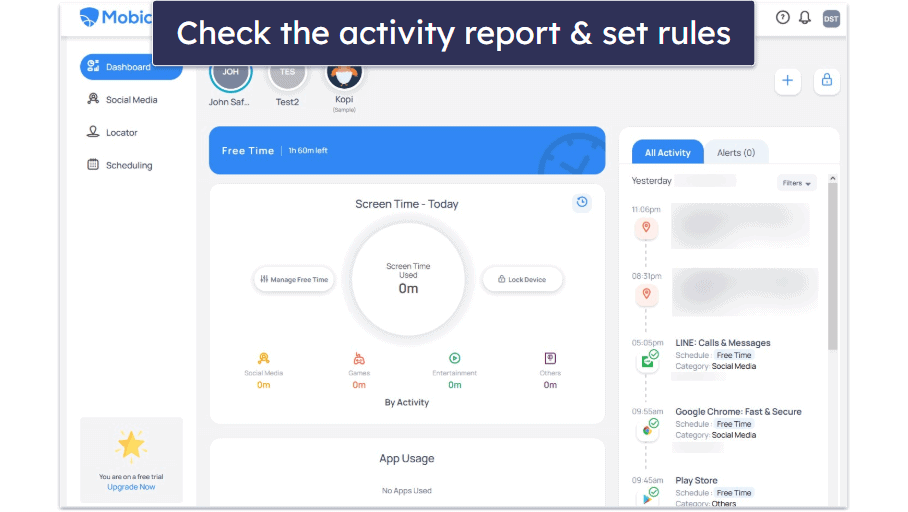
Mobicip’s web app is very similar to its mobile apps. The only difference is the layout — they both have all of the same features. This makes it easy to switch between its mobile and web apps when monitoring your kids.
The web app is pretty easy to use — you should be able to quickly grasp all of its functions and navigate the interface without issues. Adding new devices to monitor and setting restrictions on your children’s devices is also very simple.
However, most of the issues I pointed out with its mobile app apply here, too, such as the lack of explanations for certain features.
Overall, Mobicip’s web app is clean and well designed. I really like how you can do everything on it that you can do on its Android and iOS apps. But I want to see some better labeling and in-app explanations in future updates.
Mobicip Customer Support — Excellent Articles & Responsive Service

Mobicip offers decent customer support, with detailed guides and explanations (including visual aids) for frequently asked questions about setting up the app on various devices and making the most of its features.
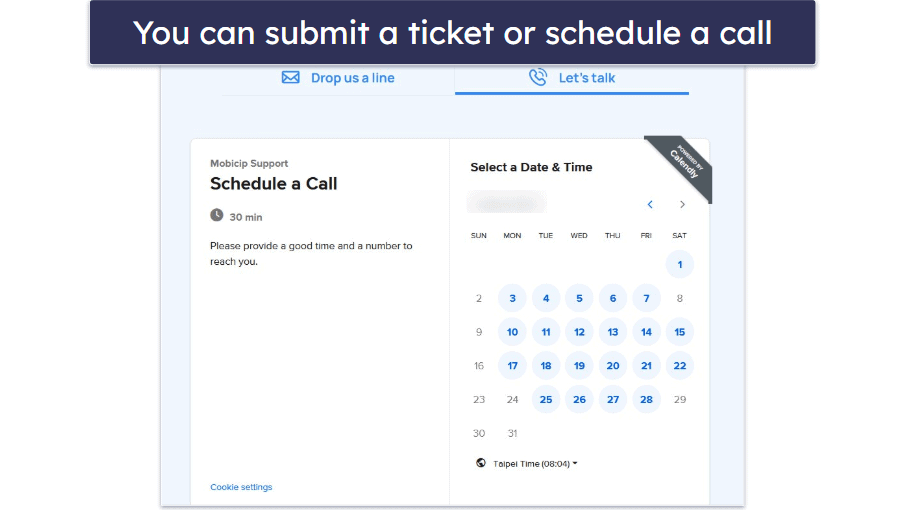
You can also submit a ticket or schedule a call with Mobicip’s customer support if its Knowledge Base is unable to answer your questions. I received a response to my question within 24 hours of submitting my ticket, and I found the customer support representative friendly and helpful.
Mobicip has an AI-powered chatbot that acts as a shortcut in searching for answers to questions. It answered 4 out of 5 of my questions in a direct manner, which I can’t say about a lot of other chatbots. For the one question it couldn’t answer, I was able to submit a ticket within the chatbot, but I found the response time with this slower than the regular ticketing system.
I would have preferred some sort of live chat function, which parental control apps like Norton Family and FamiSafe offer — plus, who really wants to make a phone call if they don’t have to? But Mobicip is far from unique in lacking a live chat function.
Overall, Mobicip’s customer support is able to swiftly resolve any issues that may arise, whether that’s through its excellent database of articles and guides or through its responsive ticketing, call scheduling system, or chatbot. And while I do wish it had a live chat function, most other parental control apps don’t have one either.
What Mobicip Can Do Better — Individual App Time Limits & Better Reporting
Overall, Mobicip is a strong parental control app, but it has several areas that it can improve:
- No individual app time limits: Mobicip lets you set time limits on 3 broad categories of apps: Social Media, Entertainment, and Games. However, you can’t set time limits on individual apps like you can with Qustodio. It would be nice if Mobicip gave you more control over specific apps, especially if you know which apps your kid spends too much time on.
- Little social media monitoring: Mobicip monitors only 2 social media platforms: Snapchat and Facebook. Considering the number of social media apps available to kids, this is a problem. In contrast, Bark covers over 30 social media apps.
- Slow activity reports and missing metrics: Mobicip’s activity timeline takes an unreasonably long time to update, and it’s missing some useful metrics, such as individual app usage over time.
- Web filtering categories: Mobicip filters web content in 15+ predefined categories, which is fewer than competitors like Qustodio and Norton Family. It’s unclear why Mobicip even includes some categories, like Utilities. Clarifying and expanding these categories would give you more nuanced control over the web content your kids see.
- Lack of call/text monitoring: Unlike some other parental control apps, Mobicip doesn’t offer SMS or call monitoring. This feature could be crucial if you want to keep a closer eye on your children’s communications.
- iOS app has fewer features: The iOS and Android apps are quite similar in layout and functionality with 1 key difference: the iOS app can’t monitor Snapchat.
- Keyword blocking has drawbacks: Mobicip lets you specify keywords for blocking certain websites in web searches. Although this sounds like a good idea, it could lead you to block a lot of innocuous websites if the keywords have multiple meanings. I wish Mobicip would send me notifications of potentially concerning searches rather than block the websites outright.
Is Mobicip One of The Top Parental Control Apps of 2026?
Mobicip is a really good parental control app — I especially like its powerful scheduling capabilities. It has all of the industry-standard features that you’d want in a parental control app, including web and app filtering, time limits, location tracking, and activity reports. It also has extra features like the ability to monitor YouTube usage and major social media platforms.
However, there are some areas where Mobicip is lacking. Its social media monitoring only works for Snapchat and Facebook (compare this to Bark, which can monitor 30+ social media platforms), and it’s unable to set time limits on individual apps (like Qustodio can). Plus, it has some minor issues that detract from its user-friendliness, like the lack of explanations for features in the app.
Overall, I think Mobicip is a little pricey, but it’s still one of the best parental control apps in 2026. If you’re unsure whether it’d be good for you and your family, you can always test it out with its 7-day free trial of its Premium features, as well as its 30-day money-back guarantee.
Frequently Asked Questions
Is Mobicip safe?
Yes, Mobicip is safe to use and has tons of features like web filtering and social media monitoring to protect your kids online. Its privacy policy also states that all of the data it acquires is carefully safeguarded through industry-standard security features including encryption, firewalls, and SSL (secure sockets layer), and that no personally identifiable data is sold to third parties without the user’s consent.
Can my child bypass Mobicip?
No, Mobicip comes with uninstall protection, so if it was set up correctly, your child won’t be able to bypass or uninstall it from their device(s). During setup, ensure that your child’s account on the device is a normal user account and that they don’t have administrator access. Mobicip is also capable of filtering and monitoring activities on any browser in incognito/private mode.
Does Mobicip allow me to see all of my child’s social media activity?
No, Mobicip only works for Snapchat and Facebook accounts (Snapchat monitoring doesn’t work on iOS devices). It also doesn’t record all of your child’s activities. You’ll only be able to see messages and images that contain concerning behavior or content in one of the following categories: Bullying, Sex, Violence, Drugs, and Self Harm/Suicide.
If you’re interested in a parental control app with more comprehensive social media monitoring capabilities, check out Bark. Not only can it monitor over 30 social media platforms, including TikTok, Skype, Discord, and more, but it also checks for 15+ categories of concerning behavior or content and can even monitor email and text messages.
Will my child know that I’m monitoring their social media accounts?
Yes, you need your child’s login credentials to set up the social media monitoring feature. Bark, another parental control app that can monitor social media accounts, also encourages you to be open with your child about your use of a parental control app and digital safety.
If, for whatever reason, you wish to monitor your child’s social media without them knowing, consider mSpy instead. While it’s not as good of a parental control app, it has powerful surveillance features and is designed to work stealthily.
What devices does Mobicip work on?
Mobicip has kids apps for Android, iOS, Windows, Kindle Fire, macOS, and Chromebook devices. Parents can access their dashboard from any device through a web browser, from which they can change the settings and restrictions on any of the devices being monitored by Mobicip.
Does Mobicip allow me to monitor calls and SMS?
No. However, you can block messaging apps using Mobicip’s app filtering function, and you get reports if concerning behavior or content shows up on one of your child’s monitored social media accounts.
If call and SMS monitoring is important to you, I highly recommend checking out Qustodio instead. It’s my favorite parental control app in 2026, and it allows parents to read all of their child’s text messages and create blacklists and whitelists to block incoming or outgoing calls and messages.
Does Mobicip have a free plan?
Yes. You can sign up for the free Basic plan at the bottom of the Mobicip pricing page. However, the Basic plan only gives you access to limited versions of Mobicip’s paid features.
My favorite free parental control app is Qustodio. Its free plan gives you access to plenty of its features, including screen time monitoring, daily time limits, restricted time periods, and web filtering.