
Updated on: August 4, 2026
Key Takeaways
- Proton Pass is the best free password manager in 2026, offering unlimited passwords and devices, plus encrypted storage and password sharing.
- Top picks: Proton Pass (best overall), RoboForm (best form filler), NordPass (most intuitive), Bitwarden (best open-source), and Keeper (best basic security); 1Password earns a bonus mention with its 14-day free trial.
- Only Proton Pass, Bitwarden, Norton, and Avira offer unlimited passwords on unlimited devices for free.
- Free plans have trade-offs, often missing features like dark web monitoring, family sharing, and priority support.
- Choose a password manager with strong encryption, secure syncing, and an intuitive interface.
I spent weeks testing free password managers on my laptop, iPhone, and Android tablet to find options that don’t compromise security or hide essential features behind paywalls. Most “free” password managers I encountered were either buggy, restricted to one device, or constantly pushed premium upgrades. My picks offer great features and intuitive onboarding, making it easy to import passwords and get started.
They provide genuine unlimited password storage, strong AES-256 or XChaCha20 encryption, and cross-device synchronization without arbitrary restrictions. I tested each one’s autofill accuracy, import functionality, and security features to confirm they work as advertised. There are built-in managers like Apple’s and Chrome’s password managers, too, but these either lack cross-platform support or strong security.
However, here’s the reality check: completely free password managers have limitations. if you’re looking for the best features, the strongest security protections, and the most helpful customer support, you’ll have to spend a little cash. You won’t get advanced features like dark web monitoring, family password sharing, or encrypted file storage on most free plans. However, for individual users managing 20–100 passwords across multiple devices, the free options below provide everything you need.
Quick Summary of the Best Free Password Managers in 2026


🥇1. Proton Pass — Best Overall Free Password Manager With 10 Free Email Aliases


Proton Pass dominates the free password manager space with unlimited devices, unlimited passwords, and genuine Swiss privacy protections — all at zero cost. Built by the Proton Mail and VPN team, it offers end-to-end 256-bit AES-GCM encryption and zero-knowledge architecture, keeping your passwords safe from everyone, including Proton. It also supports biometric logins, TOTP, and passkeys for secure access across devices, and its open-source code is audited regularly.
- Unlimited password
- Unlimited devices
- 1 GB secure storage
- Swiss privacy laws
- No free breach monitoring
With Proton Pass, you can save unlimited passwords across an unlimited number of devices, a feature not typically offered with free plans, as they usually restrict you to a single device or force you to choose between mobile OR desktop access. I tested Proton Pass on my Windows laptop and Android phone — importing passwords via CSV was flawless, and browser extensions (Chrome, Firefox, Safari, Edge) autofilled logins smoothly on sites like Amazon. The apps are user-friendly, with instant syncing.
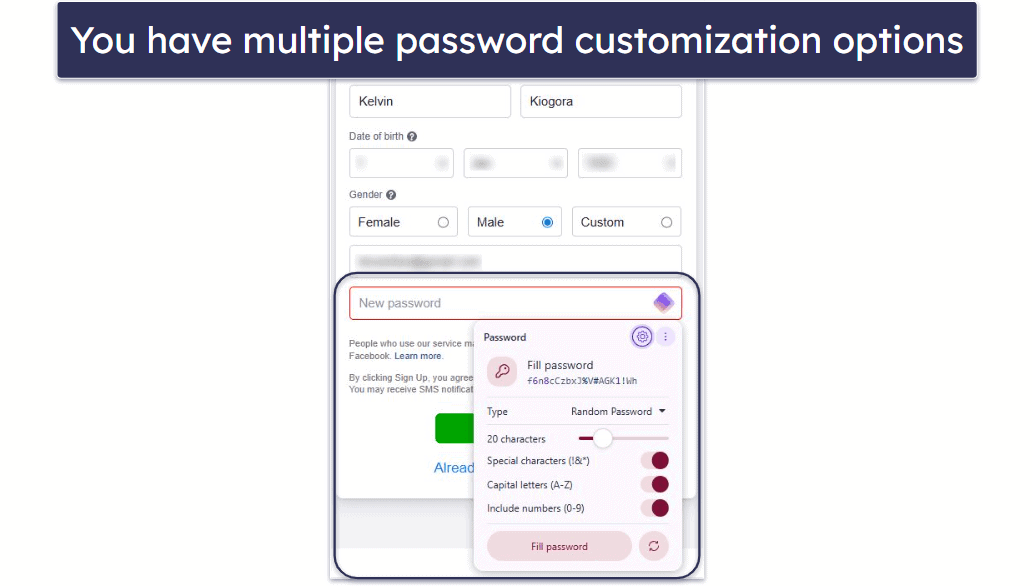
The free plan offers:
- Unlimited password storage and syncing.
- 1 GB secure storage.
- Customizable password generator.
- 10 hide-my-email aliases to mask your email and curb spam.
- Secure password sharing with permissions.
- Passkey support for passwordless logins.
The hide-my-email alias feature is genuinely unique among free password managers (e.g., NordPass’s email masking feature is only available as a premium feature). You get 10 email aliases that forward to your real inbox, protecting your primary email address from spam and data breaches. When I signed up for a shopping site using an alias, the registration email arrived immediately in my main inbox. If the site started spamming me, I could simply disable that specific alias without affecting anything else.
Sharing passwords is easy — you select a password, set permissions, and share a secure link, even with non-Proton Pass users. You can also share 2 vaults with 2 other Pass users. Pass Plus, increase this to sharing 50 vaults with up to 10 different Pass users.
The minor downside is that autofill occasionally struggled on complex multi-page login forms where the username and password fields appear on separate pages. RoboForm and 1Password handle these situations more gracefully. However, this happened on fewer than 5% of sites I tested, so it’s not a dealbreaker.
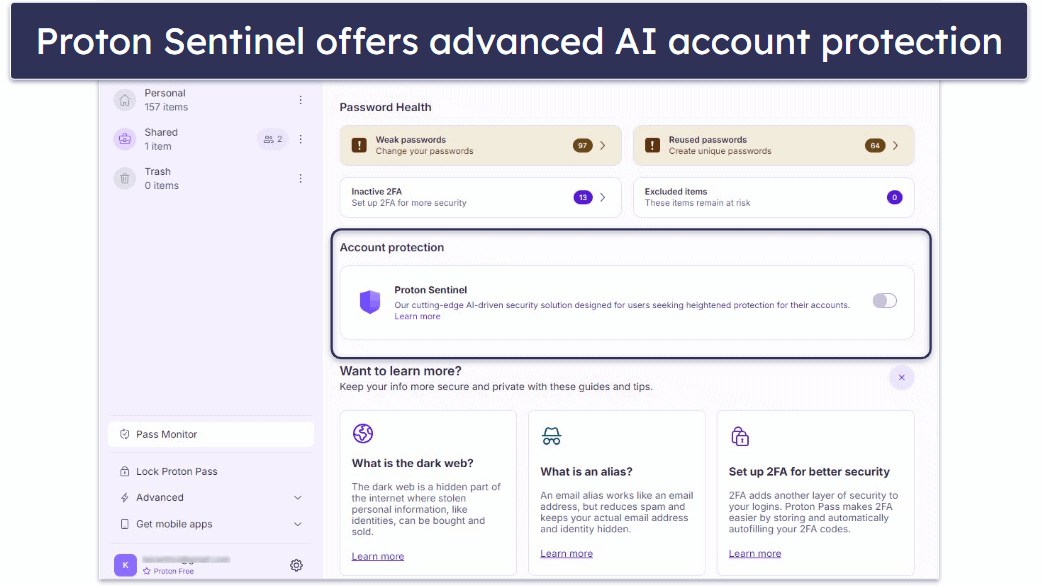
Premium features include AI-powered Proton Sentinel to flag suspicious logins and prompt verification (instantly caught a simulated new location login in my tests), emergency access, dark web monitoring, integrated 2FA, and file attachment. Pass Plus ($2.49 / month) adds unlimited aliases with custom domains and 10 GB storage (more than competitors). The Family plan ($4.99 / month) covers 6 users and 50 GB secure storage. Proton Unlimited ($9.99 / month) bundles all Proton services: Mail, Pass, VPN, Drive, and Calendar.

Bottom Line:
Proton Pass’s Free is the best free password manager by far in 2026, with unlimited passwords across unlimited devices, password sharing, 10 email aliases, 1 GB encrypted storage, and password auditing. You can try premium features like Proton Sentinel, unlimited email aliases with custom domains, dark web monitoring, 10 GB encrypted storage, and more risk-free with a 30-day money-back guarantee.
Read the full Proton Pass review >
🥈2. RoboForm — Easy Setup & Excellent Form Filler
RoboForm Free is secure, intuitive, and has the best form filler on the market — most password managers can fill simple web forms, but RoboForm’s form filler can fill out even the most advanced web forms with perfect accuracy — even for free subscribers!
- Excellent form filling
- Unlimited password storage
- One-click logins
- Built-in authenticator
- Single device limit
- Can’t grant emergency access
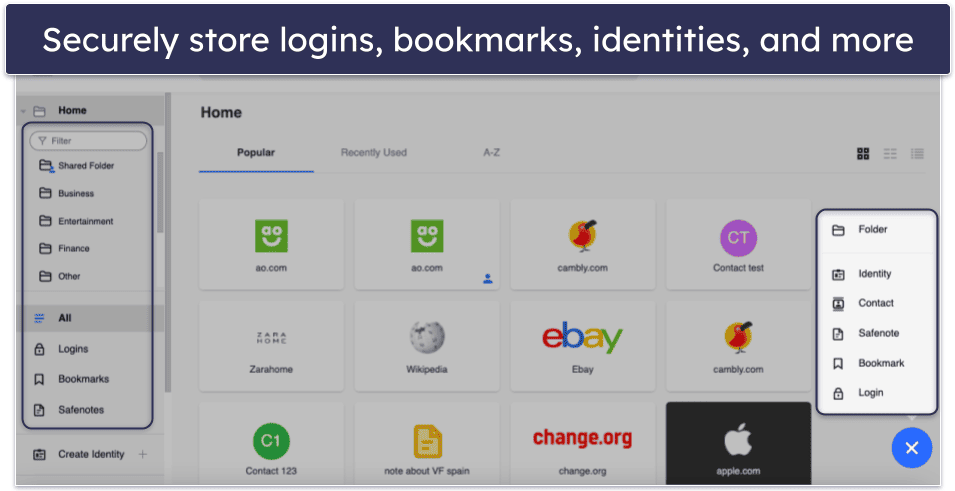
RoboForm Free offers unlimited password storage on 1 device. Its password vault allows you to securely store logins, passwords, bookmarks, notes, identities, and contacts. It’s not as easy to keep organized as 1Password, but it’s still easy enough to use.
RoboForm also lets you save passwords for PC and mobile apps. When logging into an app like Spotify on a PC, RoboForm’s desktop app automatically prompts you to save the password. The Android and iOS versions do the same thing for mobile apps.
The single-device restriction is the major limitation. If you primarily use one computer, RoboForm’s free plan provides exceptional value. However, users who need synchronization across laptop, phone, and tablet will find this restriction frustrating.
RoboForm’s one-click login is the best I’ve ever tested. It gives you the same quick login you get with passkeys (which RoboForm’s free plan also supports), but for those sites that don’t offer passkey support yet. With 1 click, you can log into a website, and RoboForm will auto-fill everything, including your 2FA if you use the built-in authenticator. The free version also includes password auditing, 2FA, email support, cloud backup on a single device, and the ability to receive emergency access (but not to grant it).

RoboForm’s unique batch login lets you log into all entries in a selected folder or individual logins simultaneously, opening each in a new tab. However, this, along with web access, is exclusive to premium plans. RoboForm Premium adds multi-device sync, local storage, shared folders, and priority support (email, live chat, phone) for $0.99 / month. Family covers up to 5 users for $1.60 / month. Both include a 30-day money-back guarantee and a 30-day free trial.

Bottom Line:
RoboForm’s free plan is easy to use and lets you store unlimited items in your vault. You also get the best form filler, which consistently auto-fills simple and complex web forms without errors. You’ll need a Premium or Family subscription for multi-device sync, recovery through emergency access, and more. RoboForm offers free trials and a 30-day money-back guarantee on all plans.
Read our full RoboForm review >
🥉3. NordPass — Very Intuitive Interface + Multi-Device Sync
NordPass offers free users unlimited password storage, plus a few extras. The interface is intuitive, and auto-fill/auto-save worked well in my tests. Free users also get a password generator, passkey support, and MFA. Unlike RoboForm, you don’t get password auditing on the free plan.
- Unlimited passwords
- Great password generator
- MFA
- Free features are limited
- No password sharing (free plan)
You can use NordPass Free on 1 device at a time. This means you have to log out of one device before logging into the next. And yes, it’s a little annoying, but given that you can switch as often as you want and have all your passwords available on the next device, it’s actually fairly generous.
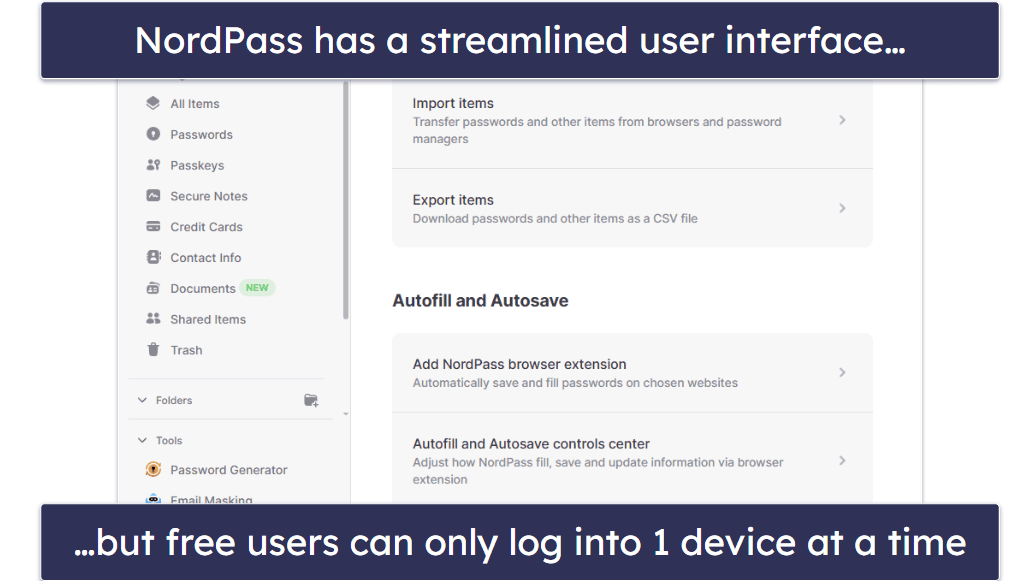
Mobile users can log in using biometrics, and there are a handful of good 2FA options for desktop users. Overall, NordPass Free is a decent password manager that provides the basics, and it’s available on every major browser.
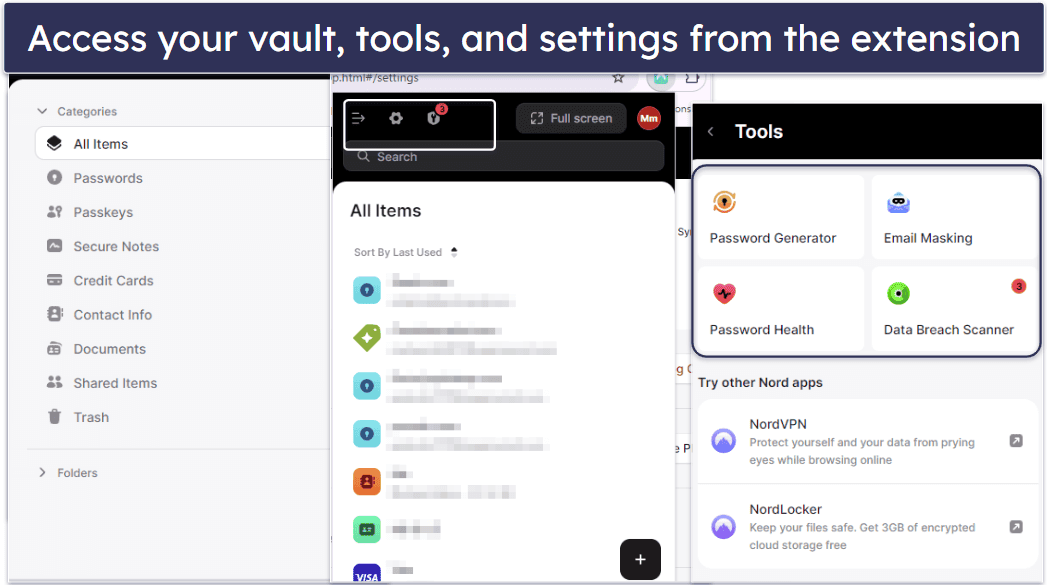
That said, NordPass’s premium subscription unlocks key features: password auditing (with breach alerts), multi-device sync, secure storage, and email masking. Email masking, a personal favorite, lets you register on websites using a masked email instead of your actual address, and NordPass makes it easy to track which site a mask is linked to (up to 200 masks allowed).
NordPass has a good free plan, and unlike many competitors, it provides 24/7 live chat support. Nevertheless, the paid subscriptions are some of the most affordable ones — you can get Premium for $1.49 / month. The Family plan is a great value, too, bringing you the same features and 6 licenses for just $2.79 / month.
Bottom Line:
NordPass Free offers unlimited password storage, auto-fill, a password generator, and 2FA. For multi-device use or added features like password auditing, you need a paid plan, which is backed by a 30-day money-back guarantee.
Read our full NordPass review >
4. Bitwarden — Open-Source Option With Unlimited Password Storage
Bitwarden Free provides unlimited password storage on an unlimited number of devices. Not many free password managers let you do this, so it’s a significant point in Bitwarden’s favor. In addition to passwords, you can store other items, such as credit cards, identities, and notes. It’s also open-source, so anyone can check it for vulnerabilities.
- Open-source app
- Unlimited passwords
- Unlimited devices
- No auditing in free plan
- Limited password sharing
The free version has standard features like auto-fill, a password generator, and nice extras like email masking, self-hosting, limited password sharing, and data breach reports. Password sharing is a nice inclusion, but it’s easier to share passwords with Proton Pass. Also, the free plan is missing password auditing — a pretty standard feature.
Another downside is that Bitwarden isn’t great for beginners. However, Bitwarden has onscreen tips to help newbies navigate its browser extension. That said, while it’s a bit harder to use than 1Password, it’s a good option for tech-savvy users looking for a highly customizable password manager.

Bitwarden’s auto-fill used to require setting up, but when I tested it, I found it worked out of the box and consistently well. However, the auto-save missed a couple of new entries that I had to add manually, and when filling in my credit card details, it consistently missed at least 1 field.

Upgrading to Bitwarden’s premium version gives you access to some great security features — integrated TOTP authenticator, password auditing tools, priority support, emergency access, and encrypted storage. The premium plan for individuals costs just $1.00 / month, and the family plan gets you 6 licenses and is only $3.33 / month.
Bottom Line:
Bitwarden Free is a secure, open-source password manager offering unlimited storage on unlimited devices. While it targets advanced users and reserves some top features for premium plans (which you can test via a 30-day money-back guarantee), it remains an excellent choice.
Read our full Bitwarden review >
5. Keeper — Advanced Security & Easy to Use
Keeper offers advanced security in an intuitive interface. Whichever plan you get, your data is protected by 256-bit AES encryption and a zero-knowledge architecture. All users get 2FA, a secure vault, and a secure messaging app.
- Encrypted messenger
- Intuitive interface
- 10 password limit on free plan
- No sharing on free plan
- Auto-fill limited to premium plan
Unfortunately, the free version of Keeper has serious limitations — it doesn’t provide access to the desktop app or web vault, limiting you to using Keeper on 1 mobile device. This is disappointing, considering Proton Pass includes access on unlimited mobile and desktop devices. What’s more, you’ll only be able to save 10 items in your vault.
That said, the free version of Keeper provides access to KeeperChat, a secure messenger with end-to-end encryption. Unlike the password manager, which has device limitations, I could use the free version of KeeperChat across both my PC and phone. This secure chat feature allows you to safely share messages and files with other Keeper users. While the free password manager may have its shortcomings, the inclusion of KeeperChat is a significant benefit.

Read more about Keeper
I like how intuitive Keeper’s password sharing is, too (but you need the premium plan to share passwords). You can set specific sharing permissions, easily manage shared passwords, or securely share a login with an expiry time of your choice.

Keeper Free is limited, offering basic password management (max 10 entries) for one mobile device, including manual storage of passwords and identity/payment details. It lacks auto-fill, secure file storage, and emergency access. For a full experience, paid plans start at $1.79 / month for Keeper Personal (1 user) or Keeper Family (up to 5 users). Plans lack a money-back guarantee but include a 30-day free trial.
Bottom Line:
Keeper is a good password manager, offering strong security and a user-friendly interface. It features extensive MFA and efficient auto-fill for secure, convenient management. However, the free version is very limited, available only on one mobile device. Premium plans add features like password sharing and advanced 2FA, with a 30-day free trial available.
6. Norton Password Manager — Good Password Manager With Excellent Antivirus Plans

Norton Password Manager offers an excellent level of security with its 256-bit AES encryption, zero-knowledge architecture, and 2FA. However, its standout feature is the free password vault auditing, which provides another layer of security by continuously monitoring the strength of your passwords.
- Password auditing
- Unlimited passwords
- Unlimited devices
- No password sharing
- No integrated secure storage
Despite being a free product, it offers unlimited password storage across an unlimited number of devices — a very uncommon feature in free products. However, unlike Proton Pass and 1Password, Norton lacks password sharing, integrated file storage, or a built-in authenticator. Additionally, there are no unique features like a VPN or Travel Mode. Norton does allow you to share your entire vault with a trusted contact, but this means you have no privacy or control, which is not ideal.
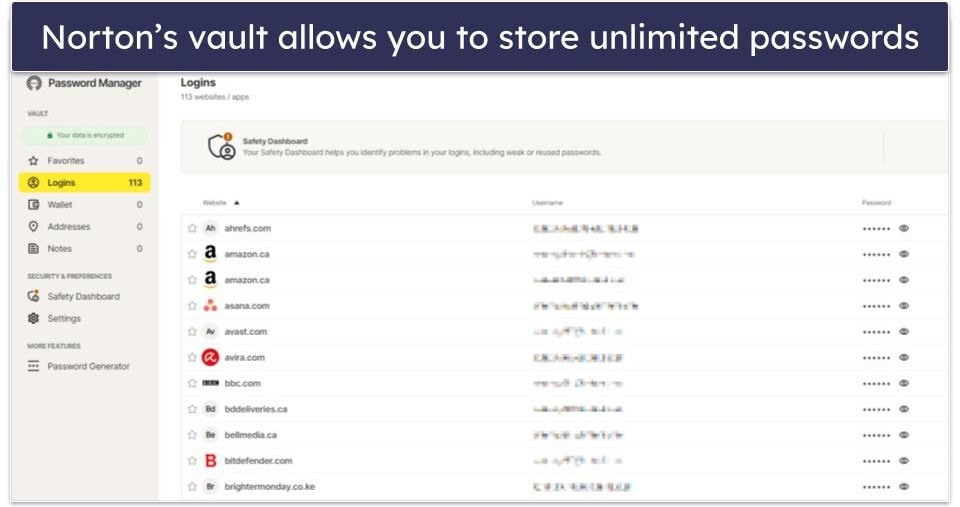
Read more about Norton Password Manager’s free version
I really like Norton’s password auditing. It identifies and categorizes weak, duplicate, old, and archived passwords (passwords you’ve previously changed), making it easy to change them when necessary. It even has an Autochange feature, which automatically changes passwords on compatible websites, but truth be told, it didn’t work reliably in my tests.

Norton lacks a dedicated password manager app for Windows and Mac (unlike 1Password, which has excellent desktop applications). However, its browser extensions performed really well in my tests, and the mobile apps are very intuitive.
Free on its own, you can also get Norton’s password manager bundled with the 360 plans. These add a host of additional features (including a VPN) and excellent customer support. Priced at $49.99 / year*, Norton 360 Deluxe includes a scanner with perfect malware detection rates, a VPN, parental controls, dark web monitoring, and intuitive apps for all major platforms. It’s our top-rated antivirus in 2026.
Bottom Line:
Norton Password Manager is a robust, free password manager, integrated into an excellent internet security suite. It offers strong security and unlimited password storage on unlimited devices, though it lacks features like password sharing and built-in file storage. Upgrading to Norton’s antivirus provides a full suite of internet security features. All Norton purchases include a 60-day money-back guarantee.
7. Avira Password Manager Free — Unlimited Password Storage Across Unlimited Devices
Avira Password Manager Free allows users to sync unlimited passwords across unlimited devices — the only other free products on this list to offer unlimited device coverage are Proton Pass, Norton Password Manager, and Bitwarden.
- Unlimited devices
- Unlimited passwords
- Built-in authenticator
- No password sharing
- No password auditing (free plan)
- No breach monitoring (free plan)
Avira Password Manager’s free version is pretty limited when compared to Proton Pass or RoboForm. Still, it’s one of the most intuitive options on the market and allows for seamless password import from browsers. During my tests, the app was able to generate passwords, save logins to my vault, and auto-fill them with just a few clicks.

The free plan also has 2FA compatibility (including biometric logins) — this feature is straightforward to set up, making it an accessible security upgrade for users of all tech levels. Additionally, there’s a good built-in authenticator for mobile, which simplifies the process of 2FA setup and usage even more.
Read more about Avira Password Manager’s free version
It was easy to import my saved passwords from Chrome to Avira, and the app automatically synced all of my passwords between my desktop and mobile devices.

Users looking for additional features can upgrade to Avira’s paid app, which also includes data breach monitoring, password vault auditing, phishing protection, and priority customer support for just $2.66 / month. You can bundle Avira Password Manager with Avira’s premium antivirus software if you also need good antivirus software. All yearly purchases come with a risk-free 60-day money-back guarantee.
Bottom Line:
Avira Password Manager Free is secure and intuitive, and it provides unlimited password storage across multiple devices. It has 256-bit AES encryption, a zero-knowledge policy, and offers biometric login for mobile devices and a built-in TOTP authenticator. Upgrading to the paid version of the app brings you vault security auditing and data breach monitoring.
Read our full Avira Password Manager review >
8. Sticky Password — High Browser Compatibility + Portable USB Version
Sticky Password Free offers unlimited password storage, but it doesn’t sync devices like Proton Pass and Bitwarden. That said, unlike most password managers that are only compatible with the most popular browsers, Sticky Password works on 10+ browsers.
- Unlimited devices
- Portable (USB) version
- No cloud-sync on free plan
- No password sharing
On Windows, Sticky Password Free also includes USB portability — you can download your vault to a USB drive to access Sticky Password on any Windows PC without first installing it. It’s super easy to use and is especially valuable for students and travelers who need to access their accounts on different computers (your master password will still protect the portable version).
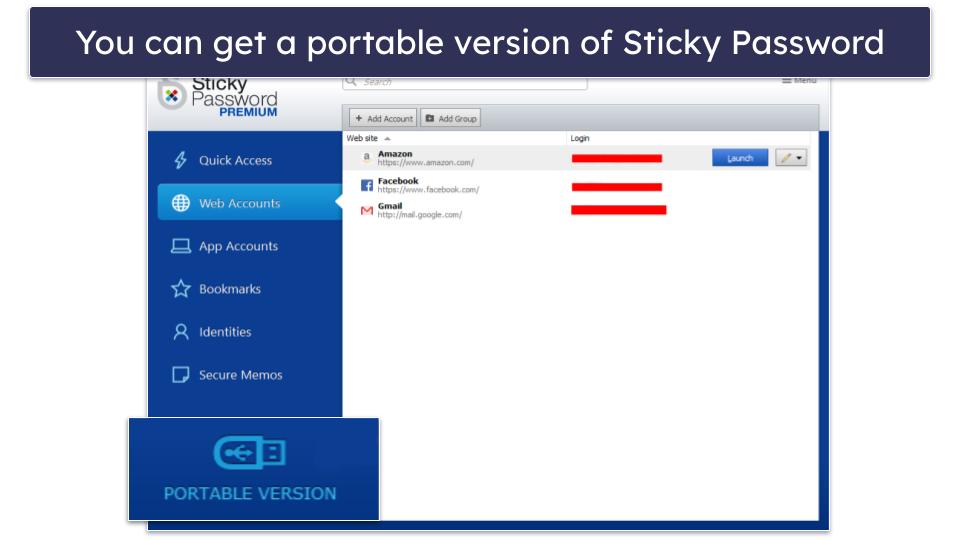
I also like that the free plan includes biometric logins, so you can use a fingerprint or face scan to access your password vault on any device that supports it.
Read more about Sticky Password’s free version
On the other hand, the free plan doesn’t include password sharing, whereas Proton Pass’s free version lets you securely share passwords with others, whether they’re using Proton Pass or not.

Upgrading to Sticky Password Premium adds syncing between multiple devices, password sharing, dark web monitoring, priority support, and secure cloud backup. You can get an annual subscription for $29.99 / month or a lifetime subscription for just $79.99 / lifetime, but you’ll only get dark web monitoring for the first year. Still, this makes Sticky Password one of the most affordable options out there. There’s no family plan, but I like that the company donates a portion of revenue to a Manatee charity.
Bottom Line:
Sticky Password Free offers unlimited password storage and supports 10+ browsers. It also comes with biometric logins and USB portability on Windows, which is perfect for travelers and students. But it doesn’t provide emergency access or secure password sharing. Upgrading to Sticky Password Premium gets you multi-device sync and password sharing for a pretty low price.
Read our full Sticky Password review >
Bonus. 1Password — Best Free Trial (14 Days) for Testing Premium Features
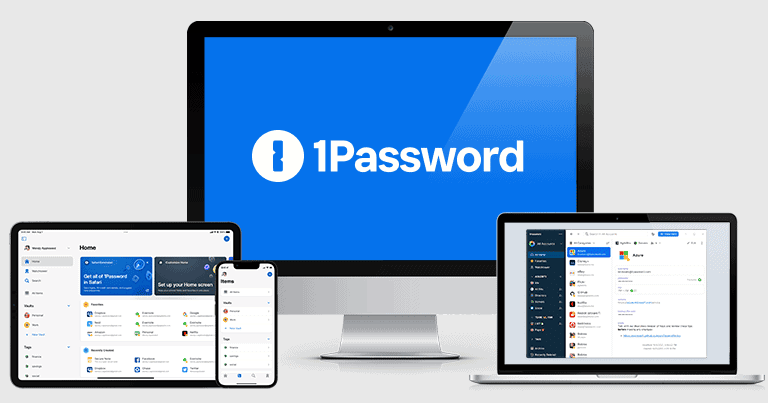
1Password is one of the best premium password managers on the market. It’s feature-rich with an intuitive setup process, ideal for beginners — yet customizable enough to satisfy the most experienced users as well. That said, 1Password doesn’t actually have a free plan. But it offers 14-day free trials (no payment method required), which means you can start using it for free, earning it a cheeky spot on this list. I recommend testing both free and premium password managers to see what’s best for you.
- Easy setup process
- Advanced password auditing
- Multiple secure vaults
- Travel Mode feature
- No permanent free plan
- No money-back guarantee
I really like 1Password’s Watchtower feature, which analyzes your entire password vault for weak passwords. Unlike most competitors, it also identifies logins that have been leaked online, reused, and accounts where you could add 2FA or a passkey. During my testing period, Watchtower flagged 12 reused passwords and 3 that had appeared in known data breaches from the Have I Been Pwned database.

I appreciate 1Password’s multiple vaults, allowing users to create unlimited vaults for various data types (secure notes, credit cards, documents) for easy organization. I also like Travel Mode, which hides selected logins when crossing borders. Virtual payment cards, masking debit card numbers for online shopping, are also available (US users only).

1Password has some of the best 2FA options on the market. It integrates with tools like Google Authenticator and supports YubiKey, biometrics, and other authentication methods.
The catch is that when the 14-day trial expires, you lose all functionality unless you upgrade to a paid plan. Your vault becomes read-only, preventing you from saving new passwords or editing existing ones. This makes 1Password’s trial ideal for users who want to test premium features before committing, not for those seeking a permanent free solution.
At $2.99 / month, 1Password Individual is a really good value, costing less than what most top competitors charge for fewer features. And 1Password Families is my favorite family password manager, covering up to 5 members for $4.49 / month and allowing you to add as many new members as you want for a really small fee (no other password manager offers this kind of flexibility for families).

Bottom Line:
1Password has a ton of features inside an intuitive user interface, but it isn’t free. However, 1Password is one of the best-value password managers on the market, and it offers very affordable plans for individuals and families. You can try out all of 1Password’s features with a risk-free 14-day trial and see if it’s right for you.
Read our full 1Password review >
How the Best Free Password Managers Compare
Testing Methodology: Comparison & Ranking Criteria
Using our comprehensive testing methodology, I spent weeks testing various password managers to identify the best ones. Here are the different areas and aspects I looked for:
I tested security and encryption standards.
I assessed the core password management features.

I evaluated extra features for added value.
I checked for multi-user plans and password sharing capabilities.
I compared pricing for value.
I tested customer support and refund policies.

Risks & Disadvantages of Using a Free Password Manager
While there are good free password managers out there, they come with some disadvantages and risks:
- Lack of basic features. Some free password managers don’t provide basic features like password auto-filling on their free plans.
- Lack of important extra features. These include password sharing (lets you securely share logins with trusted contacts), password vault auditing (checks how strong your passwords are and if they were leaked), and dark web monitoring (alerts you if your accounts were found in a data breach).
- Limited number of devices and passwords. In addition to limited features, most free password managers limit either the number of passwords you can save or the number of devices you can use them on (or both!). (Bitwarden is a notable exception, providing unlimited passwords on an unlimited number of devices).
See more limitations
- Limited customer support. Although there are exceptions (like NordPass), it’s very common for password managers to put priority, phone, or 24/7 support behind a paywall.
- Available features can suddenly be put behind a paywall. Using a free password manager always comes with the risk of the provider suddenly changing its policy. To make matters worse, migrating from one free password manager to another can be a challenging process in itself because some password managers don’t provide all of their import options to free users.
In conclusion, you’ll need to pay for a premium password manager for the best experience. But the good news is that high-quality password managers are pretty affordable — for instance, Proton Pass Plus is available for only $2.49 / month, and 1Password Personal only costs $2.99 / month. Plus, most top password managers come with a free trial or a generous money-back guarantee — 1Password provides a 14-day free trial, and Proton Pass offers a 30-day money-back guarantee on all plans.
Free vs. Paid Password Managers
Free password managers can help you securely manage your passwords, but they don’t provide access to helpful extra features, and they come with inconvenient limitations. For example, Proton Pass Free limits you to 10 email aliases, and it doesn’t include dark web monitoring, and Avira Password Manager Free lacks password auditing and data breach monitoring.
With the best password managers, you’ll usually get access to extra features like password sharing, emergency access, and dark web monitoring. What’s more, most paid password managers typically allow you to store unlimited passwords on unlimited devices. Plus, if you get a paid password manager, you’re likely to receive better customer support — for instance, RoboForm’s free plan only includes 24/7 email support. In contrast, its paid plans provide access to priority email support and add live chat and phone support.
Use a free password manager to test the service before you buy it. Ultimately, it’s much better to get a paid service, as they simply provide significantly better value.
When to Upgrade to a Paid Password Manager
Free password managers are a good start, but they often lack features for complex needs. Consider a paid plan if:
- You use multiple devices. Premium plans from 1Password or Proton Pass sync passwords seamlessly across phones, tablets, and laptops.
- You manage many accounts. Free plans often limit storage (e.g., Keeper’s free tier caps at 10 entries). Paid plans remove these limits for all your accounts.
- You value security. Paid versions offer tools like dark web monitoring (e.g., Proton Pass’ paid plans) or breach alerts to stay ahead of threats.
- You need family sharing. Premium plans enable secure password sharing with permissions or expiration dates. 1Password offers private and shared vaults for 5 family members, but you can easily add more for a small fee.
- You use public Wi-Fi often. For travel or public networks, extras like Proton Pass’s advanced account protection with Proton Sentinel (only included in the paid plan) or 1Password’s Travel Mode (hiding sensitive data) are great.
Do You Really Need a Third-Party Password Manager?
Built-in password managers in Chrome, Firefox, or Apple’s iCloud Keychain are convenient for basic password generation and auto-fill. But they often lack the security and flexibility of third-party options like Proton Pass or RoboForm. Here’s why:
Limitations of Built-In Managers
- Google Password Manager: No mandatory vault-level 2FA and E2EE is optional, which can expose passwords if the Google account is compromised.
- Apple iCloud Keychain: Strongly secured but tightly tied to Apple’s ecosystem, with limited Windows support and no Android compatibility.
- Firefox Password Manager: Supports a master (Primary) password, but it’s disabled by default and lacks built-in 2FA, reducing protection if the browser is accessed.
Why Choose Third-Party Managers?
- Stronger Security. Enforce 2FA and end-to-end encryption, with extras like dark web monitoring.
- Cross-Platform Support. Work seamlessly across Windows, macOS, Android, iOS, and more.
- Advanced Features. Offer secure sharing, emergency access, and encrypted storage for sensitive data.
Many third-party password managers offer free plans or trials so that you can test their features at no cost — just like built-in managers. Premium plans unlock even more functionality, often for a small monthly fee, making them a worthwhile investment for robust security.
For example, services like 1Password and Proton Pass are more secure, easier to use, and come with tons of features that make it simpler to manage your passwords (like emergency access, which allows a trusted contact to access your account in emergency situations).
Tips to Improve Password Safety in 2026
Free password managers come with limitations, so they can’t 100% protect your passwords from all online threats — for example, Avira Password Manager Free doesn’t come with password auditing (so it can’t notify you if you have weak or duplicate passwords).
That said, if you don’t want to buy a password manager, a free one is fine — but only as long as you also follow these password safety tips:
- Use a different password for each account. You should never reuse passwords for important accounts, like email, social media, or bank accounts — if a hacker manages to compromise your password, they can take over all of your accounts.
- Use complex, secure passwords or passphrases. Opt for passwords that are at least 16 characters long and random, incorporating a mix of symbols, numbers, and both upper and lower-case letters. Alternatively, use passphrases made up of 5 to 7 random words. Proton Pass and RoboForm include really good password generators in their free plans that can create both secure passwords and passphrases.
- Activate 2FA for your accounts. 2FA (two-factor authentication) is an excellent function that most online platforms provide — it sends codes to your device for each login, protecting you against hackers attempting to pilfer your passwords.
- Change compromised passwords. If you use a password manager with dark web monitoring, it will show you which passwords have been compromised and alert you if your logins show up in a data breach. If you don’t, you can use the Have I Been Pwned free tool to check if your passwords have been leaked online.
See more tips
- Use antivirus software. Password managers can protect you from fake sites, but they can’t prevent direct malware infections. Always use an antivirus program on your device to make sure malicious actors can’t use malware to compromise your logins — there are tons of top antivirus tools out there, but my favorite one is Norton 360 because it has an advanced malware scanner with perfect malware detection rates, dark web monitoring, and ransomware protection.
- Avoid insecure Wi-Fi networks. Cybercriminals can use unsecured networks (Wi-Fi hotspots that don’t require a password) to spy on your traffic and steal your login credentials. If you have no choice but to use an unsecured network, make sure you connect to a VPN first so that it makes your data unreadable — you can use Proton’s free VPN, which is the best free VPN in 2026.
- Only enter your details on HTTPS sites. HTTPS websites encrypt all the data shared between them and your device — HTTP websites don’t do that, so the site owners could spy on your data (including your passwords). Always check the full URL before logging in.
Is There a Free Password Manager for Businesses?
Free password managers for businesses are rare. There are open-source options like Bitwarden and KeePass that can be used at no cost if your team self-hosts the software. These are cost-effective for small teams but come with trade-offs:
- Self-hosting challenges. You’ll need to manage servers, updates, and security yourself, which can be complex and time-consuming without IT expertise. Small businesses, often targeted by cybercriminals, face heightened risks like misconfigurations leading to breaches.
- Limited business features. Free versions typically lack centralized admin controls, auditing, detailed reporting, and easy user provisioning — essentials for compliance and oversight.
- KeePass-Specific issues. It’s highly customizable and secure but has a dated interface, no built-in auto-fill, and no official support, making it less ideal for teams.
Using personal free accounts (e.g., from closed-source managers) for business purposes often violates terms of service and prevents proper auditing or sharing.
A Better Approach: Invest in Business-Focused Plans
For strong security and efficiency, opt for commercial password managers with dedicated business tiers, such as 1Password or Proton Pass, or Bitwarden’s paid plans. These include:
- Centralized management and policy enforcement.
- Advanced auditing, reporting, and dark web monitoring.
- Priority support for quick issue resolution.
- Seamless integrations (e.g., SSO, SCIM) for growing teams.
The cost is minimal compared to the potential fallout of a data breach, averaging millions in damages. Many offer free trials, so test before committing. Free self-hosted options work for tech-savvy small businesses with basic needs, but for scalability and peace of mind, a paid business plan is the smarter investment.
Brands That Missed Our Criteria
- LastPass. LastPass provides a decent free password manager, but with its history of data breaches and ongoing security concerns, we can no longer recommend it due to trust and safety issues.
- True Key. True Key is a decent password manager, but its free plan only lets you store 15 passwords and doesn’t include any unique extras. I also don’t like that True Key is missing a password-sharing feature.
- KeePass. KeePass is free and open-source, but its official version is only available on Windows, and I found its app very difficult to use. Also, you need to use additional plugins to use KeePass with your browser, which is extremely inconvenient.
- Password Boss. Password Boss is a user-friendly and feature-rich password manager. However, it’s hindered by a limited free plan, a lack of a web-based vault, and slow customer support.
- LogMeOnce. Despite its useful set of features, LogMeOnce falls short of the competition. Its cluttered interface is less intuitive than the products on my list, and the ads in the free version detract from the user experience.
Frequently Asked Questions
How easy is it to set up a free password manager?
Top picks like Proton Pass and NordPass offer user-friendly setup with guided prompts for installing apps/extensions and importing passwords from browsers like Chrome. Open-source tools like Bitwarden may require more effort — check community tutorials for help. All our recommended managers ensure secure setup on HTTPS sites.
What’s the safest free password manager?
All of the free password managers on my list are safe. They offer robust encryption and various features to protect and manage your passwords easily, including two-factor authentication (2FA), password generators, auto-fill, auto-safe, and more.
What’s the best free password manager for Android?
Proton Pass is the best free password manager for Android due to its blend of user-friendly features and superior security measures. The app offers a built-in password generator for creating strong, unique passwords alongside a digital wallet for secure storage of credit card information and other essentials. Its solid security framework and user-centric design make Dashlane the top choice for Android users wanting a reliable and free password management solution. Plus, you can now sign in with passkeys on Android 14 devices, which is pretty cool.
Doesn’t my device/browser already have a free password manager?
Indeed, browsers and mobile operating systems have built-in password managers. However, third-party password managers surpass them in both features and security. They offer password auditing to identify weak passwords, two-factor authentication for an extra security layer, and unbreakable 256-bit AES encryption akin to what banks use. Additionally, certain products, like RoboForm, come with built-in authenticators, facilitating seamless logins on 2FA-enabled websites.
Are free password managers good enough?
Free password managers have a lot of great features, but every free password manager has some limitations that will affect your user experience and, in some cases, security. For example, Proton Pass Free allows for unlimited passwords on unlimited devices — however, the free plan limits you to 10 email aliases and does not include dark web monitoring, which may not be sufficient for everyone.
Paid password managers aren’t very expensive, and the best ones include dark web monitoring, encrypted chat and storage, unlimited password sharing, and emergency access in case you’re unable to access your account. Free password managers may be good enough for some people, but I still recommend paying a few bucks a month for a high-quality premium password manager.
Are third-party password managers safe?
Absolutely. Third-party password managers like Proton Pass are engineered to provide you with the best online security. They employ secure encryption, ensuring that your data is scrambled thoroughly before syncing across devices. The zero-knowledge architecture guarantees only you can access your stored data — not even the password manager company has access to your data. Finally, auto-fill functionality prevents keylogging malware from capturing your keystrokes. These comprehensive security measures significantly improve your online safety.
How do accounts get breached?
Account breaches predominantly occur due to user error, keylogging malware, brute force attacks, or hacks of third-party platforms. Tools like authenticator apps and password managers with breach notifications can mitigate these risks substantially. For example, RoboForm’s integration with authenticator apps like Authy, alongside a strong master password, fortifies your vault’s security.
Are built-in password managers from Apple, Google, and Firefox safe to use?
Yes, they’re generally safe for basic use, but they have notable security and usability limitations compared to dedicated password managers.
Apple iCloud Keychain and Apple Passwords are the most secure, using strong encryption and end-to-end protection. However, they’re tightly tied to Apple devices, work poorly on non-Apple platforms, and lack advanced features like secure file storage.
Google Password Manager favors convenience over security. It doesn’t clearly enforce end-to-end encryption by default, has no separate vault-level authentication, and lacks secure password sharing.
Firefox Password Manager stores passwords securely but doesn’t enable a master (Primary) password by default, has no built-in 2FA, and doesn’t support secure sharing.