

Published on: August 16, 2022 Updated 10 times since publishing
- 🥇 Qustodio : Comes with excellent web filtering for Windows that not even top VPNs can circumvent, and it can detect and block Windows apps that are popular with kids and teens. It sets time limits and schedules and includes uninstall protection. It has the best free plan on the market, affordable paid plans, and a 30-day money-back guarantee.
Many parental control tools perform well on mobile, but Windows is a different story. I tested multiple apps to see how well they handled Windows-specific tasks like managing local accounts, filtering traffic across browsers, and detecting VPN circumvention.
Only a few performed consistently without breaking after Windows updates. The apps I recommend here deliver the strongest mix of web filtering across multiple browsers, screen time scheduling, and uninstall protection, while maintaining minimal impact on system performance. Plus, they are compatible with all versions of Windows and work with other platforms as well.
My favorite parental control app is Qustodio. It works with different versions of Windows, and has excellent web filtering and monitoring features (it monitors YouTube, too!). It’s also lightweight, stable, and doesn’t lose functionality after Windows updates, making it the most dependable option for long-term family use.
Quick Summary of the Best Parental Control Apps for Windows


🥇 1. Qustodio — Best Parental Control App for Windows in 2026


Qustodio is the best parental control app for Windows in 2026 — it works flawlessly across different versions of Windows (Windows 10 and later) and between Windows and other platforms. Plus, it lets you easily create separate Windows profiles for each child on the same computer, so you can set more flexible rules for your teenager and tighter controls for your younger kids.
- Customizable time and app limits
- Detailed YouTube activity tracking
- Blocks VPN and browser bypassing
- Flexible per-child Windows profiles
- Free plan covers 1 device
Qustodio provides access to the following features on Windows:
- Web filtering. It blocks harmful sites in 25+ predefined categories on Google Chrome, Firefox, and Microsoft Edge (Family Safety only works with Edge). You can block or allow specific websites, too. I tested multiple VPNs on Windows 11, and none bypassed Qustodio’s filters. Qustodio also blocks unsupported browsers, so your kid can’t get around your restrictions by going to a browser where the filters don’t apply.
- Time limits. Allows you to set daily screen time limits for each Windows profile in increments of 15 minutes. When the time is up, you can lock the navigation (prevent all browsers from using the internet) or lock the device (logs your child out of their account to prevent both online and offline use).

- App filtering. Qustodio can block access to specific apps on Windows or set time limits for them. For example, you can set a 1-hour time limit for Steam instead of blocking it to provide your kids with some level of online freedom while also making sure they don’t develop screen addiction.
- Scheduling. This lets you set screen time limits for specific periods. For example, you can make sure your kid isn’t spending any time in front of their Windows device during bedtime. You can also create custom routines that combine time limits, app restrictions, and screen-free periods. For example, you can have a “homework” routine that blocks games and social apps while allowing educational websites, or an “entertainment routine” that blocks websites while allowing games.
I like that Qustodio’s kids app for Windows runs quietly in the background, so it won’t bother your child, and you can even hide it so your kid won’t know you installed it on their PC. Plus, the app is very lightweight and won’t slow down your kid’s PC, and its uninstall protection means your kids can’t manually remove it — the only way to remove the app is to enter your parental account credentials. While there are some claims that it’s possible to bypass Qustodio, it’s not an easy thing, especially if it’s properly set up.
Qustodio also has a YouTube monitoring feature, which tracks your child’s activity on the YouTube site. It shows you all of their searches and detailed information about every video they watched, including the thumbnail and channel name. However, it doesn’t monitor emails, and social media DMs monitoring is only available on Android.

Qustodio comes with the best free plan on the market, as it provides access to web filtering, time limits, and scheduling — but it only lets you monitor 1 device, and it limits you to daily and weekly activity reports.
Qustodio’s paid plans start at $4.37 / month, and you can monitor between 5 and unlimited devices. While the pricing is a bit steep, it’s worth it because Qustodio is the best parental app on the market, and it also provides a 30-day money-back guarantee.
Qustodio — Windows Setup (Quick Guide)
Summary: Qustodio installs in about 10 minutes on Windows and requires admin rights.
Steps:
- Sign in to your Qustodio parent account.
- Download the Windows installer from Qustodio’s site.
- Run the installer and create or select your child’s profile.
- Name the device and confirm monitoring permissions.
- Finish setup and manage everything from the parent dashboard.
Complexity: Easy — suitable for non-technical parents.
Time required: ~10 minutes.
Permissions: Windows admin rights required.
Multi-child support: Unlimited profiles with custom rules per child.
Bottom Line:
Qustodio is the best parental app for Windows in 2026. It comes with uninstall protection, and you can even hide the Qustodio app on their Windows profile. It has excellent web filtering, can block all Windows apps, and set time limits and schedules. It also comes with a really good YouTube monitoring feature. Qustodio has the best free plan out there, affordable paid plans, and a 30-day money-back guarantee.
Read the full Qustodio review here
🥈 2. Norton Family — Good Windows Parental App for Monitoring YouTube & Hulu

Norton Family is a great option if your primary concern is monitoring your child’s streaming and search activities. It tracks your child’s YouTube and Hulu activity on PCs running Windows 7 or later. It also provides detailed information on tracked videos, including the name, description, thumbnail, and even clickable links for easy review. Plus, you can view your kid’s searches on YouTube and search engines like Google, Bing, and Yahoo!.
- Tracks YouTube and Hulu activity
- Includes School Time feature
- Works silently in the background
- No per-app time limits
- Easy to disable browser extensions
Norton Family provides good web filtering on Chrome, Firefox, and Edge. It comes with 45+ predefined site categories (including adult and gambling sites, social media, chat platforms, and violent content) and even predefined web filtering rules by age on Google, Yahoo, Ask, and Bing. This is great because Windows’ built-in Family Safety app only filters sites when your kid uses the Bing search engine.
In my tests, Norton Family’s web filters successfully blocked inappropriate sites, even when I attempted to bypass them using ExpressVPN, which is one of the best VPNs on the market. However, it only filters activity through its browser extensions on Windows, which kids can easily disable. Norton Family will alert you if your child does that, though.

There’s also good app filtering that can detect and block apps on Windows devices like Discord, Steam, and GOG Galaxy. However, unlike Qustodio, Norton Family displays all apps on your kid’s Windows device (and not just the ones they use), so you might need to go through a long list of apps until you find the ones you need to restrict.
Norton Family’s daily time limits and scheduling features are easy to use since you can set time limits using increments of 30 minutes. There are also predefined time limits by age. I like the Instant Lock feature, which lets you pause all device activity instantly — perfect when you need your child to take a break, focus on homework, or come to the dinner table. If your child needs more screen time or wants to visit a blocked website, Norton Family lets them send an access request directly through the app. You can then review and approve (or deny) it in real time. But I think it’s a shame that Norton Family doesn’t let you set time limits for specific apps (Qustodio does this).

I really like that Norton Family also comes with a School Time feature, which allows you to restrict your child’s web usage during school hours. I also like that Norton Family’s kids app for Windows runs silently in the background (so it won’t distract your children) and comes with uninstall protection.
Norton Family is available as a standalone subscription, which costs only $49.99 / year. It also comes bundled with the Norton 360 Deluxe ($49.99 / year*) and Norton 360 Advanced ($44.99 / year*) subscriptions — those subscriptions also provide access to Norton 360, one of the best antivirus suites in 2026. Norton backs all purchases with a 60-day money-back guarantee.
Norton Family — Windows Setup (Quick Guide)
Summary: Norton Family installs quickly on Windows and needs admin permissions to monitor web activity.
Steps:
- Sign in to your Norton account.
- Download Norton Family from the Norton dashboard.
- Run the installer and sign in when prompted.
- Create or select your child’s profile.
- Allow monitoring permissions to finish setup.
Complexity: Easy.
Time required: 5–10 minutes.
Permissions: Windows admin rights required.
Multi-child support: Supports multiple profiles with individual rules.

Bottom Line
Norton Family is a reliable choice for monitoring your child’s online and streaming activity. It offers strong web filtering, uninstall protection, and detailed video and search tracking that even works with YouTube and Hulu. The only major downside is that it doesn’t support per-app time limits. Still, its great value, generous money-back guarantee, and optional Norton 360 bundle make it one of the best options for Windows in 2026.
Read the full Norton Family review here
🥉 3. FamiSafe — Good for Setting Downtime on Windows

FamiSafe is great for setting custom downtimes on your kid’s Windows profile, so you can make sure they’re not gaming or scrolling on social media when they should be studying. For example, you can create a schedule that restricts screen time from 10pm to 7am every day.
- Customizable downtime schedules
- Works on all Windows versions
- Allows flexible reward scheduling
- Limited web categories (10+)
- Short 7-day money-back guarantee
Plus, FamiSafe works seamlessly across all versions supported by Microsoft — and your kid will need your code to remove your restrictions. I also appreciate its shared parental control, which allows both parents or guardians to manage restrictions and view activity reports from their own devices.

I like that you can set time limits for Windows apps or schedule specific times when your children are allowed to use certain apps — for example, you can reward your kids with 2 hours of Minecraft for doing their homework, which is much more convenient than whitelisting the game and having to remember to blacklist it after the 2 hours pass.
FamiSafe also has a Screen Viewer feature, which lets you see your child’s live screen activity in real time. This helps you make sure they’re staying on safe or educational apps during study time without relying solely on reports or app usage summaries.
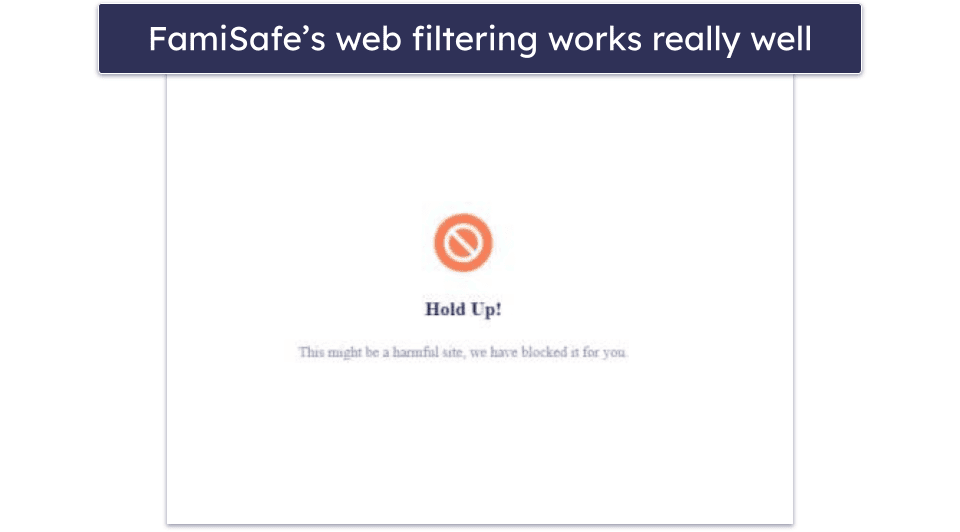
Its web filtering on Windows is decent — it comes with 10+ predefined site categories that cover most browsers, including Chrome, Firefox, Brave, and Edge, and it blocks most adult sites. For comparison, Family Safety only works with Bing and Edge. That said, it doesn’t offer as many predefined categories as Qustodio (25+) or Norton Family (45+), so you may need to manually block more sites to ensure full protection.
FamiSafe’s paid plans are pretty affordable, as they start at $4.99 / month, and they can monitor between 5 and unlimited devices. FamiSafe backs all of its paid plans with a 7-day money-back guarantee and offers a 3-day free trial on its annual plan.
FamiSafe — Windows Setup (Quick Guide)
Summary: FamiSafe takes a few minutes to set up on Windows and requires admin access.
Steps:
- Log in to your FamiSafe parent account.
- Download the Windows version from the FamiSafe site.
- Run the installer and choose “Kid” mode.
- Create or select your child’s profile.
- Approve monitoring permissions to complete setup.
Complexity: Easy.
Time required: ~10 minutes.
Permissions: Windows admin rights required.
Multi-child support: Yes — add and manage multiple children.
Bottom Line
FamiSafe is ideal if you want flexible downtime controls and screen-time scheduling on Windows. It’s easy to set bedtime or study schedules, block specific apps, and manage usage from your dashboard. Its web filtering is solid, pricing is affordable, and uninstall protection adds peace of mind. Plus, you get a 7-day refund period to try it without risk.
Read the full FamiSafe review here
4. Bark — Decent Web Monitoring on Windows + Social Media

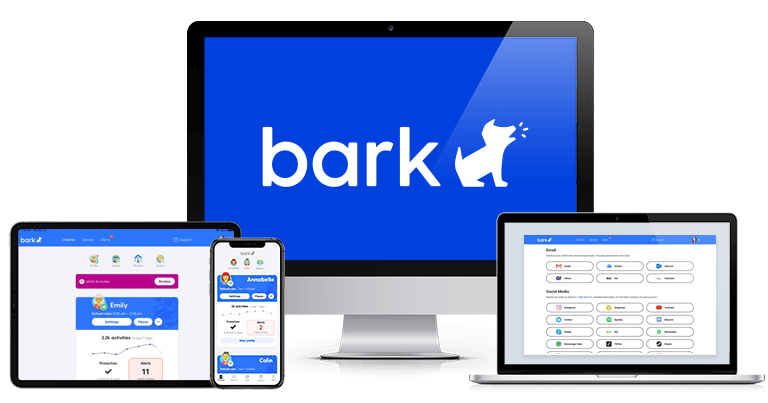
Bark specializes in monitoring your child’s online activity across browsers, email, and social media. It uses a browser extension to monitor website visits, searches, and even incognito browsing on Chrome and Edge across all available Windows versions. Bark analyzes your kid’s emails for risky keywords and content, too.
It also scans image attachments in emails, but not images that are embedded directly in the email body. However, it doesn’t monitor or block activity on other browsers like Firefox or Opera, so you’ll need to ensure your kids use Chrome or Edge for complete protection.
- Includes image and video scanning
- Excellent social media tracking
- Includes email monitoring
- No app blocking feature
- Lacks screen time controls
Bark’s biggest strength is its AI-driven alerts. It scans messages, images, and videos on social platforms like Steam, Discord, and Instagram, and notifies you of signs of bullying, self-harm, or other concerning behavior. This makes it ideal for parents who want oversight without constantly checking their child’s messages. I also appreciate that it provides access to expert-written resources and guidance on sensitive issues, such as risky app behavior, anxiety, and sexting, helping you better understand and support your kids’ digital well-being.

In my Windows tests, Bark’s web filtering consistently blocked adult and unsafe content. It works by routing traffic through a secure connection, preventing kids from bypassing filters with a VPN. However, they can remove the browser extension without any obstacles, though you’ll still get an alert on your parent dashboard about it.

Unfortunately, unlike Qustodio and Norton Family, Bark can’t block access to Windows apps or set screen time limits and create schedules. If this is a dealbreaker, the Bark Home physical device, which connects to your Wi-Fi router, includes these features.
Bark Premium costs $14.00 / month, and supports unlimited devices under one account, so you can monitor every Windows profile and browser your kids use without worrying about extra device limits. While it doesn’t offer a money-back guarantee, there’s a 7-day free trial that gives you enough time to test it risk-free.
Bark — Windows Setup (Quick Guide)
Summary: Bark installs quickly on Windows and requires admin permissions and browser extension access.
Steps:
- Sign in to your Bark parent dashboard.
- Download the Bark installer for Windows.
- Run the installer and create or select your child’s profile.
- Install Bark’s browser extensions for Chrome and Edge.
- Approve monitoring permissions to finish setup.
Complexity: Easy.
Time required: ~10 minutes.
Permissions: Windows admin rights required.
Multi-child support: Unlimited children and devices on Bark Premium.
Bottom Line
Bark is perfect for parents who want intelligent alerts instead of constant manual monitoring. It tracks your child’s browsing, emails, and social media activity, and flags potential risks like bullying or explicit content. While it lacks app blocking and time limits, its powerful alert system and social media coverage make it one of the best monitoring tools for Windows.
Read the full Bark review here
5. Mobicip — Customizable Web Filters for Windows

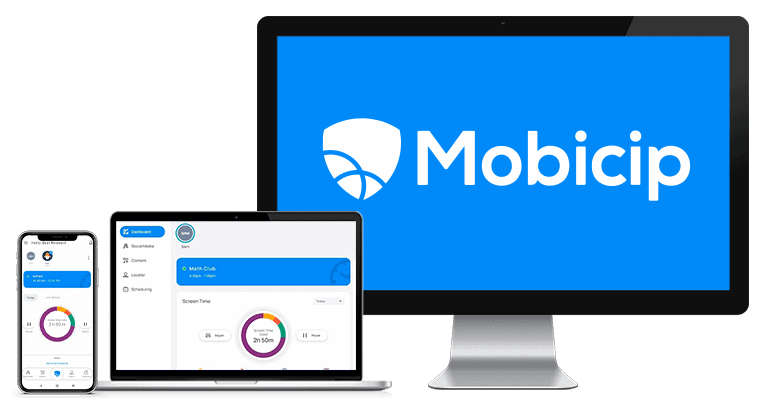
Mobicip offers a lot of customizability on Windows 7 and above. The app lets you create an unlimited number of custom web filters for specific times and days, which is great for making sure your kids aren’t accessing certain websites at school or past their bedtime.
- Custom web and app filters
- Vacation and Family Time modes
- Keyword and category filtering
- Limited features on the free plan
- Only a 7-day free trial

Mobicip also has a Vacation Mode that lets you set more generous Daily Free Time Limits for special occasions like family vacations and Family Time, which allows you to lock your children’s devices. It also supports shared parental control, so both parents can manage or adjust settings from their own accounts. I really like that your kid can request grace time from you from their app in case they need their computer to finish homework.
Mobicip’s web filtering covers 15+ predefined categories on Chrome, Firefox, and Edge, but the number of categories is less extensive than competitors like Norton Family (45+). You can create custom filters with keywords, and your child can request access to blocked sites — they’re added to a whitelist if approved. Mobicip includes preset filtering modes — Strict, Moderate, Mature, and Monitor-only — so you can match protection to each child’s age and needs.
Mobicip also filters inappropriate YouTube searches through a browser (it filters keywords, phrases, and on-page content in real-time) and makes sure that the “Restricted Mode” is on at all times. It also displays your child’s watch history, allowing you to review what they’ve watched and respond if needed. That said, I still prefer Qustodio’s dedicated YouTube feature, which provides more detailed viewing insights and reports.

Plus, it’s great that Mobicip has uninstall protection on Windows, so your children can’t remove the app from their computers on their own.
Mobicip offers 3 annual plans, with the Lite ($2.99 / month) and Standard ($4.99 / month) plans covering up to 5 and 10 devices, respectively. The Premium plan ($7.99 / month) grants access to additional features, like setting time limits on app categories, and supports up to 20 devices. All of its plans come with a 7-day free trial and are backed by a 30-day money-back guarantee. There’s also a free Basic plan with limited features and coverage for only 2 devices.
Mobicip — Windows Setup (Quick Guide)
Summary: Mobicip takes slightly longer than Qustodio to configure due to its detailed filtering options.
Steps:
- Sign in to your Mobicip parent account.
- Download the Windows installer from Mobicip’s website.
- Run the installer and create or select your child’s profile.
- Enable the Mobicip filtering extension in your browser.
- Choose a filtering mode and finalize settings.
Complexity: Moderate — more setup steps than Qustodio.
Time required: 10–12 minutes.
Permissions: Windows admin rights required.
Multi-child support: Yes — multiple profiles supported.
Bottom Line:
Mobicip offers highly customizable scheduling and web filtering features for Windows across all versions. I think its Vacation Mode and grace time request options are very convenient, and I like that it offers keyword filtering. It offers affordable plans, a 7-day free trial, and a 30-day money-back guarantee on each plan.
6. McAfee Safe Family — Great App Filtering on Windows


McAfee Safe Family app filtering on Windows is really good. It works on Windows 8 and above and shows you every app on your kid’s Windows device. From here, you can block specific apps and filter them by 50+ categories. I was especially impressed by how it can filter various types of content — you can allow kids to access learning videos or music apps, for instance, while blocking social media or gaming apps.
- Effective content blocking by age
- Works even in incognito mode
- Instant site access requests
- Requires full McAfee+ bundle
- Requires Windows 8 or higher
The app lets you schedule when and how long your kid can use their Windows device, too. You can schedule screen time limits in 30-minute increments for specific weekdays. This gives you excellent flexibility, so your kid can get more screen time during the weekend and make sure they don’t spend too much time in front of their PC on school days.

McAfee automatically blocks inappropriate sites based on your kid’s age in Google Chrome, Firefox, and Edge on Windows. For example, a 12-year-old won’t be able to access dating and gambling sites but will have access to games and entertainment content. In tests, these filters worked in incognito mode and even when I used a VPN. Both Norton Family and Qustodio offer more pre-set website filters compared to McAfee’s 15+ website categories.
I think it’s great that McAfee allows your kid to request access to a site. This makes sure your kid always has access to necessary educational resources that might have been inaccurately blocked. In my tests on Windows 11, I instantly received the request on my parental dashboard (Family Safety sometimes takes up to 10 minutes due to occasional syncing issues).

McAfee Safe Family is bundled with McAfee+ Premium ($49.99 / year), McAfee+ Advanced ($89.99 / year), and McAfee+ Ultimate ($199.99 / year). I recommend getting the McAfee+ Ultimate package, as it includes excellent antivirus software, a VPN, and identity theft protection, so you get a comprehensive solution that protects you from all kinds of online threats.
McAfee Safe Family Windows Setup Overview: What to Expect
Summary: McAfee Safe Family installs fast on Windows and needs admin permissions for monitoring.
Steps:
- Log in to your McAfee account.
- Download Safe Family for Windows.
- Run the installer and create or select your child’s profile.
- Approve monitoring and background permissions.
- Adjust rules from the parent dashboard.
Complexity: Easy.
Time required: ~10 minutes.
Permissions: Windows admin rights required.
Multi-child support: Yes — manage multiple children.
Bottom Line:
McAfee Safe Family is a great choice for app control on Windows 8 and above. It also lets you set custom schedules on your kid’s Windows PC, which gives you a lot of flexibility, and you can even set daily time limits for every app your kid has on their PC. All McAfee plans come with a 30-day money-back guarantee.
Read our full McAfee Safe Family review
7. Kaspersky Safe Kids — Good YouTube Search Monitoring on Windows

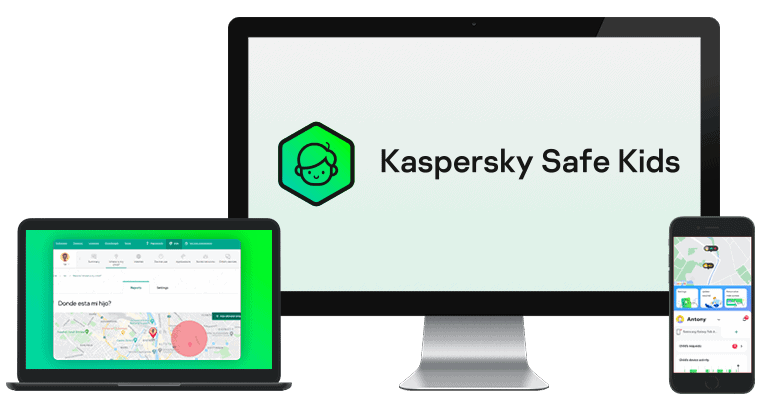
Kaspersky Safe Kids lets you monitor and restrict your child’s YouTube searches on Windows. The app allows you to see what your kids search on YouTube’s site and gives you access to their YouTube search history for 30 days — though, it’s not as detailed as Qustodio’s. You can turn on YouTube Safe Search to block all inappropriate searches and prevent your children from accessing inappropriate content.
- Great YouTube search monitoring
- Unlimited device support
- Can’t be bypassed with VPNs
- Not available in the US
- Only 10+ predefined site categories

The app supports Chrome, Firefox, Edge, and Yandex Browser and works across Windows 7, 10, and 11. It includes 10+ predefined web categories and can automatically block unsupported browsers like Windows Sandbox, AVG Secure Browser, and Opera. This ensures your child stays protected even if they try switching browsers.
I’m also really happy to see that VPNs can’t bypass their web filtering. I tested the kids’ app with several top VPNs, and they weren’t able to get around the web filters I set in the parents’ app.
Kaspersky Safe Kids provides flexible options for setting time limits and scheduling on Windows, with the ability to block devices or simply send warnings when daily time limits are reached. The app also allows you to choose which apps can still be used when the device is blocked.

Kaspersky Safe Kids costs $28.06 / year and lets you monitor unlimited devices, so it’s great for large families. You can also get it for free for 1 year with a Kaspersky Premium subscription. Note that you can’t purchase it in the US, as the government has banned the sale of all Kaspersky products.
Kaspersky Safe Kids — Windows Setup (Quick Guide)
(International markets only — not available in the US)
Summary: Kaspersky Safe Kids installs quickly on Windows and requires admin access for monitoring.
Steps:
- Sign in to your Kaspersky account.
- Download Safe Kids for Windows.
- Run the installer and create or select your child’s profile.
- Allow monitoring permissions and background access.
- Manage settings from the parent dashboard.
Complexity: Easy.
Time required: 5–10 minutes.
Permissions: Windows admin rights required.
Multi-child support: Supports multiple children.
Bottom Line:
Kaspersky Safe Kids offers an excellent YouTube Safe Search feature for Windows and strong web filtering with over 10 predefined site categories. It works seamlessly on major browsers like Chrome and Firefox across multiple Windows versions. Plus, it supports unlimited devices and includes a 30-day money-back guarantee.
Read our full Kaspersky Safe Kids review
8. Net Nanny — Great Choice for Content Filtering on Windows

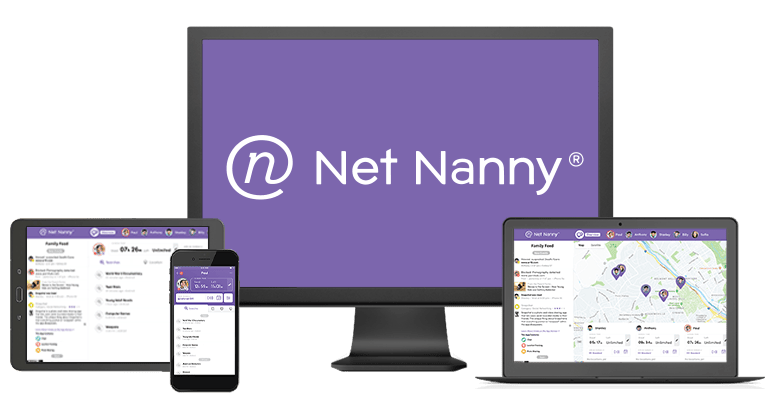
Net Nanny stands out for its intelligent content filtering on Windows. It uses advanced text analysis to understand context, distinguishing between harmless and inappropriate uses of certain words. This enables it to accurately block explicit or harmful content without overblocking safe pages. It applies this smart filtering to YouTube, too. When I tried searching for something I banned in the app, I got a message stating, “you’re offline.”
- Real-time profanity masking
- Dedicated YouTube monitoring
- Contextual website filtering
- No Windows app blocking
- Limited to Chrome and Firefox
Net Nanny only has 10+ predefined categories, but you can create custom filters and add keywords you want blocked on your kid’s Windows device. They work in Chrome and Firefox, which is great if your kid prefers these over Edge, which is the only browser Family Safety monitors.

One of my favorite features is Net Nanny’s real-time profanity masking. It instantly replaces swear words with “####” symbols as you browse. In my tests, it consistently censored explicit lyrics and online text across 10+ sites — a feature I didn’t find in most other parental control apps.
Unfortunately, Net Nanny can’t detect and block Windows apps (like Qustodio and Norton Family), so you can’t use it to prevent your kids from playing offline games.
On the plus side, Net Nanny has a daily time limit feature, which lets you set limits in increments of 15 minutes. Whenever I reached these limits in my tests, Net Nanny overlaid the screen with a message that said I was out of screen time. I couldn’t open any app without the pop-up showing up on my screen (except for the messaging app). You can also schedule downtime and curfews.

Net Nanny also has a dedicated YouTube monitoring feature that shows you what your kid is watching and how long they watched each video.
Net Nanny has 3 paid subscriptions. Each provides access to the same features but monitors a different number of devices. The basic subscription ($3.33 / month) covers 1 Windows device, and the Family Protection Pass subscriptions cover 5 devices ($4.58 / month) and 20 devices ($7.49 / month). Net Nanny plans come with a 14-day money-back guarantee.
Net Nanny — Windows Setup (Quick Guide)
Summary: Net Nanny installs quickly but requires admin permissions and browser filtering setup.
Steps:
- Sign in to your Net Nanny account.
- Download the Windows app from the portal.
- Run the installer and create or select your child’s profile.
- Enable the Net Nanny filtering extension.
- Complete setup and adjust rules in the dashboard.
Complexity: Easy.
Time required: 5–10 minutes.
Permissions: Windows admin rights required.
Multi-child support: Yes — separate profiles per child.
Bottom Line
Net Nanny is a smart choice for parents who want advanced content filtering on Windows. It excels at accurately detecting harmful content, masking profanity in real-time, and setting screen-time schedules. While it lacks app blocking, its strong web filters and YouTube monitoring make it ideal for families focused on safe online browsing. Net Nanny has 3 paid subscriptions and a 14-day money-back guarantee.
Read the full Net Nanny review here
9. Aura — Good for Keeping Your Kids Safe While Gaming (US Only)

Aura’s Safe Gaming feature is perfect for parents whose kids spend hours playing online games. It monitors both text and voice chats within games in real time to detect signs of cyberbullying, predatory language, or other unsafe interactions.
- Detects cyberbullying in 200+ games
- Monitors both text and voice chats
- User-friendly Windows interface
- Limited to US users
- Lacks screen time controls
- No web or app blocking
Safe Gaming covers 200 popular online games, including Minecraft, Roblox, Fortnite, Call of Duty, and more. It works by looking at your kid’s text and voice chats for cyberbullying language or sexual behavior and alerts you when it detects problematic language. In my tests, it accurately alerted me about inappropriate language in my Call of Duty chats on my Windows 11 PC.
I appreciate how user-friendly the app is. Aura automatically starts monitoring all of your children’s gaming chats, so you don’t have to manually set up any rules.

Unfortunately, Aura’s Windows app doesn’t come with any other forms of parental controls. You can’t set time limits, monitor or restrict web and app activity, or pause the internet on your kid’s Windows PC. So, you may want to use it alongside Family Safety, especially if your kid is big on gaming. This is why I prefer Qustodio or Norton Family, as they give you a lot of granular control over your kid’s activities on Windows.
Aura’s parental controls are priced at $8.33 / month are backed by a 60-day money-back guarantee. The plan covers unlimited devices for up to 5 adults.
Aura (Safe Gaming) — Windows Setup (Quick Guide)
Summary: Aura Safe Gaming sets up quickly on Windows and requires permissions to monitor voice and text chat.
Steps:
- Sign in to your Aura account.
- Download the Safe Gaming Windows app.
- Run the installer and create or select your child’s device profile.
- Allow chat-monitoring permissions when prompted.
- Finish setup and view activity in the parent dashboard.
Complexity: Easy.
Time required: 5–8 minutes.
Permissions: Windows admin rights and chat-access permissions required.
Multi-child support: Yes — protects multiple children.
Bottom Line:
Aura is the best choice if your main concern is protecting your kids from online predators or toxic gaming chats. Its Safe Gaming feature automatically scans messages and voice chats in 200+ games for harmful behavior. While it lacks broader parental controls, it’s an excellent companion tool for families with avid gamers, and it comes with a 60-day money-back guarantee.
Quick Comparison Table
Testing Methodology: Comparison & Ranking Criteria
I applied our detailed methodology to find and rank the best parental control apps for Windows in 2026. This included running real-life scenarios to check supervision capabilities on Windows, performance, features, and more. Here’s how I decided which products to recommend on my list and in what ranking order:
- I checked for Windows & cross-device compatibility. Every parental control app I recommend here is compatible with lots of Windows versions and allows you to monitor Windows devices from a different OS, like Android, iOS, and macOS.
- I checked each parental control app’s supervision capabilities on Windows. Every app on my list has a dedicated kids Windows app or a browser extension that allows you to monitor and restrict your child’s online activities on their Windows device.

- I made sure these apps included industry-standard features. The apps here have features like web and app filters, time restrictions, and activity reports to ensure they give you a good overall picture of what your kid does online on their Windows device, as well as provide you with the tools to restrict their use for better online safety.
- I evaluated every parental control app’s performance on Windows. This included testing web and app filtering capabilities against popular apps like Discord, Steam, and Netflix, and verifying that VPNs can’t bypass these filters on Windows. I also checked that the apps are lightweight and don’t slow down your child’s PC.

- I assessed ease of use. All of the apps I recommend have clear interfaces, making it simple for parents (even those less tech-savvy) to navigate. Setting up the child app on a Windows device for your young one is also a quick process.
- I considered value. Some of the parental apps in this article also provide access to additional features, such as YouTube monitoring and uninstall protection (like Qustodio and Norton Family). What’s more, all of my top picks have affordable plans and come with free plans, free trials, or generous money-back guarantees, so that you can test their services risk-free.
Top Brands That Didn’t Make the Cut
- Microsoft’s Family Safety. This parental app comes with many features, including web and app filtering, time limits, and activity reports. That said, its apps are glitchy and often display errors, and some of its features don’t work — for example, its time limits often don’t disable access to kids’ devices. Plus, Family Safety can only block sites on Edge, so your kids can use other browsers to bypass the filtering (unless you use Family Safety’s app filtering, which is inconvenient to use on Windows).
- KidLogger. KidLogger shows you how much time your kids spend on the PC, monitors web and app usage, and can block sites. But it also takes screenshots of your child’s screen, which I honestly think is too invasive and will only damage your relationship with your kids instead of improving it. Plus, KidLogger can’t block Windows apps, doesn’t let you set time limits, and its parental apps are not user-friendly.
- OpenDNS. This parental control service is free to use, but it can only filter inappropriate websites. So, you can’t use it to set time limits, block apps, or monitor your child’s YouTube activity. What’s more, OpenDNS doesn’t have a kids app for Windows — instead, you need to manually set it up on your router, which is time-consuming and inconvenient.
Frequently Asked Questions
What is the best parental control app for Windows?
I think Qustodio is the best parental app for Windows in 2026 — it provides excellent web filtering (not even top VPNs can bypass it), really good app filtering, time limits and scheduling, in-depth activity reports, and a dedicated YouTube monitoring feature.
Are there free parental control apps for Windows?
I don’t normally recommend using free parental apps because they’re either dangerous to use (since you give them tons of permissions to access sensitive data) or they lack essential parental control features. That said, if you insist on using a free parental app for Windows, I’d go with Qustodio’s free plan, as it’s the best on the market — it comes with web filtering, time limits and scheduling, and daily and weekly activity reports, but it only allows you to monitor 1 Windows device.
But, overall, I only recommend using a free parental control app to test the service to see if it’s right for you — you get significantly better value by upgrading to a premium paid parental app, like one of Qustodio’s paid plans.
Can’t I just use built-in parental controls on Windows?
Windows comes with built-in parental controls called Family Safety, but I don’t recommend using it — while it has many features, most of them don’t work well. What’s more, web filtering only works on Edge, so your kids can use unsupported browsers to access inappropriate sites (you can block them using the app filtering feature, but it’s time-consuming because it’s not user-friendly).
I honestly think you’re much better off using a premium parental app like Qustodio — it provides excellent web and app filtering on Windows, and also comes with time limits, scheduling, in-depth activity reports, and even a dedicated YouTube monitoring feature.
Can I monitor my child’s PC from my Android or iOS device?
Yes, as most parental services have apps for parents that run on Android and iOS devices — for example, Qustodio has parental apps for iOS and Android that are very intuitive, so you’ll have an easy time getting used to them even if you’re not tech-savvy.
How can I stop my child from bypassing parental controls on Windows?
To stop your child from bypassing parental controls on Windows, I recommend getting a good parental control app. Most of the apps I recommend for monitoring your kid’s Windows devices include uninstall protection, meaning they’d need your login credentials or a code to remove the app from their Windows. Those parental control apps on my list that only use browser extensions (which the kid can get rid of without a password), at the very least alert you that your kid has uninstalled it or tried to modify restrictions.